








About | Privacy Policy | Terms of Use | Support | Contact Us
Copyright © 2026 Tipard Studio. All Rights Reserved.
Copy, clone, and back up DVDs to another disc, ISO image, or DVD folder with 1:1 original quality.
 [4.9] 563 Reviews
100% Clean & Safe
30-Day Money Back Guarantee
100% Clean & Safe
30-Day Money Back Guarantee
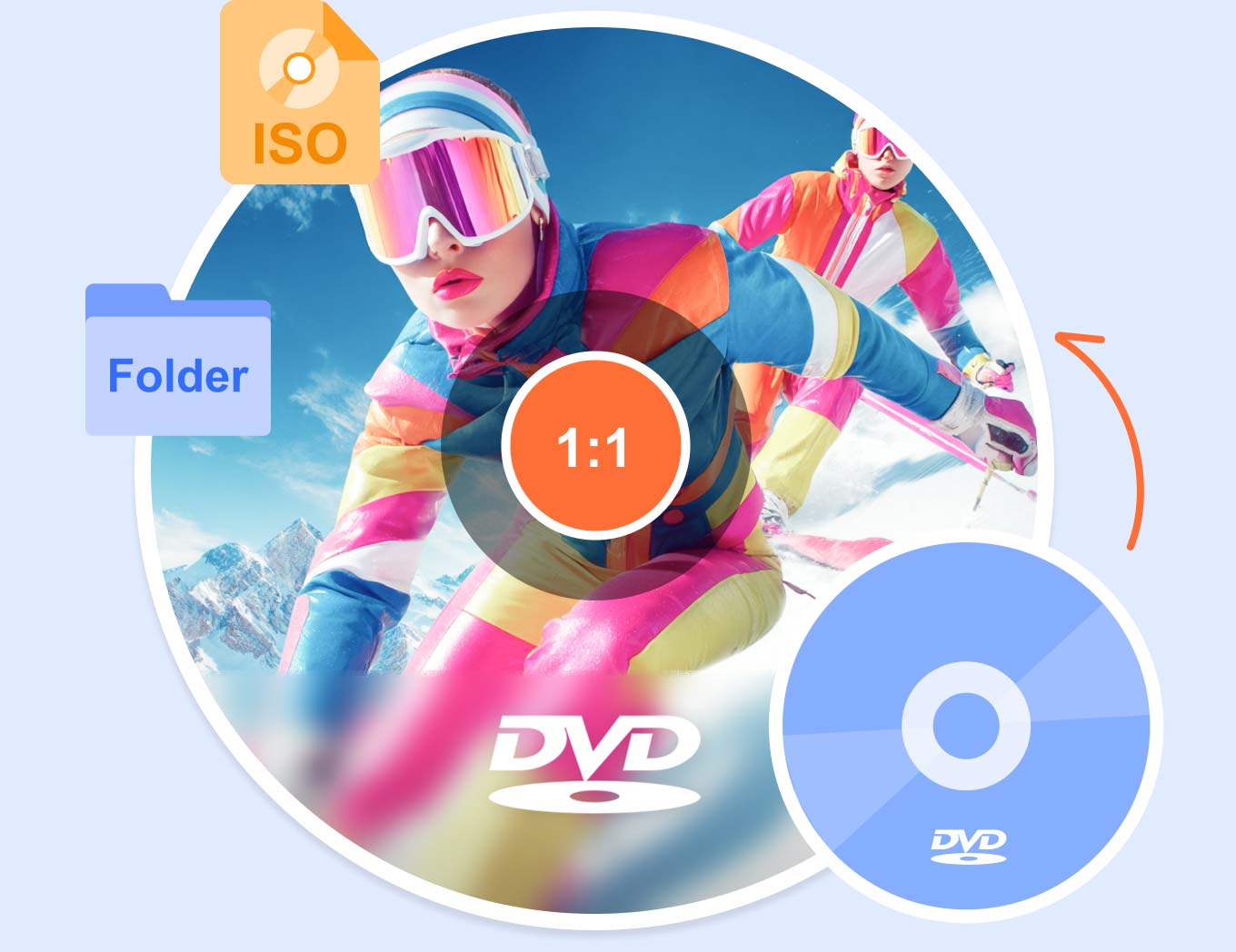
 DVD Cloner
You can choose from three copy modes: Full Copy, Main Movie, and Customize. With just a few clicks, you can back up your favorite DVDs according to your preference.
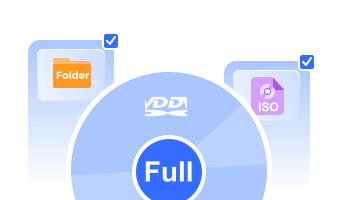
Full Copy
The Full Copy mode can clone everything, including the original video and audio streams, complete DVD structure, menus, titles, and chapters, into a 1:1 identical disc, ISO, or folder.
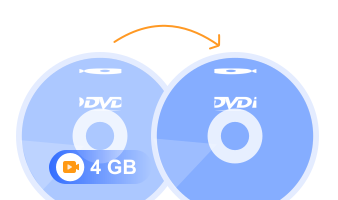
Main Movie
The Main Movie mode will automatically detect and copy only the feature film (the longest title), stripping out menus and trailers to save space while keeping your preferred audio and subtitles.

Customize
The Customize mode lets you choose your desired titles, chapters, audio tracks, and subtitles (languages) to create a tailored DVD copy and backup.
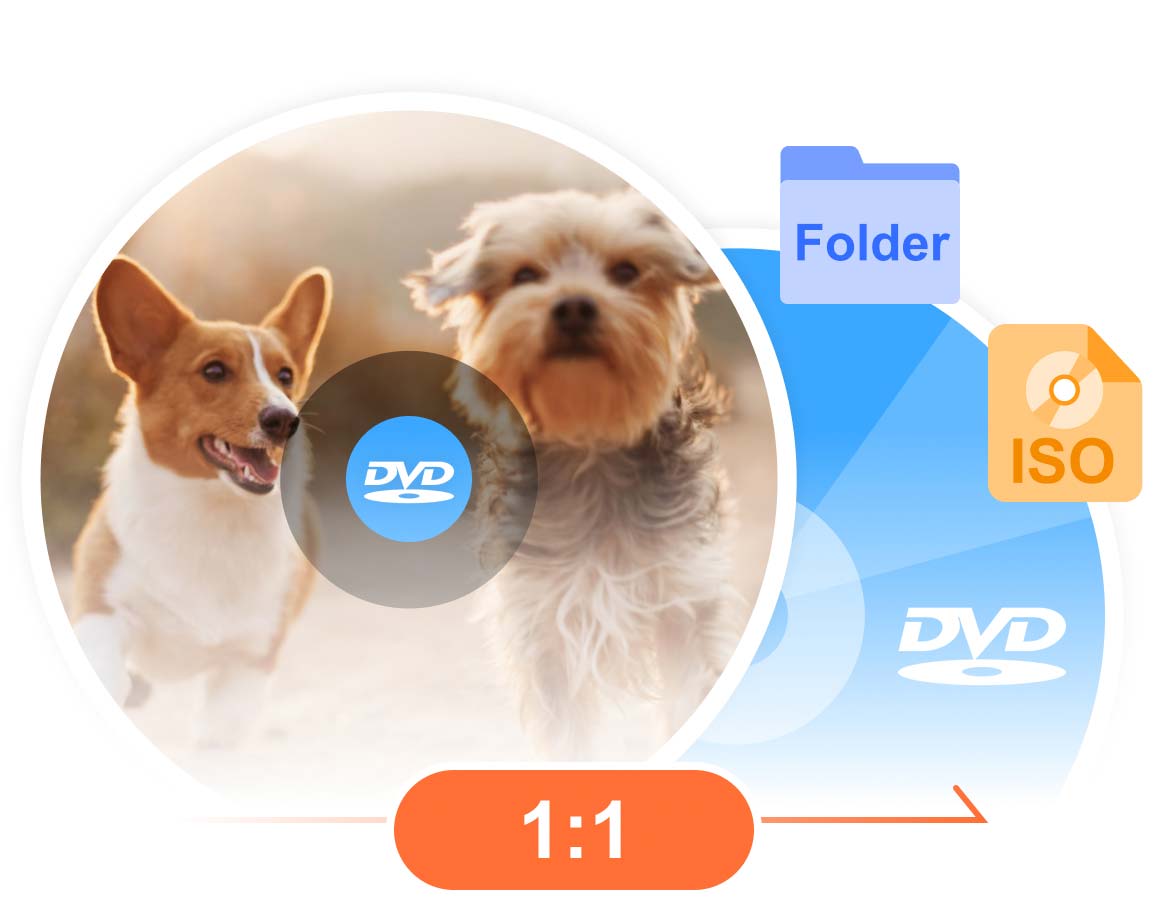
Tipard DVD Cloner can copy a wide range of DVD types, including DVD-R(W), DVD+R(W), DVD-R DL, and DVD+R DL. It automatically detects your inserted disc, allowing you to back it up into a digital ISO image or DVD folder on your computer. Protect your valuable physical collection from scratches and wear, and enjoy movies anytime without a hardware drive.
It can automatically load your DVD disc in your DVD ROM, and then you can choose a DVD copy type: disc, ISO, or DVD folder. Furthermore, Tipard DVD Cloner can create an ISO image or VIDEO_TS folder backup for further disc burning and copying. After DVD copying, you can enjoy your DVD disc in a DVD player or watch the DVD movie on your PC or home theater.
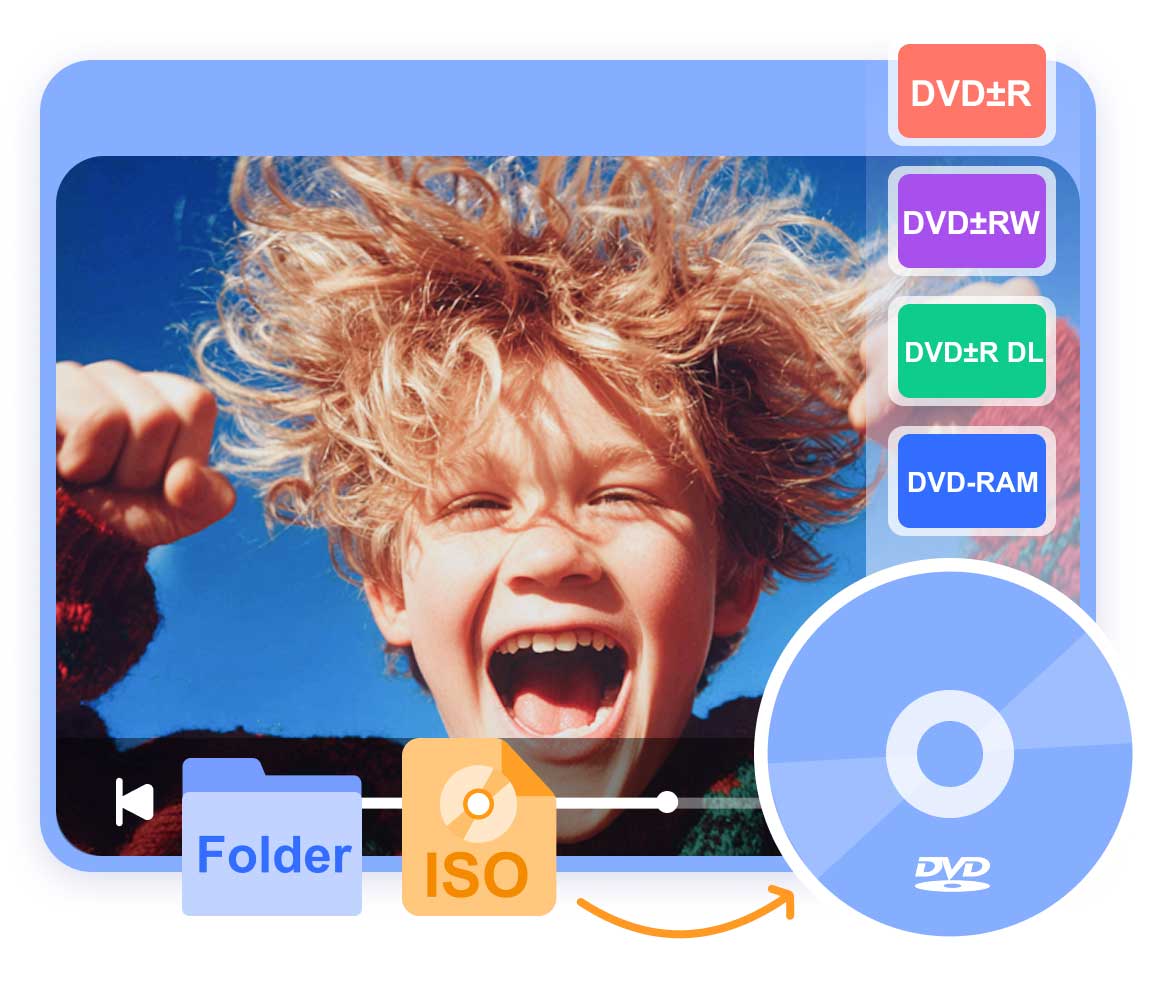
Tipard DVD Cloner can help you burn ISO images or DVD folders to DVDs. You can also copy the ISO or DVD folder to another ISO or DVD folder. That means you don't need to insert your DVD again and again every time you want to copy the DVD.
Tipard DVD Cloner can write an ISO or a DVD folder to a DVD in original quality. The DVD structure, title, chapter, and all video and audio files will be written to your DVD. If you only want to copy specific files on a DVD, you can copy the DVD to the DVD folder to select the desired files.
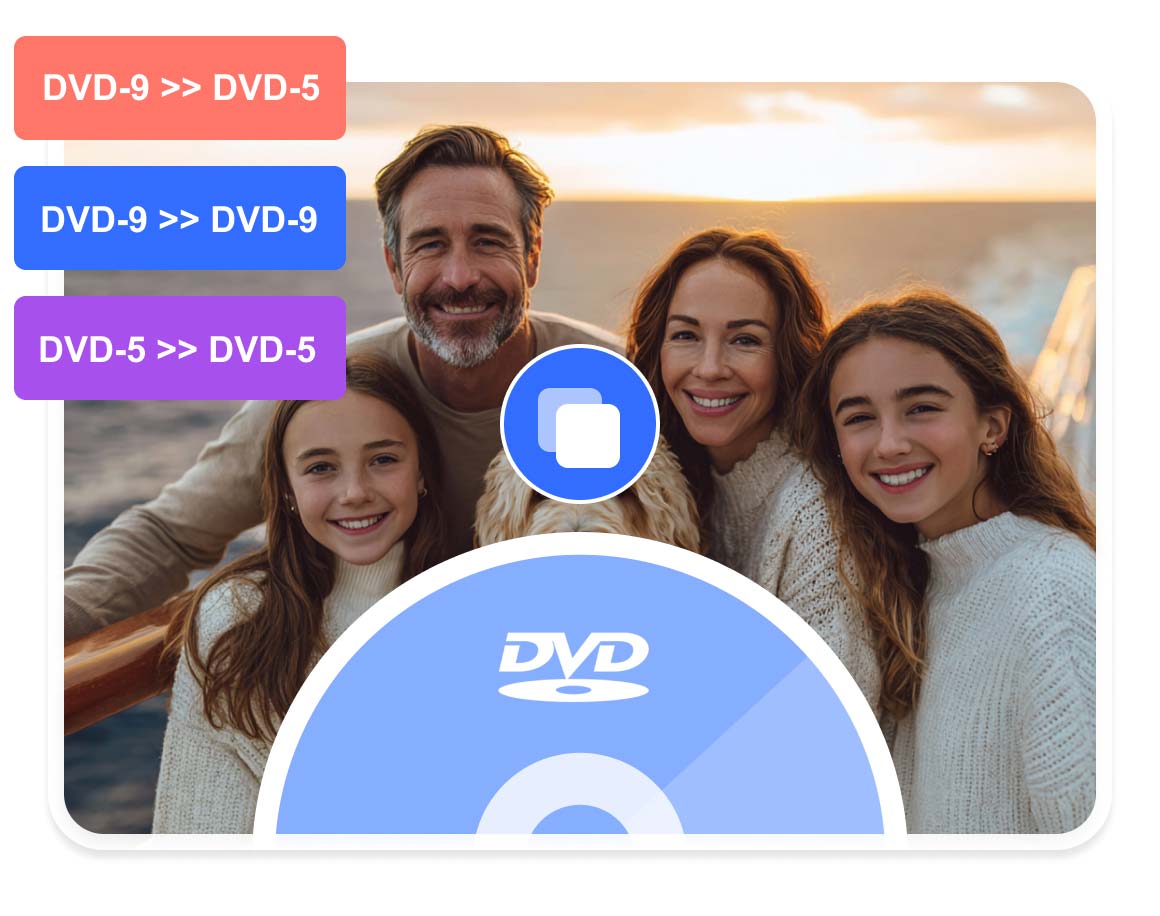
Tipard DVD Cloner can easily compress a large dual-layer DVD-9 into a standard single-layer DVD-5. This allows you to fit large movies onto more affordable blank DVD discs or save valuable storage space on your computer, all while maintaining a smooth, high-quality home theater viewing experience.
After compressing DVD-9 to DVD-5, you can watch the DVD movie on your computer, or any DVD player devices, or media players smoothly, enjoying an excellent home theater viewing experience.
Tipard DVD Cloner provides the most user-friendly and intuitive interface, which provides a clear copy step and classifies copy modes clearly for users to customize DVD cloning and copying. The simple interface makes the cloning operation so easy that even amateurs can complete the copy procedure quickly and flawlessly with only several clicks.
You can also adjust the writing speed to accelerate DVD copy. Tipard DVD Cloner utilizes GPU accelerate and offers three burning engines: VSO, CdrTool, and IMAPT, which can help you quickly copy DVD with great stability and keep the full content without glitches.
Make Multiple Copies
You can select the number of copies when cloning a DVD. Simply replace the blank DVD discs as prompted, and Tipard DVD Cloner will automatically create the desired number of copies for you.
Remove Region Code
When you copy a DVD to another DVD disc, Tipard DVD Cloner can help you remove region code lock. Your DVD copy will be region-lock free, so you can play it on any device without restriction.
Preview DVD
When you copy a DVD, you can preview the DVD movie with the built-in player feature. You can also preview the DVD size so that you can adjust the DVD capacity: DVD-5 or DVD-9.
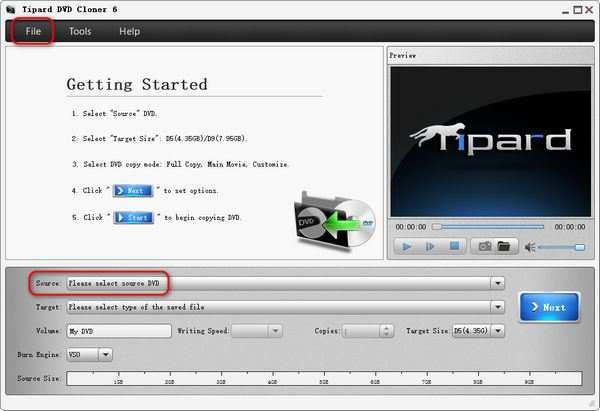
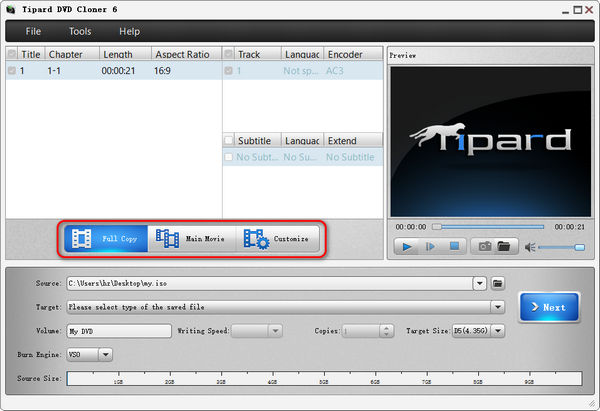
1. Load Source DVD
Click the File button in the top left corner or the Source dropdown button to import your source DVD disc, ISO, or DVD folder.
2. Choose a Copy Mode
You can select a copy mode from Fully Copy, Main Movie, and Customize. Then, click the Next button to go on.
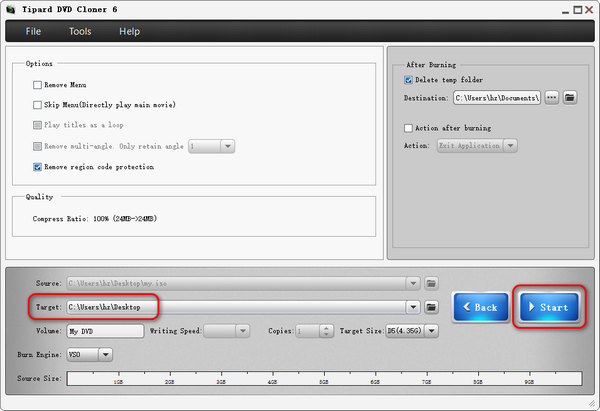
3. Copy DVD
Click the Target dropdown button to select your target DVD disc or save the DVD copy as ISO or DVD folder. Finally, click the Start button to copy your DVD

Wilson
Student

Not only is the quality excellent, but it only takes less than an hour to copy a full-length movie. Either I want to control every aspect of the copy process or use the default settings; this software works great.

Fionnar
IT Engineer
I can copy DVD-5 to DVD-5 and DVD-9 to DVD-9 in a 1:1 ratio using this cloner. It can ensure I get optimized reading speeds and don't have to freeze up or crash.

Kimi
Photographer
The installation of the Tipard DVD Cloner is very simple and easy. It is the ideal DVD copy software suitable for beginners like me.
Will Tipard DVD Cloner reduce DVD and video quality?
No, it won't; Tipard DVD Cloner can 1:1 copy your DVD to another DVD disc, ISO image, or DVD folder without any quality or data loss. However, if you choose not to fully copy your DVD, you will only get the data you select.
Is it safe to use Tipard DVD Cloner?
Yes, it is; Tipard DVD Cloner is a reliable DVD copy software, and Tipard is a reliable brand. It won't do anything bad to your system or hardware.
Which copy mode should I choose?
It depends on your needs. If you want to fully copy a DVD, you can select the Full Copy mode. If you only need the main movie on a DVD disc, you just need to select the Main Movie mode. If you want some other specific files on a DVD, you can choose the Customize mode.
Is Tipard DVD Cloner fast?
Yes, it is. Tipard DVD Cloner can fully utilize GPU acceleration to increase the DVD copying speed. Also, a DVD is not that big, so you can quickly perform DVD copying.
Can DVD copies be played on any DVD player?
Yes, DVD copies created by Tipard DVD Cloner can be play on any DVD player hardware and software. However, note that some specific DVD players can only play specific DVDs, like DVD-R.
Your Best DVD Cloner Solution!
100% Clean & Safe
30-Day Money Back Guarantee
100% Clean & Safe
30-Day Money Back Guarantee