About | Privacy Policy | Terms of Use | Support | Contact Us
Copyright © 2026 Tipard Studio. All Rights Reserved.

Windows

Rip your favorite Blu-ray/DVD movies or videos to popular formats

Powerful software to play Blu-ray/DVD videos and audio

Create Blu-ray disc/folder/ISO file with your own video

Backup/Copy your favorite Blu-ray to disc/folder/iso files
Mac

Rip your favorite Blu-ray/DVD movies or videos to popular formats on Mac

Powerful software to play Blu-ray and popular video formats on Mac
Windows

Rip DVD to any popular video format quickly of full quality

Create DVD from videos and burn video to DVD/Blu-ray freely

Copy DVD to DVD disc/folder/ISO files in a 1:1 ratio
Mac

Rip DVD to any popular video format quickly of full quality on Mac

Burn or author a DVD from videos with subtitles and chapters on Mac

Copy DVD to DVD disc/folder/ISO files in a 1:1 ratio on Mac
Windows

Rip DVD, convert 4K video, edit, and upscale videos to 5K/8K

Repair broken videos with high accuracy and support many formats

Convert any video to MP3, MP4, MOV, WAV, and other 350 formats

Upscale resolution, optimize brightness and remove video noise

The easiest tool to capture screen, game, audio, etc. with high quality

Convert any 2D video to 3D video and convert 3D to 2D video

Convert 4K video to 4K/1080P and common videos

Convert TS video to various popular video/audio formats
Mac

Rip DVD, convert 4K video, edit, and upscale videos to 5K/8K on Mac

Repair broken videos with high accuracy and support many formats on Mac

Convert any video to MP3, MP4, MOV, WAV, and other 350 formats on Mac

Upscale resolution, optimize brightness and remove video noise on Mac

The easiest tool to capture screen, game, audio, etc. with high quality on Mac

Convert any 2D video to 3D video and convert 3D to 2D video on Mac

Convert 4K video to 4K/1080P and common videos on Mac

Convert TS video to various popular video/audio formats on Mac
Desktop

Rip and convert DVDs to MP3 and support other audio formats

Reset Windows Admin and Standard user account password in seconds

Accurately Convert any PDF file to Word with OCR

Convert PDF to Word, Excel, HTML and Image with OCR
Online

Easily remove watermarks from many image file formats free online
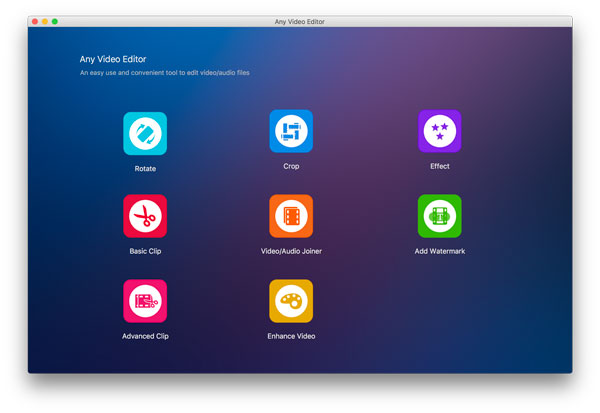
Any Video Editor is the best and professional video editing tool to assist you master basic video editing skills in no time. With its simple controls and intuitive interface, you can crop, rotate, cut video, add video effect and word/picture watermark to video.
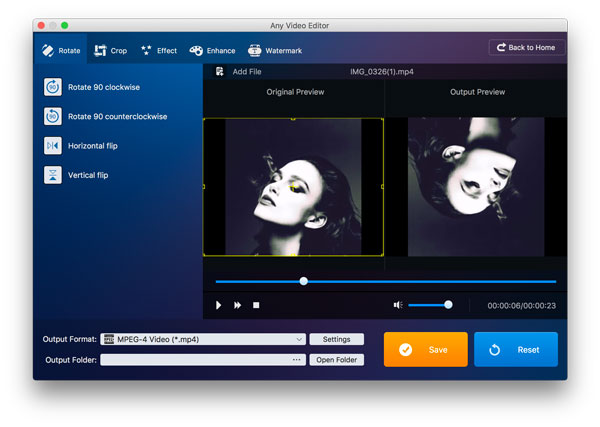
Step 1How to Rotate Video
Launch this Mac video editor and choose Rotate to enter the video rotation window. Click Add File to add video to the program and you can rotate videos in 90 degree clockwise or 90 counterclockwise. And you can also flip your video horizontally or vertically.
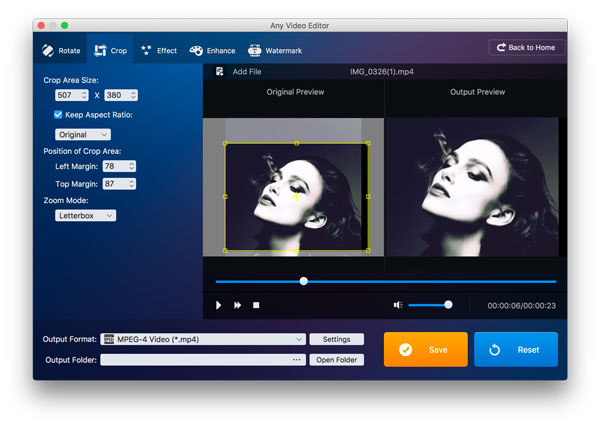
Step 2How to Crop Video
Enter Crop window by clicking Crop button. Adjust the crop frame to remove your unwanted video parts or you can enter specific pixels to adjust your video to your favorite watching area with this feature.
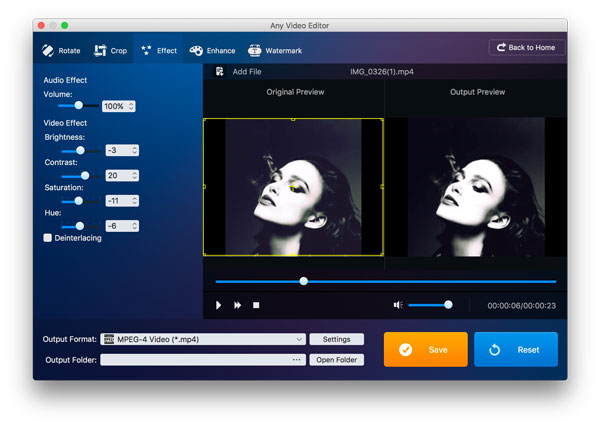
Step 3Add Effect to Video
Apply basic effect to video by adjusting brightness, contrast, saturation and hue. You can also adjust the volume of the video in this window.
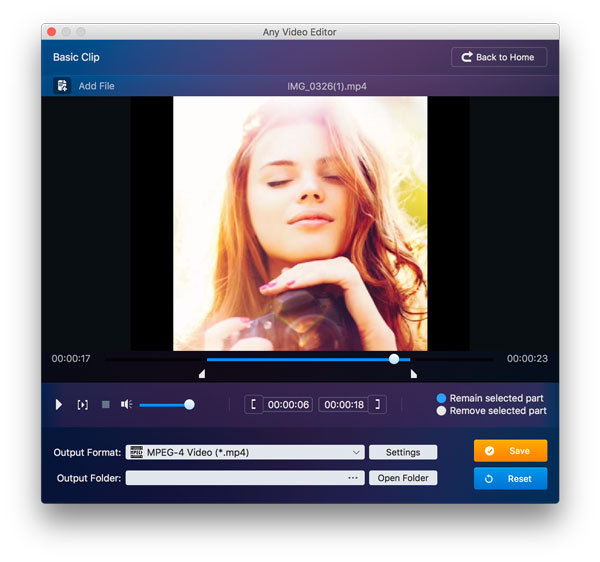
Step 4Cut video into segments
You can choose Basic Clip to do the simple cutting of beginning and the end. Or you can choose Advanced Clip to clip the video into several segments according to your need and save them separately or merge them into one clip.
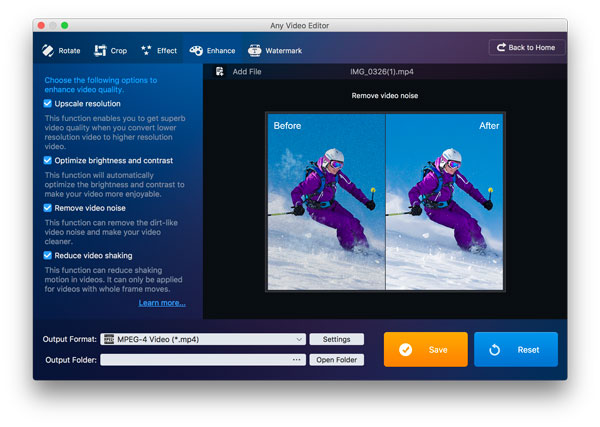
Step 5Improve Video Quality
If your video has some defection, you can use the Enhance Video function to improve your video resolution, optimize brightness and contrast, remove video noise and reduce video shaking.
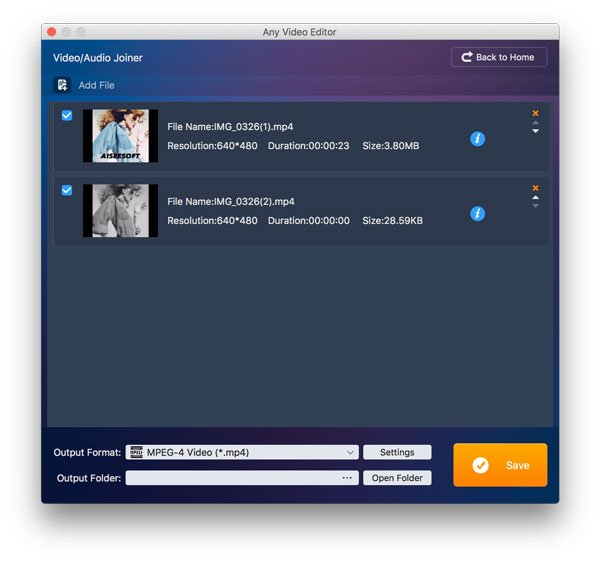
Step 6Merge Video Segments
Join or merge multiple video segments into one long video or you can put different video together to make funny effect easily with this function.
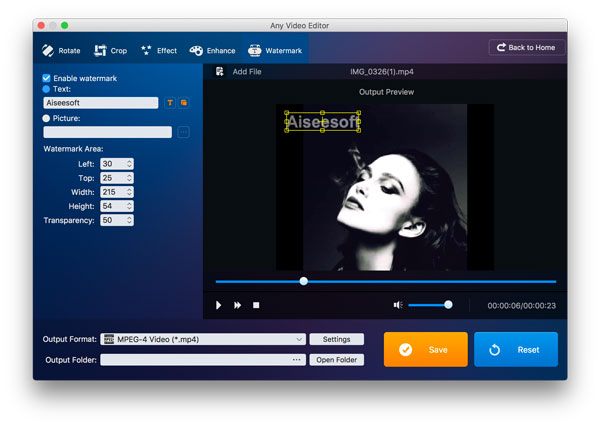
Step 7Add Text or Image Watermark
You can add watermark by clicking Add Watermark button. You can choose to add text or picture watermark according to your need. You can choose the text font and color or your watermark. And all the watermark can be adjusted position and transparency.