How to download and install AMD Graphics Driver?
In order to effectively use AMD APP Acceleration, the below devices are needed.
Step 1: Please visit the AMD official web on your browser: http://www.amd.com.
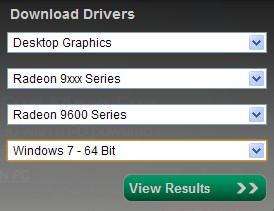
Step 2: Click "Find a Driver" Button on the upper right corner of the Home page to open the drop-down menu containing 4 drop-down lists displayed as the below screenshot shows. Then, you need to choose a proper option from each list (Componet Category, Product Line, Product Model, Operating System) one by one, and click "View Results" Button to get the definite AMD Griphics driver model that your computer supports.
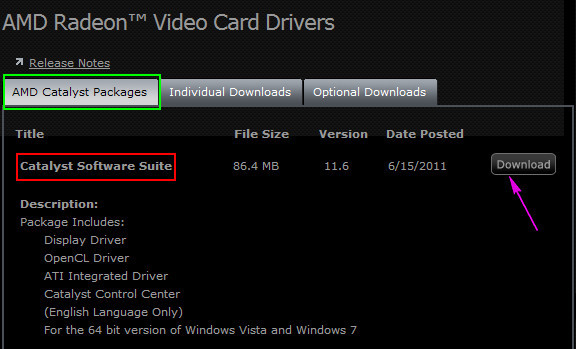
Step 3:On the results page, please find Catalyst Software Suite in the driver list and click the right Download button to download the suite.
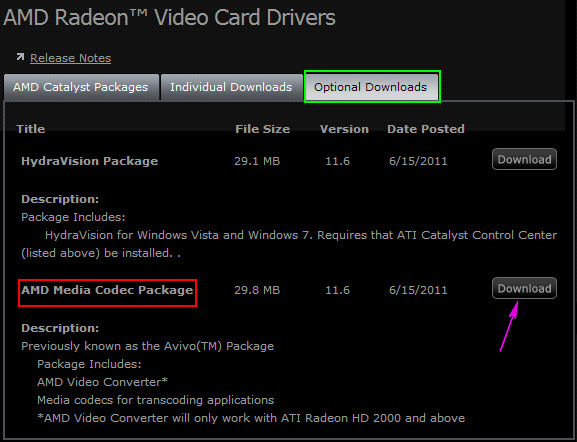
If your system settings support AMD APP Acceleration, you can click Optional Downloads button to open another list displayed as the below image shows, then just choose AMD Media Codec Package to download.
Step 4: After finishing download, please follow the default instructions to install the AMD Graphics driver.
NOTE: We advise you to restart Tipard application after the installation to make sure the right identification.