

Key Takeaways
It is very easy to convert MP4 to MPEG. Launch Tipard Video Converter Ultimate, click Add Files to add your MP4 videos, click Output Format to choose an MPEG format, and click the Convert All to convert them all to MPEG format.
While MP4 is today's universal standard for streaming and modern devices, there are times when you need to take a step back in tech. Whether you are burning a classic home video to a playable DVD or trying to play media on legacy car stereos and older TV boxes, converting MP4 to MPEG (specifically MPEG-2 or MPEG-1) is the ultimate solution.
To successfully make the conversion without losing video quality, you only need two essential things: your original MP4 file and a reliable video converter capable of modifying the container and encoding codec.
In this quick guide, we'll show you how to seamlessly convert your files in just a few clicks.
Part 1. The Fastest Way to Convert MP4 to MPEG in Batch
Tipard Video Converter Ultimate is the most efficient MP4 to MPEG converter tool. It supports all types of MP4 input profiles (like supporting a wide range of video bitrates and video codecs) and output MPEG presets, like MPEG-1 and MPEG-2. You can choose the output video resolution from 480p to 1080p, based on your target display's resolution.
Moreover, today's computers have advanced graphics cards, so the conversion speed will be faster than ever. Tipard Video Converter Ultimate can make full use of your graphics card to convert MP4 to MPEG at 120× faster than other competitors. You can enjoy the great convenience when you do batch conversion.
Key Features of Tipard Video Converter Ultimate:
- Convert MP4 to MPEG with mpeg-1 or mpeg-2 codec as you wish.
- Provide output resolutions from 480p to 1080p, suitable for various devices.
- Utilize full hardware acceleration of NVIDIA, AMD, Intel, and Apple Silicon to enhance conversion speed.
- Offer a toolbox with Video Trimmer, Video Merger, Video Compressor, Metadata Editor, and more.
Steps to Convert MP4 to MPEG with Tipard Video Converter Ultimate
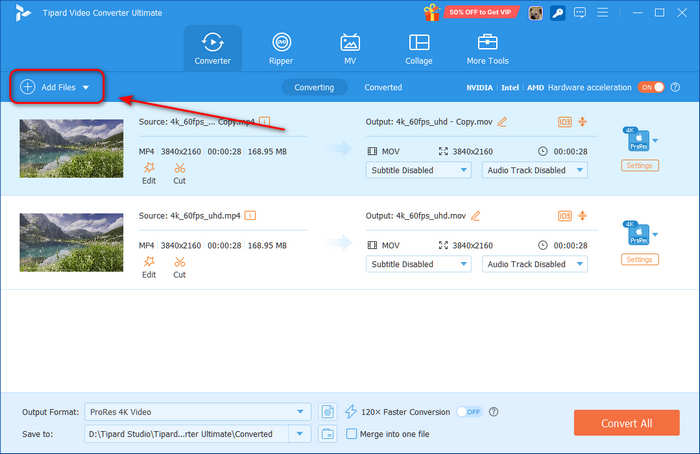
Step 1 Add MP4 Files to Tipard Video Converter Ultimate
Download, install, and launch Tipard Video Converter Ultimate on your computer. Click the Add Files button at the top left side to import your MP4 videos. You can add multiple files and then do a batch conversion.
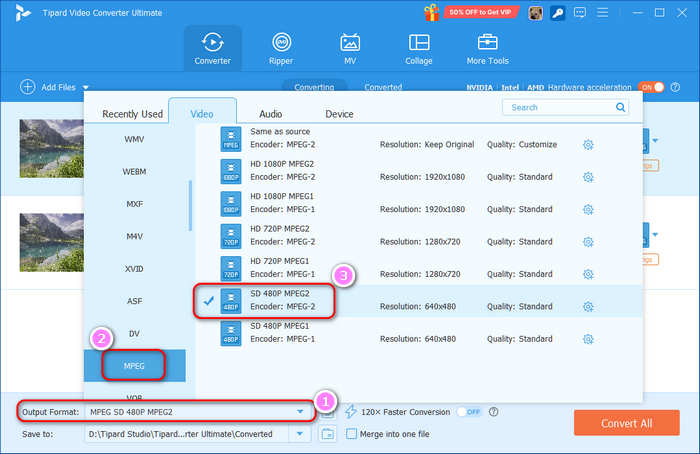
Step 2 Choose MPEG Output Format
Click the Output Format dropdown list to select MPEG. Then, you can select an MPEG preset, like SD 480P 480P MPEG2 or SD 480P MPEG1. You can also select another resolution. Double-click to confirm your selection.
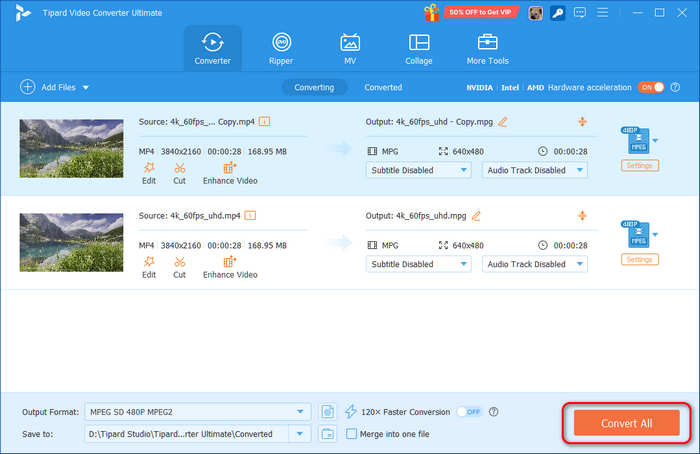
Step 3 Start Conversion
Click the Convert All button to start converting your MP4 files to MPEG format.
Part 2. Convert MP4 to MPEG for Free (No GPU Acceleration)
1. VLC
VLC is one of the greatest free media players. With that, it enables you to play playback media files such as movies and music. But, little did you know, VLC can also be a media converter. It also supports various file formats that produce excellent video output. For that reason, you can alter MP4 to MPEG video files. But, for beginners, the video conversion process can be a little tricky.
How to Convert MP4 to MPEG in VLC
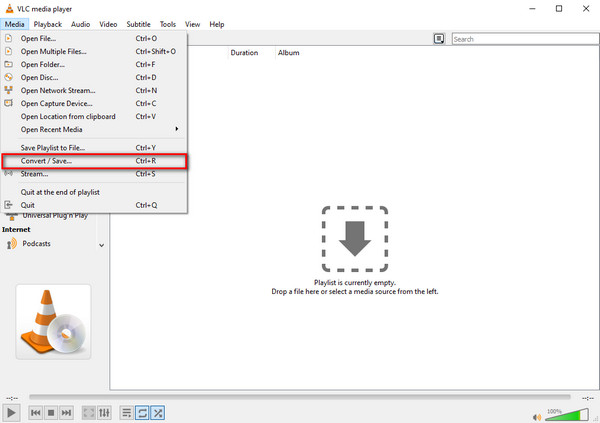
Step 1Launch VLC Media Player on your Windows PC and click the Media setting on the top-right corner of the screen. After that, click the Convert/Save option or tap Control R.
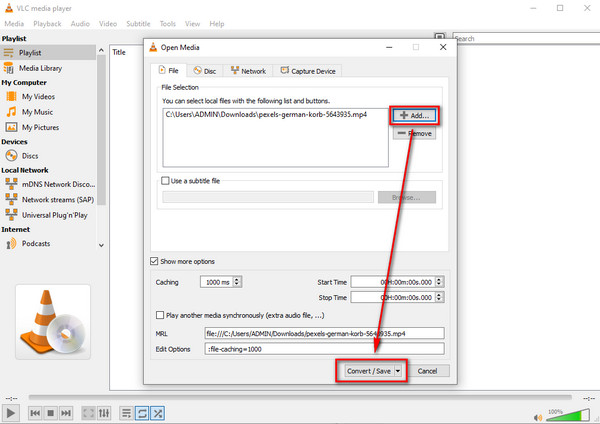
Step 2Click the + icon to add an MP4 file, then go to the Convert/Save button.
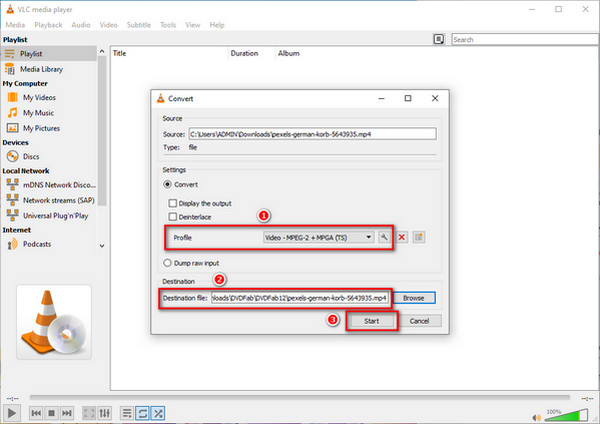
Step 3When you hit the Convert/Save button. On another screen, go to the Profile section and choose MPEG format. Then, select a file location on the Destination File section. Finally, you can begin the conversion process by clicking the Save button.
2. Convertio
Your third option is Convertio. This video converter can support various file formats. Thus, it allows you to convert videos to other file formats, including MP4 to MPEG files. The software guarantees you a safe video conversion process. No one can access them but you because it protects your files and deletes them after a day.
How to Convert MP4 to MPEG in Convertio
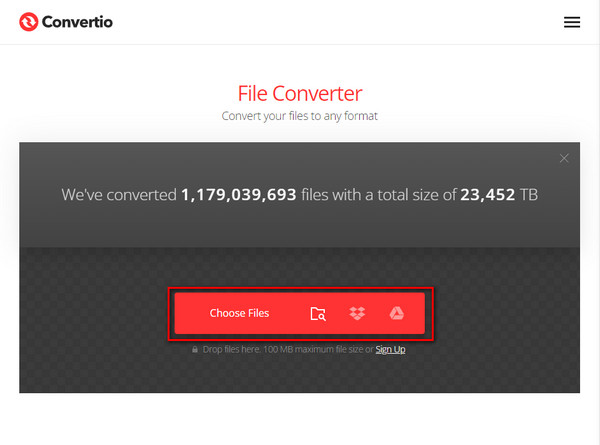
Step 1Type Convertio on your browser and visit the main page. After that, click the Choose Files button to add an MP4 file.
Step 2After uploading a video file. Hit the three-dot icon next to the video output. Then, click the Video option to see the video formats. Finally, click the MPEG format.
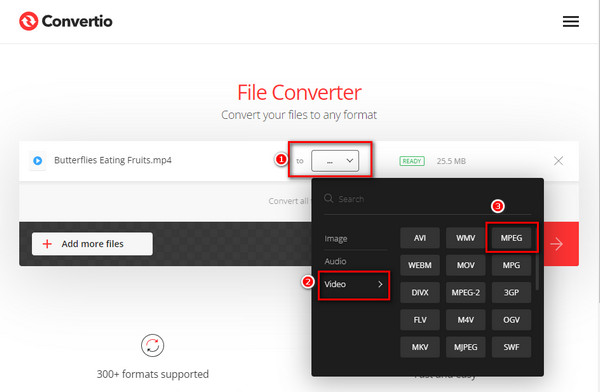
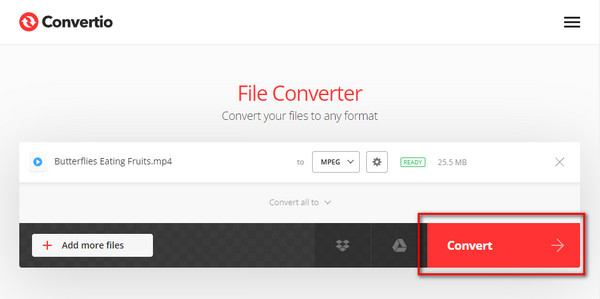
Step 3At last, click the Convert button to save the video file.
You also can use these ways to convert MP4 to OGG, and more.
Part 3. FAQs of MP4 to MPEG
What is a MPEG format?
MPEG file format comes from the Moving Picture Experts Group. In line with that, this file has various standards, including MPEG-1, MPEG-2, and MPEG-4. The latter version of MPEG is best for playing videos on the internet and mobile phone devices.
MPEG vs. MP4: Which is better?
These two file formats have different capabilities and are helpful for specific purposes. For example, MPEG is best for saving videos on DVDs and CDs. But, MP4 is best for storing video, audio, images, subtitle, and other metadata. Moreover, it is the most popular video format for multimedia players, devices, and other systems. Thus, MPEG and MP4 are suitable to file forms.
Can I play MPEG files on my iPhone?
No. But, iPhone devices recognize MPEG-4 or MP4. It is still not compatible with MPEG-1 and MPEG-2 files. Thus, it is impossible to play MPEG files using iPhone devices. So, if you want to achieve this, convert MPEG to MP4.
Is it possible to convert MP4 to MPEG in FFmpeg?
Yes. FFmpeg converts MP4 to MPEG because it supports significant file formats such as MP4, MPEG, AVI, MOV, and more. It also allows you to decode, encode and transcode video file formats.
Conclusion
After evaluating this article review, you can now choose the most effective MP4 to MPEG converter. But then again, we recommend the Tipard Video Converter Ultimate to you. This video converter program enables you to alter your MP4 to MPEG without quality loss. Moreover, it has a 120× faster conversion speed allowing you to convert various files in a short time. Furthermore, do not forget to follow all the steps written above to convert MP4 to MPEG.
More Reading


About the Author


 Tipard Video Converter Ultimate