

- Part 1. Convert Blu-ray to MP3 with Tipard Blu-ray Converter
- Part 2. Convert Blu-ray to MP3 with VLC Media Player
- Part 3. Convert Blu-ray to MP3 with Leawo Prof. Media
- Part 4. Comparison of the 3 Ways to Rip Blu-ray to MP3
- Part 5. Troubleshoot Blu-ray to MP3 Ripping Problems
- Part 6. FAQs of Ripping Blu-rays to MP3
Key Takeaways:
To find the most reliable ways to preserve high-fidelity music collections, we tested numerous software options and identified the three best tools for extracting audio from Blu-ray discs. Tipard Blu-ray Converter stands out as our top recommendation for its ultra-fast GPU acceleration and ability to handle encrypted discs, making it perfect for high-quality bulk extraction. VLC Media Player serves as the ideal free, open-source alternative for users needing a quick, no-cost solution for unprotected discs, while Leawo Prof. Media offers a balanced experience with advanced customization options for fine-tuning specific audio parameters like bitrates and sample rates.
A great music experience depends on high-quality sound. Today, streaming services give us easy access to our favorite tunes. It makes physical music collections less necessary. Physical discs can lose quality over time, which is why it is smart to have digital backups.
But how can we get these backups without losing quality? The solution is to convert Blu-ray to MP3. It lets us create digital files matching the original discs' sound quality. All you need is a good tool for the job. In this guide, we will look at some Blu-ray rippers and how they work. Let us dive in!

- Part 1. Convert Blu-ray to MP3 with Tipard Blu-ray Converter
- Part 2. Convert Blu-ray to MP3 with VLC Media Player
- Part 3. Convert Blu-ray to MP3 with Leawo Prof. Media
- Part 4. Comparison of the 3 Ways to Rip Blu-ray to MP3
- Part 5. Troubleshoot Blu-ray to MP3 Ripping Problems
- Part 6. FAQs of Ripping Blu-rays to MP3
Part 1. Convert Blu-ray to MP3 with Tipard Blu-ray Converter
When converting Blu-ray to MP3, it is advisable to use the original audio codec, Dolby Digital or DTS, for better quality. That is why there is a Tipard Blu-ray Converter that can assist you in converting your files into the desired format. This great tool lets you rip Hi-Fi audio from Blu-ray and convert it into any format you need.
Not only can Tipard Blu-ray Converter rip audio formats, but it can also rip Blu-ray to MKV, MP4, MOV, and other video formats. In addition, the Tipard Blu-ray Converter supports GPU acceleration to enhance conversion speed. It enables you to copy Blu-ray discs in a much shorter time than usual. You can also adjust settings to get the sound output of your choice. This tool lets you enjoy your Blu-ray movies and music on any device!

- Extract high-quality sound from Blu-ray discs.
- Rip Blu-ray discs to more than 600 formats.
- Fine-tune audio codecs, bitrates, and other settings.
- 30x faster ripping with advanced GPU acceleration.
- High-quality output
- Fast ripping process
- User-friendly interface
- Provides customizable settings
- Supports many audio and video formats
- You need to subscribe to the paid version to unlock advanced features
Step 1 First, you must download, install, and launch the Tipard Blu-ray Converter. After that, you should put your Blu-ray disc into your computer.
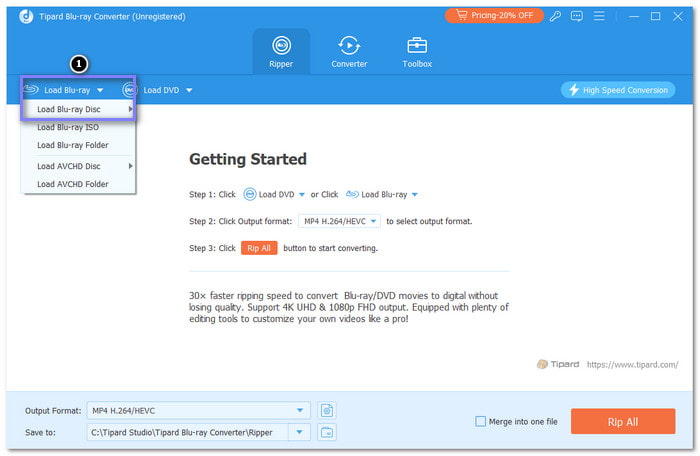
Step 2 In the software, click Load Blu-ray and then select Load Blu-ray Disc from the top left corner. It will read the contents of the Blu-ray and get it ready for conversion.
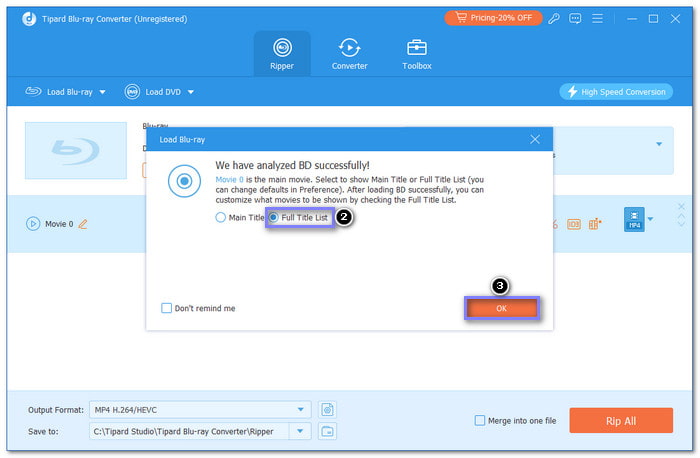
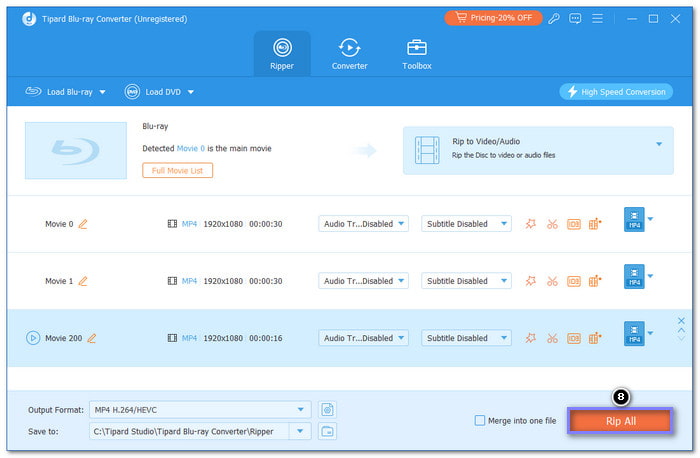
Step 3 Once the Blu-ray media is loaded, click on Full Movie List. You can select which Blu-ray titles you want to rip into MP3 here. You can also select the audio tracks you want to extract from the disc.
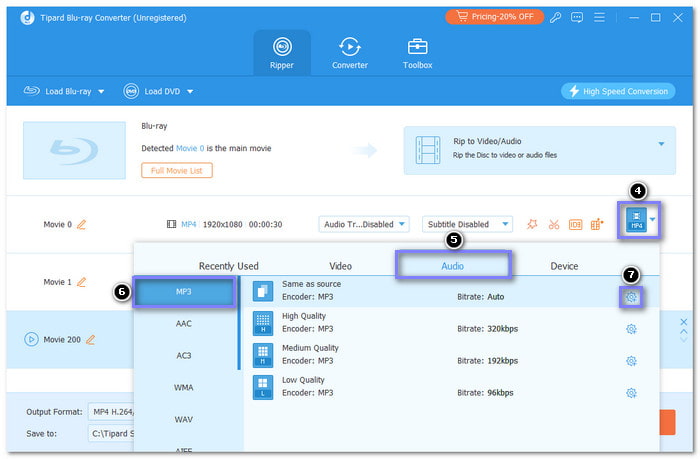
Step 4 Hit the Output Format drop-down menu, head to the Audio section, and select MP3 to set it as the output. If you want to adjust the audio quality, click the Settings button with a cogwheel icon. It will allow you to change bitrate, channels, and sample rate settings.
Step 5 Once you have selected your desired settings, hit the Rip All button to begin converting the Blu-ray to MP3. After the process, you will have your MP3 files ready for use. You can then transfer these files to any MP3 player or smartphone.
Part 2. Convert Blu-ray to MP3 with VLC Media Player
VLC Media Player is widely known for playing videos and movies in many formats. However, many users do not realize it is also a free Blu-ray to MP3 converter option. You can play Blu-ray with VLC, extract audio from Blu-ray, and save it as MP3. Plus, it has a fast ripping process, which helps you save time, especially if you have a lot of content to rip. VLC Media Player is easy to download and works offline. It makes it convenient for everyone.
- Free to use
- Fast ripping speed
- Offline accessibility
- Supports many formats
- Limited features
- Confusing for beginners
- Issues with protected discs
Step 1 Open VLC on your computer. Make sure your Blu-ray disc is placed on your computer before you begin.
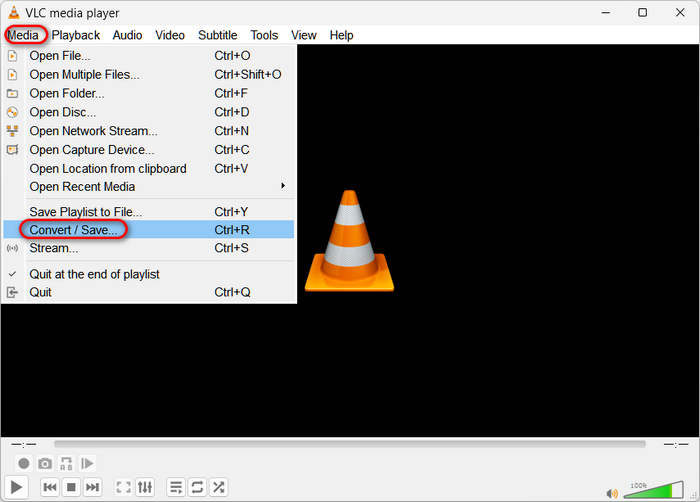
Step 2 In the VLC menu, click Media and then choose Convert / Save. A new display will appear.
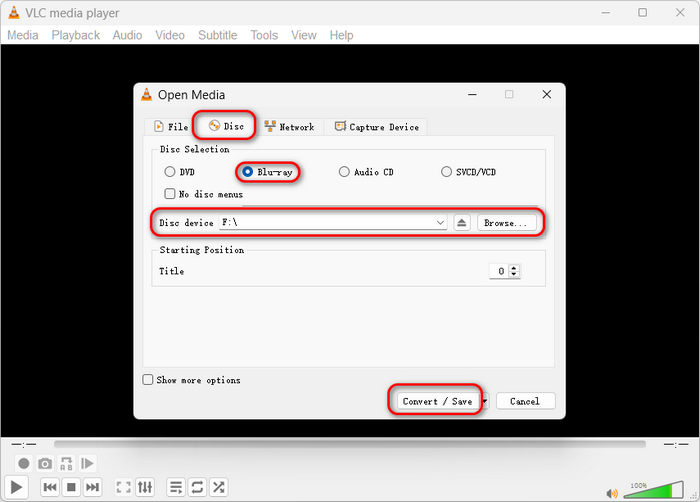
At the top of this window, click the Disc tab. Check the Blu-ray option, then click Browse to locate and load the Blu-ray from your drive. Once the disc is loaded, click Convert / Save at the bottom.
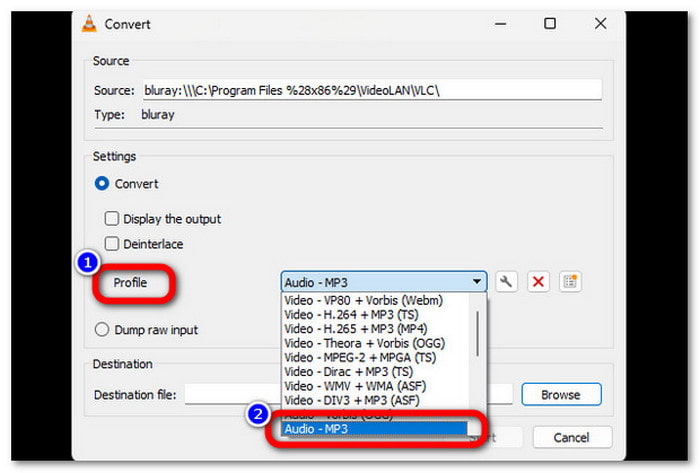
Step 3 In the next window, look for the Profile drop-down menu. It shows the formats you can use. From the list, select Audio - MP3 as your output format. It ensures the audio will be saved as an MP3 file.
Step 4 Click Browse at the bottom of the display to select where to save your final MP3 file. Pick a folder and give your file a name you will remember.
Step 5 Finally, click Start to begin ripping the Blu-ray audio. VLC will process and save the file as an MP3 in your chosen location. After a few moments, you will have your MP3 file ready to use.
Part 3. Convert Blu-ray to MP3 with Leawo Prof. Media
Leawo Prof. Media is a powerful program that makes it easy to rip audio from Blu-ray discs and convert it to MP3. With this ripper, you can not only extract audio but also fine-tune various settings. If you want to shorten or adjust the video and audio quality, Leawo Prof. Media gives you these advanced options. Besides MP3, you can also copy Blu-ray to ISO files, adding to its advantages. Like Tipard Blu-ray Converter and VLC Media Player, Leawo Prof. Media is also user-friendly and works on Windows and Mac, making it available to many users.
- Remove copy protection from discs
- Customize Blu-ray content before ripping
- Allow selection of titles, chapters, subtitles, and tracks
- Limitations of ripping speed
- Expensive, with a price of $44.95 per year
- Often failed to load, read, and write Blu-ray discs
Step 1 Open Leawo Prof. Media. On the main screen, choose the DVD Ripper tool. Drag the Blu-ray file into the window, or click Add Blu-ray/DVD to load it. Once the file is loaded, click OK to confirm.
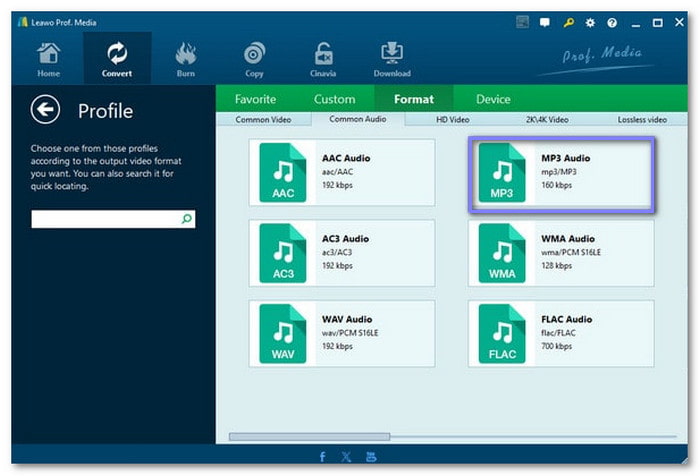
Step 2 After loading your Blu-ray, click Output Profile and Change to open the format options. From the list, navigate to Format and Common Audio, and here you will find different audio formats, including MP3, AAC, and WAV. Choose MP3 as your preferred format of the output file.
Step 3 Besides the format selected, there will be a Pencil button. Click it to expand the settings view. Here, you can adjust audio quality, bitrate, and other settings. When you are done, click on OK to save those settings.
Step 4 Click on the green Convert button located at the top. Choose where you wish to store your MP3 file by choosing a folder. After that, press the Convert button at the bottom to rip the Blu-ray to MP3.
Part 4. Comparison of the 3 Ways to Rip Blu-ray to MP3
| Feature | Tipard Blu-ray Converter | VLC Media Player | Leawo Prof. Media |
|---|---|---|---|
| Audio Extraction Mode | Direct rip to MP3/Hi-Res Audio | Recording/Stream Conversion | Standard Audio Extraction |
| Max MP3 Bitrate | Up to 320 kbps (Constant) | Variable up to 320 kbps | Up to 320 kbps |
| Audio Settings Control | Full (Sample rate, Channel, Bitrate) | Basic (Profile-based only) | Moderate (Preset-focused) |
| Batch Ripping | Supported (Multiple titles/discs) | Not available (One by one) | Supported |
| Blu-ray Decryption | Built-in (AACS, BD+, Region Code) | Requires manual configuration | Supports most CSS/AACS |
| Processing Speed | Ultrafast (GPU accelerated audio encoding) | Slow (Real-time or software speed) | Fast with Hardware acceleration |
| Best For | High-quality, bulk MP3 extraction | Quick, casual audio conversion | Standard personal backups |
This table shows how each tool meets different needs. Tipard Blu-ray Converter is best for beginners and advanced users who want quality and features. VLC is a basic, free option for casual use. Leawo Prof. Media provides balanced performance with good format support.
Part 5. Troubleshoot Blu-ray to MP3 Ripping Problems
Ripping audio from Blu-ray to MP3 can sometimes run into issues. Fixing these problems can save time and ensure the best results. Below are common Blu-ray to MP3 ripping issues and their solutions to help you get back on track.
1. Blu-ray Disc Not Recognized
- Problem: The Blu-ray ripper does not detect your Blu-ray disc.
- Solution: Make sure the Blu-ray disc is not scratched and is clean. Ensure that your Blu-ray drive is well connected.
2. Encryption Errors
- Problem: A Blu-ray ripper cannot deal with encryptions.
- Solution: Use a Blu-ray ripper with built-in decryption, like Tipard Blu-ray Ripper. Make sure your program supports the specific Blu-ray protection on your disc.
3. File Saving Errors
- Problem: The saving of the output file is a problem.
- Solution: Make sure that your device has enough storage space available. Select the correct folder path where the file should be saved.
4. Software Crashes
- Problem: During the ripping process, the program has a problem that makes it stop.
- Solution: The bugs in the software may have been developed over time, and the best way to eliminate them is to reinstall the software. Ensure your computer has enough RAM and processing power to run the program.
Part 6. FAQs of Ripping Blu-rays to MP3
Does ripping Blu-ray to MP3 lose sound quality?
MP3 is a "lossy" format, meaning some data is compressed. However, since Blu-ray discs feature high-fidelity audio (like LPCM, DTS-HD, or Dolby TrueHD), converting them to an MP3 with a 320kbps bitrate and 48kHz sample rate will provide excellent sound quality that is virtually indistinguishable from the original for most listeners on mobile devices or standard headphones.
Can I extract audio from copy-protected or region-locked Blu-rays?
Most standard media players cannot bypass encryption. To rip commercial Blu-rays, you need a specialized tool like Tipard Blu-ray Converter, which features built-in decryption to handle AACS, BD+, and region codes, allowing you to extract audio files smoothly without errors.
What are the best settings for Blu-ray to MP3 conversion?
For the best balance between file size and audio fidelity, use the following settings: 48,000 Hz sample rate and Stereo (2-channel) channels.
Conclusion
To convert Blu-ray to MP3, you will need a reliable Blu-ray to MP3 converter free or paid software. However, if you want to get the best audio quality, Tipard Blu-ray Converter should be the one you choose. It offers fast processing, high-quality audio output, and the capacity to burn protected and unprotected Blu-ray discs. Now, you can listen to your favorite audio tracks from Blu-ray discs without a problem!
More Reading
About the Author


 Tipard Blu-ray Converter