Key Takeaways:
Tipard Blu-ray Converter can easily rip your Blu-ray discs to ISO image files. Simply click the Load Blu-ray button to import your Blu-ray disc, choose Full Disc or Main Movie mode for backup, and select ISO as the output format. Finally, click the Rip All button to create a Blu-ray ISO image while keeping the original disc structure and quality.
Blu-ray discs provide excellent video quality, but physical discs can be damaged, scratched, or lost over time. Creating a Blu-ray ISO backup is one of the best ways to preserve your movies because an ISO file keeps the complete structure, menus, subtitles, and original quality of the Blu-ray disc.
In this guide, we will show you how to rip Blu-ray to ISO using three practical methods, including professional Blu-ray copy software and free alternatives.

Part 1. What Is a Blu-ray ISO File?
A Blu-ray ISO file is an exact digital copy of a Blu-ray disc. It contains all original disc data, including video streams, audio tracks, subtitles, menus, and file structure. You can explore the difference between Blu-ray and Blu-ray ISO as below.
| Blu-ray | ISO File | |
|---|---|---|
| Description | A media format called Blu-ray was created to replace DVDs. More data can be stored on a single disc because Blu-ray uses a different laser to read the discs. In addition, Blu-ray can hold more data. | The word ISO was derived from ISO 9660, the optical media file system. An ISO image can be compared to a complete copy of all the data on an optical disc. It includes the file system on CD, DVD, or Blu-ray discs. |
| Appearance | Physical | Digital |
| File Size | Standard Blu-ray movie: 25GB, 50GB 4K Blu-ray movie: 50GB, 66GB, 100GB |
32-bit + 64-bit: 5GB |
| File Type | Video file | Image file |
| File Extension | .bdmv | .iso |
Why Should You Rip Blu-ray to ISO?
There are several reasons why users create Blu-ray ISO backups:
- Preserve physical discs from scratches and damage.
- Keep the original Blu-ray quality and menu structure.
- Store Blu-ray collections digitally.
- Create Blu-ray movie backups for future playback.
- Easily mount ISO files on computers or virtual drives.
Part 2. How to Rip Blu-ray to ISO [Editor's Choice]
If you want to create an ISO backup from your Blu-ray discs, Tipard Blu-ray Converter is an excellent choice. It allows you to easily copy Blu-ray content to ISO image files while preserving the original quality, including the video, audio tracks, subtitles, and disc structure.
Moreover, Tipard Blu-ray Converter can also rip Blu-rays to lossless MKV format, keeping the original 1080p video and dolby audio quality. You can even upscale the Blu-ray movies to 4K quality. Whether you want to create a Blu-ray ISo from a Blu-ray disc or digitize your Blu-rays for convenient viewing, Tipard Blu-ray Converter is your best choice.
Step 1 Download Tipard Blu-ray Converter on your computer. After the installation process, run the program. To access the program quickly, you can click the Download button below.
Step 2 Click the Load Blu-ray button and select your Blu-ray disc. You can choose Full Title List or Main Movie based on your preference.
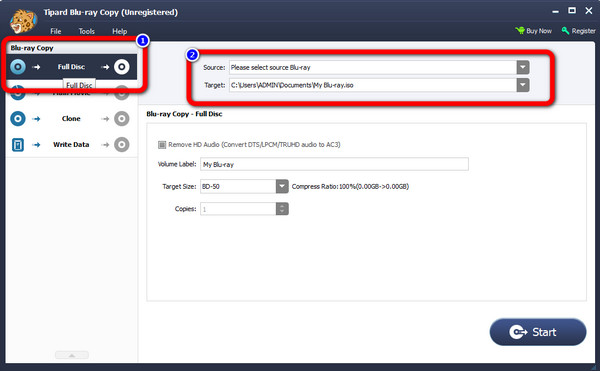
Step 3 Then, click the dropdown button on the right side and select Rip to Blu-ray ISO File button.
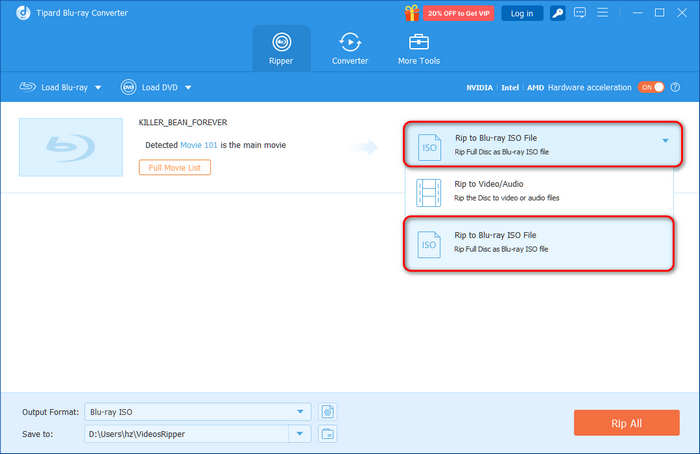
Step 4 Click the Save to dropdown button and choose Browse and Select Folder to choose a folder for your upcoming Blu-ray ISO file. Finally, click the Rip All button to rip the Blu-ray to ISO easily with Tipard Blu-ray Converter.
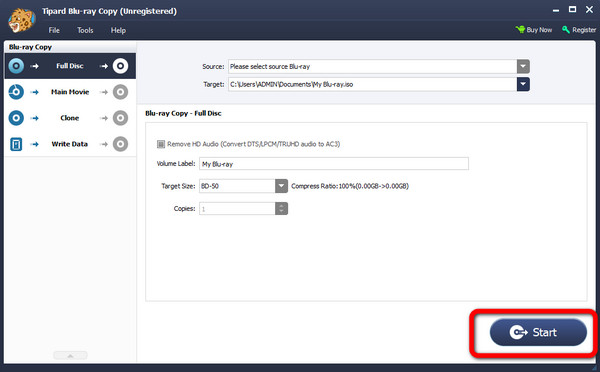
By the way, if you want to play ISO files, you can use software like Tipard Blu-ray Player.
Part 3. How to Copy Blu-ray to ISO Using Leawo Blu-ray Copy
Is there another way to rip Blu-ray to ISO with another program? The answer is Yes. You can also try Leawo Blu-ray Copy.
It is offline software that can compress and copy Blu-ray, DVDs, and ISO images. The Blu-ray can be directly copied to another disk or computer with the software.
It also converts Blu-ray files, like BD50 to BD25, BD25 to DVD-9, DVD-5, DVD-9 to DVD5, and more. Many other capabilities, such as burning ISO files to DVD or Blu-ray, are available. You can even rip 3D Blu-ray to ISO with it.
However, Leawo Blu-ray Copy is costly when planning to purchase. It costs $44.95 yearly and $99.95 for a lifetime license. Also, there are times when the software fails to rip a file.
Step 1After you download Leawo Blu-ray Copy, launch it on your computer. Then, click the Copy option to see the interface of Blu-ray Copy. Ensure that a Blu-ray disc is already inserted into your computer drive.
Step 2Then, click the Add from CD-ROM option to import Blu-ray from your drive. Select the Add from folder option if the file is in the Blu-ray Folder.
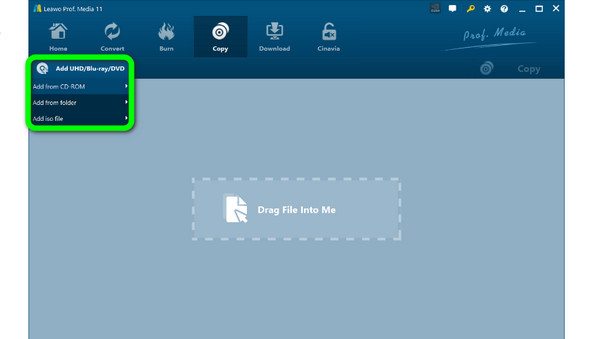
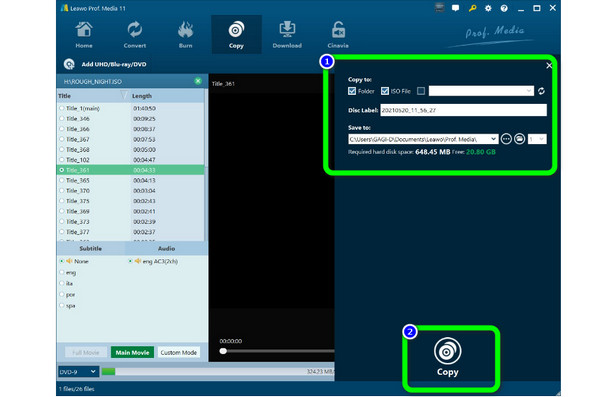
Step 3Click the Copy button to view the backup setting panel. From the Copy to option, click the ISO File. You can also insert your Disc Label and more. After that, click the Copy button below to begin the process.
Part 4. Convert Blu-ray to ISO Using EaseFab Blu-ray Ripper
Another Blu-ray ripping program for Windows and Mac is EaseFab Blu-ray Ripper, which can effortlessly rip Blu-ray to ISO with its straightforward process.
Due to its use of the NVIDIA GPU and minimal CPU usage, EaseFab is one of the best Blu-ray ripping software. Blu-ray discs, folders, and ISO files can all be copied and converted into well-known video and audio formats like MP4 and MKV.
However, the ripping process is time-consuming and cannot bypass Blu-ray copy protection like other Blu-ray decrypters.
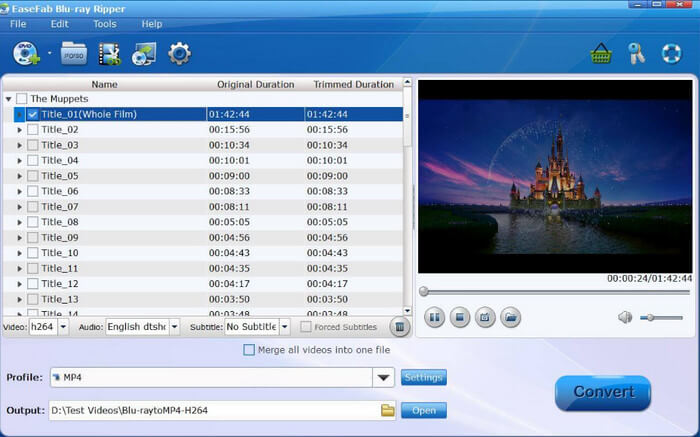
Step 1Launch EaseFab Blu-ray Ripper and insert Blu-ray in the Blu-ray disc driver.
Step 2Click the Load Disc button, and upload your source Blu-ray into this software. Select a folder to save the backed-up Blu-ray video files.
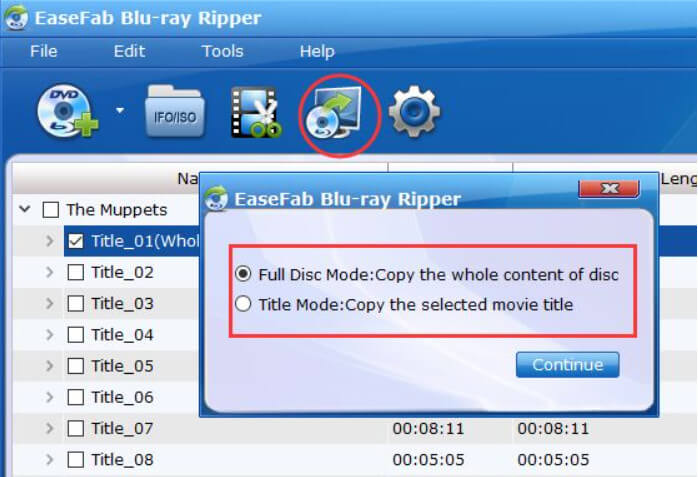
Step 3Choose the Full Disc Mode option to copy the whole content of the disc and start the backup process. Then, you can create Blu-ray ISO files from the source Blu-ray contents.
Part 5. FAQs of Ripping Blu-ray to ISO
Can I rip a Blu-ray to ISO for free?
Yes, some free tools can create Blu-ray ISO files, but they may have limitations in speed, Blu-ray protection support, or output quality. You can also use the trial version of Tipard Blu-ray Converter or Tipard Blu-ray Copy to rip Blu-ray to ISO.
Does ripping Blu-ray to ISO reduce quality?
No. A Blu-ray ISO is an exact image of the original disc, so it can preserve the original video quality, audio tracks, subtitles, and menus.
How large is a Blu-ray ISO file?
A Blu-ray ISO file is usually 25 GB to 100 GB depending on whether it comes from a standard Blu-ray or 4K UHD Blu-ray.
Conclusion
You probably learned how to rip Blu-ray to ISO using the software mentioned in this article. All of the programs are good and useful. However, if you are looking for the most straightforward and excellent program, use Tipard Blu-ray Converter. Its method is easy to follow and is suitable for everyone.

Rip Blu-ray to Digital Format with the Best Quality
100% Clean & Safe
100% Clean & Safe

More Reading




About the Author