

- Part 1. Why Do You Need to Make a Video Longer
- Part 2. Make Video Longer by Looping It
- Part 3. Make Video Longer by Adding More Videos and Images
- Part 4. Make Video Longer via Video Boomerang
- Part 5. Make Video Longer by Slowing Down the Speed
- Part 6. Make Video Longer by Adding a Freeze Frame
- Part 7. Optimization Strategies for a Longer Video
- Part 8. FAQs of Making a Video Longer
Social media platforms often require videos to fit a specific number of seconds or minutes before you can share them. So if your video does not meet the required length, you need to extend it.
In this guide, we will show how to make a video longer in different ways. So, prepare your video now, and follow the methods below!

- Part 1. Why Do You Need to Make a Video Longer
- Part 2. Make Video Longer by Looping It
- Part 3. Make Video Longer by Adding More Videos and Images
- Part 4. Make Video Longer via Video Boomerang
- Part 5. Make Video Longer by Slowing Down the Speed
- Part 6. Make Video Longer by Adding a Freeze Frame
- Part 7. Optimization Strategies for a Longer Video
- Part 8. FAQs of Making a Video Longer
Part 1. Why Do You Need to Make a Video Longer
Sometimes, a video feels too short. It may cut off important details. Or it may not fully explain your idea. That is why making a video longer can help.
A longer video gives more time to explain things clearly. You can add more scenes or steps. It helps viewers understand better. It also makes your message more complete. Some platforms also prefer longer watch time. A longer video can keep viewers watching. It may help your content perform better.
In simple words, making a video longer helps you share more, explain better, and keep your audience engaged.
Part 2. Make Video Longer by Looping It
Tipard Video Converter Ultimate is an easy-to-use program that can help you make a video longer by looping it. It helps you easily apply all customizations to both copied and added clips. It keeps every loop smooth and the same. It also offers one-click merging for all videos. With that, you can join clips fast without extra work.
Plus, it supports almost all video formats, codecs, and custom input bitrates. You can export to many popular formats. What is more, it provides AI video enhancement features for better video clarity.
Why We Selected It:
Tipard Video Converter Ultimate handles looping and merging smoothly without delays. It makes extending video length fast and simple. Flexible output control is another benefit. Choosing formats and changing clarity settings are simple. Even after numerous cycles, it helps maintain video clarity.
Key Features:
- Easily cut and remove any unwanted parts.
- Control video speed with built-in speed settings.
- For seamless video transitions, use fade-in and fade-out effects.
- Uses hardware acceleration for faster and smoother processing.
Without further ado, learn how to make a video longer using Tipard Video Converter Ultimate:
Step 1 Download and set up Tipard Video Converter Ultimate on your computer. Open the program once setup is complete.
Step 2 Press the Add Files button, then select the video you want to extend. Then, click the Scissors button to open the clipping display.
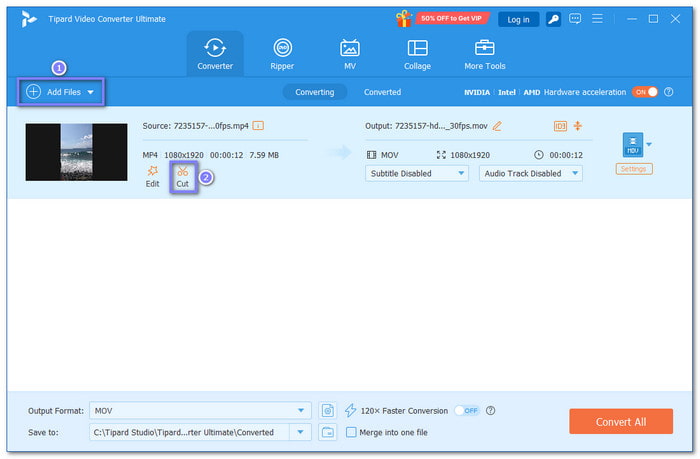
Step 3 Inside the clipping display, do not cut the video. Instead, click Add Segment. It will duplicate your original video. Add more segments to lengthen the loop. You will see them listed on the left side.
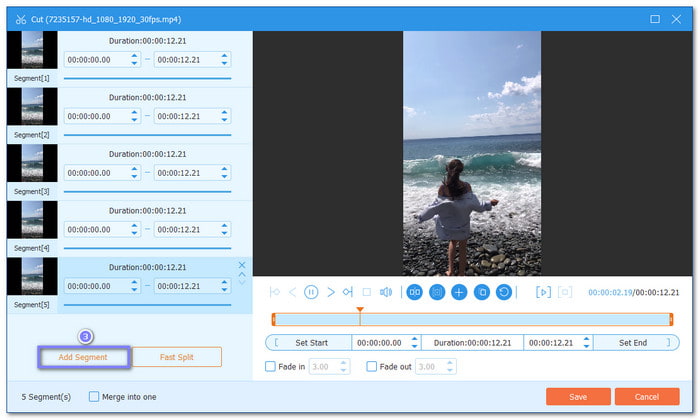
Step 4 Once done, click Save to close the clipping display. It keeps all your duplicated segments ready for merging.
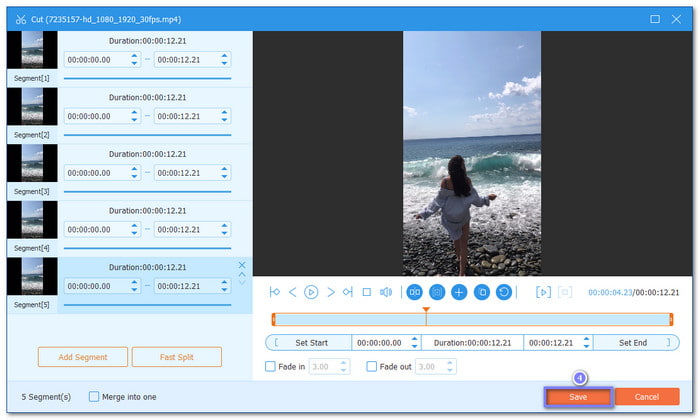
Step 5 Open the Output Format and select your preferred format, such as MP4 or MOV. You can also open the Custom Profile to fine-tune resolution, bitrate, or codec if needed. All the changes you made will apply to all.
Now, select the Merge into one file option to combine all clips smoothly. After all that, click Convert All to start exporting your longer looped video.
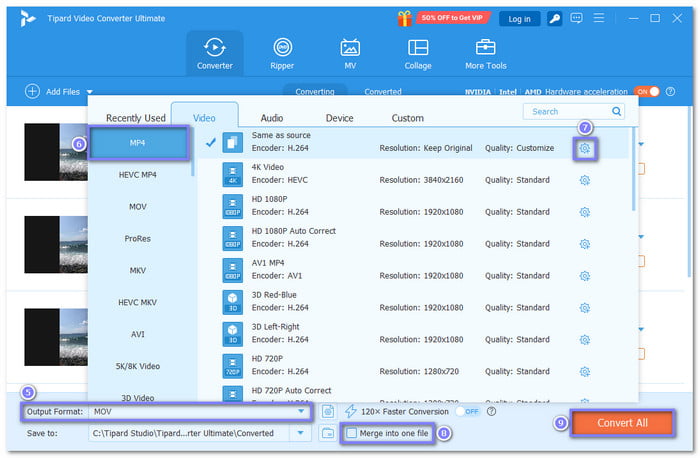
Tipard Video Converter Ultimate not only helps you extend a video. It also helps make videos clearer, which improves clarity and cleaner playback.
Part 3. Make Video Longer by Adding More Videos and Images
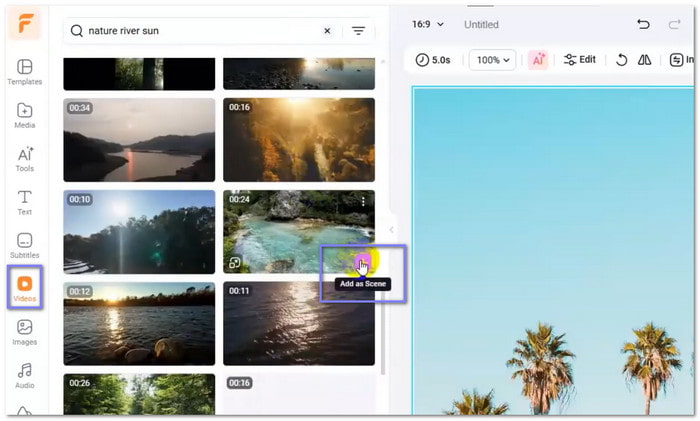
If you are still looking for how to add length to a video, FlexClip can help you by adding ready-made photos and clips. You do not need to shoot new footage. You pick from a big media library.
Step 1 Open the editor. Go to the Media section. Click Upload Files. Choose a video from your device, cloud, or phone. Then, add it to the timeline.
Step 2 Go to the Videos or Images section. It is where you can find extra content for your project.
Step 3 Enter a term in the search field. Select images or videos that complement your original clip. It makes your video seem smoother and longer.
Step 4 Click Add as Scene. Place it in your timeline. Adjust the order so your video flows well.
Part 4. Make Video Longer via Video Boomerang
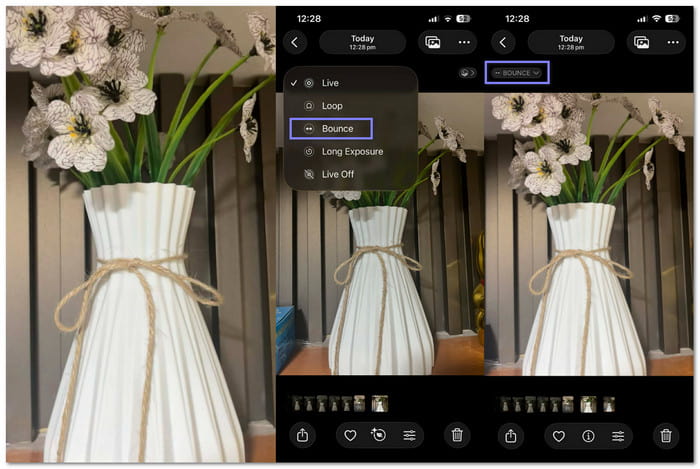
This method turns a Live Photo into a looping motion. It is one way to make a video longer on an iPhone. It makes short clips feel longer and more dynamic using built-in phone tools.
Step 1 Go to your iPhone Photos app. Find a Live Photo you want to edit. If you do not have one, turn on Live Photo in your camera and take one.
Step 2 Tap the photo to open it. Press the Live Photo button. Choose Bounce. It creates a looping effect like a boomerang.
Step 3 Tap Done. Then, share or save your longer looping video.
The built-in Photos app also lets you slow down a video. It helps you make a longer playback without adding new clips.
Part 5. Make Video Longer by Slowing Down the Speed
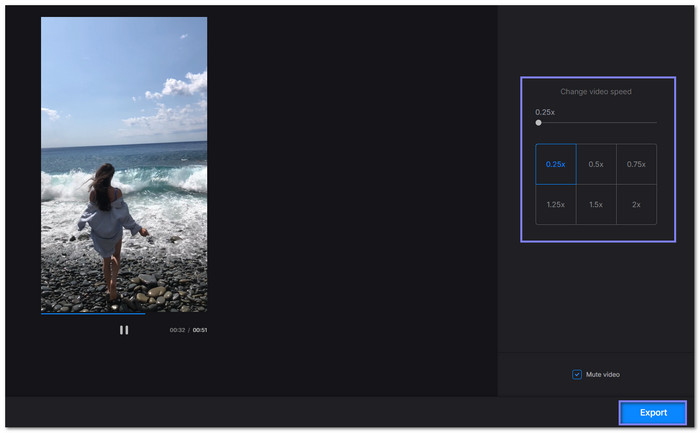
Slowing down a video is a simple way to make a video longer online. Good thing, Clideo lets you change speed directly in your browser. It offers slow speeds, such as 0.25×, 0.5×, 0.75×, or 1.25×.
Step 1 Open Clideo. Then, upload a video from your device or cloud storage.
Step 2 Once loaded, select a slower speed option, like 0.25×, 0.5×, 0.75×, or 1.25×. It will stretch your video time.
Step 3 You can mute audio if needed. You can also change the output format for better results.
Step 4 Preview your video. When ready, click Download to save your longer video.
Part 6. Make Video Longer by Adding a Freeze Frame
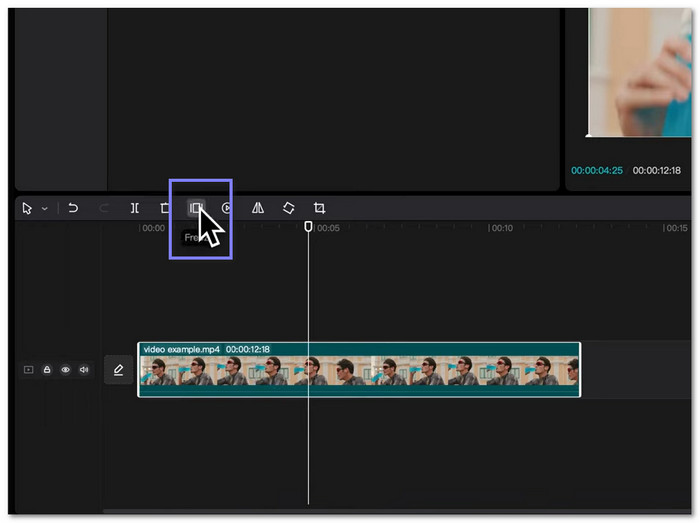
Freeze frame is useful when you want to hold one moment longer when learning how to make a short video longer. It makes your video feel extended without adding new clips. You can easily do this using CapCut on your computer.
Step 1 Run CapCut. Click Import and add your video to the project timeline.
Step 2 Move the timeline to the exact moment you want to freeze. Press on the clip to select it.
Step 3 Click the Freeze option. It creates a still image from that moment in the video.
Step 4 Drag the freeze frame section to make it longer or shorter. Turn off snapping if needed for smoother adjustment.
Part 7. Optimization Strategies for a Longer Video
Making a video longer is not only about adding clips. It is also about keeping good clarity and smooth playback. Small settings matter a lot here.
- Keep the same resolution for all clips to avoid blurry or stretched video.
- Use the same aspect ratio to maintain a consistent screen size.
- Match the video codec when possible to help the video play smoothly.
- Adjust the bitrate based on the required quality. The higher bitrate gives clearer video, but a larger file size.
- Check all clips before export. It helps avoid a mismatch in format or quality.
Part 8. FAQs of Making a Video Longer
How to extend video length on iPhone?
You can extend a video by using editing tools in Photos or apps like CapCut. You can also slow down the video or use loop effects. It extends the video's length without adding new clips.
Can I use AI to extend a video?
Yes. AI tools can help extend videos by repeating scenes or generating new frames. Some tools also improve video quality while extending duration.
What AI can generate long videos?
Some AI video tools can create or extend long videos from short clips. Examples include CapCut AI features and other AI video generators. They help automate editing and make longer content faster.
Conclusion
No more "how can you make a video longer?", because you already know how! You have many options, including looping, which you can achieve with Tipard Video Converter Ultimate. It repeats your clips smoothly, while keeping them clear and natural.
More Reading




About the Author


 Tipard Video Converter Ultimate