

Key Takeaways
Google Photos has a fast slideshow maker, but with limited customization and no control over the actual audio. To allow users to have more creative freedom, Tipard Video Converter Ultimate offers a more effective option with full editing capabilities and the ability to use their own music. After this discussion, there are some important things you ought to know:
- Music limitation: No choice to import/sync your audio files.
- No timing control: It is not possible to control the length of the image or synchronize music.
- Simple editing only: you can not have transitions and sophisticated effects.
How to add music to Google Slides is a common question for users who want to make photo presentations more engaging. In Google Photos, you may notice limited music options for family albums, school projects, or travel recaps. While it supports quick slideshow creation, it does not allow custom music uploads or detailed audio syncing.

Part 1. Can You Add Music to Google Photos Slideshow?
No, you cannot add your music to a slide in Google Photos. The reason behind this is that the slideshow feature is designed to be fast and easy to play images, but not to edit and customize videos in a creative way. It is also not featured with sophisticated editing features like audio layering, timeline control, or transition editing. This means that you do not have an in-built feature to upload, import, or sync your own audio files to your slideshow. You also have no control over the timing, length, or transitions of images to a certain song or beat. Despite the fact that the Highlight Video feature does support music, it has only a limited range of built-in tracks and provides only limited control over them, making it not yet capable of supporting full audio integration and fine-tuning between the visuals and sound.
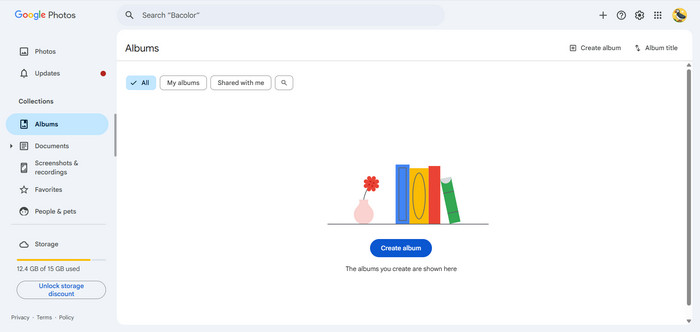
1. Limited design purpose: Google Photos is not supposed to create a video of a fully customized slideshow, but rather to view and arrange memories fast.
2. Restricted creative control: Users are not able to overlay sound effects, beat adjustment, or synchronize transitions with music rhythm.
3. Only video mode, built-in music: In even Highlight video, there is no user-uploaded audio, and only pre-selected songs are provided.
4. Absence of professional editing equipment: Such functions as keyframe animation, video filters, beat syncing, or sophisticated transition editing are entirely lacking.
Part 2. Why Google Photos Slideshow Music Often Fails to Play or Sync
When using the Highlight video feature and experiencing music problems, there are a few typical causes of the problem, such as audio support problems, automatic timing errors, no editing options, sluggish performance, and some glitches with apps or devices.
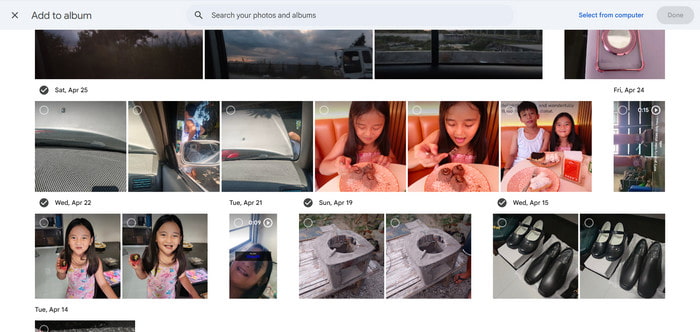
1. Limited audio library
Google Photos just offers a limited number of embedded songs, and some are not loading correctly or working in all areas or across accounts.
2. Automatic timing system
The app also automatically allocates time to photos and transitions, and they can easily disrupt the rhythm of the music and make everything seem to be a bit out of step.
3. No fine-tuning controls
You can not cut audio, move beats, or synchronize music with particular moments in your slideshow, and this restricts creative flexibility and accuracy.
4. Delays in processing or performance
Bulky albums, multiple megapixel photographs, or slow internet connections can cause lag that will interrupt seamless music playback when previewing or exporting.
5. Glitches with apps or devices
Music may also not play properly or may cut off suddenly due to outdated versions of the app, background restrictions, or temporary bugs.
Due to all these restrictions, Google Photos is most appropriate for casual, fast slideshows; however, it cannot improve video quality or support professional, music-matched presentations where timing and emotional impact are crucial.
Ultimate Solution: Create a Slideshow with Your Own Music Files
A slideshow that gives you complete control over the creativity of the final product is not something that can be created with simple tools, particularly when you would like to use your own music, effects, and have a final product. Although the ability to customize is limited in more basic tools like Google Photos, a more robust solution like Tipard Video Converter Ultimate enables you to create fully customized slideshow videos with professional-level abilities. It is easy to use and has more editing features that make it easy to use by beginners and content creators who do not want to use complex workflows to produce better results.

- The MV (Music Video) tool lets you turn photos and clips into a smooth slideshow video.
- It offers a wide range of templates to create visually appealing slideshows quickly.
- You can add your own music files to personalize your slideshow fully.
- AI enhancements improve video quality, including resolution, brightness, and clarity.
- Built-in tools include cropping, filters, and speed control for full editing flexibility.
Step 1 Install the Software and Download
To start with, you need to download Tipard Video Converter Ultimate from its official site. Then, install the installer and go through the setup instructions to install it on your Windows or Mac computer.
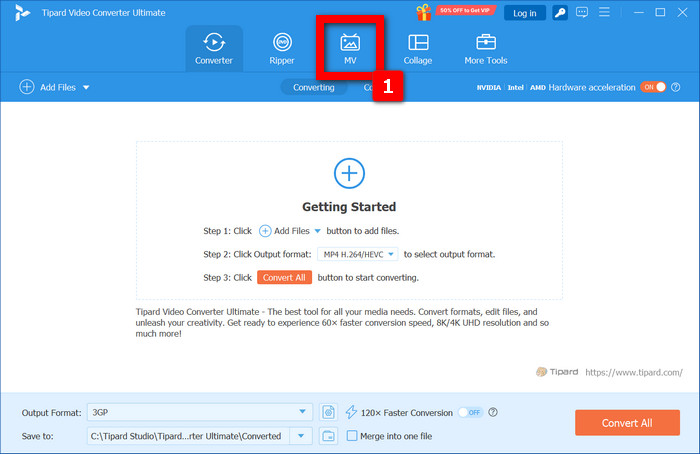
Step 2 Start the Program and Open MV Mode
Then, install and open the software. Starting with the interface, select the option of MV (Music Video) to start creating your slideshow.
Step 3 Add Your Photos or Videos
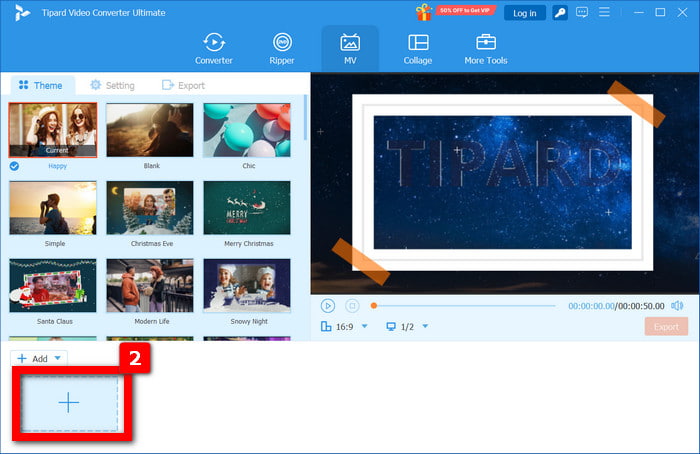
Then, press the button + button to post the pictures or videos you want to use. Next, put them in the way you want to have them, to regulate the flow of the slideshow.
Step 4 Click the Edit Button
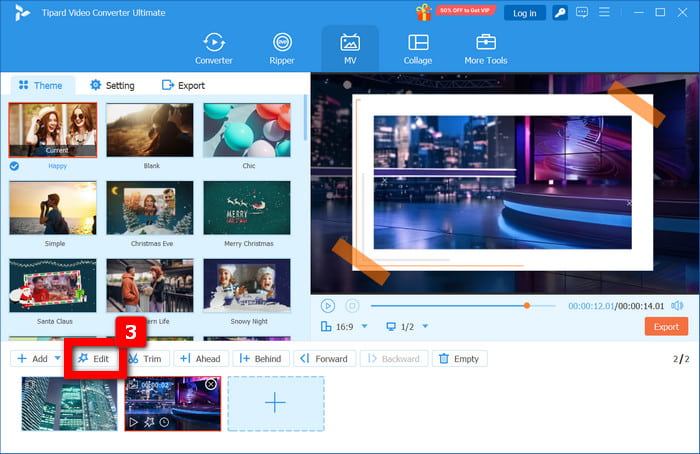
Next, click the Edit button to access the editing panel. Here, you can start adjusting your slideshow by preparing the visuals and timeline before adding audio.
Step 5 Add Your Own Music File
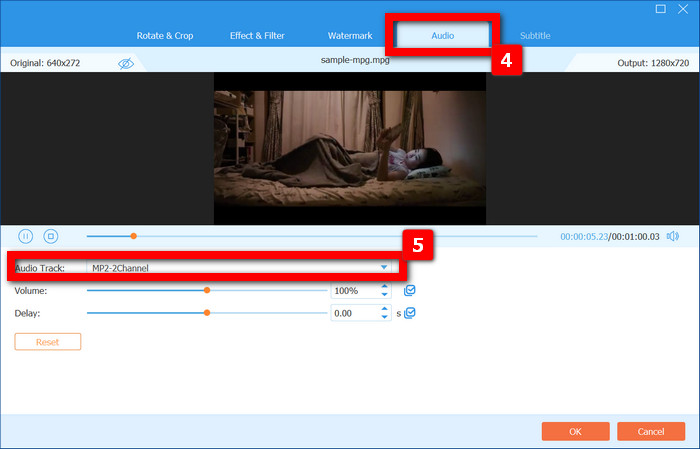
Then, click on the Audio tab and select your favorite music file to import. You can also trim or adjust it to match the timing of your slideshow and enhance it with filters, transitions, and text effects.
Step 6 Export Final Slideshow
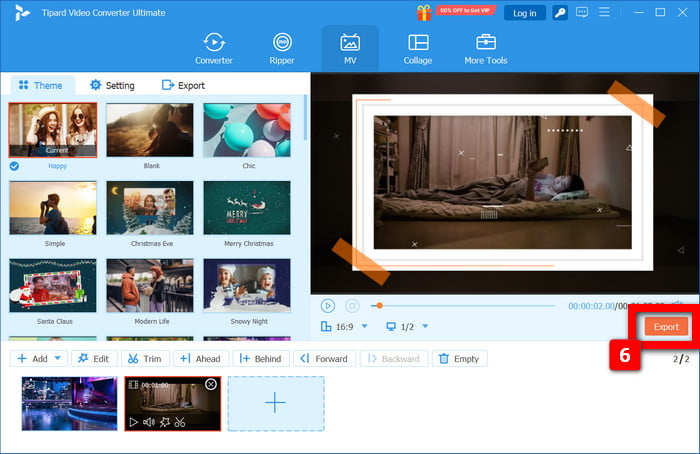
Lastly, you can Export it, choose the format and resolution you want (up to 4K or more), and save your completed slideshow video to your machine.
Conclusion
Can you add music to a Google Slides? is one of the questions that frequently appear as users attempt to make their collection of photos more captivating in Google Photos. But, as demonstrated in this guide, it is not because it has limited editing capabilities and does not support custom audio. Although it still has the ability to generate speedy and uncomplicated slideshows, it lacks personalization and synchronization. Advanced features such as Tipard Video Converter Ultimate will give the user more creative ability to create professional slideshows with music, effects, and complete control over every little detail.
More Reading


About the Author


 Tipard Video Converter Ultimate