

A GIF slideshow maker becomes useful when you want to quickly turn your photos into a moving story for social media or presentations. Instead of static images, you can create looping visuals that instantly capture attention, making your content more engaging and easier to share.

Part 1. Why You Need a GIF Slideshow Maker
In our fast-paced digital world, static images can seem lackluster, and videos can be too much effort to watch. A GIF slideshow maker offers a versatile solution by converting a series of images into a brief animated image that autoplays and loops automatically, grabbing attention and maintaining interest.
Here are just a few reasons why:
1. Grabs attention: GIFs automatically play and repeat, catching your viewers attention.
2. Shows more in a shorter time: You can string multiple images together, allowing you to share a mini story or show off some details.
3. Small and quick to load: GIFs load quickly and are small in size, making them easy to share online.
4. Automatically plays: Viewers do not have to click play on a video.
5. Suitable for how-to videos: Ideal for demonstrating a brief procedure or tool.
6. Great for digital marketing and social media: Can be used to promote a product, feature, or highlight more interactively.
Part 2. Top 5 GIF Slideshow Makers
1. Tipard Video Converter Ultimate
The unique benefit of Tipard Video Converter Ultimate is that it is a hybrid, not only a GIF creator, but a media processor. The real winner for creating GIF slideshows is its MV mode, which makes a normally complicated editing process easier. Rather than having to manually keyframe individual frames, you can think of it as creating a mini video, which can be saved as a GIF, and you have more control for the same effort.
Platform: Windows, macOS
Key Features:
- The MV feature is designed for slideshow-style GIF creation.
- Built-in themes that automatically apply transitions, filters, and pacing.
- Manual timeline arrangement for precise sequence control.
- Adjustable frame rate and bitrate for balancing smoothness and file size.
- Audio support during editing.
- A hybrid of automation and control.
- Fast rendering thanks to hardware acceleration.
- Re-export between GIF and video with no editing.
- As easy as online editors, but more powerful.
- It may be too much for simple GIFs.
2. Movavi Slideshow Maker
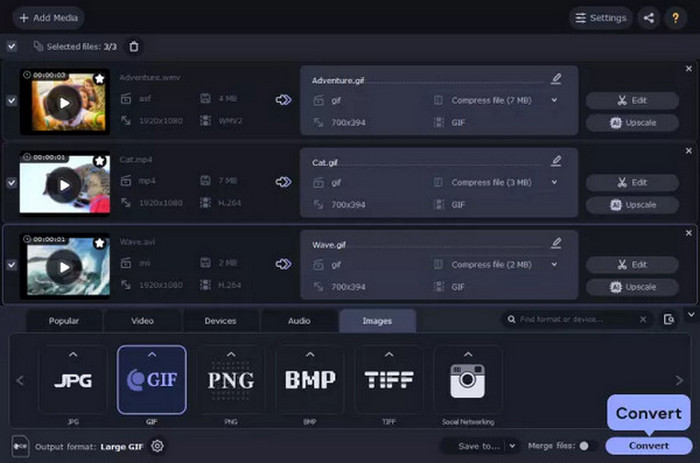
Movavi is marketed as a storyteller rather than a slideshow maker, and this is apparent. It excels at pacing, transitions, and tone. It attempts to direct your GIF with AI suggestions, making it a good option for more personal or story-driven GIFs.
Platform: Windows, macOS
Key Features:
- Slideshow Wizard uses AI to create sequences automatically.
- Timeline editor and layered transitions.
- Rich set of filters, titles, and animations.
- Export options for resolution, speed, and GIF smoothness.
- Effects and transitions feel pro.
- AI assists non-professionals with pacing problems.
- Nice balance of template and customization.
- Does not perform well on older computers.
- Can be expensive after a while.
- Not specifically tailored for GIFs.
3. Ezgif
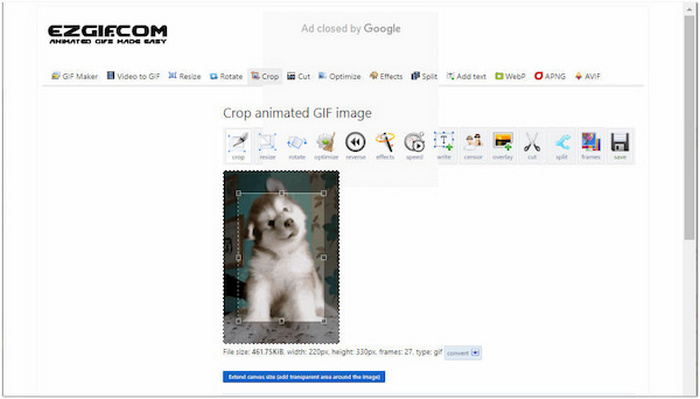
Ezgif is not a propped-up system; it is a utilitarian one. It does not use fancy graphics but instead provides more direct access to the GIF creation process. This makes it quite a powerful tool for savvy GIF users.
Platform: Web-based
Key Features:
- Animation editing on a frame-by-frame basis with time management.
- Step-by-step image upload and positioning.
- Optimization capabilities.
- Simple editing.
- Completely free and no registration needed.
- Can easily adjust time and compression.
- Not easy to get the hang of.
- No transitions, effects, or templates.
- All parameters must be adjusted.
4. Canva
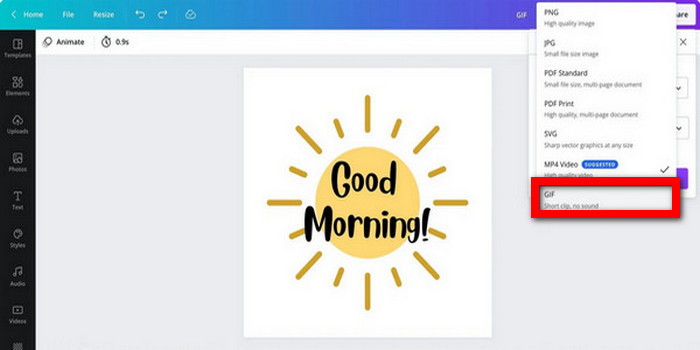
Canva Video Editor takes a design-centric approach to GIF slideshows. Rather than the technical aspects of animation, it is more about design, branding, and aesthetics. This makes it ideal for marketing slideshows where aesthetics are more important than efficiency.
Platform: Web, mobile, desktop
Key Features:
- Easy-to-use editor and templates.
- Magic Animate to make things move.
- Rich collection of fonts, images, and stickers.
- Keyframe controls and export to GIF.
- Simplest tool to operate.
- Creates good-looking images.
- Ideal for use in social media.
- Limited frame rate and compression options.
- Less flexibility with custom designs.
- Best assets require a subscription.
5. Adobe Photoshop
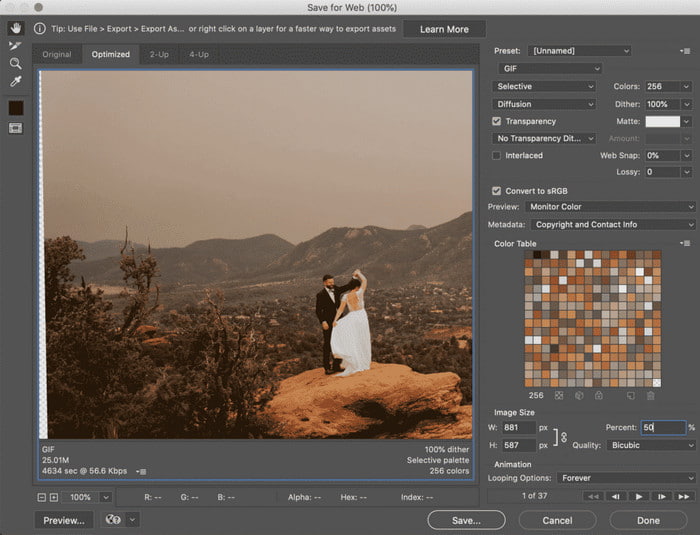
Photoshop is a very powerful method of creating GIF slideshows, but it is not a dedicated tool. Rather, it uses the timeline animation tool, which allows you to control the animation at a frame-by-frame level, similar to professional animation software. That makes it capable but also complex.
Platform: Windows, macOS
Key Features:
- Timeline and frame animation modes.
- Complex animation through layering.
- Accurate timing, looping, and blending options.
- Detailed export options for color and quality.
- Each frame can be edited using Photoshop to edit a video.
- Great for premium or corporate marketing.
- Allows animation and image editing.
- Not beginner-friendly.
- Has to be set up for each project.
- Expensive subscription.
Part 3. Comparison of the 5 GIF Slideshow Makers
To give a clearer decision-making view, this comparison focuses on practical production factors. These things affect real output like export behavior, workflow efficiency, and flexibility, rather than repeating basic features.
| Feature | Tipard Video Converter Ultimate | Movavi Slideshow Maker | Ezgif | Canva | Adobe Photoshop |
|---|---|---|---|---|---|
| Media Input | Photos, videos, DVDs | Photos & videos | Images, short clips | Images, design assets | Full layer-based input |
| Timeline Control | Structured MV timeline | Simple guided timeline | Frame list only | Scene/page-based | Advanced timeline |
| Rendering Speed | Fast (GPU acceleration) | Moderate | Browser-dependent | Cloud-based | Hardware-dependent |
| Export Options | GIF + many formats | Video + GIF | Mostly GIF | GIF + MP4 | Flexible but manual |
| Built-in Assets | Themes & effects | Large media library | None | Huge template library | None |
| Optimization Tools | Built-in compression controls | Basic export tweaks | Strong manual tools | Auto optimization | Manual optimization |
| Scalability | Small to large projects | Best for mid-size | Quick small edits | Repeatable content | Complex projects |
| Show MoreShow Less | |||||
Part 4. How to Make a High-Quality GIF Slideshow on Windows and Mac
The MV setting of Tipard Video Converter Ultimate allows you to create a seamless video from images or GIFs easily.
Step 1 Download and Install
Open your Windows or Mac computer, download and install Tipard Video Converter Ultimate, and run it.
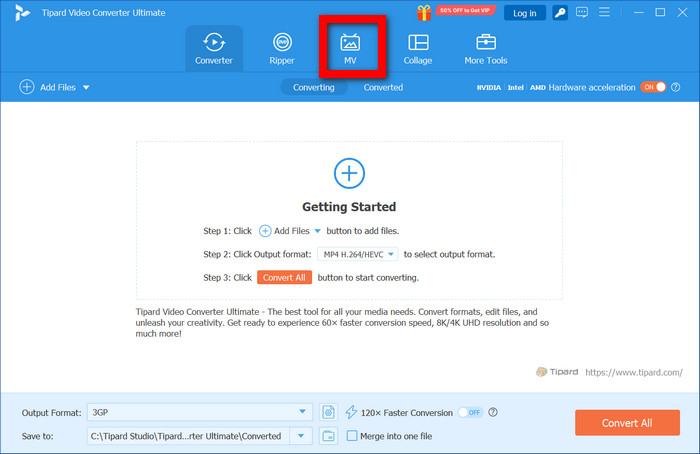
Step 2 Select the MV tab
Next, click the MV tab from the main interface to go to the workspace for creating a slideshow and GIF.
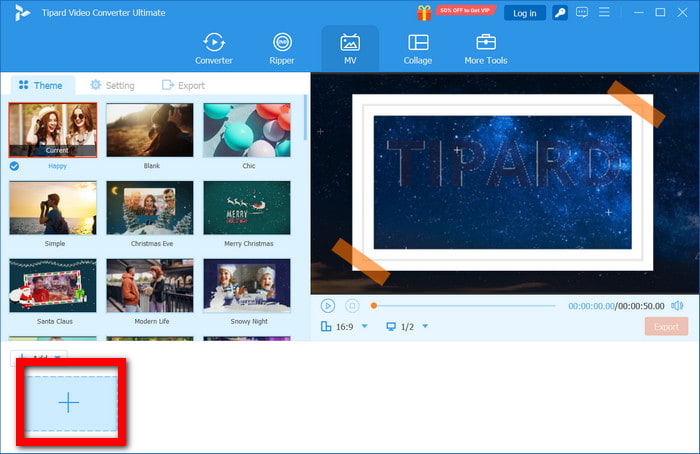
Step 3 Click the Add button
Following that, click the Add (+) button to load your GIFs, photos, or videos. Re-arrange them to your liking.
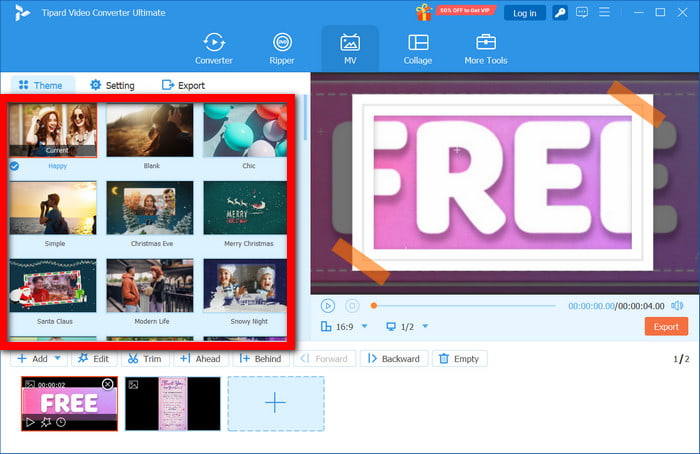
Step 4 Choose a Theme
Then, click on the Theme tab and choose a theme. This will automatically include effects, transitions, and filters in your slideshow.
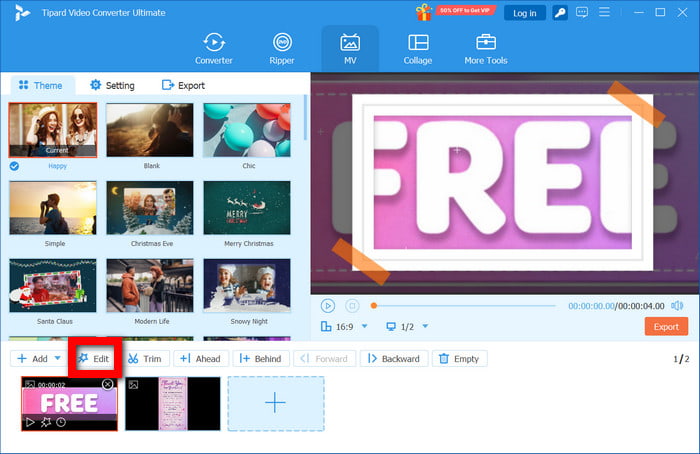
Step 5 Edit the Slideshow
Click the Edit button to edit your slideshow. You can crop, re-arrange, add effects, or adjust the timing of the frames.
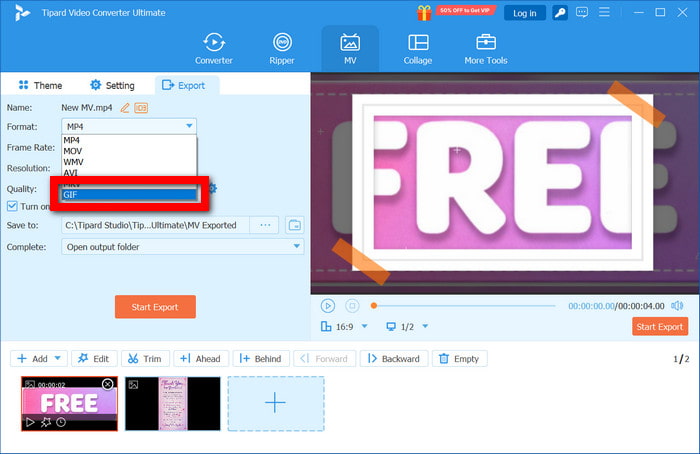
Step 6 Select Output Format GIF
On the Export tab, select the output format GIF. You can change settings such as frame rate.
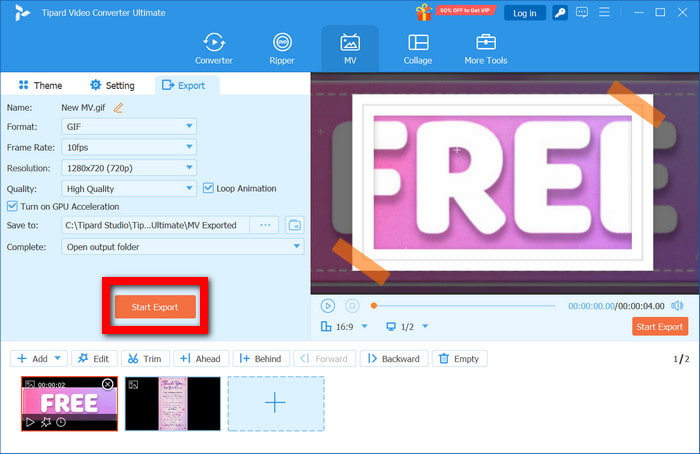
Step 7 Start Export
Click Start Export to begin rendering. Once finished, your high-quality GIF slideshow will be saved to your device.
Part 5: FAQs of GIF Slideshow Maker
What is the difference between a GIF slideshow and a video?
GIF slideshows loop and play automatically without any controls, while videos need to be played. It is smaller, faster, and more appropriate for brief visual narratives, sharing on social media, and demonstrating something where immediate viewing is necessary.
How can I make my GIF slideshow faster to load?
To increase loading speed, decrease image resolution, frame count, and frame rate. Pre-compressing the GIF also speeds up load times. A small file size ensures it loads quickly, particularly on mobile devices and slow connections.
What are GIF slideshows used for?
GIF slideshows are often used in social media posts, product demonstrations, tutorials, and email marketing campaigns. They are good for capturing attention, communicating brief messages visually, and displaying several images in a condensed, interactive, and looping format.
Conclusion
An animated GIF slideshow maker tool allows you to turn images into looping visuals for quicker messaging and improved engagement. In summary, it is a useful tool for designing attention-grabbing, lightweight, and shareable images.
More Reading



About the Author


 Tipard Video Converter Ultimate