

Trying to figure out how to make a slideshow on Facebook while sharing memorable moments or promoting something important can feel limiting with basic tools. You might have a set of great photos, but struggle to present them in a way that truly captures attention. A slideshow helps turn those static images into a smooth, engaging story that stands out in the feed. Whether you're posting personal highlights or business content, using the right approach makes a big difference in how your audience views and interacts with your post.

Part 1. Benefits of Facebook Slideshow
Slideshows on Facebook are a great way to bring photos to life and turn simple images into engaging visual stories. They are ideal for both personal use and marketing, helping content stand out in crowded feeds while capturing and retaining audience attention more effectively.
Here are a few key benefits of Facebook slideshows:
1. Higher Engagement: The dynamic nature of slideshows in the feed increases the odds that they will be clicked, liked, commented, and shared.
2. Better Storytelling: 2.You can arrange images in a sequence to create a narrative, include descriptions, and make your posts more interactive.
3. Easy to Create: 3. Facebook makes it easy to create a slideshow, even if you're not a pro editor.
4. Time-Saving Format: 4.Slideshows are simpler to produce than a video, but are still visually striking.
5. Improved Visibility: Sticky content like slideshows is more likely to appear in your audience's news feeds, helping you to reach more people.
Part 2. How to Make a Slideshow on Facebook: Detailed Guide
Making a slideshow on Facebook is easy, user-friendly, and does not require technical skills. It enables you to easily convert images into visuals you can quickly share with your audience. Here's how:
Step 1 Create a New Post
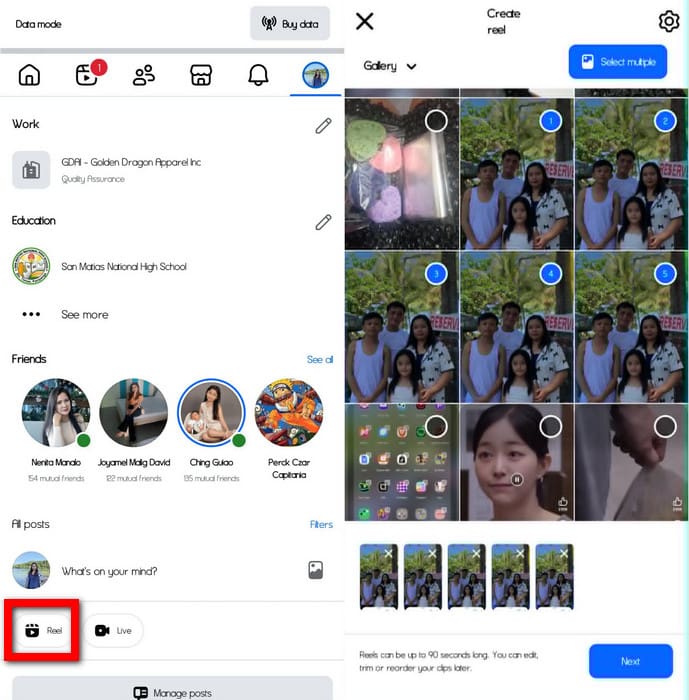
Log in to Facebook and select Reels. Load the photos you wish to include in the correct order so that they tell the story you want to tell.
Step 2 Turn Photos into a Video
Once uploaded, choose to convert your photos to a slideshow or video. Facebook will create a slideshow from the photos you have chosen.
Step 3 Customize Slideshow
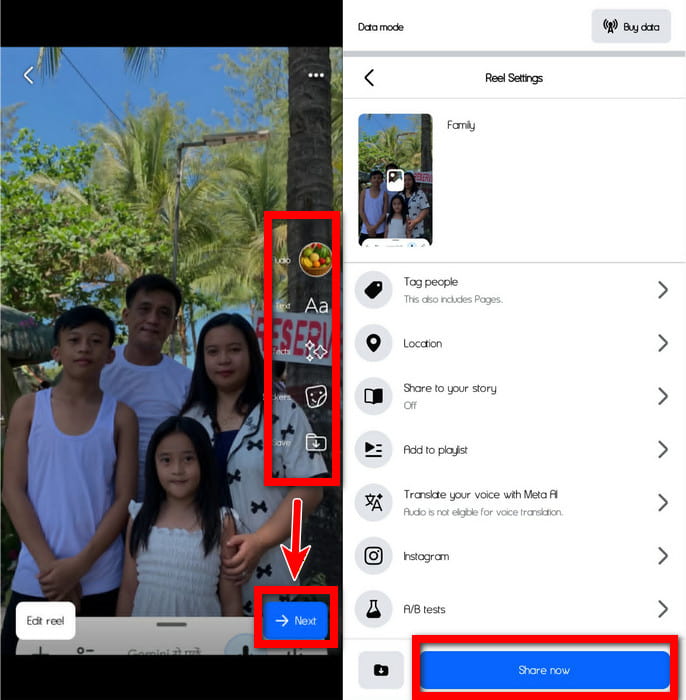
Personalize your slideshow with music, filters, text, and captions. You can select music from the Facebook music library to enhance your mood. Then click on Next to proceed.
Step 4 Preview and Publish
Double-check the slide show for accuracy. When ready, add a caption, tag people, set the location, and select Share now to publish it.
Part 3. Limitations of the Facebook Native Slideshow Maker
While Facebook offers a convenient way to create slideshows, its built-in editor has several limitations that may affect more advanced projects.
Below is a quick overview of its main drawbacks:
| Limitation | Description |
|---|---|
| Limited Editing Features | Only basic transitions, video filters, and text options are available. Advanced editing tools are missing. |
| Restricted Customization | Precise control over timing, layout, and effects is limited. |
| Basic Audio Options | Music choices are limited, and syncing audio with visuals can be inconsistent. |
| Minimal Post-Editing | Once posted, making changes is difficult and may require re-uploading the slideshow. |
| No Advanced Effects | Features like layered animations, keyframes, or professional transitions are not supported. |
Part 4. Professional Way to Make a Slideshow for Facebook
Making a slide show with quality work is not easy, including aspects such as polished images, smooth transitions, and well-coordinated music makes this quite different from basic tools. Facebook offers a basic editor, but if you want full control and more professional-looking results, use software such as Tipard Video Converter Ultimate.
This is an integrated video editor, slideshow maker, and media converter tool, making it a reliable option to create fascinating Facebook slideshows in no time.

- Create slideshows quickly using photos and videos with the built-in MV feature.
- Choose stylish templates with transitions, filters, and background music.
- Add titles, captions, and text overlays for better visual appeal.
- Trim, crop, rotate, and apply filters or effects to enhance your slideshow.
- Export in high resolution (up to 4K) and save in formats like MP4 for Facebook.
Step 1 Download and Install the Software
Go to the official website of Tipard Video Converter Ultimate. So, download and install it on your PC, then start the program.
Step 2 Open the MV Feature
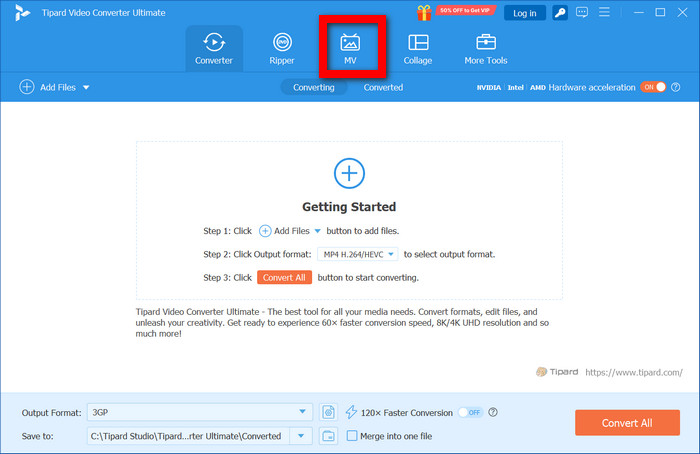
Choose the MV tab from the main interface. This one is mainly for slideshow and music video creation.
Step 3 Import Your Media Files
Hit Add (+) to upload your images and videos. Place them however you want in succession, and make some last adjustments to the duration of each clip for a smoother flow.
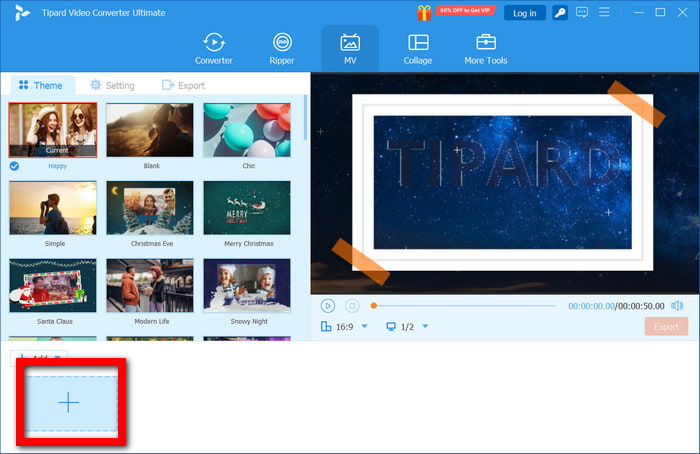
Step 4 Apply a Template and Customize
If you have uploaded materials using our template, you may notice that the template will implement your design elements right away. Also, some of the template elements you could modify are transitions and texts. You can also add your own sound file.
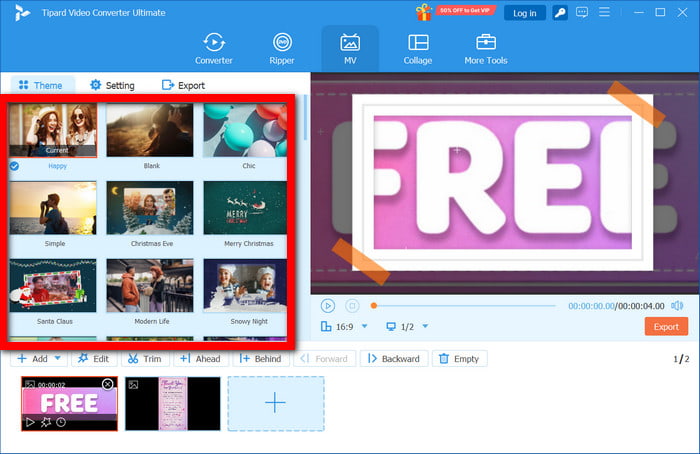
Step 5 Edit and Enhance the Slideshow
Once you finish your slideshow, you can use the tools that we provide (Editing tools) to improve your slideshow. You can free up your images, filter to improve the image quality, add some brightness, and even add some effects.
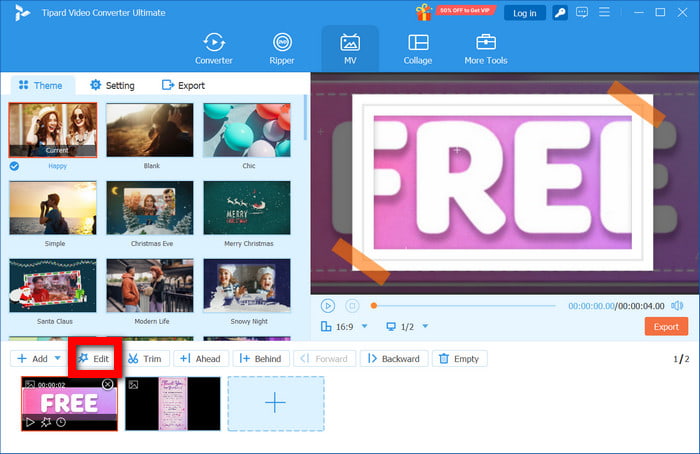
Step 6 Export the Slideshow
You can save your slideshow with the click of the Export tab by choosing a desired video format (like MP4) and a resolution. Then, click on the Start Export to save.
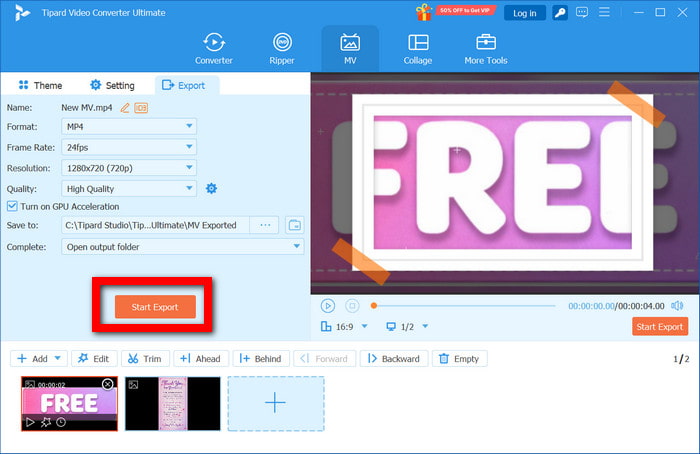
Step 7 Upload to Facebook
Once you have exported your video, you can actually upload it to Facebook to share with the rest of the world.
Part 5: FAQs of Making a Facebook Slideshow
Can I add videos to a Facebook slideshow instead of just photos?
A Facebook slideshow can include a combination of photos and videos. It mainly depends on the tool you are using. The built-in editor may have the best outcome with pictures only, while the more advanced tools will provide a seamless experience with a combination of videos and pictures.
What is the best slideshow length for better engagement?
As a general rule, the shorter the slide shows, the better the reception. Your slideshow is likely to go unnoticed by viewers if it is too long. Unlike PowerPoint presentations, slideshows are designed to tell a story. A video quality enhancer can also help improve the overall visual clarity and presentation.
Do Facebook slideshows support custom branding like logos or watermarks?
Basic Facebook tools are quite restrictive when it comes to branding. Definitions and design placements of branding elements can be better controlled with an external editor like Tipard Video Converter Ultimate.
Conclusion
To create a slideshow on Facebook, you do not need advanced skills, just the right approach and tools. The built-in feature works well for quick and simple projects, while dedicated software offers more control for polished results. By combining clear visuals, smooth transitions, and suitable music, you can turn ordinary photos into engaging content. Whether for personal memories or promotions, a well-crafted slideshow helps capture attention and communicate your message more effectively.
More Reading

About the Author


 Tipard Video Converter Ultimate