

How to make a video picture slideshow that truly captures your memories? Whether for personal moments or special events, creating a compelling slideshow requires the right tools and planning. This guide walks you through the basics, from understanding slideshows and storyboarding to using tools that help you create engaging, high-quality results.

Part 1. What is a Video Picture Slideshow?
A video picture slideshow is an electronic presentation that converts a collection of images and (optionally) video clips into a video. Rather than looking at still images, the photos are put in a sequence and played as a short film.
It usually includes:
- A series of photos or video clips.
- Effects (fade, zoom, slide, dissolve) to move from one photo to another.
- Accompanying sounds or soundtrack.
- Optional titles or text to describe events.
- Occasionally, special effects (Ken Burns effect, filters).
Its primary focus is to convey a narrative, like:
- A birthday or wedding recap.
- A travel memory collection.
- A eulogy or memorial.
- A project or school presentation.
Part 2. Storyboard for Your Video Picture Slideshow
A storyboard is a basic outline of how your slideshow will be presented, scene by scene. It is a way to plan what you are going to edit.
Here is one way you can structure your storyboard:
1. Opening Scene (Introduction)
- Photo/video: Title image or best still to preview the trip.
- Text: My Summer Trip 2026 or others.
- Music: Intro music begins.
- Purpose: Tone and theme set.
2. Beginning of the Story
- Photo/video: First group of images.
- Transition: Fade in/slide in.
- Text (optional): Dates or location.
- Purpose: Show how the story begins.
3. Highlight Section
- Photo/video: Highlights or key points.
- Transition: Slightly quicker transitions or effects.
- Music: Creates anticipation or excitement.
- Text: Titles, subtitles (places, people, events).
- Purpose: This is the main story part.
4. Emotional moment
- Photo/video: Emotional images.
- Transition: Slow fade or soft zoom.
- Music: Slower or emotional tone.
- Purpose: Emphasize emotions or importance.
5. Ending Scene (Conclusion)
- Photo/video: Last shots or class photo.
- Text: The End, Thank You, or other message.
- Music: Fade out.
- Purpose: Finish the story and make it memorable.
Part 3. 3 Ways to Create a Video Picture Slideshow
There are several methods of creating a video picture slideshow, depending on your experience level and how much control you desire. One option is to create a professional-looking slideshow, while another is to create it automatically and quickly.
1. Tipard Video Converter Ultimate (Professional All-in-One Slideshow Creator)
Tipard Video Converter Ultimate is an all-in-one multimedia tool. This software includes MV Maker, Collage Maker, and editing tools, and is suitable for professional-grade slideshow videos, whether you are a novice or an expert.
It is unique in offering AI boosts, speed, and format compatibility. The software allows you to create cinema-style slideshows, with total control over transitions, music, and effects.
It is compatible with 500+ formats that enable export to any platform. Hardware acceleration (Intel, AMD, NVIDIA) ensures speedy processing without compromises. Its AI features also increase brightness, sharpness, and resolution, even for poor-quality images.

- Supports both photo and video input for slideshow creation.
- Handles 500+ output formats (MP4, MOV, MKV, AVI, etc.) for universal playback.
- Uses Level-3 hardware acceleration for faster editing and rendering performance.
- Includes AI video enhancement for improving resolution, brightness, and clarity.
- Provides advanced editing tools.

Step 1 Download and Install the Software
Click this link to download Tipard Video Converter Ultimate. Click to install it on your Windows or Mac OS computer, and then open it.
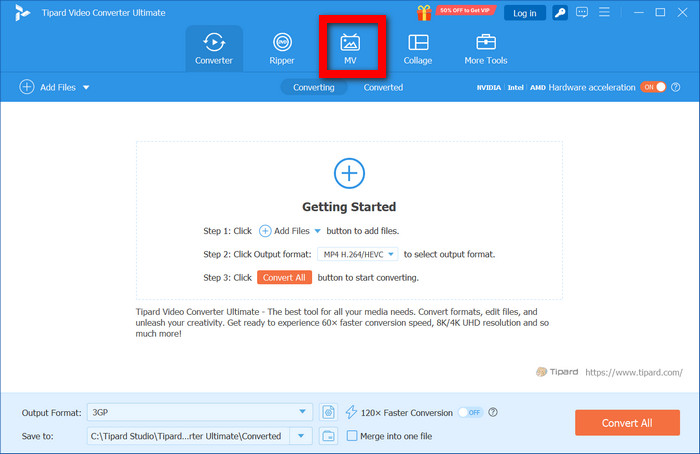
Step 2 Click on the MV Tab
Click on the MV tab in the main interface. This section is specifically designed for creating slideshow-style videos using photos, videos, themes, and music.
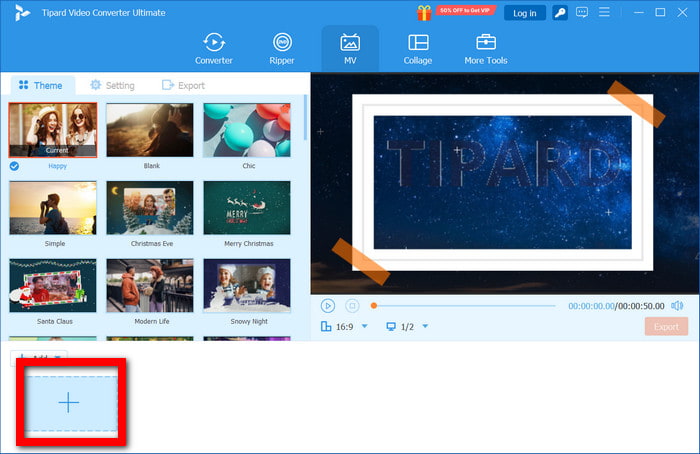
Step 3 Import Photos and Videos
Click on the + button to import your chosen photos and videos. Organize them in the order you want them.
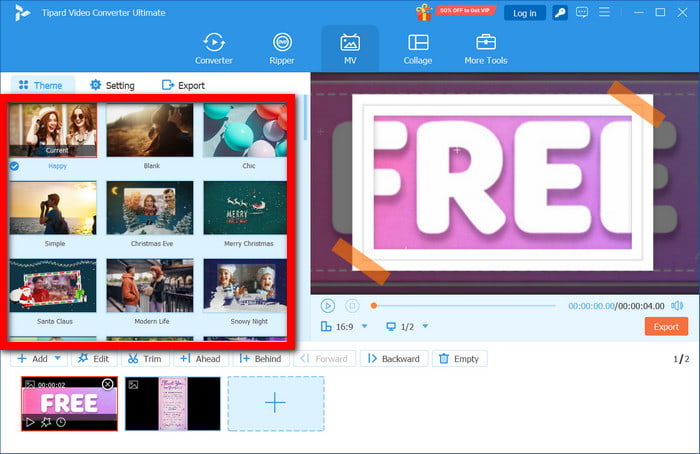
Step 4 Customize Your Slideshow
Select a theme, background music, transitions, and filters or AI effects. You can also include text or set times for each slide.
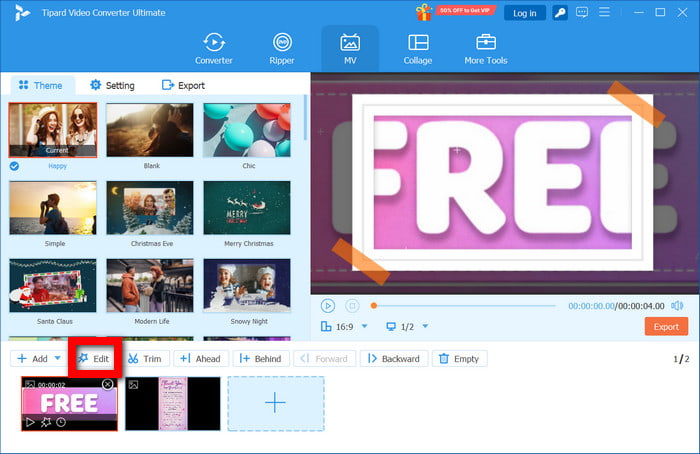
Step 5 Enhance and Preview
Apply enhancement tools to adjust brightness, resolution, or color. View the slideshow to check timing using the Edit option.
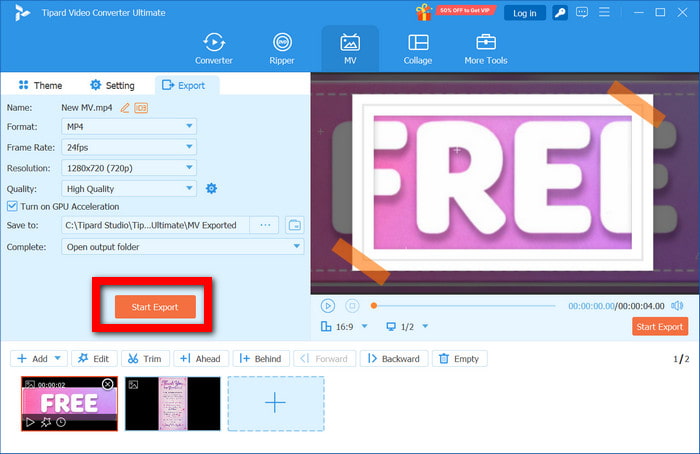
Step 6 Export Your Final Video
Choose your desired file format (like MP4 for compatibility), and then click the Start Export button to save your slideshow.
2. iMovie
Apple designs iMovie for Apple devices and simplifies video editing. It is also a photo slideshow tool with editing and video effects. It also has a drag-and-drop option and preset themes to effectively convert pictures to slide videos. Below is a guide for using iMovie for photo editing on your video slideshow.
Step 1 Open the app, then click Movie.
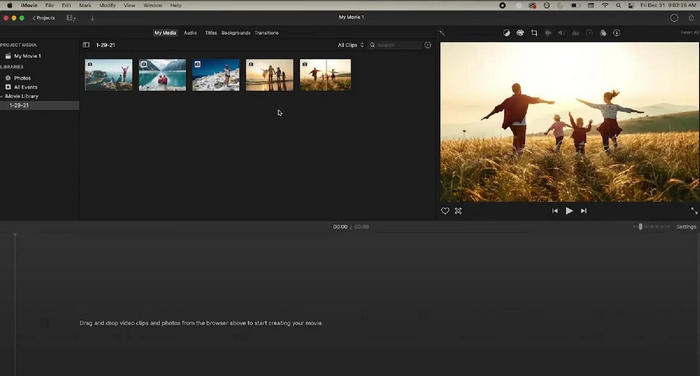
Step 2 Import your photos and put them in the timeline.
Step 3 Include slide or fade transitions. Choose a music piece from your phone or iMovie music library.
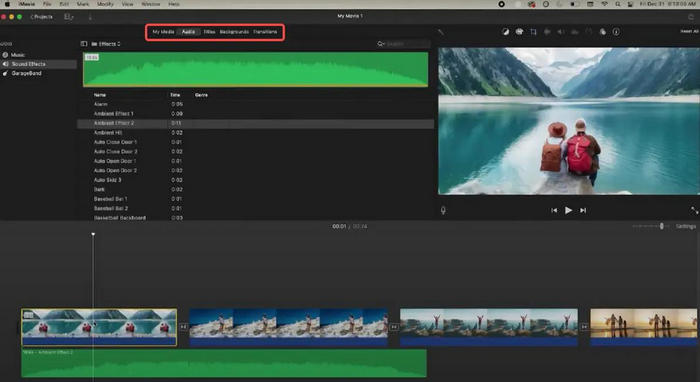
Step 4 Set and limit the time each picture is seen with effects like zoom and crop.
Step 5 Finish with basic effects and photo limits. Save your edited video and publish it on social media.
3. Google Photos
An online tool, Google Photos, offers slideshows or movies. Photos become visual storytelling, and music and themed autosorting become simple to share. Effects on your photo slideshow require almost no effort, with support for 4K video resolution for clearer playback quality.
Step 1 After opening the app or website, sign in to your account.
Step 2 Choose the pictures to include in your slideshow.
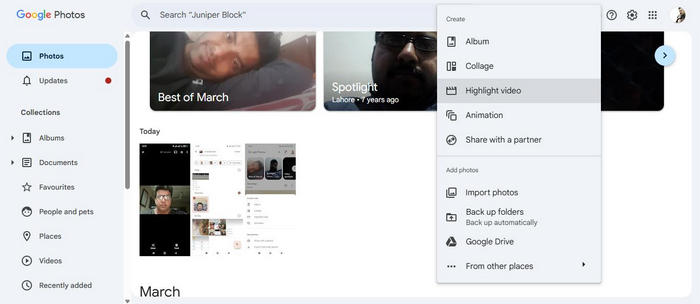
Step 3 Click the create button, then select Movie to allow the software to organize your photos.
Step 4 Choose your music or allow the software to auto-generate music for the slideshow.
Step 5 Edit and download your photos in the movie to save and send, or directly share the link, or post on social media.
Part 4: FAQs on How to Make a Video Picture Slideshow
What is the ideal length for a video picture slideshow?
This is largely dependent on the purpose. If you want to share a slideshow and keep the audience engaged with something more casual, the time frame is about 1-3 minutes. If the purpose is to do a presentation or a video tribute, you can extend the slideshow to somewhere between 3 and 10 minutes, assuming you include some smooth transitions and varied pacing.
What type of music works best for a slideshow?
The type of music to accompany the slideshow is also largely dependent on the mood and the music. For a video with a lot of memories or emotional moments, a softer music background is ideal. If the video celebrates or highlights a trip, for example, a harder background will offer a more appropriate accompaniment.
How can I make my slideshow more engaging without using advanced editing skills?
One way to showcase catchy slideshows is to focus on the music and timing. Be sure to arrange the pictures appropriately and showcase the pictures at a customizable pace. Uniform transition is also very important during slideshows. An easy tool helps as well, of course, as it also enables you to reinforce captions/titles/summaries and correct video color for a more polished and professional-looking result.
Conclusion
A photo and video slideshow maker helps turn your memories into engaging visual stories with ease. By planning your storyboard and choosing the right tool, you can create polished slideshows perfect for sharing, presentations, or preserving special moments for years.
More Reading




About the Author


 Tipard Video Converter Ultimate