

This guide shares four ways to deinterlace video on your desktop or online without quality loss. Old videos that use outdated interlaced scanning look good on a traditional TV. However, they will become blurry when flickering on modern monitors and mobile devices. The good news is that you can fix this problem and elevate video quality with the right tool. Let's learn the proven methods and concrete steps.

Part 1: What Is a Deinterlacing Video
To define what deinterlacing video is, we need to understand interlacing first. It is an old visual technology. Instead of drawing a complete image, it splits each frame into two fields. The first field contains the odd-numbered lines and the second field contains the even-numbered lines. The two fields are shown in rapid alternation. If the speed is high enough, your eye blends them into what appears to be a single frame. An interlacing video looks smooth on traditional TV. However, it becomes blurry and shaking on modern displays.
Video deinterlacing is the process of converting interlaced video into progressive-scan video. A progressive video displays each frame in full image, providing clean motion on modern displays.
| Interlaced Video | Progressive Video | |
|---|---|---|
| Resolution | 480i, 576i, 1080i | 720p, 1080p, 4K |
| For devices | VHS, DVD, Broadcast TV | Modern Displays, Smartphones, and Tablets |
| Best for | Legacy broadcast | Streaming, YouTube, Editing |
Part 2: How to Deinterlace Video for Free
Way 1: How to Deinterlace Video in HandBrake
HandBrake is a free, open-source video converter. It includes the ability to deinterlace video on Windows, macOS, and Linux for free. If you're comfortable with the limited output format, it is a good option.
- Completely free.
- Cross platforms.
- Lightweight and stable.
- Process videos for portable devices.
- Lack AI-powered enhancement.
- Limited output formats.
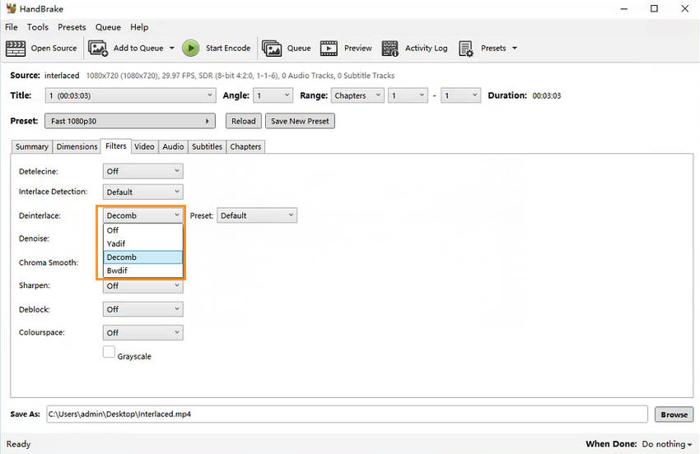
Step 1 Open HandBrake.
Step 2 Click the Open Source menu to import an interlaced video.
Step 3 Select a proper Preset.
Step 4 Go to the Filters tab.
Step 5 Next, select Decomb from the Interlace Detection option.
Step 6 Click the Start Encode button to begin deinterlacing the video.
Way 2: How to Deinterlace Video in VLC
VLC is an open-source media player. It comes with a wide variety of bonus features, including interlaced-to-progressive conversion. It removes combing artifacts and improves viewing clarity without editing the source video.
- Open source.
- Deinterlace video playback.
- Work on Windows, macOS, and Linux.
- Won't change source videos.
- Deinterlacing is temporary.
- Quality is limited compared to AI tools.
Step 1 Run VLC when you need to deinterlace a video.
Step 2 Open the interlaced video.
Step 3 Go to the Video menu.
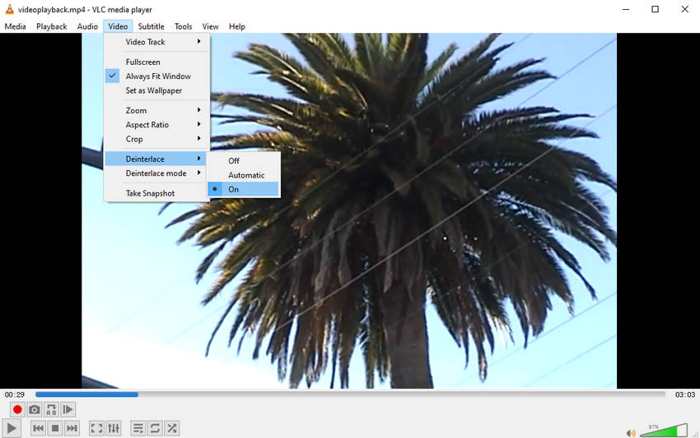
Step 4 Choose Deinterlace and set it to On.
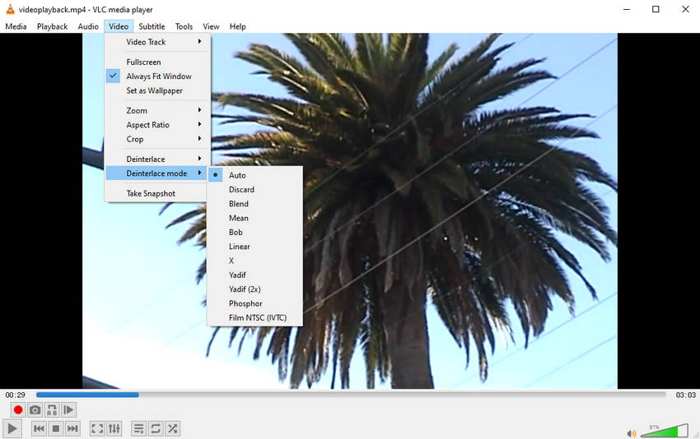
Step 5 Next, navigate to Video, Deinterlace mode, and choose a mode based on the video.
Part 3: How to Deinterlace Video Online Free
Another option to deinterlace video online for free is to look for a web-based video editor, such as Vmake AI Video Enhancer. It enhances video quality online using AI and offers a free version.
- Deinterlace videos online.
- Process videos with AI.
- Enhance video quality.
- Offer multiple plans.
- Watermark in the free version.
- Limited features.
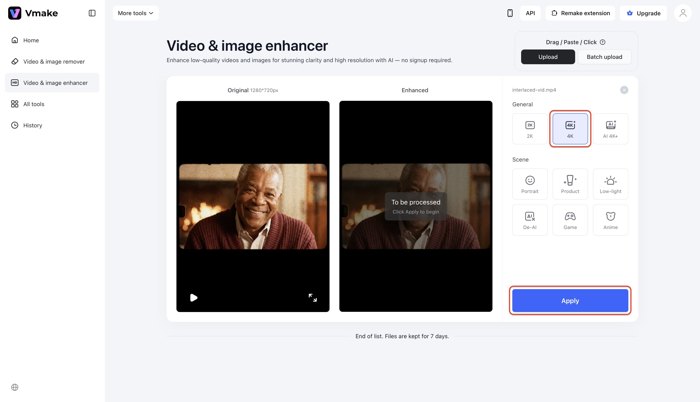
Step 1 Visit the video enhancer in a web browser.
Step 2 Upload an interlaced video.
Step 3 Choose a resolution, like 4K. Then, the tool will automatically analyze the footage and convert interlaced to progressive.
Step 4 Preview the result and download it.
Part 4: How to Deinterlace Video with AI
Tipard Video Converter Ultimate is one of the best ways to deinterlace video on your desktop. It can deinterlace multiple videos at once. Moreover, the built-in AI can easily enhance video quality.

- Deinterlace videos with a single click.
- Process multiple videos at once.
- Support over 500 video and audio formats.
- Offer a wide range of bonus features.
How to Deinterlace Videos on Your Desktop
Step 1Add videos
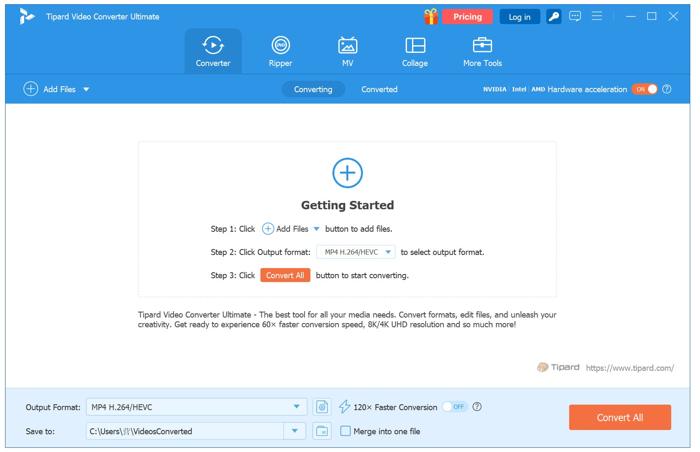
Launch Tipard Video Converter Ultimate after you install it on your PC. There is another version for Mac. Click the Add Files menu and import the interlaced videos.
Step 2Deinterlace videos
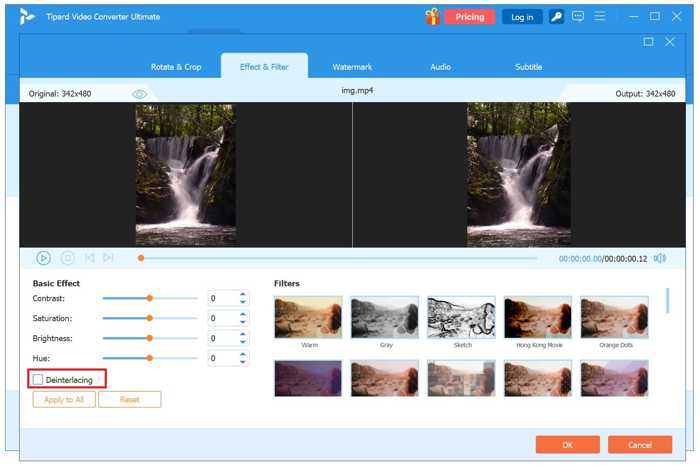
Click the Edit button and switch to the Effect & Filter tab. Check the Deinterlacing option to process the video. To deinterlace all videos, click Apply to All.
Step 3Export deinterlaced videos
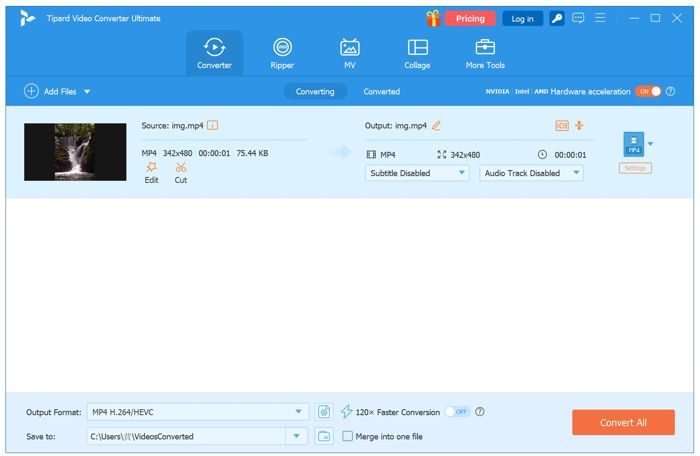
Go back to the home interface, click the Output Format option at the bottom, and select the right video format. Set an output folder and click Convert All.
Conclusion
This article outlined multiple ways of video deinterlacing. You should learn this term. HandBrake and VLC are free tools for fixing interlaced videos on a computer. You can try an online video editor. Tipard Video Converter Ultimate is a great option for converting your interlaced videos with AI.
All-in-one video toolbox: convert, edit, upscale, enhance, and compress your videos easily
100% Clean & Safe
100% Clean & Safe

More Reading




About the Author

 Click here to join the discussion and share your comments
 Tipard Video Converter Ultimate