

The Handbrake Video Converter takes a practical route with video encoding, compression, and media prep, and it does all that without expensive subscriptions. In this review, we will look at how it performs, what it includes, where it kinda struggles, plus a few alternatives, just to see if this open-source tool still makes sense for modern video work.
Part 1. The HandBrake Verdict: Quick Summary
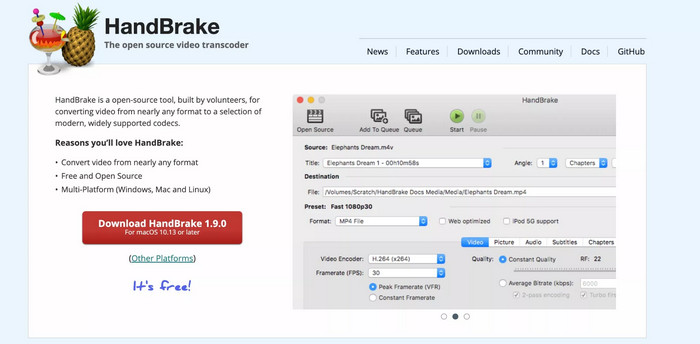
HandBrake already has a solid reputation as one of the more trusted free video transcoders around. It handles dependable video conversion, decent compression, and basic DVD ripping tasks, all without any subscription or license fee pushing you around. Even if it supports fewer output formats than a lot of paid options, the overall output is still very solid. You get high-quality encoding, plenty of adjustment choices, and cross-platform support, so it feels like a workable fit for both newcomers and more experienced users.
Overall Rating:
| Category | Rating |
|---|---|
| Ease of Use | ★★★★☆ (4.2/5) |
| Video Conversion Quality | ★★★★★ (4.8/5) |
| Conversion Speed | ★★★★☆ (4.0/5) |
| Supported Formats | ★★★☆☆ (3.8/5) |
| Customization Options | ★★★★★ (4.9/5) |
| Overall Score | ★★★★☆ (4.5/5) |
Best For:
- Converting videos into MP4, MKV, and WebM.
- Shrinking bigger video files while keeping decent clarity.
- Batch video conversion (converting many files at once).
- Ripping home-made DVDs, or DVDs that are not protected, and similarly unprotected Blu-ray discs.
- People who want a free, open-source video transcoder.
Part 2. Key Features of HandBrake Video Converter
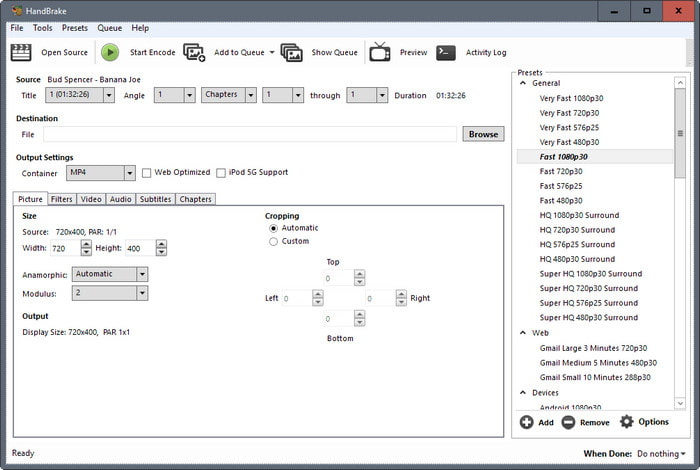
HandBrake sorta does way more than a basic convert this video thing. It is kinda like it bundles encoding, compression, subtitle stuff, audio controls, and even some video enhancement tools in one place. And yes, it is free, but it still has a bunch of features you would usually see in those paid video converters, not just the bare minimum.
Main Features of HandBrake:
- Free and open source software that runs on Windows, macOS, and Linux.
- Video conversion into formats people actually use a lot, like MP4, MKV, and WebM.
- Device presets that kind of auto-tune videos for smartphones, tablets, TVs, and other playback gadgets.
- Batch conversion so you can drop several videos in a queue and let it run.
- Video compression tools that shrink file size by tweaking bitrate, resolution, encoder options, and overall quality.
- Video filters for deinterlacing, denoising, sharpening, cropping, scaling, and border removal.
- Subtitle management, where you can add, remove, embed, or pass through subtitle tracks.
- Audio customization too, including codec choice, bitrate changes, channel downmixing, and multiple audio tracks.
Part 3. Key Performance Benchmarks & Codec Support of HandBrake
Honestly, performance is one of the strongest points of HandBrake. The app supports multiple modern codecs and hardware acceleration methods, so on compatible systems, conversions can feel pretty efficient. Still, the real encoding speed depends on the codec you pick, your target quality settings, your PC hardware, and the source resolution.
Performance and Compatibility
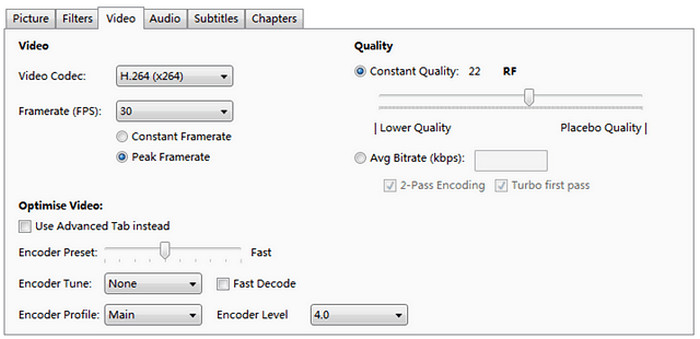
Supported video codecs:
- H.264 (AVC)
- H.265 (HEVC)
- VP8
- VP9
- AV1
Supported audio codecs:
- AAC
- MP3
- AC3
- E-AC3
- FLAC
- Opus
- Vorbis
- Audio passthrough for selected formats.
Supported output formats:
- MP4
- MKV
- WebM
Hardware acceleration support:
- Intel Quick Sync Video
- NVIDIA NVENC
- AMD VCE/VCN
- Apple VideoToolbox (macOS)
Encoding performance highlights:
- H.264 gives fast encoding and stays very compatible, which is honestly a big win for a lot of setups.
- H.265 gives better compression but usually costs more processing time, so it can feel slower, especially on weaker machines.
- AV1 has outstanding compression efficiency, though encoding tends to be slower than both H.264 and H.265 in most cases.
- Hardware acceleration can reduce conversion time a lot, assuming your graphics hardware supports it and you turn it on.
- Constant Quality and Average Bitrate modes let you sort of balance image clarity with the resulting file size.
Part 4. Limitations of HandBrake Video Converter
Even if HandBrake has impressive functionality for a free application, a few limitations might mess with some workflows. These issues can lead users with more demanding needs to look at different video converters instead.
Drawbacks to Consider:
- Output formats feel pretty limited, supporting only MP4, MKV, and WebM.
- It cannot directly rip most copy-protected DVDs and Blu-ray discs without extra third‑party tools or components, and a lot of newer protections are still not covered.
- Advanced settings may seem overwhelming, especially without knowledge of common video encoding terms. In some cases, issues like HandBrake won't open may also make troubleshooting more difficult for users.
- Conversion times can stretch a lot when you use slower encoder presets, or when you pick high-quality H.265 and AV1 options.
- There are no pro-level video editing features, like transitions, effects, timeline manipulation, or motion graphics.
- No built-in media library exists for organizing a video collection, so it is more manual than people expect.
Part 5. Top HandBrake Alternative
HandBrake is basically a solid, free video transcoder, but yeah, it has limited format options, pretty simple editing tools, and DVD support that is not always as broad as people expect. So, if you want something more all-in-one, Tipard Video Converter Ultimate feels like a better fit, because it bundles video conversion, DVD ripping, AI improvements, and those editing extras in one place. It handles 500+ formats and usually runs quicker too, mainly thanks to hardware acceleration.

- Batch converts multiple videos in seconds.
- Supports 500+ formats, including MP4, MOV, MKV, and more.
- Edits footage with trimming, filters, effects, and AI upscaling.
- Speeds up 4K, 5K, and 8K conversions using GPU acceleration.
- Rip DVDs and store the content as digital files.
- More flexibility than HandBrake since it supports 500+ formats.
- Hardware acceleration helps, especially for bigger, high-res videos.
- One bundle for conversion, DVD ripping, editing, compression, and enhancement stuff.
- Controls are straightforward, plus presets are there when you just want quick wins.
- You can still keep quality in check with adjustable resolution, bitrate, and codec choices.
- Because it does so much, it can eat up more storage and processing power than simpler tools.
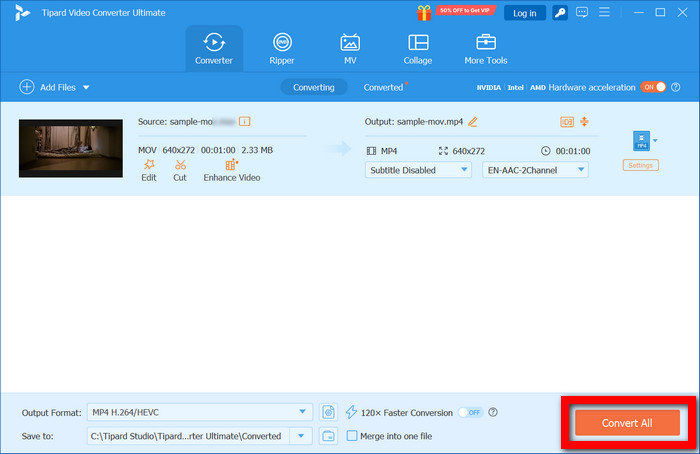
Step 1 Download and Install
Grab the software from the official site, then open it and get it installed.
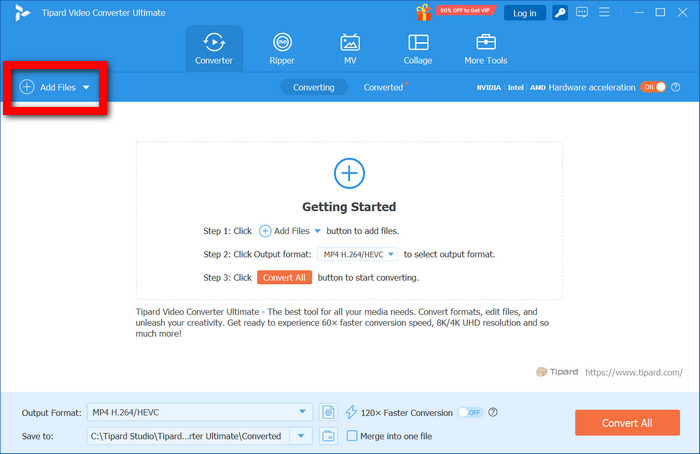
Step 2 Add Video Files
Tap the Add Files option to import your videos. You can toss in more than one file for batch conversion.
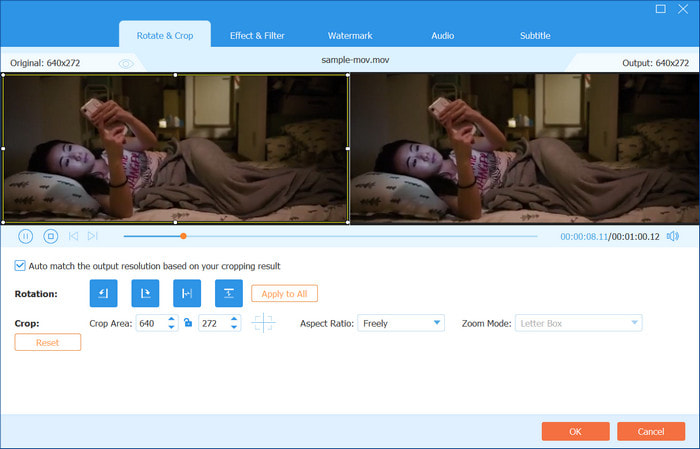
Step 3 Tweak and Boost Videos
Use an editing suite to trim, crop, fine-tune effects, add a watermark, or push quality a bit with various filters.
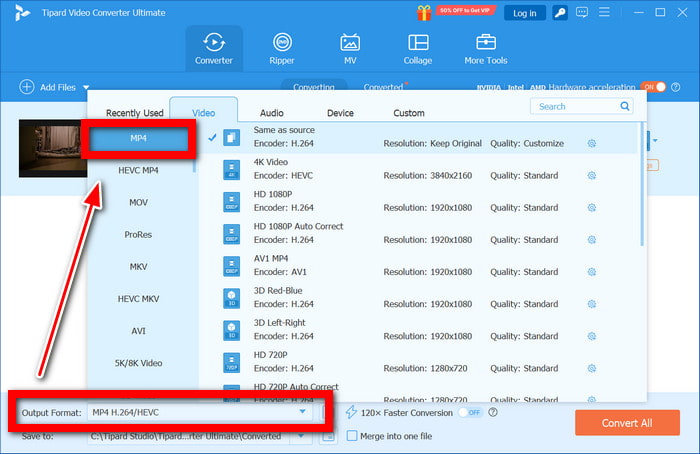
Step 4 Pick an Output Type
Select the Output Format you want, like MP4, MOV, MKV, AVI, or WebM under the Video tab.
Step 5 Convert and Export
Set the output settings, choose the destination folder, then tap the Convert All button to save the converted videos.
Tipard Video Converter Ultimate vs. HandBrake
| Feature | HandBrake | Tipard Video Converter Ultimate |
|---|---|---|
| Output Formats | MP4, MKV, WebM | 500+ formats |
| Conversion Speed | Standard | Up to 120× faster |
| Video Support | Up to modern codecs | 8K, 5K, 4K support |
| DVD Features | Limited | Rip, copy, ISO, folder support |
| Editing Tools | Basic filters | Full video editing tools |
| AI Enhancement | Not available | Available |
| Show MoreShow Less | ||
Part 6. FAQs of HandBrake
Does HandBrake support batch conversion?
Yes, HandBrake does batch encoding using its queue feature. You can load multiple videos, and they encode in order, making it easier to manage several conversions without starting each task manually. A HandBrake alternative may offer more advanced batch tools.
Can HandBrake enhance video quality while converting?
HandBrake cannot really fix badly damaged footage, but it does give filters and encoding options that help playback look cleaner. People can adjust resolution, sharpening, noise reduction, and compression parameters for better viewing results.
Does HandBrake run on both Windows and Mac?
Yes, HandBrake is available on Windows, macOS, and Linux. The overall interface and main functions are pretty consistent, so you can convert videos and customize encoding settings across these systems.
Conclusion
To convert a video with HandBrake, users get a dependable free transcoding option with solid encoding controls and customization tools. Still, it has certain format limitations and some advanced needs are not covered, so alternatives like Tipard Video Converter Ultimate can be worth a look.

All-in-one video toolbox: convert, edit, upscale, enhance, and compress your videos easily
100% Clean & Safe
100% Clean & Safe

More Reading


About the Author

