

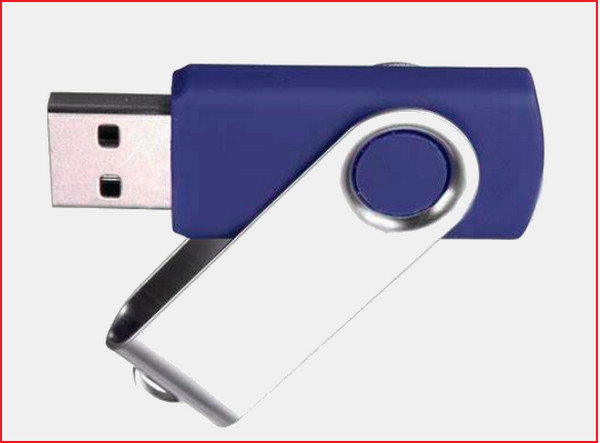
USB flash drive, also known as a USB drive or USB stick, is one of the most convenient ways to store and transfer Blu-ray movies. Whether you call it a USB drive or flash drive, you can copy Blu-ray content to USB storage for easier playback, backup, and sharing.
This article will present to you the three practical ways with their guides to copy Blu-ray to a flash drive without losing the quality. Therefore, prepare your USB flash drive, an optical drive, and the Blu-ray discs you want for the marvelous yet easy and quick cloning procedures that you are about to see.

Part 1. What Is a USB Flash Drive and Why Use It for Blu-ray Storage?
USB flash drive is a kind of data storage device that uses a USB-integrated interface. It includes a flash memory that is electronically reprogrammable, removable, and rewritable. Furthermore, since USB flash drives are commonly used for storing, backing up, and transferring files, it has never stopped expanding when it comes to their size capacity.
As of this writing, you can already find one that can support up to 5TB storage capacity. Compared with physical Blu-ray discs, USB drives provide faster access, easier portability, and larger storage flexibility. A USB flash drive, USB stick, or external USB drive can be used to store ripped Blu-ray movies.
Hence, for you to transfer larger Blu-ray movies into your USB flash drive, you will need to transform them to what it requires. This means movies shall be ripped into a file first. That said, you will need a good ripper for you to copy the Blu-ray file into your USB.
What USB Drive Do You Need for Blu-ray Movies?
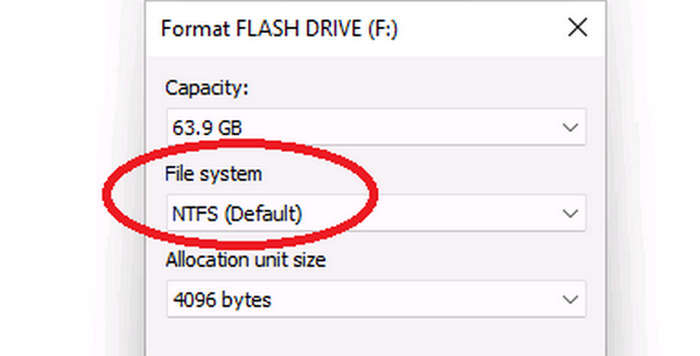
Before copying Blu-ray to a flash drive, make sure your USB storage has enough space and uses a suitable file system. Since Blu-ray discs contain large amounts of HD video and audio data, choosing the right USB drive helps you store movies smoothly without quality loss.
- Choose Enough Storage Capacity: A standard Blu-ray disc usually contains 25GB (BD-25) or 50GB (BD-50) of data, while 4K Ultra HD Blu-ray discs require even more storage space. For most Blu-ray movies, a 64GB or larger USB flash drive is recommended.
- Use NTFS or exFAT File System: Blu-ray movie files are often larger than 4GB, which exceeds the single-file limit of the FAT32 file system. Therefore, NTFS or exFAT is a better choice for copying Blu-ray to USB, as they support larger files and are more suitable for HD and 4K video storage.
- Choose a Faster USB Drive: Blu-ray files can take up tens of gigabytes, so transfer speed is also important. A USB 3.0 or newer USB drive offers faster reading and writing speeds than USB 2.0, helping you transfer large Blu-ray files more efficiently.
Part 2. Best Way to Copy Blu-ray to USB Drive (Flash Drive)
As mentioned above, the need for a good tool will make the job possible. For this reason, we do not only provide you with the good but the best way by using Tipard Blu-ray Converter. It is a dedicated software that works on ripping and converting Blu-rays into more than 500 various formats, including video, audio, and devices, without affecting the excellent quality even a bit.
Furthermore, Tipard Blu-ray Converter allows you to rip Blu-ray discs directly to USB drives, including USB flash drives and external USB storage devices. This means you will never need extra effort and time to transfer your files after you rip them. Amazingly, Tipard Blu-ray Converter provides extra helpful tools you can use like a pro, even if you are not. Easily navigate its video enhancer, compressor, 3D maker, GIF maker, and media metadata editor without any limitations.
Key Features:
- Multithread and hardware acceleration technologies that help improve its performance.
- Extensive editing tools to enhance, compress, crop, rotate, add effects, and more.
- Produce ripped Blu-rays into more than 500 types of videos and devices.
- One-click to merge files and save them to a USB flash drive.
How to Copy Blu-ray to USB Losslessly
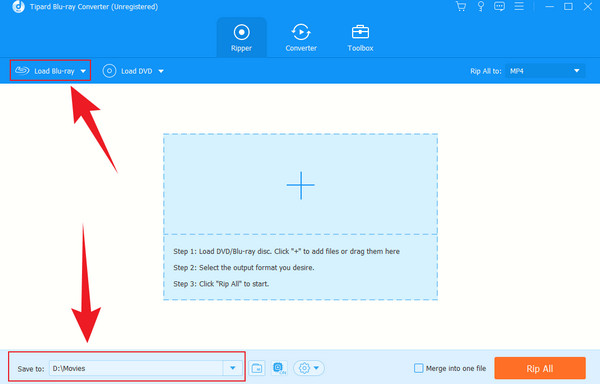
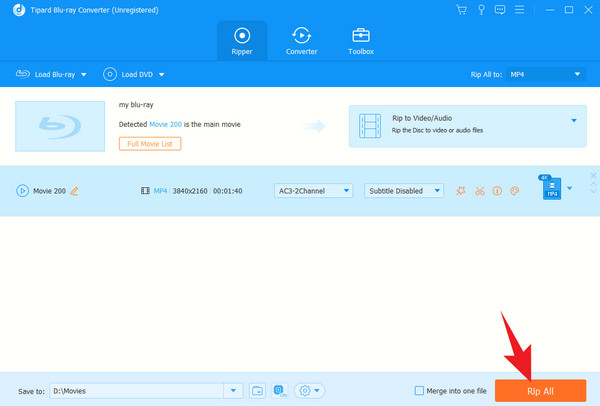
Step 1 Launch the software tool after you install it on your computer. Then, insert the Blu-ray disc into your computer's optical drive and, at the same time, connect the USB to the computer, where you will copy it. Once done, click the Load Blu-ray tab on the main interface to upload your Blu-ray. Then, go to the Save to tab option and set the file destination to your USB drive.
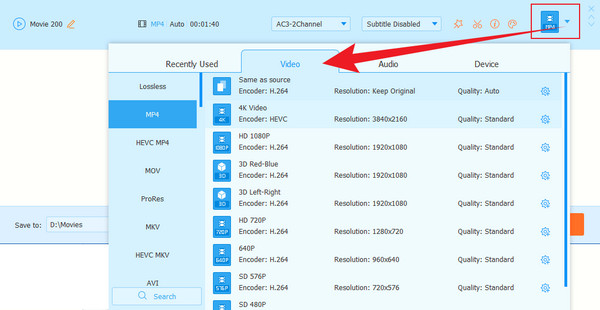
Step 2 Next, click the Arrow button at the tail part of the added Blu-ray to see the available formats. When the window appears, click the Video button and choose among its available formats, then choose your preferred resolution on the right side. For instance, does your Wii play Blu-rays? You can make it if you rip the Blu-ray and convert it to a format that a Wii console supports.
Step 3 As quick as that, you can now hit the Rip All button at the bottom part of the interface. You can also convert Blu-ray to AVI with it. Wait for the 30 times faster transcoding process, then check your USB flash drive for the output.
Part 3. 2 Other Ways to Copy Blu-ray to USB
MakeMKV
Another Blu-ray to USB Converter to utilize is MakeMKV. It is a well-known Blu-ray and DVD ripper offering a free service for 30 days. Users can transcode even the protected Blu-rays into MKV format with its free version. However, compared with the first ripping tool, MakeMKV comes with limited features. In addition, you will be required to upgrade to its premium version to continue utilizing it. Nevertheless, MakeMKV has been one of the go-to tools for Blu-ray transcoding. Hence, here are the simple steps to follow in using it.
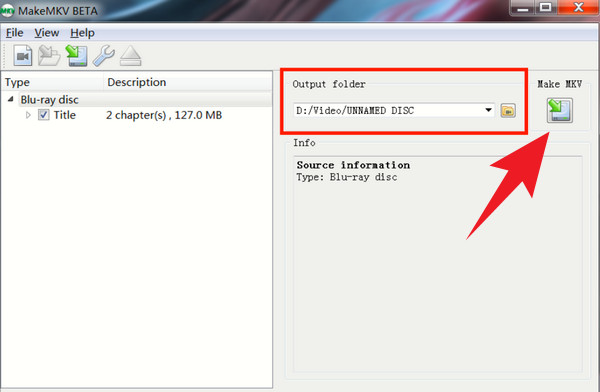
Step 1 Initially, install the tool on your computer and run it after. Then, import your Blu-ray into the tool by clicking the Drive icon after you insert the Blu-ray disc on your computer.
Step 2 Afterward, go to the Output Folder option and set it to your USB flash drive.
Step 3 Finally, when all is set, click the Make MKV button right beside the Output Folder option. This Blu-ray copy software will copy the data to your flash drive.
VLC Media Player
Do you want a different way to copy your Blu-ray to USB? Try the VLC media player. This media player allows you to play Blu-rays. It enables you to record the Blu-ray movie playback and create your own copy, which you can transfer to your USB. Although VLC can convert physical media files like Blu-rays and DVDs, it doesn't work well on GPU re-encoding, so if you rip Blu-rays with VLC, it will heavily drain your CPU.
Meanwhile, aside from its recording tool, it also comes with other great features in its advanced controls, such as a video looper, screenshot maker, playlist toggles, and more. Thus, to show you how it works with the VLC media player, below are the steps to guide you.
Step 1 To begin with, insert the Blu-ray disc into your computer and run the VLC.
Step 2 Once the Blu-ray movie is playing, hit the Record button that represents the red circle within the playback control at the bottom.
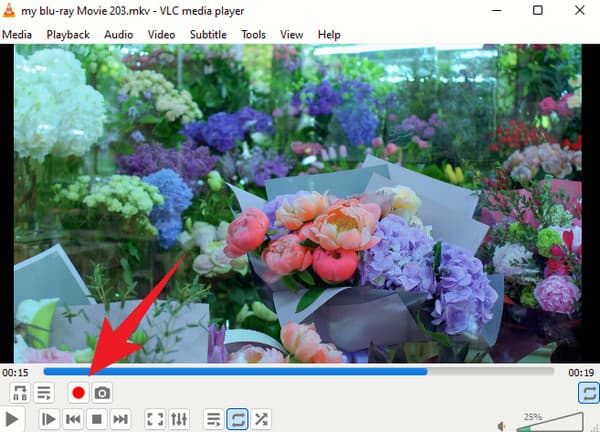
Step 3When you finish recording, check the recorded file, then copy it to your USB flash drive.
Part 5. FAQs of Ripping Blu-ray to ISO
How to put Blu-ray movies on a USB drive?
To copy Blu-ray to USB drive, you need to first rip the Blu-ray disc into a digital video file, then transfer the output file to your USB drive. Since Blu-ray discs usually contain 25GB to 50GB of data, make sure your USB drive has enough storage space.
How many Blu-ray movies can I save on a USB?
It depends on the capacity of the USB you have. The bigger the storage, the more Blu-ray movies you can save.
Does copying Blu-ray to a flash drive take time?
The duration of copying or transferring Blu-ray will only take minutes if the movie is not that big.
What USB size do I need for Blu-ray movies?
A standard Blu-ray movie usually requires 25GB (BD25) or 50GB (BD50) of storage. Even though you transcode Blu-ray to an H.264 or HEVC video file, the size will still range from 5GB to 15GB. Therefore, a 64GB or larger USB flash drive is recommended for storing Blu-ray backups.
Conclusion
There you have it: the 3 best ways to copy Blu-ray to a USB flash drive. You see, ripping Blu-ray is crucial to copy the excellent quality of the Blu-ray besides its content. However, not all Blu-ray rippers can give you this expectation. Therefore, rely on the tried and tested ones, like the Tipard Blu-ray Converter.
More Reading

About the Author


 Tipard Blu-ray Converter