

This article will review YouCam AI Video Quality Enhancer, which is released by Perfect Mobile Corp. It bundles AI-powered enhancement, retouching, and video generation into a single platform. However, it is not freeware. This means you need to subscribe to a plan to access all features. If you need an AI-powered video enhancer and generator with real creative control, read our review to make the best decision.

Part 1: What Is YouCam
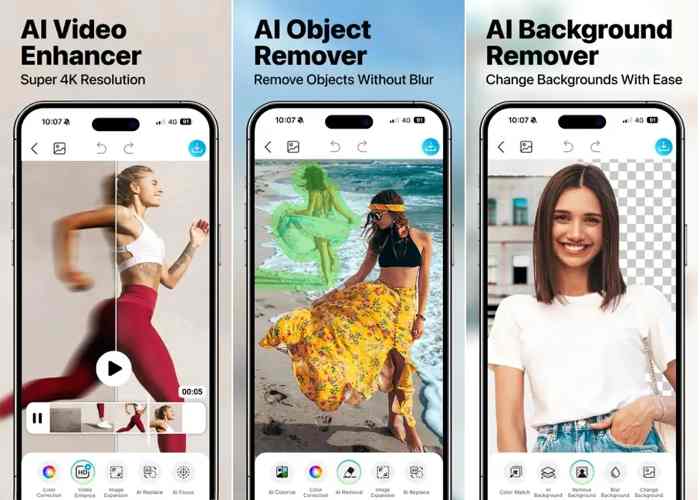
As mentioned previously, YouCam AI Video Enhancer is a reputable video enhancement tool powered by AI and machine learning. In addition to the online platform, it comes with a mobile app for iOS and Android.
Core Features of YouCam Video Enhancer
- 1. Upscale video resolution up to 4K online.
- 2. Enhance details and clarity for low-quality videos.
- 3. Produce intermediate frames to enhance the smoothness of the footage.
- 4. Convert interlaced videos to progressive footage.
- 5. Minimize visual noise and graininess in videos.
- 6. Apply face detail enhancement and retouching.
- 7. Offer fun bonus features, like background removal.
- 8. Work with images, videos, and audio content.
YouCam Video Enhancer Price

YouCam allows you to enhance videos for free once you register for an account. However, the full version requires a subscription. The monthly plan costs $9.99 per month, and the yearly plan costs $3.33 per month for the Plus version. The monthly plan costs $19.99 per month, and the yearly plan costs $5.83 per month for the Pro version.
Part 2: Review of YouCam
To evaluate YouCam Online Video Enhancer's performance in the real world, we tested it on a modern iPhone and a Samsung phone.

What We Like
- Easy to learn due to straightforward functionality and intuitive layout.
- Generate high-quality outcomes with AI-powered noise reduction and upscaling.
- Completely work online and require no download.
- Come with a mobile app for iPhone and Android devices.
What We Dislike
- Limited features, such as advanced video editing.
- Require a stable network and cannot process long videos.
- The free version is too limited and adds a watermark to videos.
Can YouCam Really Enhance Video Quality?
YouCam Video Enhancer can improve the visual quality of some videos, especially when the original footage is slightly blurry, soft, or lacking detail. Its enhancement tools are designed to make videos look clearer and more polished, but the results depend on the quality of the source footage. A heavily blurred or highly compressed video may show only limited improvement, as an enhancement app cannot fully restore details that were lost during recording or compression. Overall, YouCam Video Enhancer can provide a noticeable improvement for suitable videos, but it should not be expected to turn severely degraded footage into high-quality video.
Which Videos Benefit Most from YouCam Video Enhancer?
1. Low-Resolution Videos: Older or low-resolution footage can benefit from enhancement when the main problem is a lack of sharpness. The app can make edges and overall details appear clearer, although it cannot recreate every detail that was missing from the original recording.
2. Slightly Blurry Videos: Videos affected by minor softness or motion blur may look cleaner after enhancement with YouCam video enhancer. This can be particularly noticeable in faces and larger objects where improved sharpness is easier to see.
3. Compressed or Social Media Videos: Videos that have lost some quality after being compressed or uploaded to social media may also benefit. Enhancement can help make these clips appear less soft and improve their overall visual clarity.
key Limitations of YouCam Video Enhancer
While YouCam Video Enhancer can make suitable videos look clearer, it has several limitations. The most important is that the app cannot recover details that are completely missing from the original footage. If a video is extremely blurry, heavily pixelated, or severely compressed, the improvement may be relatively subtle.
The app is also better suited to general visual enhancement than advanced video restoration. Users looking for precise control over parameters such as denoising, sharpening, artifact removal, or frame-by-frame enhancement may find its options more limited than those offered by dedicated desktop video enhancement software.
Another limitation is that enhancement results can vary depending on the source video. A clip with reasonable lighting and visible details is more likely to benefit than footage with severe blur, noise, or compression artifacts.
Part 3: How Does YouCam Work
While YouCam Online Video Enhancer is easy to use, it takes a few steps to enhance video quality. Bear in mind that you need an account and a stable internet connection when enhancing a video.
Step 1 Access the online video enhancer app in your web browser.
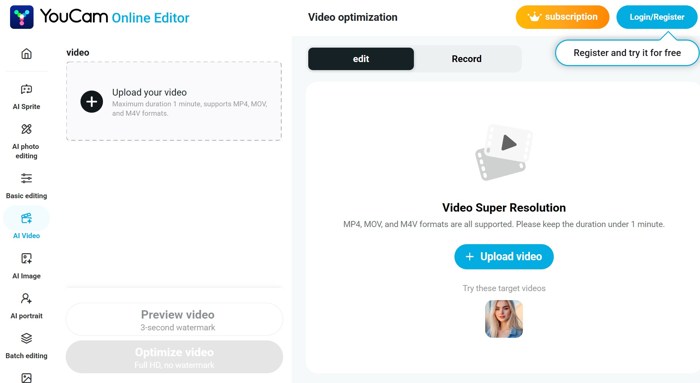
Step 2 Log in with your account. If you don't have one, sign up with an email address.
To unlock all features and remove watermarks, you need to subscribe to a plan.
Step 3 Select the AI Video option in the left sidebar, then choose Video Optimization.
Step 4 Click the Upload your video button to import a low-resolution video from your hard drive.
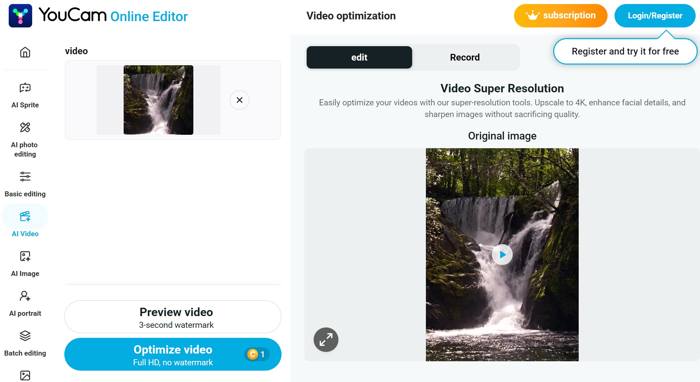
Step 5 After uploading the video, click the Optimize video button to enhance it.
Step 6 When it is done, preview the result and download it to your disk.
It lacks custom options, and you cannot adjust video quality manually.
Part 4: Top Alternative to YouCam AI Video Quality Enhancer
Compared to YouCam Online Video Enhancer, a desktop video enhancer is more stable and reliable. From this point, we recommend Tipard Video Converter Ultimate. It can upscale video resolution offline using AI technology. Moreover, you can find more bonus functionalities within the single program.

- Enhance video quality quickly with AI.
- Remove noise and shaking and correct color.
- Preview results with the built-in media player.
- Support over 300 video and audio formats.
- Offer bonus features, such as video format conversion.
How to Enhance Video Quality with YouCam Alternative
Step 1 Install the YouCam alternative
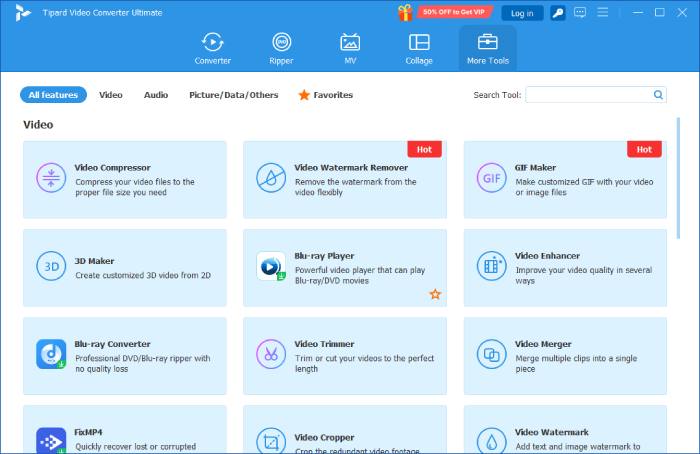
Launch the YouCam alternative after you install it on your PC. There is another version for Mac. Switch to the More Tools tab at the top of the interface, then choose Video Enhancer.
Step 2 Add a low-resolution video
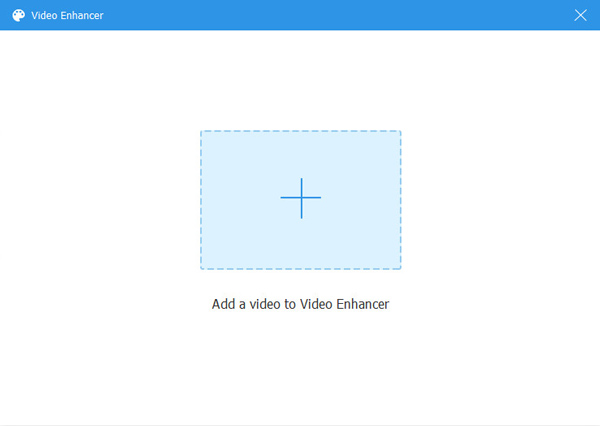
Click the big Add button, select the video that you want to enhance, and open it. Then, the software will load it immediately.
Step 3 Enhance video quality
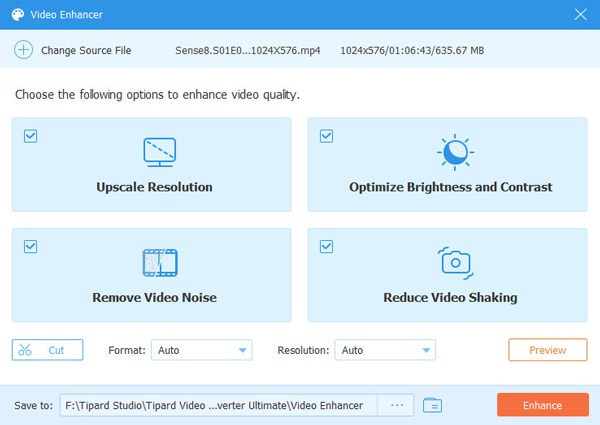
Select the options according to your video. To enhance video quality, check the Upscale Resolution option. To correct color, check the Optimize Brightness and Contrast option. You can denoise and remove shaking from a video by checking the Remove Voice Noise and Reduce Video Shaking. Click the Preview button to view the result. Finally, set an output folder and click the Enhance button.
Conclusion
Now, you should learn what YouCam AI Video Enhancer is, what it can do, and its strengths and weaknesses. The information can help you make the best decision before you subscribe to the web-based application. We also recommended an offline alternative, Tipard Video Converter Ultimate. It can process any video, including long clips.
All-in-one video toolbox: convert, edit, upscale, enhance, and compress your videos easily
100% Clean & Safe
100% Clean & Safe

More Reading



About the Author


 Tipard Video Converter Ultimate