

Many creators and editors use DaVinci Resolve, a potent video editing program. Using expert tools, you can cut, edit, and enhance videos. However, did you know that its Super Scale feature can also increase resolution?
Do you not have any idea about it? No problem. This post will help you. We will explain what DaVinci Resolve Super Scale is and present a step-by-step guide on how to use it. We will also include a full review. It is a complete guide to help you understand it easily!

Part 1. What Is DaVinci Resolve Super Scale
DaVinci Resolve Studio has a clever upscaling feature called Super Scale. It enhances video clarity by utilizing AI from the DaVinci Neural Engine. It does more than stretch pixels, unlike standard resizing. Every frame is examined, and new pixel details are produced.
It helps make the image sharper and clearer. You can turn low-quality clips like 1080p into 4K or even 8K. The result looks more natural and less blurry. It is also useful for old or soft footage because it cleans edges and restores fine details.
Part 2. How to Upscale Video in DaVinci Resolve
Right in this section, we will teach you how to upscale video in DaVinci Resolve. So, please get your file ready. You will see how a low-quality clip can turn into a clear one. The change may surprise you!
Step 1 First, open DaVinci Resolve. Then, drag your video into the Media Pool. You can also use the Import button. It is where your clip will stay before editing.
Step 2 Next, create a new timeline. You can name it "Super Scale," so it is easy to find. Right-click the timeline settings. Change the resolution to 3840 × 2160 for 4K. If you want 8K, double it.
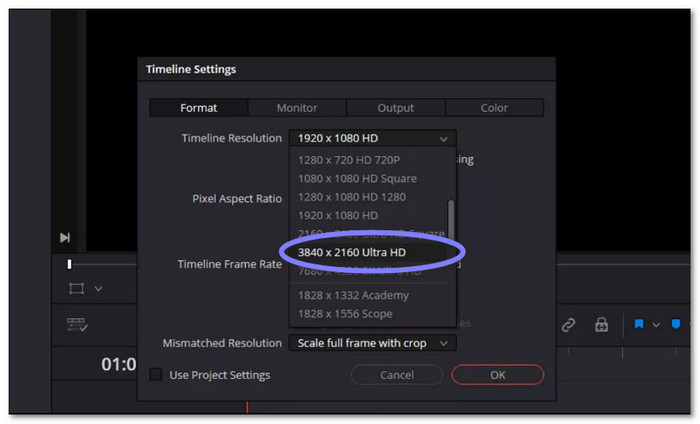
Step 3 Now, drag your video from the Media Pool to the timeline. Drop it on the track. Your clip will now match the new high-resolution timeline. You may notice it looks small or soft. That is normal for now.
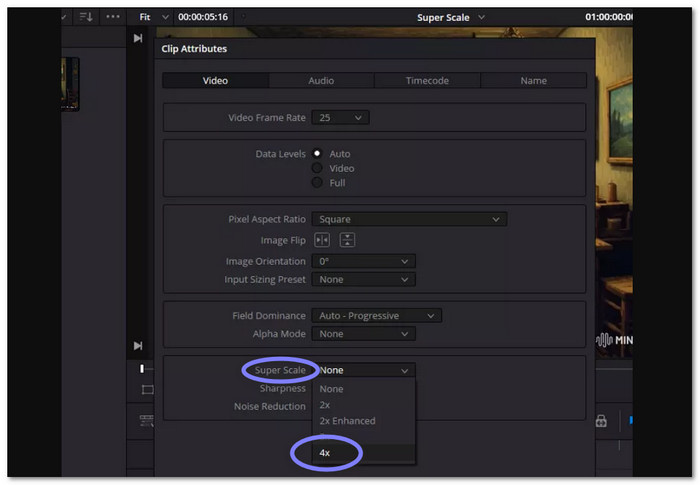
Step 4 Right-click your clip in the timeline. Choose Clip Attributes. Look for the Super Scale option.
Select a scale factor such as:
- 2× for a small boost.
- 4× for 1080p to 4K.
- 6× for super low-quality clips.
After that, adjust Sharpness and Noise Reduction.
- High makes it super sharp, but it can look fake.
- Medium looks more natural.
Try Medium first. You can tweak later.
Step 5 Go to the Deliver tab. Choose your final resolution, like 4K. Make sure it matches your timeline. Then, render your video.
Part 3. Review of DaVinci Resolve Super Scale
You already understand how DaVinci Resolve 4K upscaling works. Now, it is important to see the bigger picture behind it.
It is known that DaVinci Resolve Super Scale is a popular feature for increasing video resolution. But it has strengths and limits worth knowing. In this section, we will take a simple look at its pricing, pros, cons, and real user experiences.
Pricing
DaVinci Resolve Studio has a one-time fee of about $295. You pay once - no monthly cost. The free version lets you test Super Scale. But it adds a watermark on export.
Pros and Cons
- Works inside the editor with no need for extra tools.
- Gives better results than basic scaling methods.
- Has built-in noise reduction for cleaner clips.
- Saves time with a smooth workflow.
- Lets you control the sharpness and scaling settings.
- Works well with other Blackmagic tools.
- Need a powerful GPU to function properly.
- Playback can lag during editing.
- Only fully usable in the Studio version.
- Hard to learn at first for beginners.
- Very low-quality clips may still look soft.
- Heavy noise may need extra repair tools.
User Reviews
DaVinci Resolve's Upscale functions have received positive reviews from many users. People on Reddit and forums claim it helps preserve old videos. It enhances the appearance of poorly made videos. Although some experts claim it is not as sophisticated as programs like Topaz Video AI, they nonetheless find it appealing. It is easy to understand. Within DaVinci Resolve, it functions. It is time-saving. It suits the everyday editing tasks.
My Testing Results & Experiences
In our test, we upscaled 1080p to 4K. The Enhanced 2× mode worked best. It gave a good mix of speed and quality. Edges looked clean. Text looked sharp. It did not look blurry.
We also noticed one issue. Skin can look too smooth. It happens when noise reduction is too high. So, it is better to keep it at medium.
For performance, the impact is heavy. On a mid-range PC, render time increased significantly. It was about 10× to 15× slower than normal export. So, a strong system helps a lot.
Part 4. The Best Alternatives to DaVinci Resolve Super Scale
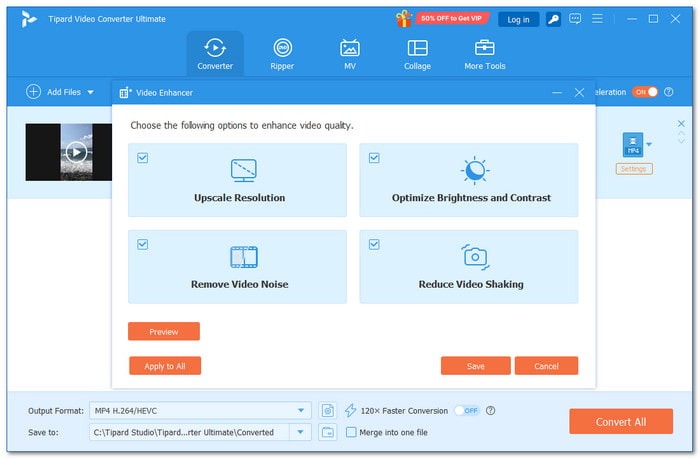
When it comes to improving video clarity, Tipard Video Converter Ultimate is a solid alternative to DaVinci Resolve Super Scale.
It has built-in capabilities for improving videos. It can improve video clarity through denoising. It can fix shaky footage with deshaking. It can also adjust brightness to make clips look clearer and more balanced. Batch processing is also supported. Multiple videos can be upscaled simultaneously.
Furthermore, even with mid-range and low-end hardware, it can still provide high-quality results. It does not require a strong GPU to function smoothly.
Key Features:
- Increases the resolution of low-resolution videos to 1080p HD or 4K from 360p and 720p.
- Eliminates noise for a clearer video, including grain and white spots.
- Increases processing speed by using hardware acceleration.
- Supports 500+ formats for wide device compatibility.
- Includes tools such as a video watermark remover, compressor, 3D maker, etc.
- One-click features make it incredibly simple for novices to use.
- Applies the same settings to all uploaded videos for consistent results.
- Offers built-in editing tools for quick adjustments and improvements.
- More affordable than DaVinci Resolve Studio.
- It has a built-in watermark remover that can remove the DaVinci Resolve watermark.
- The free version has limited tools and usage.
Part 5. FAQs of DaVinci Resolve Super Scale
Can I upscale an image in DaVinci Resolve?
Yes! You can upscale images in DaVinci Resolve. The same scaling tools used for videos also work for still images. Super Scale is mainly for video, but normal scaling can also improve image size.
Does DaVinci have AI upscaling?
Absolutely! DaVinci Resolve Studio has AI upscaling called Super Scale. It is a powerful feature for AI upscale DaVinci Resolve tasks. It uses the DaVinci Neural Engine. It improves detail and sharpness. It also generates new pixel data for better-quality output.
Why is DaVinci Resolve quitting?
DaVinci Resolve may close or crash for a few reasons. It often happens when the system is not strong enough. A weak GPU or low RAM can cause this. It can also happen if files are too heavy or settings are too high. Updating drivers or lowering settings can improve stability.
Conclusion
With the in-depth review and how-to guide we shared, we hope you now understand DaVinci Resolve video upscale better. It can improve video quality when used correctly.
But is it the right tool for you? If you feel unsure, you can try another option.
Tipard Video Converter Ultimate is simple and lightweight. It is easy to use and can also upscale video resolution with good results.
More Reading


About the Author


 Tipard Video Converter Ultimate