

- Part 1: Tipard Video Converter Ultimate Review: Testing Methodology
- Part 2: Master Review of the Conversion Feature
- Part 3: Ripper Review: Test DVD Ripping Performance
- Part 4: Built-in Video Editing Features Review
- Part 5: MV Maker Review: Creating Movies with Templates and Effects
- Part 6: Collage Maker Review: Testing Split-Screen Video Creation
- Part 7: Toolbox Review: Exploring Additional Video Tools
- Part 8: Tipard Video Converter Ultimate Pricing, Pros, and Cons
- Part 9: Tipard Video Converter Ultimate vs. Competitors
- Part 10: FAQs of Tipard Video Converter Ultimate
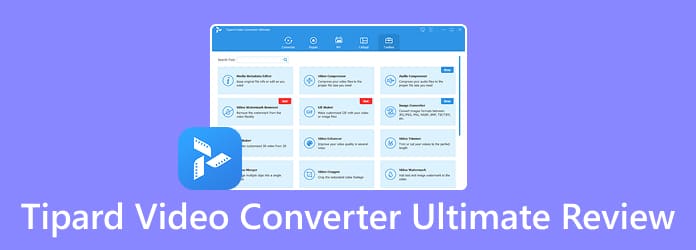
As a one-stop software program, Tipard Video Converter Ultimate excels in a variety of video tasks, from video converting to DVD ripping, from video editing to movie making. It can handle 8K, 4K, and HD videos, as well as homemade DVDs into video and audio files. It offers a full set of features for video converting and more. Before you download the software, read our unbiased review and make the best decision.
- Part 1: Tipard Video Converter Ultimate Review: Testing Methodology
- Part 2: Master Review of the Conversion Feature
- Part 3: Ripper Review: Test DVD Ripping Performance
- Part 4: Built-in Video Editing Features Review
- Part 5: MV Maker Review: Creating Movies with Templates and Effects
- Part 6: Collage Maker Review: Testing Split-Screen Video Creation
- Part 7: Toolbox Review: Exploring Additional Video Tools
- Part 8: Tipard Video Converter Ultimate Pricing, Pros, and Cons
- Part 9: Tipard Video Converter Ultimate vs. Competitors
- Part 10: FAQs of Tipard Video Converter Ultimate
Key Takeaways
The Verdict: A one-stop AI-powered toolkit for video converting, DVD ripping, video editing, and movie making. Compared to competitors, it offers more powerful AI-driven video enhancement features.
Best for: Converting high-resolution videos to your desired format without losing quality, and ripping homemade DVDs to high-quality video files. The built-in AI enhances video output quality automatically and streamlines the process.
- Rating: 4.9/5
- Developer: Tipard Studio
- System Requirements: Windows 11/10/8/7 and macOS 10.12 or above
- Tech Spec: At least 1GHz or above Intel/AMD and Apple Silicon processor
- Price: 1 Month License: $18.00, Lifetime License: $56.00 for 1 PC
Part 1: Tipard Video Converter Ultimate Review: Testing Methodology
We research the core features of Tipard Video Converter Ultimate in our professional lab to evaluate it properly. As mentioned previously, it is a full toolkit for different visual retouching purposes.
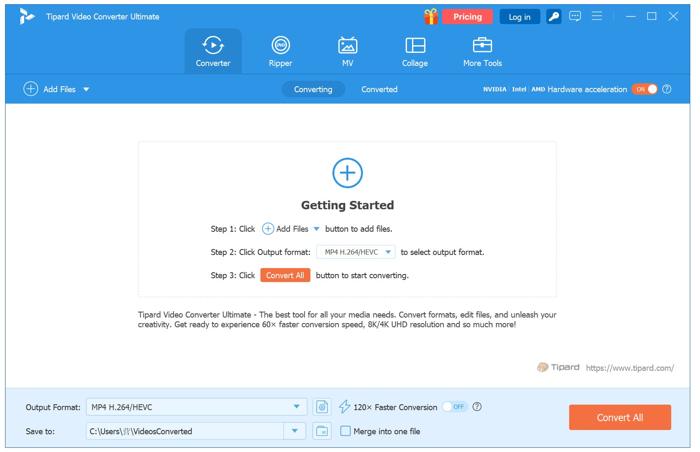
In the parts below, we break down the toolkit into independent features: video converter, DVD ripper, video editor, movie maker, collage maker, and more. Each feature is tested using real-world footage, images, audio files, and DVDs. When testing, we focus on a few key factors, such as speed, output quality, editing features, video enhancement, ease of use, and more.
Test Environment
- Operating System: Windows 11(64-bit)
- Processor (CPU): Intel Core i9-14900K
- Graphics Card (GPU): GeForce RTX 4070 Ti
- RAM: 32GB
- Storage: SSD 1TB
Part 2: Master Review of the Conversion Feature
One of the main tools in the full version of Tipard Video Converter Ultimate is the fast video converter. It covers a large range of output formats, including portable devices. You can convert your videos into MP4, FLV, MKV, MOV, AVI, WMV, and much more.
According to our test, it can convert 8K, 4K, and 1080p HD videos without compromising quality. Users can add multiple 4K videos and convert them quickly. The multi-thread feature handles these videos in batches. This delivers super-high speed.
Test 1: Video Conversion Speed
- Input Samples: 3 HD videos, about 2 hours in total
- Output Specs: 4K MP4, H.265, 40 Mbps
- Time Spent: 24 minutes 36 seconds
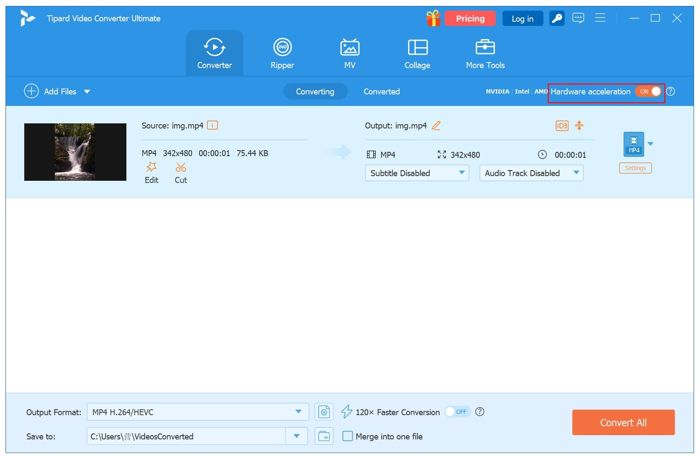
For the conversion speed test, we added three 1080P HD videos with a total duration of approximately 2 hours and converted them all to 4K 40 Mbps MP4. The conversion took approximately 24 minutes to complete. During the process, Tipard Video Converter Ultimate made good use of the available GPU resources, with GPU usage reaching around 95% at peak. We also found that the conversion could continue in the background, allowing us to work on other tasks without interrupting the process. With NVIDIA GOU aaceleration enabled, the software can make better use of the GPU to maintain efficient conversion performance.
Test 2: Output Quality
Test A: Quality Preservation
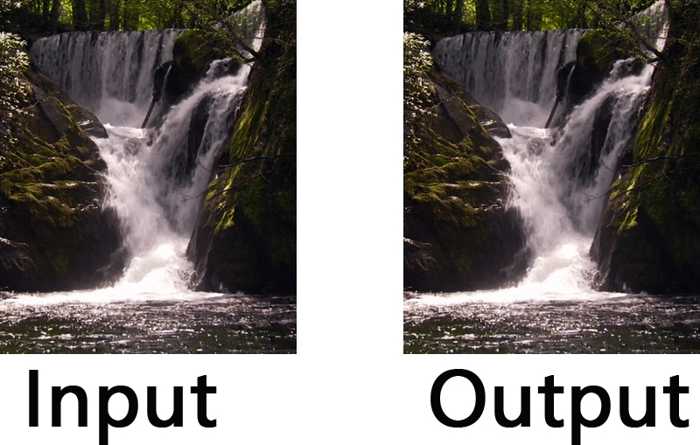
To evaluate quality preservation, we converted a 1080p MKV video to MP4 while keeping the original resolution, frame rate, video codec, and bitrate unchanged. This test was designed to determine whether Tipard Video Converter Ultimate could preserve the source video's visual quality during format conversion. We compared the original and converted videos side by side, focusing on fine details, edges, colors, and motion scenes.
Result: The converted MP4 retained the original 1080p resolution and showed no obvious loss of detail or noticeable visual artifacts, indicating that Tipard maintained the source quality well during conversion.
Test B: Quality Enhancement
To evaluate the software's video enhancer feature, we processed the same 1080p source video with a higher output resolution and bitrate. Specifically, we upscaled the video from 1920 × 1080 to 3840 × 2160 (4K) and increased the video bitrate from 8 Mbps to 20 Mbps. We then compared the original and enhanced videos, focusing on fine details, edge clarity, textures, and overall sharpness.
Result: The higher-resolution output provided a more detailed and sharper appearance, particularly in areas with fine textures and defined edges. Compared with the original 1080p footage, the enhanced output delivered a cleaner presentation at 4K resolution, demonstrating the software's ability to improve the visual quality of video during conversion and upscaling.
| Test | Source | Output | Resolution | Codec | Bitrate | |
|---|---|---|---|---|---|---|
| Quality Enhancement | MKV / H.264 / 1080p | MP4 | 1920 × 1080 | H.264 | 8 Mbps | |
| Quality Preservation | MKV / H.264 / 1080p | MP4 | 3840 × 2160 (4K) | H.264 | 20 Mbps | |
| Show MoreShow Less | ||||||
Test 3: Output Format
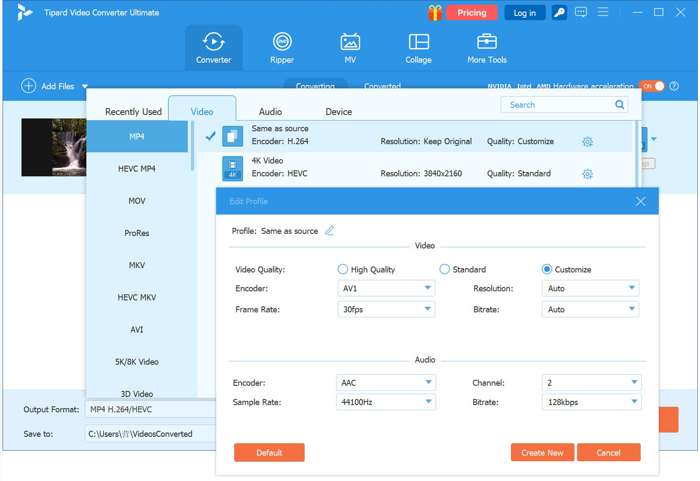
After adding the videos that you want to convert, click the Output Format option at the bottom. Go to the Video tab in the dialog, select the desired format, such as MP4, and pick a preset. If you want to change the parameters, click the Settings button and adjust the encoder, frame rate, resolution, and bitrate. To convert videos for portable devices, go to the Device tab and select the target device.
Part 3: Ripper Review: Test DVD Ripping Performance
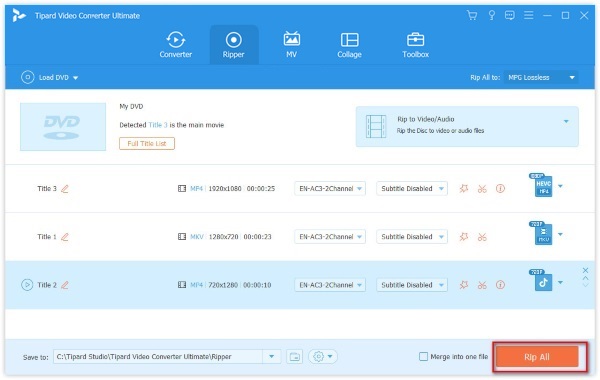
If you have a large DVD collection, you can rip them into digital videos for playback on any device. Once Tipard Video Converter Ultimate loads a homemade DVD, you can select all or specific titles. Then, set the video format and output folder to begin ripping the DVD. According to our test, it only takes 3 minutes to rip a 2-hour DVD.
The toolkit can transcode and remux over 1,000 video and audio codecs, including 8K, 4K, 1080p HD, 720p HD, and more videos. The built-in AI can protect the video quality as much as possible.
Part 4: Built-in Video Editing Features Review
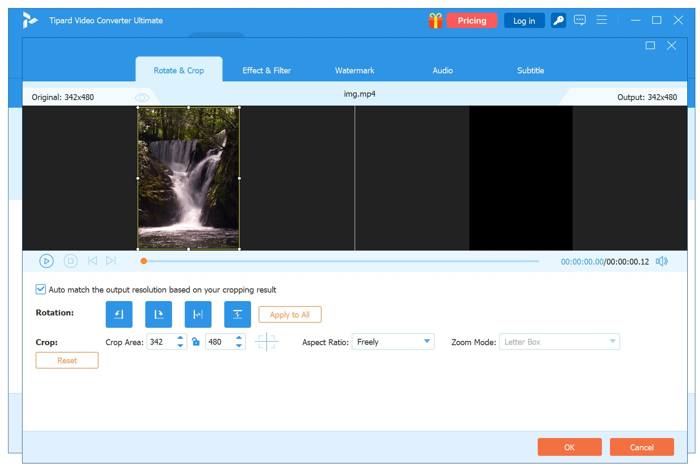
The video converter comes with a simple video editor. In other words, you can retouch the video before converting. While it doesn’t offer a wide range of editing features, the video editor works quickly.
When you need to retouch a video in Converter, click the Edit button next to the thumbnail to start the video editor immediately. Then you can quickly rate, crop, watermark the clip, apply effects, or adjust audio and subtitles.
If you wish to convert one clip of a video, press the Cut button to open the Cut window. Click the buttons to slip, cut, and clip it fast. The built-in media player lets you view the effect and results in real time.
Part 5: MV Maker Review: Creating Movies with Templates and Effects
Movie maker is a core feature of Tipard Video Converter Ultimate. While it is just one feature, it integrates everything you need to create movies with video clips, images, and audio files.
To help you understand how simple the process is, we made a movie story. Once we switched to the MV tab at the top of the window, we clicked the Add menu and added all visual elements for the movie. It almost loads all of them in seconds. Then, arrange them on the storyboard.
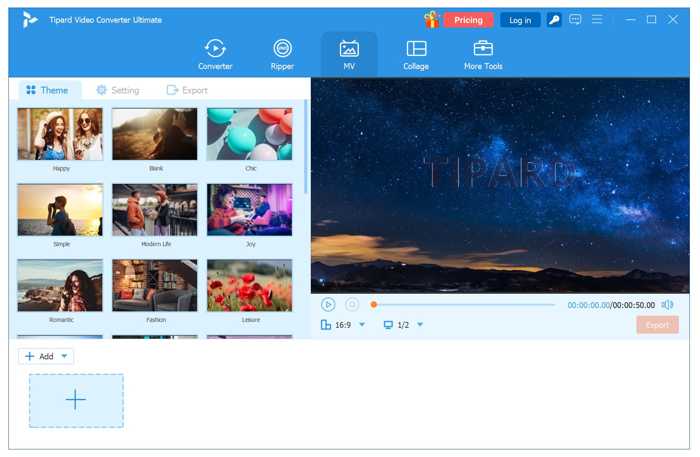
One great point is the customizable templates in the Theme tab. You can choose a template according to your subject. Then, you can adjust the title and other elements according to your preference.
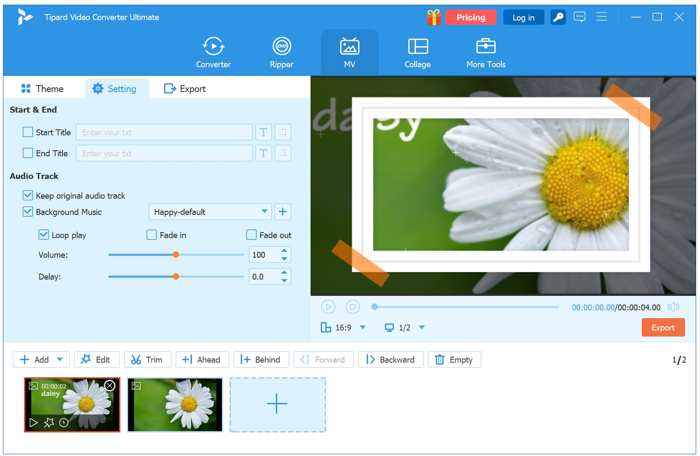
Next, head to the Settings tab to find more options. For example, add start and end titles for the movie. Furthermore, you can apply background music using the built-in library or a local audio file.
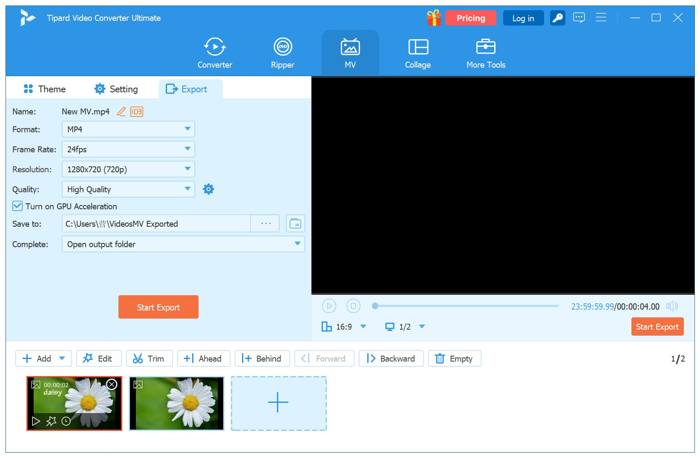
At last, switch to the Export tab and set the output settings, like the format. By default, Tipard Video Converter Ultimate presets the frame rate, resolution, and video quality based on your video clips, but you can enhance video quality and upscale resolution to 8K.
Part 6: Collage Maker Review: Testing Split-Screen Video Creation
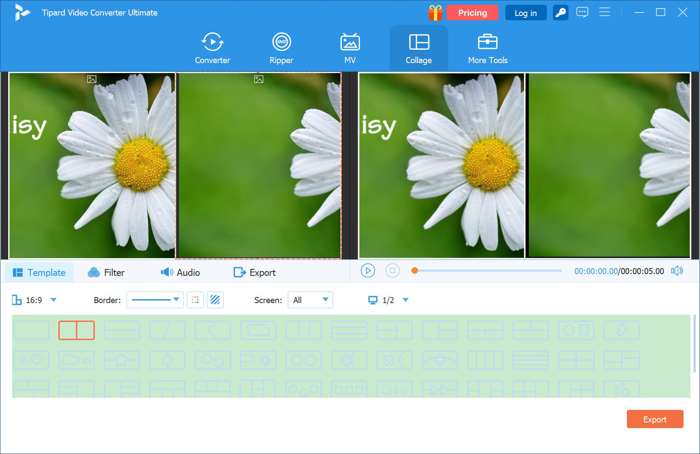
Collage maker is another great functionality in Tipard Video Converter Ultimate. It is used to create split-screen videos using video clips and images. To get started, head to the Collage tab. You will find lots of templates and layouts. All you need to do is pick your favorite one.
Then, add a video for each part on the layout. If you want to retouch a clip, click it and open it in the video editor. After applying filters and background music, go to the Export section. Here, you can easily set the output format, resolution, quality, and more.
According to our test, it just took a few seconds to render a video collage. More importantly, you can get the high output quality without extra work.
Part 7: Toolbox Review: Exploring Additional Video Tools
In addition, Tipard Video Converter Ultimate comes with a full set of video editing tools in the More Tools tab. These tools streamline video post-production workflows without compromising output quality. In fact, it lets you compress, enhance, trim, merge, crop, reverse, watermark, and retouch videos with one click.
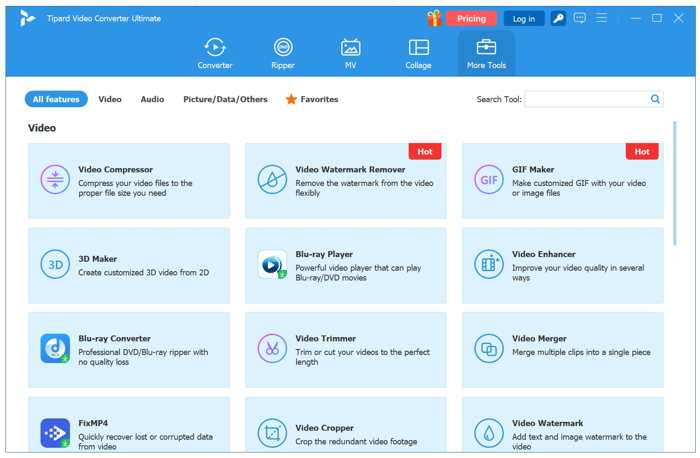
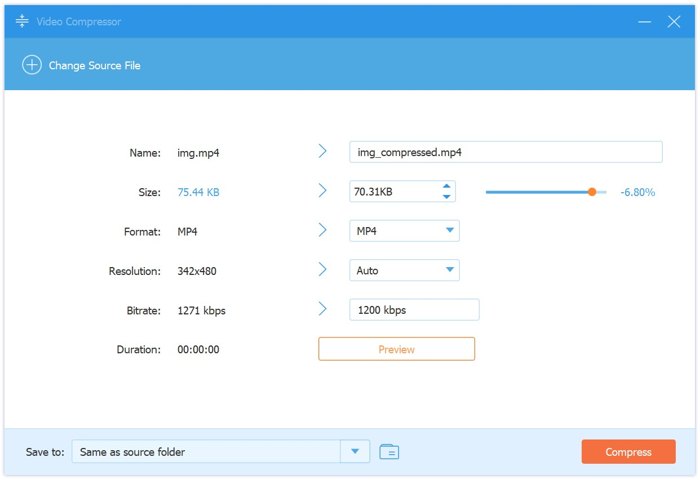
Video Compressor, for example, enables you to shrink video file sizes effectively. Choose the Video Compressor tool on the More Tools window. Click the Add button and load a large video file. Then, set the output format, resolution, and bitrate. Move the slider next to the Size option until you are satisfied. According to our test, we compressed a video from 75KB to 50 KB. The images won’t be damaged.
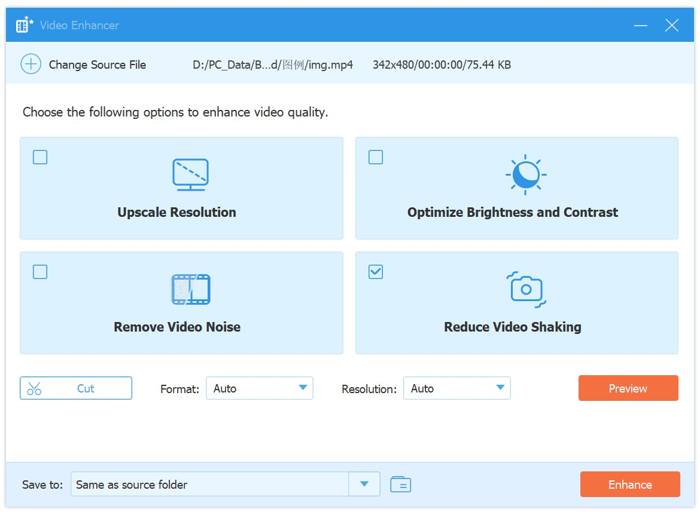
Video Enhancer is another popular tool. It can efficiently enhance video quality. We added a meeting recording video, and checked Upscale Resolution, Remove Video Noise, Optimize Brightness and Contrast, and Reduce Video Shaking. Then, enhance the video. The result is much better and clearer.
Part 8: Tipard Video Converter Ultimate Pricing, Pros, and Cons
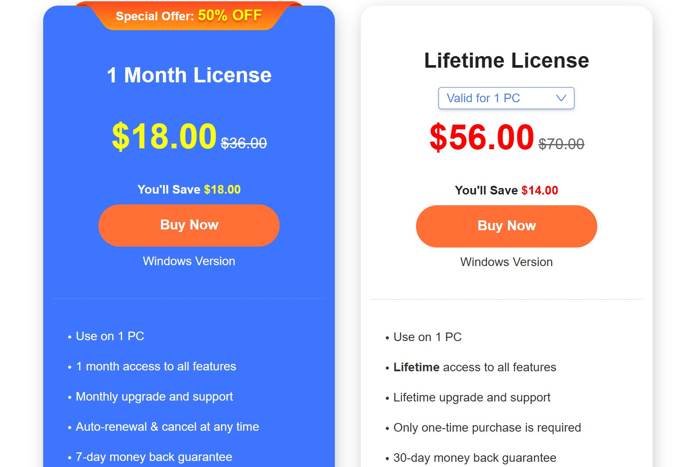
While the toolkit is not freeware, you can download Tipard Video Converter Ultimate for free from the official website. After downloading, you can use the toolkit with the free trial. If you wish to keep using it after the free trial, purchase a license. The Monthly License costs $18.00 per PC to access all features. The Lifetime License costs $56.00 per PC.
- Support over 500 multimedia formats.
- Incorporate a wide range of video editing tools.
- Fast conversion speed with high-quality output.
- Available in different languages, such as English, German, and French.
- Improve video output quality with AI technology.
- It takes a while to convert dozens of long videos at one time.
Verdict
All in all, it is a good idea to download Tipard Video Converter Ultimate for free and convert or retouch your video files, make movies with your multimedia content, or create video collages quickly.
Part 9: Tipard Video Converter Ultimate vs. Competitors
| Tipard Video Converter Ultimate | HandBrake | FFmpeg | UniConverter | |
|---|---|---|---|---|
| Price | $18.00 per month per PC, $56.00 lifetime | Free | Free | $19.00 per month per PC, $49.99 per year per PC, $79.99 lifetime |
| Support video formats | Over 500 multimedia formats | MP4, MKV, and WebM | Dozens of video and audio formats | Over 150 video, audio, and image formats |
| Output quality | Enhance output quality with AI | Improper settings may damage video quality | Control video quality with command lines | Manually control quality with resolution settings |
| Ease of use | Very easy | Easy, but users must configure it correctly | Difficult and work through command lines | Easy |
| Show MoreShow Less | ||||
Part 10: FAQs of Tipard Video Converter Ultimate
Is Tipard Video Converter Ultimate safe?
Yes, Tipard Video Converter Ultimate is safe and legal. Tipard Studio, a reputable software brand, developed it. According to our research, the toolkit can handle YouTube videos and other copyright-protected content by bypassing encryption. However, distributing these videos may be illegal in some countries.
Who uses Tipard Video Converter Ultimate?
Tipard Video Converter Ultimate is designed for both beginners and experienced users to handle videos on Windows 11/10/8/7 and macOS 10.12 or above. The intuitive interface makes it easy for beginners to learn. The rich features and custom options enable experienced users to achieve desired results.
Can Tipard Video Converter Ultimate convert AVI to MP4 without losing quality?
Yes, Tipard Video Converter Ultimate can convert AVI to MP4 or other formats without quality loss. Thanks to built-in AI, the toolkit can generate videos while preserving quality. Moreover, you can manually enhance video quality.
Conclusion
This article reviewed Tipard Video Converter Ultimate, one of the great video toolkits on Windows and Mac. Based on our discussion, you should understand what the toolkit can do, its benefits and drawbacks, and its core features. If you wish to convert videos quickly and without losing quality, the toolkit is a good option. Moreover, the AI technology streamlines processes and optimizes output quality. The rich output formats and custom options enable users to create the desired result quickly. We hope our unbiased review helps you make the best decision.

All-in-one video toolbox: convert, edit, upscale, enhance, and compress your videos easily
100% Clean & Safe
100% Clean & Safe

More Reading

About the Author

 Click here to join the discussion and share your comments
 Tipard Video Converter Ultimate