

A fast video converter can save you when a large file refuses to upload minutes before a deadline. Whether you are compressing 4K footage, changing formats for a device, or speeding up batch exports, choosing the right tool makes video conversion quicker, smoother, and stress-free.

Part 1. Hardware Acceleration - Secret of Fast Video Converter
Video converters that have the newest technological innovations process videos quickly because they utilize superior methods. Instead of utilizing just the CPU to encode and decode videos, they utilize GPU acceleration, which permits the converter to use the built-in video engine of the GPU. This means that the video processing tasks will be done more efficiently, resulting in:
- Faster processing speeds.
- Less processing is used.
- Simpler and more efficient processing for high definition (4K) videos.
Some examples of acceleration technology are:
- Quick sync video by intel.
- NVENC by NVIDIA
- Advanced Media Framework (AMF) by AMD.
AV1 Hardware Encoding Support
AV1 is a new video codec. It is newer and more efficient than the rivaling codec. This compresses and limits the amount of storage needed for videos. Previously, AV1 encoding was slow because it relied on the CPU. Now, modern GPUs from NVIDIA, Intel, and AMD support AV1 hardware encoding, making AV1 exports much faster and more practical.
Now, modern GPUs from NVIDIA, Intel, and AMD support AV1 hardware encoding, making AV1 exports much faster and more practical.
Part 2. Shortcuts of the Top 7 Fast Video Converters
How We Tested
Every converter was tested under the same settings to offer a balanced and fair analysis. This includes source files, output quality, and the converter's hardware. Our primary focus was to examine the real-world speed of the converter, the hardware acceleration support, output quality, consistency, and reliability.
- Test File: 7.8-minute MKV video (H.264, 178.8 MB)
- Output Format: MP4 (H.264)
- Output Resolution: 1920 × 1080 (Full HD)
- Hardware Acceleration: Enabled if supported (Intel QSV / NVIDIA NVENC / AMD AMF)
- Goal: Convert video quickly while preserving original quality and ensuring smooth playback.
1. Tipard Video Converter Ultimate
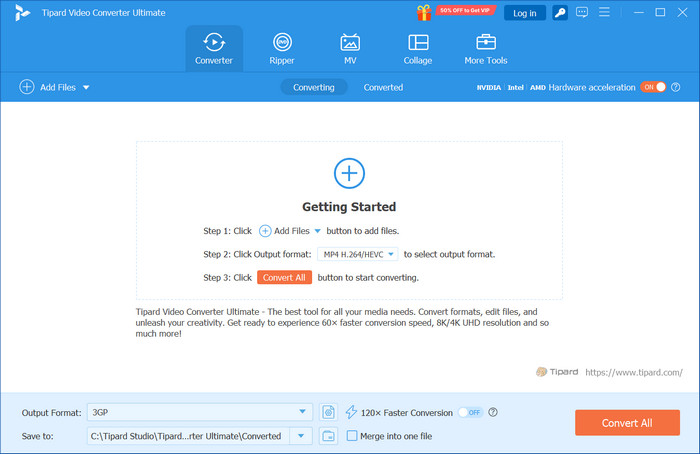
When it comes to particularly challenging video conversion tasks, Tipard Video Converter Ultimate is a complete package. Thanks to acceleration, CPU load is reduced, resulting in faster video conversion for specific formats such as Intel QSV, NVENC/CUDA, and AMD VCE/AVC. In addition to conversion, it offers DVD/Blu-ray ripping, video editing, MV/collage creation, and the ability to export video for iOS, Android, and Smart TV at the resolution you specify.
Performance: The video conversion is faster than 4K–8K in H.264, HEVC, and AV1 formats. The original video quality is guaranteed, and CPU load is minimal, making it suitable for batch workflows and professional video editing.
Platform: Windows, macOS
Features:
- Decoding, editing, and encoding of videos through Intel, NVIDIA, or AMD GPUs.
- Almost any video/audio format.
- Optimized videos for iPhone, iPad, Samsung, Sony, and other TV brands.
- Video compression is included, and multiple videos can be processed simultaneously.
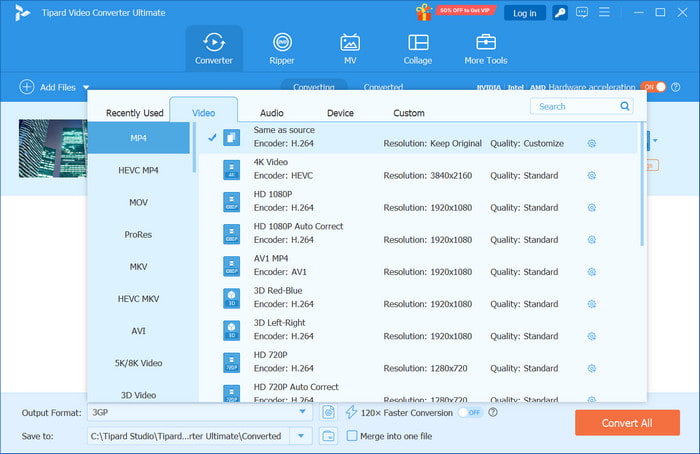
- Up to 120× faster video conversion with GPU acceleration for Intel, NVIDIA, and AMD
- Video and audio conversion to over 500 formats
- Built-in video editing and video collage creation & MV maker included
- Less CPU usage during GPU encoding.
- 5K, 4K, and 8K Video conversion in H.264, HEVC, and AV1 formats.
- Software requires payment.
- Features may be too advanced for the average user.
Test Results
- Conversion Speed: 2 min 8 sec (GPU acceleration)
- Output Size: 178 MB
- CPU Usage: 12%
- Stability: Smooth, no errors
- Notes: Maintains original quality; GPU acceleration reduces CPU load and speeds up conversion significantly.
2. Winxvideo AI
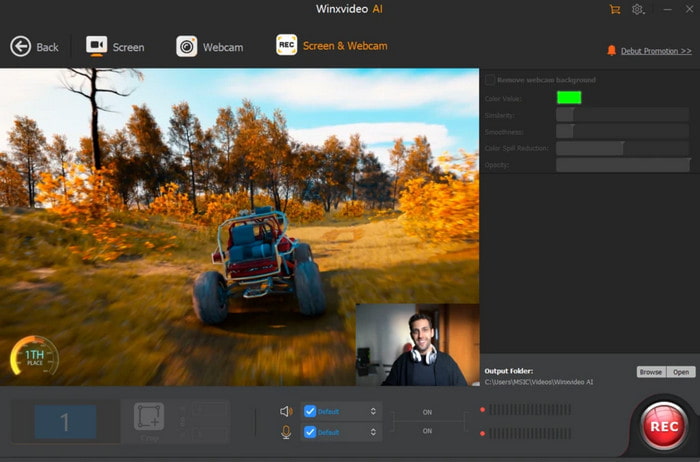
Thanks to the AI modules, the load is reduced and the time to encode is shortened. The AI modules also handle upscaling, frame interpolation, and adaptive bitrate optimization. WinX Video AI also supports AI-assisted pipelines with Level 3 GPU acceleration and Auto Copy to remux for almost instantaneous processing.
Performance: Even while optimizing for higher bitrate 4K video encoding, WinX Video AI remains stable in batch mode and maintains video color quality and resolution.
Platform: Windows, macOS
- Level 3 GPU acceleration for Intel, NVIDIA, and AMD
- Auto Copy mode for 1:1 remuxing
- AI Upscaling and FPS boosting
- Supports a wide range of codecs
- Advanced features may be too much for the average user.
- Software requires payment
Test Results
- Conversion Speed: 2 min 25 sec (GPU acceleration)
- Output Size: 178 MB
- CPU Usage: 14%
- Stability: Stable, no crashes
- Notes: Auto Copy mode boosts speed for compatible formats; maintains original resolution.
3. Movavi Video Converter
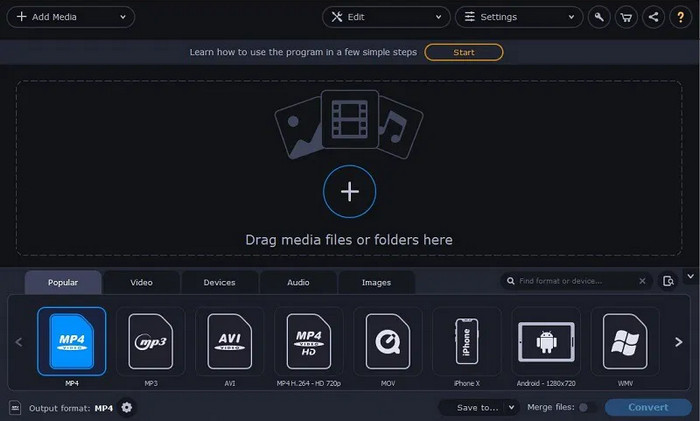
Uploaded videos can be converted quickly and easily with the SuperSpeed mode and GPU acceleration of Movavi Video Converter. Moreover, you can easily convert uploaded videos while maintaining high audio and HDR metadata quality. The converter features a simple interface that lets you convert multiple videos at once. With advanced settings, users can customize the codec.
Performance: Reliable for 4K and intensive batch conversions. Minimal system strain enables background processing.
Platform: Windows, macOS
- Accelerated conversion via SuperSpeed mode
- GPU acceleration for conversion for NVIDIA, Intel, and AMD users
- 4K videos and other high-res videos can be processed
- Some features are limited in the Free trial
- Some users may feel the interface is too simplified to be used as an advanced tool
Test Results
- Output Size: 178 MB
- CPU Usage: 16%
- Stability: Smooth, reliable
- Notes: SuperSpeed mode effective; high-quality output preserved.
4. VideoProc Converter
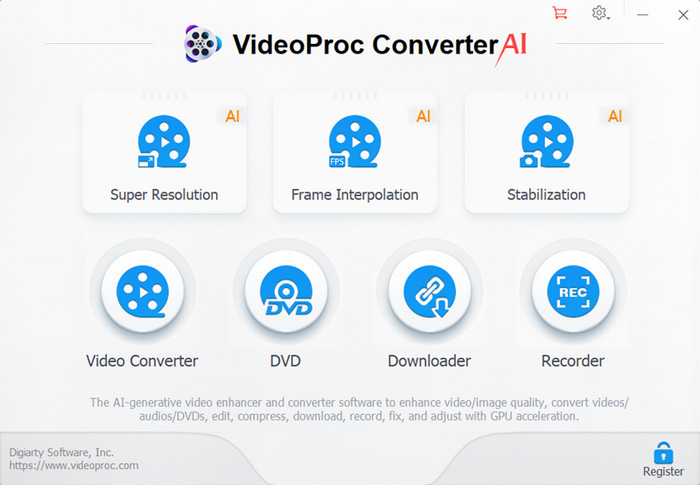
In the sphere of ultra-HD video light editing and transcoding, VideoProc offers both. VideoProc uses GPU acceleration to deliver ultra-smooth processing for 4K and 8K videos. This is complemented by multi-threaded decoding, noise suppression, and precise bitstream control. They provide fewer features than Tipard, but are much more stable.
Performance: VideoProc handles transcoding AV1, HEVC, and H.264 videos at high bitrates and near-lossless quality. VideoProc is also suited for fast transcoding and streaming, with optimized output.
Platform: Windows, macOS
- 4K/8K video handling is seamless
- The entire process is smooth due to GPU acceleration
- There are fewer editing and effects features than Tipard
- Batch processing has to be paid for
Test Results
- Conversion Speed: 2 min 40 sec (GPU acceleration)
- Output Size: 178 MB
- CPU Usage: 15%
- Stability: Stable
- Notes: Handles high-res files well; output quality is fully maintained.
5. Any Video Converter Ultimate
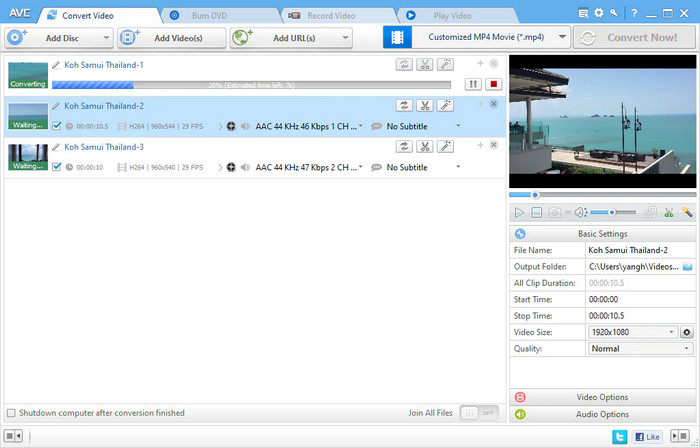
AVC Ultimate combines editing, format conversion, and downloading online media. Unlike competitors, AVC Ultimate offers GPU acceleration for faster encoding, but still lags behind leading acceleration competitors. This is also true for expected encoding speeds for specific devices, such as mobile devices and Smart TVs.
Performance: AVC Ultimate is excellent for semi-professional production workflows, as A/V sync, coloring, and bitrate are maintained.
Platform: Windows, macOS
- Video editing capabilities
- Format and device compatibility
- Video editing features
- Not officially supported by the Auto Copy mode
- The top 3 converters are quicker than this one
Test Results
- Conversion Speed: 2 min 50 sec (GPU acceleration)
- Output Size: 178 MB
- CPU Usage: 17%
- Stability: Smooth
- Notes: GPU acceleration is effective; slightly slower than the top 4 converters.
6. Wondershare UniConverter
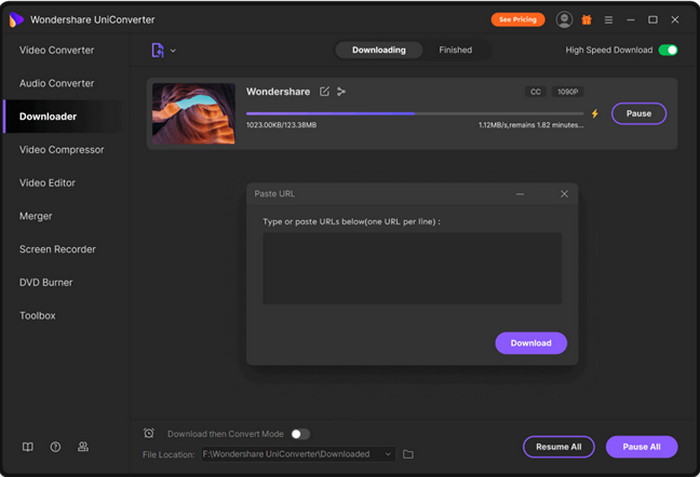
In Wondershare UniConverter, GPU acceleration is available in converter mode, as is multi-core CPU optimization. UniConverter upscales and batch processes videos while keeping fidelity. UniConverter is not as fast as Tipard or Movavi, but it offers a far more robust post-processing toolset.
Performance: UniConverter offers multi-core processing, professional workflows, and editing, setting it apart with superior-quality output.
Platform: Windows, macOS
- Editing tools are included
- CPU optimizations for multiple cores
- Supports GPU acceleration
- In our testing, this software is slower than Tipard Video Converter Ultimate, Winxvideo AI, and Movavi
- The software is subscription-based
Test Results
- Conversion Speed: 2 min 55 sec (GPU acceleration)
- Output Size: 178 MB
- CPU Usage: 18%
- Stability: Stable
- Notes: Reliable conversion; maintains quality; slightly slower than Tipard.
7. HandBrake
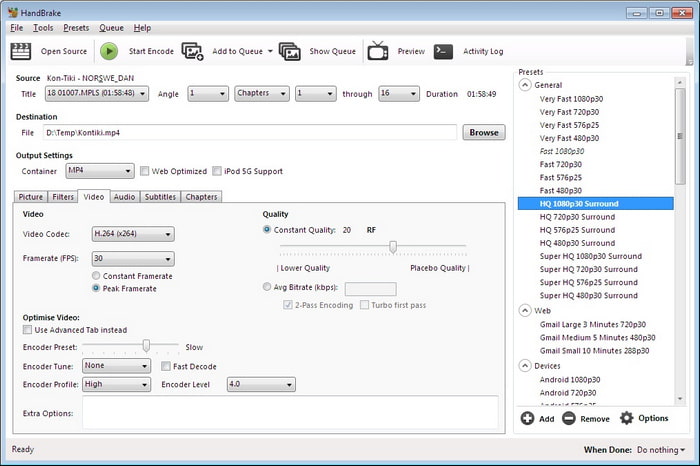
HandBrake Video Converter is an open-source converter with hardware acceleration (Intel, NVIDIA, AMD). Provides precise control over bitrate, codecs, containers, filters, and audio streams. Slower than commercial converters, but preserves visual fidelity and handles repeated batch operations reliably.
Performance: High-quality 4K handling; supports custom presets and advanced pipelines. Steeper learning curve due to the interface and option depth.
Platform: Windows, macOS, Linux
- Supports hardware encoding by Intel, NVIDIA, and AMD
- Free + open-source
- Provides a lot of customizable options
- Slower than paid software
- It can be confusing to use because of the interface and presets
Test Results
- Conversion Speed: 3 min 20 sec (GPU acceleration)
- Output Size: 178 MB
- CPU Usage: 20%
- Stability: Smooth
- Notes: Free and open-source; slower than paid options; high-quality output preserved.
Part 3. Tips for Faster Video Conversion
Even the fastest converters can be optimized further. Here are some practical tips to help improve the speed of your video conversions while maintaining the same quality.
1. Enable hardware acceleration: If your video converter allows it, always turn on GPU acceleration settings. This moves some of the workload off the CPU.
2. Use the same output and input formats to save time: If you are working with the same formats, avoid the options remux and copy to avoid re-encoding.
3. Close all programs other than the converter: This will allow the CPU and RAM to work on the converter unimpeded.
4. Use appropriate output settings: If you do not need it, do not use high resolutions or high bitrates. Set the output resolution to the same resolution as the target device.
5. Use a multi-core CPU: Choose a device with multiple cores and hyperthreading for your conversion software. Most converters use multiple cores to speed the process.
Conclusion
The best and fastest video converter helps you save time without sacrificing quality. With hardware acceleration, wide format support, and stable performance, the right tool makes video conversion effortless. Choose software that fits your workflow and system to ensure smooth, efficient, and reliable results every time.
More Reading



About the Author


 Tipard Video Converter Ultimate