

- Part 1: How We Tested HitPaw Video Converter
- Part 2: What Does HitPaw Video Converter Do Best
- Part 3: HitPaw Video Converter's AI Tools
- Part 4: HitPaw Video Converter Performance Test
- Part 5: HitPaw Video Converter Pros and Cons
- Part 6: HitPaw Video Converter Pricing and Restrictions
- Part 7: HitPaw Video Converter vs. Tipard Video Converter Ultimate
Large video files, format changes, and editing can eat up your time. Good thing, HitPaw Video Converter puts these tasks in one place. We tested it and will share its real performance with you. You will see how it manages video conversion and other tasks. We will also offer what else it can do and where its tools can help.
- Part 1: How We Tested HitPaw Video Converter
- Part 2: What Does HitPaw Video Converter Do Best
- Part 3: HitPaw Video Converter's AI Tools
- Part 4: HitPaw Video Converter Performance Test
- Part 5: HitPaw Video Converter Pros and Cons
- Part 6: HitPaw Video Converter Pricing and Restrictions
- Part 7: HitPaw Video Converter vs. Tipard Video Converter Ultimate
Part 1: How We Tested HitPaw Video Converter
We tested HitPaw Video Converter with common video tasks. We kept the test simple. We focused on the things most users would notice first.
We checked conversion speed with common video files. We checked output clarity after each conversion.
We also tested batch conversion with several files. We tried the editing tools for basic tasks. We checked subtitle support with common subtitle files. We also tested compression to see how the file size changed.
We looked at the AI tools with supported files. We also checked the DVD tools and the overall program layout.
After each task, we opened the finished file. We checked if it played properly. We also looked for clear clarity loss or failed exports.
Part 2: What Does HitPaw Video Converter Do Best
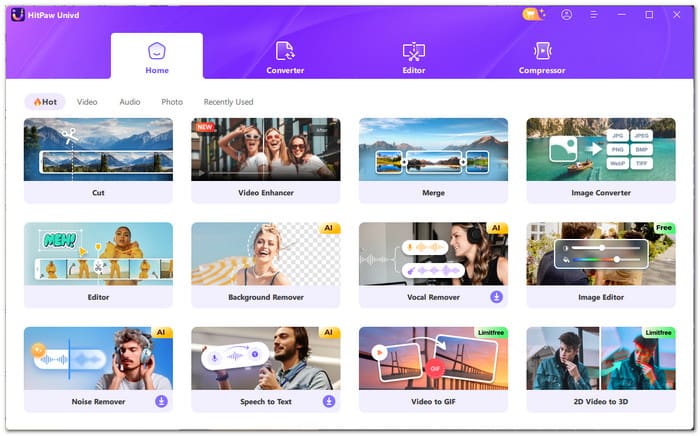
HitPaw Univd is not only a video converter. It packs many media tools into one program. This makes it useful for users who want more than simple format changes.
- Format Support and Conversion
It supports more than 1,000 formats. It also supports batch conversion. It also advertises hardware acceleration, up-to-170× speed. - Subtitle Tools
It supports formats such as SRT, ASS, VTT, and SSA. This makes basic subtitle work easier. - DVD Tools
HitPaw also includes DVD tools. These features can help users work with disc-based videos. DVD menu tools are also available. - Other Tools
There are several extra tools in the program. These include editing, compression, looping animation creation, image tools, and watermark tools.
Part 3: HitPaw Video Converter's AI Tools
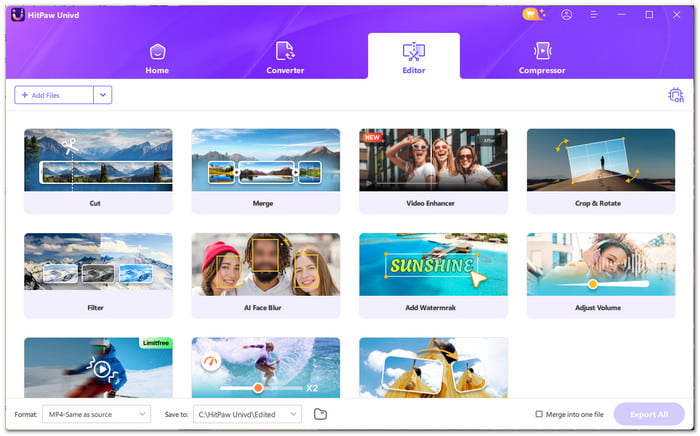
HitPaw Univd Video Converter adds AI tools to its normal video features. These tools handle jobs that usually need separate apps.
- AI Vocal Remover: It is used to separate vocals from music. This can help with simple karaoke tasks.
- AI Noise Remover: The noise remover helps remove background noise from video. It can be useful for videos with noisy audio.
- AI Speech to Text: The speech-to-text tool turns spoken words into text. This can help with interviews, lessons, and other recordings.
- AI Face Blur: The face blur feature can detect faces in videos. It can then blur them. This is useful when a video contains people who should not be clearly shown.
- AI Background Removal: HitPaw also has an AI background removal tool. It can remove the background from supported images.
Part 4: HitPaw Video Converter Performance Test
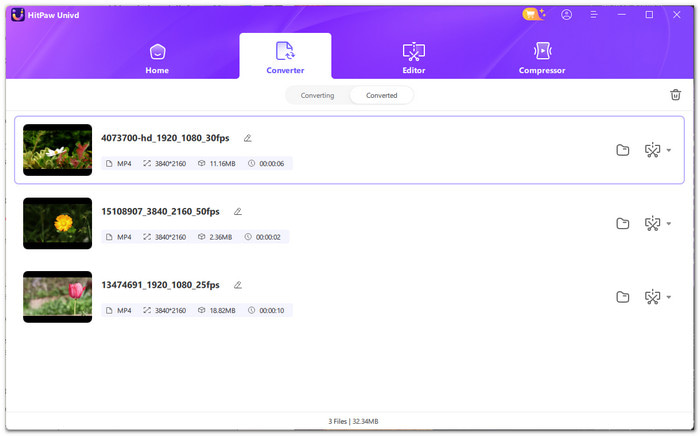
HitPaw Video Converter did a good job in our test. It converted videos without issues. The whole process was also easy to follow. The tool had good conversion speed for normal video tasks. Files finished without much waiting. The progress also stayed smooth.
The video quality was good after conversion. Images stayed clear, and the audio remained clean. We did not see any major quality loss. Its batch conversion tool also worked well. We could convert many files at once. The process stayed simple and did not feel slow.
As a whole, HitPaw Video Converter showed stable and reliable performance in our test. It handled conversion speed, video quality, and batch processing well. It makes it suitable for regular video conversion tasks.
Part 5: HitPaw Video Converter Pros and Cons
The main strengths are easy to spot. The same is true for a few limits.
- More than 1,000 video and audio formats.
- Easy-to-find tools and controls.
- Conversion, editing, compression, subtitles, and DVD features.
- Noise removal, vocal removal, face blur, and speech-to-text.
- Many files can be processed together.
- GPU support for faster tasks.
- File processing is restricted.
- Full access requires a paid plan.
- Individual plans cover one computer.
- Performance depends on the computer and the file.
- Some AI tools use AI credits.
Part 6: HitPaw Video Converter Pricing and Restrictions
HitPaw Video Converter has three main payment plans:
| Plan | Price | Main Restriction |
|---|---|---|
| Monthly | $19.95 | One device and auto-renewal. |
| Annual | $39.95 | One and auto-renewal. |
| Perpetual | $79.95 | One device. |
Restrictions
- Free trial: The HitPaw Video Converter free trial only converts one-third of a video file.
- One device: Each plan is limited to one computer.
- Auto-renewal: Monthly and annual plans renew automatically.
- AI credits: Some AI features require AI credits.
- VikPea add-on: The optional VikPea offer has a separate renewal charge.
Part 7: HitPaw Video Converter vs. Tipard Video Converter Ultimate
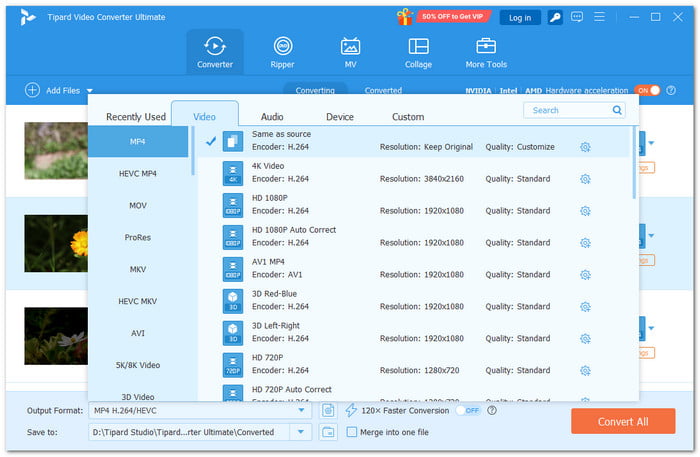
A video converter should be easy to use right away. Tipard Video Converter Ultimate keeps things simple from the start.
Its clean interface makes tools easy to find. Its AI enhancement can sharpen videos and improve clarity. Wide format support makes file conversion more flexible. It is also easy for beginners and pro editors. You can work faster without a confusing workflow.
Key Features:
- Supports 500+ video and audio formats for easy conversion.
- Converts DVDs, DVD ISO files, and VIDEO_TS folders into digital videos.
- Offers a built-in movie maker with 51 themes and editing tools.
- Includes a collage maker with 45 themes and different screen layouts.
- Provides extra tools like a compressor, enhancer, and watermark remover.
- Converts many files at the same time.
- Supports speeds of up to 120× faster.
- Includes presets for different devices.
- Lets you fine-tune video output settings.
- Upscales videos to 1080p, 2K, 4K, and 8K.
- The trial only converts files up to 5 minutes long.
HitPaw Video Converter vs. Tipard Video Converter Ultimate Comparison
Hitpaw Video Converter and Tipard Video Converter Ultimate offer useful features. Both for video conversion and editing. But their strengths are not the same. The table below compares the 10 key factors that matter most. It makes the main differences easier to see at a glance.
| Factor | Hitpaw Video Converter | Tipard Video Converter Ultimate |
|---|---|---|
| Format support | 1,000+ formats. | 500+ formats with wide video and audio support. |
| Conversion speed | Up to 170× faster. | Up to 120× faster. |
| Batch conversion | ✓ | ✓ |
| Device presets | Supports popular devices. | Offers presets for phones, TVs, PCs, consoles, and more. |
| Output settings | Supports custom output settings. | Offers detailed control over codecs, bitrate, resolution, frame rate, and audio. |
| Video enhancement | AI video tools for improving media. | AI enhancement with upscaling, sharpening, noise removal, and a video stabilizer. |
| Video upscaling | Supports high-resolution video conversion. | Upscales videos up to 4K and 8K. |
| Video editing | Includes basic editing tools. | Includes trim, crop, rotate, merge, filters, and watermark tools. |
| DVD tools | Converts DVDs and related files. | Converts DVDs and creates ISO or VIDEO_TS backups. |
| Ease of use | Suitable for beginners. | Easy for beginners and useful for pro editors. |
| Show MoreShow Less | ||
Conclusion
Ready to give it a try? Get the HitPaw Video Converter download. Start exploring its conversion, editing, and AI tools. Want another option? Try Tipard Video Converter Ultimate too. You can have it for Windows or Mac. Its simple design, strong AI tools, and wide format support make video work easy and fun.

All-in-one video toolbox: convert, edit, upscale, enhance, and compress your videos easily
100% Clean & Safe
100% Clean & Safe

More Reading
About the Author

 Click here to join the discussion and share your comments

 Tipard Video Converter Ultimate