

Key Takeaways
Freemake Video Converter is a simple Windows program with 500+ format support and easy controls.
Tests show that Freemake Video Converter works well for conversion, DVD tools, editing, and batch tasks.
The free version has limits like watermarks, slower speed, and fewer advanced options.
Tipard Video Converter Ultimate, HandBrake, and VLC Media Player are good alternatives for different needs.
Many users want to enjoy free tools without paying anything. One popular choice is Freemake Video Converter. But is it really free, or does it come with limits that require you to pay for extra features?
This post will answer that question. We will also check its features, offer testing results, usage steps, and alternatives. Get ready for a complete look at what Freemake Video Converter can offer!
Part 1: Quick Verdict of Freemake Video Converter
Do you need a simple video converter for Windows? Freemake Video Converter is a good place to start. It is easy to use. It supports many file types. It also has a few handy tools. However, the free version has big limits. The output video gets a large watermark. Many advanced features also need a paid upgrade.
| Best for | Beginners and simple video tasks. |
| Platform | Freemake Video Converter Windows. |
| Price | Free with limits. Paid version removes the watermark and offers more features. |
| Supported formats | 500+ video and audio formats. |
| Overall rating | 4.0/5. |
Part 2: Test and Review of Freemake Video Converter
This section covers how we tested Freemake Video Converter and the results of each function. It also includes its core performance and technical limitations, benefits and drawbacks, usage guide, etc.
How We Tested Freemake Video Converter
We downloaded the latest Freemake Video Converter on a Windows computer. We imported small and large videos. We also tested audio files and discs. Next, we tried the main features one by one. We checked the output clarity. We watched the conversion speed. We also looked at how easy Freemake Video Converter was to use. Last, we compared our experience with user reviews from trusted review sites.
Testing Results of Each Function
1. Video Conversion
It easily converts common video files. It performed well with MP4, AVI, MKV, WMV, and MOV. Additionally, batch conversion was successful.
Result: Good.
2. Audio Conversion
It changed videos into audio files in a few clicks. Popular formats like MP3 worked well.
Result: Good.
3. DVD Tools
The DVD Freemake Video Converter feature lets users rip DVDs to video files. It also burns videos to DVDs. Creating DVD folders and ISO files was simple.
Result: Good.
4. Basic Editing
The trim feature worked well. Merging clips was easy. Rotation also worked as expected. Subtitle support was simple to use.
Result: Good.
5. Device Presets
Conversion was made simpler by ready-made presets. Numerous phones and tablets performed well with the files.
Result: Good.
6. Batch Conversion
Freemake Video Converter converted many files in one job. This saved time.
Result: Good.
7. Video Quality
Most videos kept good quality. Some files showed lower quality after conversion. This was easier to notice on large videos.
Result: Fair.
8. Conversion Speed
Small files finished immediately. Large files took more time. The free version also limits speed.
Result: Fair.
Core Performance and Technical Limitations
For easy tasks, Freemake Video Converter is quick. On the majority of Windows computers, it functions flawlessly. Beginners can also complete tasks more quickly thanks to the simple layout. The program supports Windows 7, 8, 10, and 11. It only requires the most basic system requirements. Because of this, it can be used on older computers.
The main problem is the free version. It places a watermark on exported videos. It also limits some speed features. Advanced users may feel restricted. The program does not offer many detailed encoding controls. It also lacks some modern video features compared to newer converters.
Pros and Cons of Freemake Video Converter
- Easy to use.
- Simple editing tools.
- Rips and burns DVDs.
- Supports 500+ formats.
- Creates photo slideshows.
- Supports batch conversion.
- Uploads videos to YouTube.
- Runs well on older Windows computers.
- Windows only.
- Slow in the free version.
- Shows upgrade pop-ups.
- Limited encoding options.
- Quality may drop after conversion.
- New formats have limited support.
- The free version adds a large watermark.
- Some installers included extra software before.
User Reviews
Most users say Freemake Video Converter is easy to use. Many like the simple layout. They also like the many supported formats. DVD tools are another plus. However, some users dislike the large watermark. Others mention slow speed in the free version. Some also do not like the upgrade ads.
User Ratings
| Website | Rating |
|---|---|
| Trustpilot | 4.0/5 from 1,950 users. |
| Software Advice | 4.0/5 from 101 users. |
| Capterra | 4.0/5 from 101 users. |
The ratings are similar. Most users think Freemake Video Converter is good. The biggest complaints are the free version limits.
Part 3: How to Use Freemake Video Converter
Are you ready to convert your first video? The steps are easy. Even first-time users can follow them. Ensure you have the latest version, not the old Freemake Video Converter version. With that, you can take advantage of updated features.
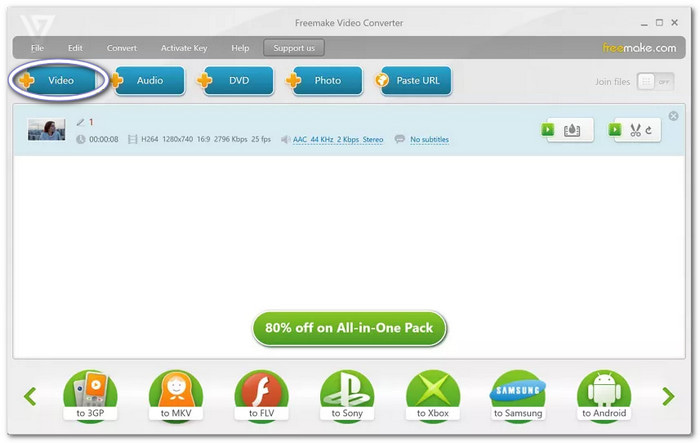
Step 1 Click + Video. You can also select and drop your file. The program supports videos, audio, DVDs, photos, and web links.
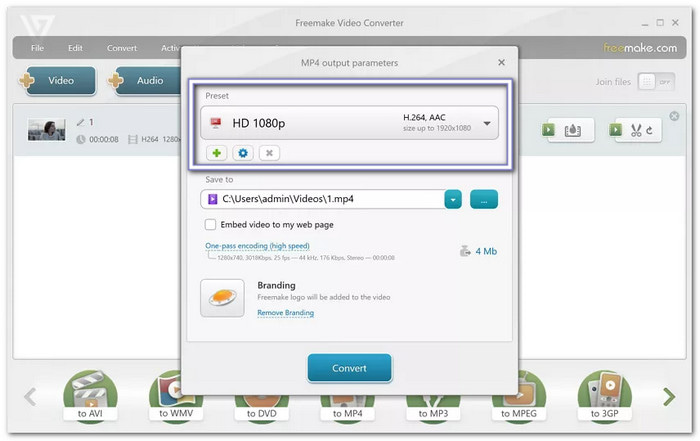
Step 2 Choose the format at the bottom. You can select MP4, AVI, MKV, MP3, WMV, or another option. You can also pick a device preset.
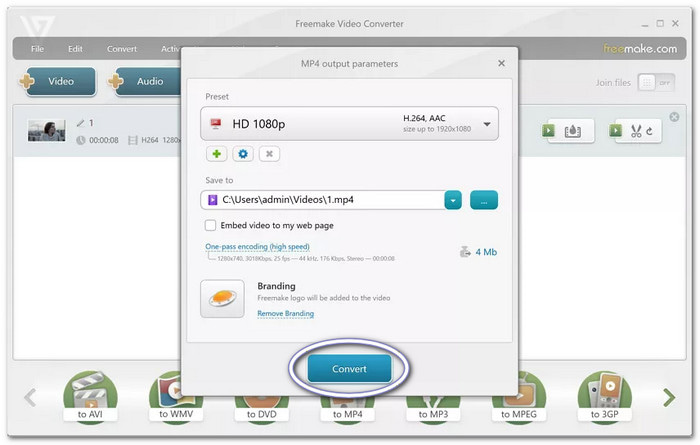
Step 3 Hit Convert. The free version will show a message. It will ask you to buy the paid version. You can also continue with the watermark. The free version also has a slower conversion speed.
Step 4 Please wait until the process finishes. Your new file will be saved in the folder you selected.
Pricing of Freemake Video Converter
As mentioned above, Freemake Video Converter has a free version with basic features. However, it includes limits like watermarks and a slower speed.
Paid plans remove these limits and unlock more tools:
- 1 Week Trial: $0.95. Includes no Freemake logo, 4X faster speed, Full HD support, editor, subtitle tools, DVD burner, and more.
- Subscription: $39.95/month. Includes all premium features.
- Lifetime: $59.95 one-time payment. Includes all premium features without monthly fees.
The lifetime plan is the best option for long-term users. The free version is better for simple conversions only.
Is Freemake Video Converter Safe
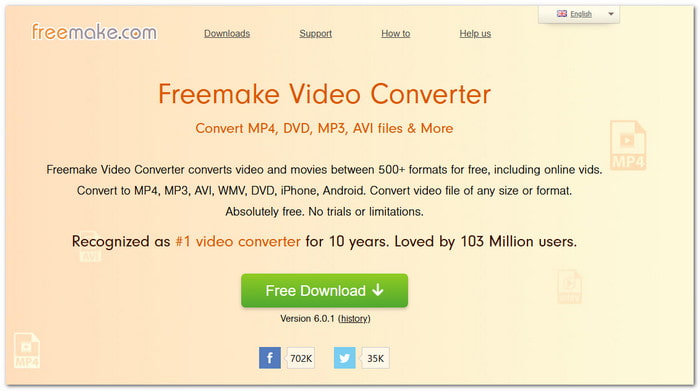
Freemake Video Converter is generally safe to use. Download it from the official Freemake Video Converter website. Be careful during setup. Read each step. Decline the extra program if it appears. It is also a good idea to scan the installer with an antivirus before opening it.
Many users search for Freemake Video Converter Key, Freemake Video Converter Key Archive.org, or Freemake Video Converter Key Generator 2026. Using unofficial keys or key generators is unsafe. They may contain malware. They may also break the program license.
Part 4: Top 3 Alternatives to Freemake Video Converter
1. Tipard Video Converter Ultimate
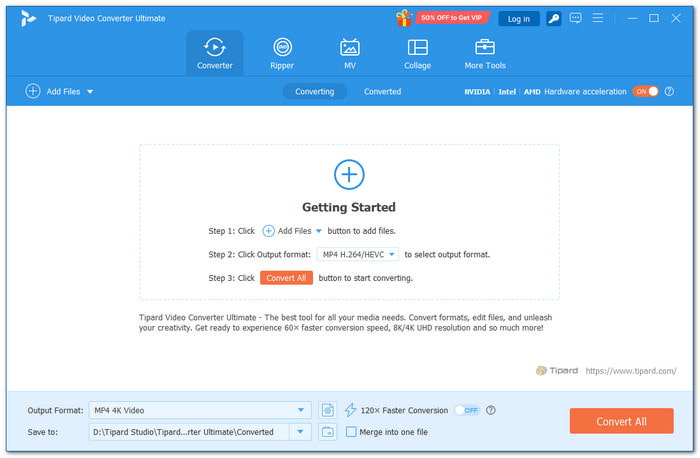
Freemake Video Converter is easy to use. But it has limits like watermarks, fewer advanced tools, and slow speed in the free version. Tipard Video Converter Ultimate offers a better experience with more powerful features.
It supports modern HEVC and AV1 output codecs to keep videos clear while reducing file size. For quicker work, it can also convert videos in bulk and rip DVDs. Better videos are produced thanks to its AI enhancement, MV, and Video Collage features. Additionally, it supports AVI, MKV, MOV, and MP4.
Pricing: Free version available. Paid plans start at $18.00/month or $56.00 for a lifetime license.
- Supports 8K, 4K, and HD videos.
- Offers up to 120× faster conversion.
- Supports many formats, codecs, and presets.
- Includes video, audio, and image tools.
- Has limits in the free version.
2. HandBrake
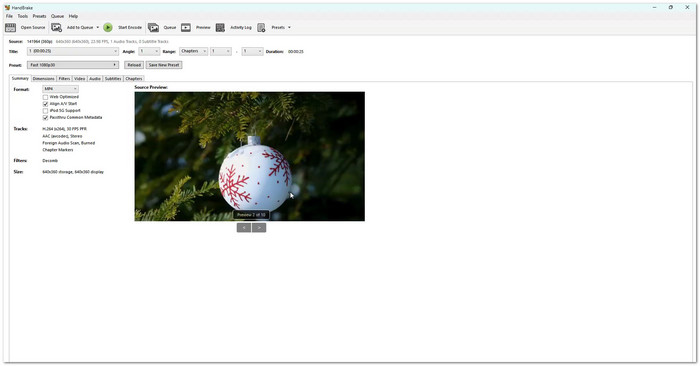
HandBrake is a trusted free video converter for users who want more control. It converts videos into modern formats with codecs like H.264, H.265, AV1, and VP9. Unlike Freemake Video Converter, it provides deeper settings for video clarity, bitrate, subtitles, and compression.
Pricing: 100% free and open-source.
- Excellent video clarity.
- Rip DVD from a disc or ISO image.
- Offers advanced encoding settings.
- Supports Windows, Mac, and Linux.
- Limited editing features.
- Harder for beginners to learn.
- Does not convert audio-only files.
3. VLC Media Player
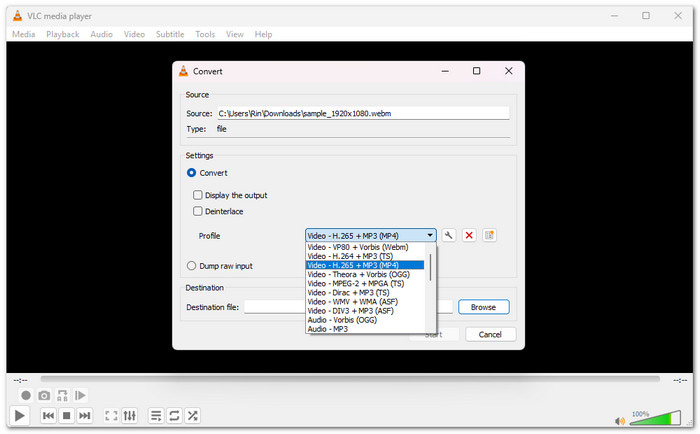
VLC Media Player is known for playing almost any video file. It also has a built-in conversion feature for changing video formats. Unlike dedicated converters, it keeps things simple and does not require an extra program. It is useful for immediate conversions when users already have VLC Media Player installed.
Pricing: 100% free and open-source.
- No ads or watermarks.
- Runs as a DVD player.
- Lightweight and easy to install.
- Supports many media formats.
- Basic conversion features only.
- Lacks advanced editing options.
- Conversion tools are hidden in menus.
Tipard Video Converter Ultimate vs. HandBrake vs. VLC Media Player
| Factors | Tipard Video Converter Ultimate | HandBrake | VLC Media Player |
|---|---|---|---|
| Ease of Use | Beginner-friendly interface. | More technical controls. | Simple but hidden converter. |
| Supported Formats | 500+ formats like MP4, MOV, AVI, MKV. | Limited output formats. | Supports many media formats. |
| Video Quality | High-quality 8K, 4K, and HD output. | Excellent encoding quality. | Basic conversion quality. |
| Conversion Speed | Up to 120× faster conversion. | Fast with hardware support. | Standard conversion speed. |
| DVD Features | Rip DVDs in batch. | No direct DVD ripping. | Limited disc support. |
| Editing Tools | Merge, trim, crop, rotate, apply filters, etc. | Basic filters and adjustments. | Trim, rotate, crop, and take instant snapshots. |
Part 5: FAQs of Freemake Video Converter
Does Freemake Video Converter offer a fully free experience?
There is a free version of Freemake. It has limitations, though. A watermark may be present in videos. Certain features can only be accessed with a premium plan.
Can Freemake Video Converter handle 4K videos and new codecs?
No. Freemake has limited support for modern video needs. It does not support codecs like HEVC, AV1, and VP9. It is also not ideal for 4K video conversion.
What causes Freemake Video Converter to convert files slowly?
The free version has slower conversion speeds. A premium upgrade can unlock hardware acceleration for quicker processing.
Conclusion
You made it to the last part. We hope you learned what Freemake Video Converter can do and how to use it. If you plan to try it, ensure to download Freemake Video Converter from the official source.
If you are also interested in alternatives like Tipard Video Converter Ultimate, use the provided download buttons to start easily.
More Reading
About the Author


 Tipard Video Converter Ultimate