

Today, video enhancement is a crucial skill due to the popularity of TikTok, YouTube, and other social platforms. Whether you are creating marketing videos, social media content, or private videos, a video enhancer can produce the best results. Canva Video Enhancer is a well-known brand for upscaling resolution and improving footage directly with AI. Before you purchase the application, read our unbiased review and make the best decision.

Part 1: What Is Canva Video Enhancer
As its name suggests, Canva AI Video Enhancer is an AI-powered tool designed for improving video quality and resolution online. It is part of the graphic design platform, which offers a wide range of features for content creation and retouching.
Core Features of Canva Video Upscaler
- 1. Enhance video quality and resolution online.
- 2. Adjust saturation, brightness, and contrast to correct color.
- 3. Sharpen video footage to reduce blurriness.
- 4. Apply a wide array of video filters and effects.
- 5. Offer basic video-editing tools, like trimming and cropping.
- 6. Resize videos for YouTube and other platforms.
- 7. Add text overlays to videos quickly.
- 8. Access video, audio, and subtitle tracks.
- 9. Integrate a drag-and-drop interface.
- 10. Support the popular video formats.
- 11. Share enhanced videos directly to social media.
Canva Video Enhancer vs Canva Video Upscaler
As mentioned previously, Canva Video Upscaler is an AI-powered application on the Canva platform. In fact, the online graphic design tool comes with a video enhancement feature called Canva Video Enhancer. In short, Canva Video Enhancer is a Canva platform feature, while Canva Video Upscaler is an AI-powered app.
Pricing
| Plan | Prices | Notes |
|---|---|---|
| Free | No | 5GB of cloud storage |
| Monthly(Individual) | $18 | 100GB of cloud storage All AI access |
| Yearly(Individual) | $142 | 100GB of cloud storage All AI access |
| Monthly(Business) | $25 | 500GB of cloud storage All AI access |
| Yearly(Business) | $250 | 500GB of cloud storage All AI access |
Part 2: Canva Video Enhancer Review
User Review on Reddit and Trustpilot
From Reddit:
In terms of getting started, Canva is good bang for the buck. It probably solves 80% of your video-editing and graphic-design problems. The next 20% will cost you quite a bit to get professional software.
From Trustpilot:
I'm learning Canva Video Upscaler. The AI component is very helpful. I just finished my first video in this application. I will post it on TikTok.
Canva Video Enhancer is clearly well-regarded, and I genuinely wanted to like it. Unfortunately, I found the interface confusing and difficult to navigate. The so-called tutorial was extremely basic and did very little to explain how to use the platform in practice.
You May Also Like:
Unbiased Review of Canva Video Quality Enhancer
- Improve video quality efficiently with AI.
- Automate the video enhancement process.
- Streamline the process with a user-friendly interface.
- Offer a free plan.
- Won't install anything on your desktop.
- The prices are high.
- You must sign up for an account with an email address.
- It requires a stable internet connection.
Does Canva Really Enhance Your Video?
In our tests, Canva Video Upscaler can improve the appearance of some low-resolution videos, but its results depend heavily on the original video's quality. Upscaling a video to a higher resolution does not automatically restore details that were never captured in the original footage.
Canva can make compatible videos look cleaner and sharper when increasing their resolution. It is most useful when the source video is reasonably clear but has a lower resolution than the intended output. However, heavily compressed, blurry, or very low-resolution footage may still look soft after upscaling. Fine details such as faces, text, and small objects may not become significantly clearer, even when the output resolution is higher.
Our Verdict: Therefore, Canva Video Upscaler is better viewed as a convenient video enhancer than a solution for restoring severely degraded footage.
Part 3: How to Enhance Video on Canva
When discussing Canva Video Upscaler, we usually refer to the AI-powered app. However, the built-in feature can also enhance video quality. Therefore, we demonstrate how to improve video quality on Canva and the Canva AI Video Upscaler.
How to Use Canva Video Enhancer
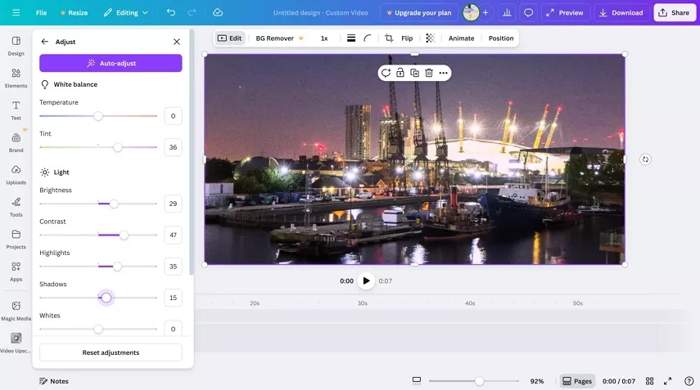
Step 1 Access Canva in your web browser and log in to your account.
Step 2 Click the Edit Video button on the toolbar.
Step 3 Upload a video you want to enhance.
Step 4 Choose the Adjust menu to open the Canva Video Enhancer page.
Step 5 Click the Auto-adjust button or manually adjust the options to enhance footage.
Step 6 Finally, export and download the enhanced video.
How to Use Canva AI Video Upscaler
Step 1 Choose Apps on the left panel in the Canva editor.
Step 2 Find and choose the Video Upscaler app to proceed.
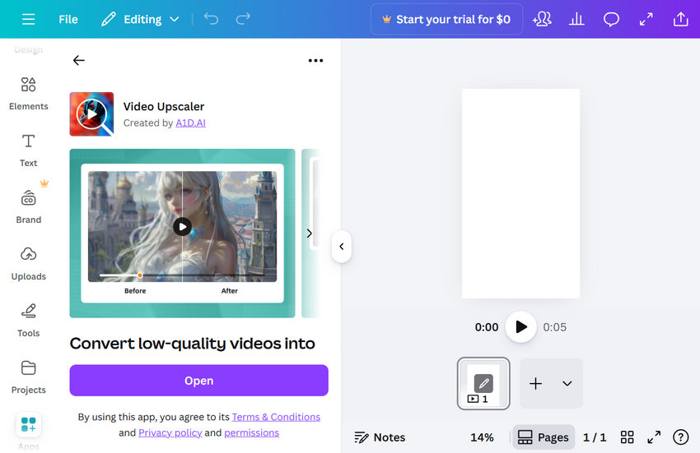
Step 3 Log in with your account.
Step 4 Click the Choose file button to add the video you want to enhance.
Step 5 Choose a better resolution under the Select quality section.
Step 6 Next, select a style under the Enhancement style heading.
Step 7 Preview the result on the right panel.
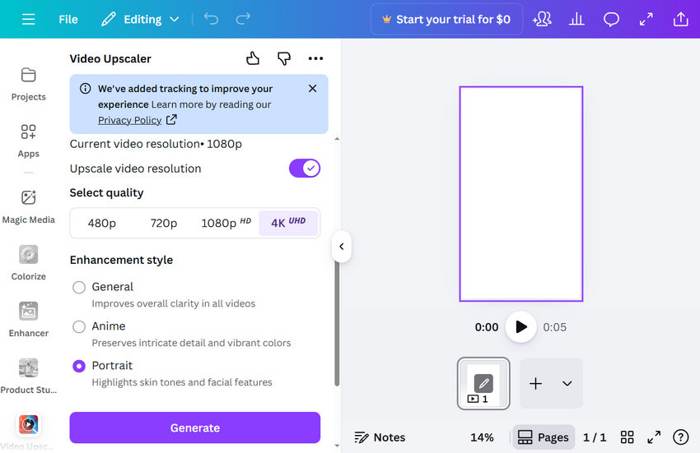
Step 8 If you are satisfied, click the Generate button.
Step 9 Download or share the video.
Part 4: Ultimate Alternative to Canva Video Enhancer
While Canva Video Upscaler is easy to use, it is not a reliable option for processing long videos. Therefore, you may be looking for an alternative solution. Tipard Video Converter Ultimate comes with an offline AI-powered video enhancer. Besides, it integrates a wide range of video-editing tools.

- Enhance video quality with the AI technology.
- Include multiple modes for different videos.
- Preview the results with the built-in media player.
- Support hundreds of video input and output formats.
- Offer bonus features, like video format converting.
How to Enhance Video Quality on Canva Alternative
Step 1 Install Canva alternative
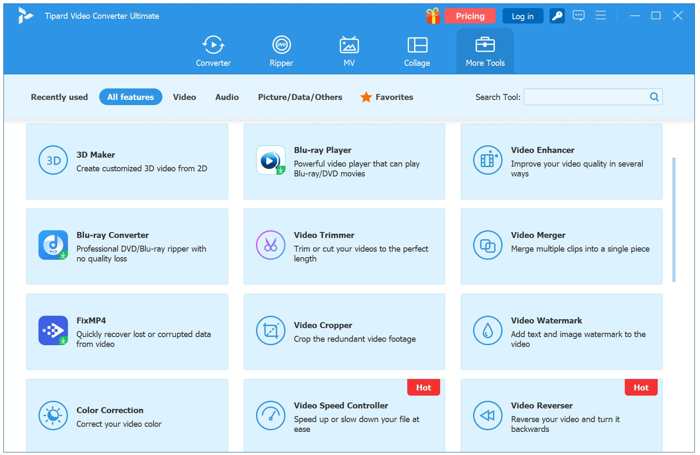
Download and install the alternative to Canva Video Upscaler on your PC. There is another version for Mac. Launch it when you need to improve video quality. Go to the More Tools window from the top and choose the Video Enhancer tool.
Step 2 Add a video
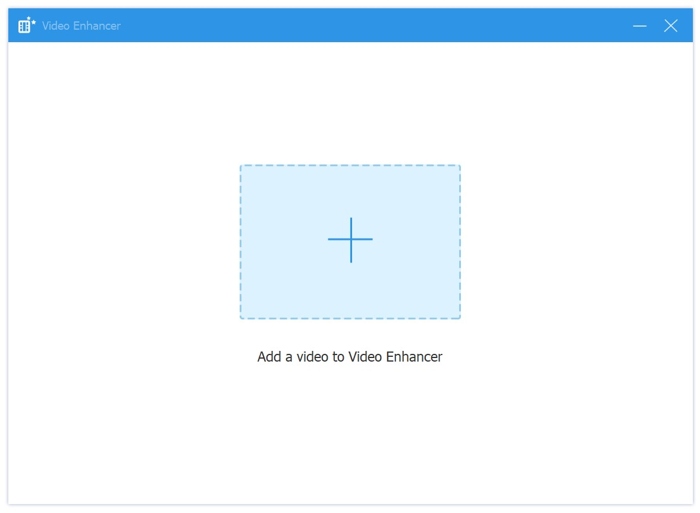
Click the big Add button to import the video that you want to retouch. Then, the software will load the video immediately.
Step 3 Enhance video quality
To enhance video quality, check the Upscale Resolution option. If your video is blurry or shaking, select Remove Video Noise and Reduce Video Shaking. Click the Preview button to check the result. Once you are satisfied with the result, set an output folder and click the Enhance button.
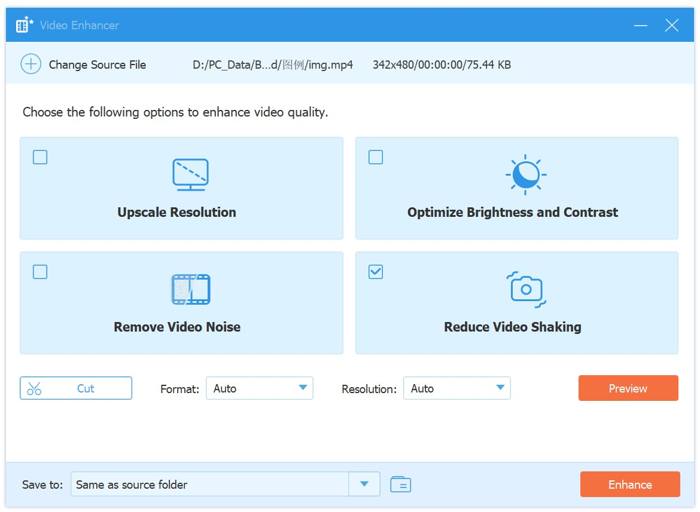
If you hope to enhance a clip in the video, click the Cut button and remove unwanted frames.
Conclusion
This article reviewed one of the most popular online video enhancement tools, Canva Video Upscaler. Now, you should learn what the app can do, its strengths and weaknesses, and other information. We also shared how to enhance your video online. We recommended an offline alternative solution, Tipard Video Converter Ultimate.
All-in-one video toolbox: convert, edit, upscale, enhance, and compress your videos easily
100% Clean & Safe
100% Clean & Safe

More Reading

About the Author


 Tipard Video Converter Ultimate