

Today, traditional video enhancer tools cannot meet users’ needs. The good news is that more and more video enhancers are integrating AI technology to deliver better results. Therefore, this article will review one of the best AI-powered video enhancers, Unblurimage AI Video Enhancer. It is a web-based visual enhancement tool. Before you open your wallet and purchase credits, you can learn this tool and make the best decision.

Part 1: Unblurimage AI Video Enhancer Review
As its name suggests, Unblurimage AI Video Quality Enhancer instantly transforms blurry, low-resolution videos into sharp, high-resolution animations. It leverages advanced technology to improve video quality without technical skills.
Core Features of Unblurimage AI Video Enhancer
- 1. Integrate AI-powered enhancement using deep-learning models.
- 2. Offer high-quality denoising while preserving detail and color.
- 3. Upscale video resolution up to 4K.
- 4. Support one-click processing in seconds.
- 5. Work across desktop, tablet, and smartphone with a browser.
- 6. Unblur and sharpen videos with AI.
- 7. Repair old, damaged videos and enhance clarity.
- 8. Come with an image enhancer online.
- 9. Support popular formats, including MP4, MOV, AVI, MKV, and WebM.
Unblurimage AI Video Enhancer Review
- Easy to use and no learning curve.
- Perfect for casual users, students, or small businesses.
- Offer multiple enhancement modes.
- Completely work online and no installation.
- The free version is limited and requires registration.
- Require a stable internet connection.
- Cannot handle long videos.
- Lack advanced video editing tools.
Unblurimage AI Video Enhancer Price
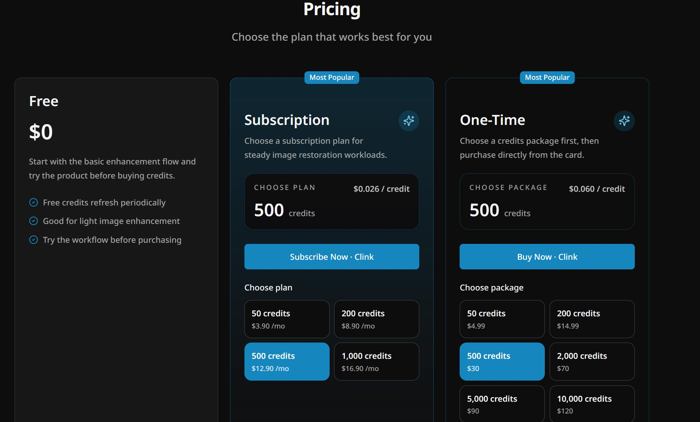
Beginners can sign up for an account and try the free version to enhance images. If you need to enhance videos, you have to subscribe to a plan. The 50-credit plan costs $3.90 per month or $4.99 one-time. The 200-credit plan costs $8.90 per month or $14.99 one-time. The 500-credit plan costs $12.90 per month or $30 one-time. The 1, 000-credit plan costs $16.90 per month. It offers more one-time plans.
Bottom Line
Unblurimage Video Enhancer is best for a quick fix of blurry and low-resolution videos. For occasional use in personal or small-business projects, it is a good option. For highly customized enhancements or large video files, you’d be better off finding an alternative.
Part 2: How to Use Unblurimage AI Video Enhancer
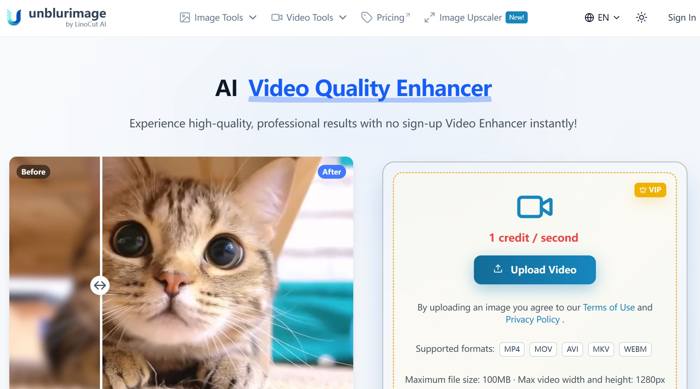
Step 1Access https://unblurimage.ai/video-enhancer/ in a browser.
Step 2Click the Upload Video button.
Step 3Log in to your account. If you don’t have one, sign up for an account with your email address.
Step 4Next, upload the video that you want to enhance.
Step 5After the video is imported, it will process the clip automatically.
Step 6Once complete, click the Download Preview or Enhance Full Video button.
Note: Your account must have enough credits to enhance the video. If you want to enhance Sora video, visit https://unblurimage.ai/sora-enhancer/ and upload your video.
Part 3: Top Alternative to Unblurimage AI Video Enhancer
Unblurimage AI Video Enhancer cannot handle large videos. Alternatively, Tipard Video Converter Ultimate can help you enhance any video, denoise, correct color, and remove shaking. As a desktop program, it is more stable and reliable.

- Enhance video quality with AI.
- Support almost all video formats.
- Offer multiple modes for video enhancement.
- Convert video formats after enhancement.
- Work on Windows 11/10/8/7/XP/Vista and macOS 10.12 or later.

How to Enhance Video Quality with AI Offline
Step 1Install the video enhancer
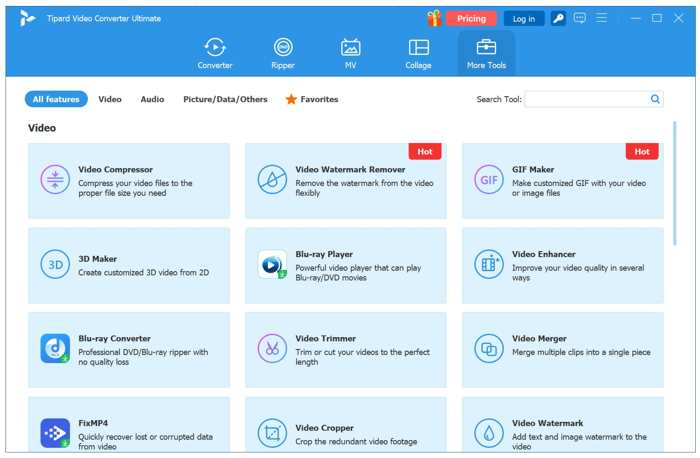
Open the Unblurimage Video Enhancer alternative after installing it on your PC. There is another version for Mac. Switch to the More Tools tab at the top of the interface, then choose the Video Enhancer tool.
Step 2Add a video
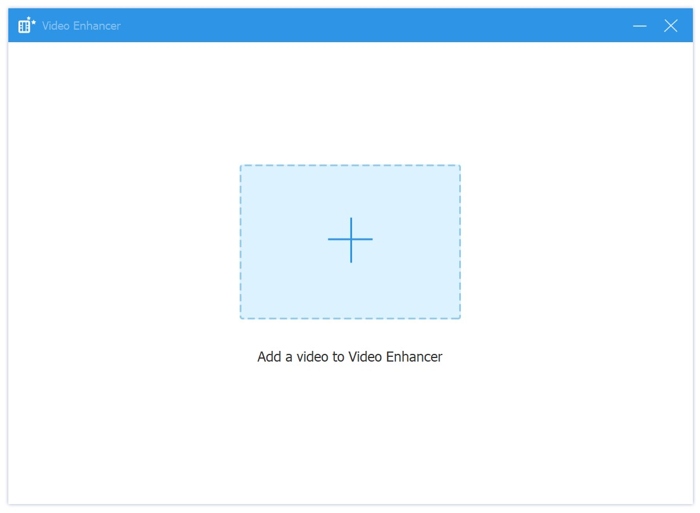
Click the big Add button, select the video you want to process in File Explorer, and open it. After the video loads, you will be presented with the main interface.
Step 3Enhance the video
Select the modes according to your video. If you want to enhance video quality, select Upscale Resolution. The Optimize Brightness and Contrast mode is used to improve color balance. If your video includes noise and is blurry, select Remove Video Noise and Reduce Video Shaking.
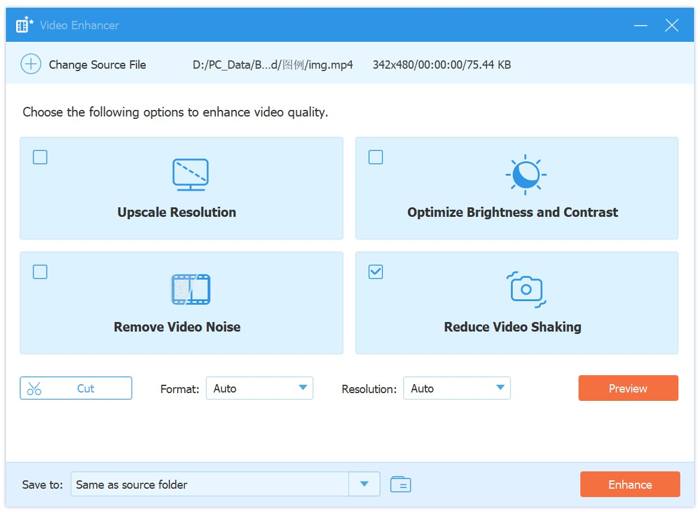
Click the Preview button to check the results using the built-in media player. You can repeatedly preview and select modes.
Finally, set the output folder and format at the bottom and click the Enhance button to export the enhanced video.
Note: To enhance a video clip, click the Cut tool and trim unwanted frames.
Conclusion
This article reviewed one of the most popular AI video enhancers, Unblurimage AI Video Enhancer. It is a good choice for quickly enhancing a short video clip without installing anything on your desktop. Furthermore, we recommended an alternative: Tipard Video Converter Ultimate. It can enhance any videos on your desktop offline.
All-in-one video toolbox: convert, edit, upscale, enhance, and compress your videos easily
100% Clean & Safe
100% Clean & Safe

More Reading


About the Author


 Tipard Video Converter Ultimate