

- Part 1. What is Tensorpix AI Video Enhancer
- Part 2. Who is Tensorpix AI Video Enhancer For
- Part 3. Key Features of Tensorpix AI Video Enhancer
- Part 4. How to Use Tensorpix AI Video Enhancer
- Part 5. Tensorpix AI Video Enhancer Performance Test
- Part 6. Best Alternative to Tensorpix AI Video Enhancer
- Part 7. FAQs about Tensorpix AI Video Enhancer
Tensorpix AI Video Enhancer has become one of the most reliable tools for enhancing your videos. It lets you make your footage sharper and more vibrant without a complicated process. So, is this the best video enhancer to rely on? Thankfully, this review provides all the information you need about the tool. It includes its key features, who it is for, pricing, how to use, and more. To explore everything, start by reading this comprehensive review.
- Part 1. What is Tensorpix AI Video Enhancer
- Part 2. Who is Tensorpix AI Video Enhancer For
- Part 3. Key Features of Tensorpix AI Video Enhancer
- Part 4. How to Use Tensorpix AI Video Enhancer
- Part 5. Tensorpix AI Video Enhancer Performance Test
- Part 6. Best Alternative to Tensorpix AI Video Enhancer
- Part 7. FAQs about Tensorpix AI Video Enhancer
Part 1. What is Tensorpix AI Video Enhancer
Tensorpix AI Video Enhancer is an online-based video enhancer that uses artificial intelligence to create a better version of your footage. It can let you upscale, denoise, and sharpen videos with minimal effort. The tool lets users restore old videos, improve the clarity, and increase the frame rate for smoother video playback. Aside from that, since it runs online, there is no need for high-end hardware. This makes it the best practical choice for a wide range of users and professionals.
System Requirements
Sine Tensorpix Video Enhancer is online-based, and it has minimal requirements.
Operating System: It can run on any modern OS, including Windows, macOS, Linux, Android, and iOS.
Browser: Latest versions on Google Chrome, Microsoft Edge, Firefox, Opera, and Safari.
Hardware: No dedicated GPU is required.
Internet: The internet connection (Wi-Fi) must be stable and fast for better performance.
Tensorpix Pricing
If you are interested in exploring the pricing plans for Tensorpix AI Video Enhancer, you can refer to the table below.
| Plan | Price Annual Billing | Credits Included | Extra Credits Cost | Storage | Input Resolution |
|---|---|---|---|---|---|
| Free | $0 | Weekly login credits | $3/credit | 1 GB | Up to 720p |
| Standard | $5.50/month | 10 credits/month | $1.50/credit | 10 GB | Up to 4K |
| Premium | $12.42/month | 35 credits/month | $1.20/credit | 100 GB | Up to 4K |
| Elite | $30.25/month | 110 credits/month | $0.80/credit | 500 GB | Up to 4K |
Part 2. Who is Tensorpix AI Video Enhancer For
Tensorpix AI is perfect for a wide range of users. It can be used by content creators, video editors, educators, and professionals who need to improve the video quality without investing in expensive hardware. It is also ideal for marketers, social media managers, and YouTubers who want to polish their footage for online platforms, as well as casual users restoring outdated videos. With that, this video quality enhancer can be used by various users who want to enhance their videos for better playback.
Part 3. Key Features of Tensorpix AI Video Enhancer
Do you want to dig deeper into the features of Tensorpix AI Video Enhancer? Then, see the details below and learn more about its capabilities.
Upscale Video
The core feature of the tool is video upscaling. It lets you turn your low-quality videos up to 720p, 1080p, and even 4K. It can even provide a simple, smooth upscaling process, allowing you to get the result without any hassle.
Reduce Noise and Restore Videos
What makes the tool ideal is its capability to reduce video noise. This is perfect if you want to reduce grain in your footage. Plus, it can also help you restore your old videos. It ensures that your outdated clips will look brand new for a better viewing experience.
Boost Frame Rate
Increasing or adjusting the video frame rate is also important. If you want to show your videos on your streams, create a cinematic video, or handle gameplay recordings, you must use a proper frame rate. Tensorpix can let you adjust the FPS of your videos. You can change the video frame rate from 30 FPS to 120 FPS.
AI Stabilization
Did you capture your content without a tripod? The outcome might be shaky. The good news is that the tool can also handle shaky videos. With its AI Stabilization feature, you can play your videos without getting annoyed.
Part 4. How to Use Tensorpix AI Video Enhancer
After learning everything about Tensorpix's capabilities, you might be wondering how to use it to start enhancing your videos. If so, you can follow/check the simple steps below to start enhancing your videos.
Step 1 Go to the main website of Tensorpix AI. Then, click the AI Video Enhancer feature. Once done, another layout will appear on your screen.
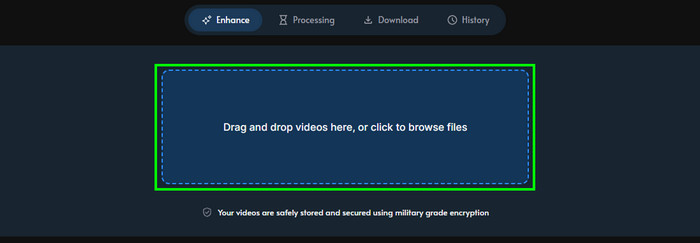
Step 2 You can start adding the video you want to enhance by dragging it to the layout. After that, proceed to the next process.
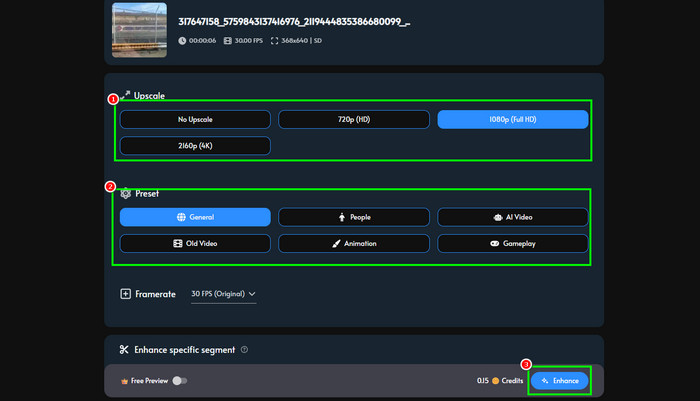
Step 3 Now, start enhancing your videos. You can enhance your footage for up to 1080p and even 4K. You can also choose your desired presets. Once done, hit Enhance to start the enhancement process.
Step 4 After the process completes, you can hit the Download button to save/export the video to your device.
Part 5. Tensorpix AI Video Enhancer Performance Test
To get more insights about Tensorpix AI, see all the information provided in this section.
- The process of upscaling and enhancing videos is simple.
- With its FPS booster, viewers can watch videos smoothly.
- Its free version is perfect for testing its capabilities.
- The video enhancement process is time-consuming, especially when dealing with large files.
- To access its overall features, you must purchase its subscription plan.
- Since it is online, ensure you have a reliable internet connection for better performance.
After Test
After testing the tool's capabilities, we can confirm that enhancing videos is possible. It even ensures that clips are well-stabilized, free of grain, and playable at the highest quality. The only drawback here is that the free version has various restrictions. With that, to enhance videos to the highest quality, such as 4K, you must get the paid version.
Before and After Result
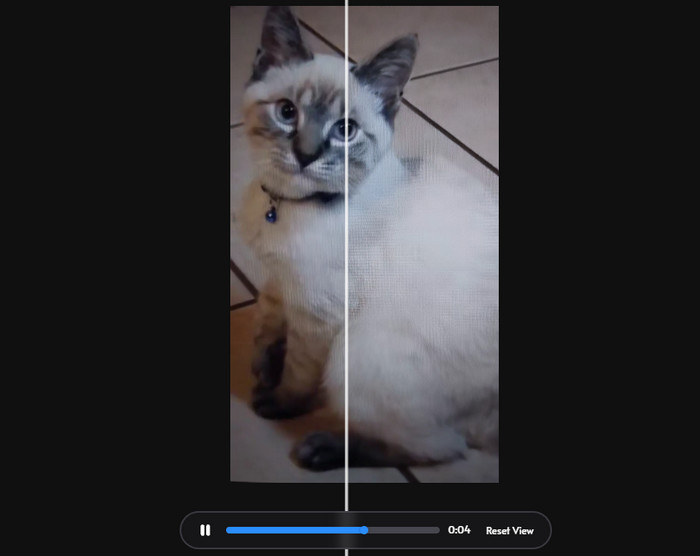
After checking the before-and-after results, you can tell that enhancing your videos is an effective way to improve video playback. It ensures the best quality, making the tool helpful for all users.
Part 6. Best Alternative to Tensorpix AI Video Enhancer
Tensorpix is an exceptional tool for enhancing your videos. However, since it is an online tool, you must always consider having a stable internet connection. Plus, its free version has various limitations. So, if you want the best alternative to Tensorpix, we suggest using Tipard Video Converter Ultimate.
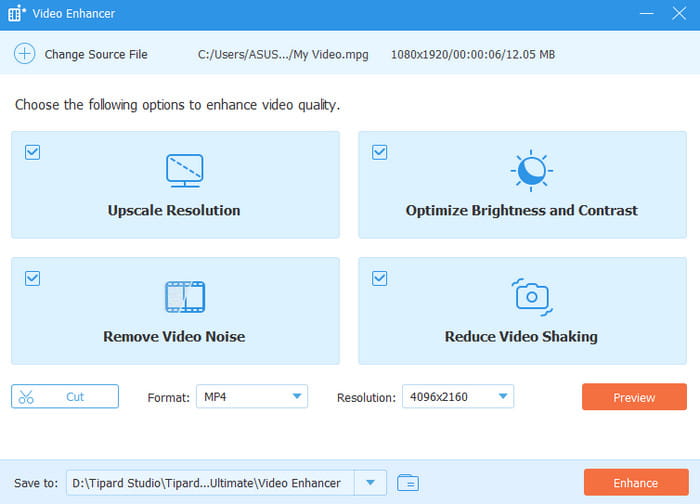
This offline video enhancer is available on both Windows and Mac. With its Video Enhancer feature, you can ensure your videos are perfectly enhanced. You can even upscale your videos to 4K or 8K resolution. It also has a built-in AI, helping you to produce an accurate result after the enhancement process. It can even deal with dark videos and remove video noise. Lastly, the program supports various video formats, including MP4, MKV, WMV, AVI, FLV, MOV, and more. Therefore, if you need the best video enhancer that is capable of surpassing Tensorpix, look no further than Tipard Video Converter Ultimate.
Part 7. FAQs about Tensorpix AI Video Enhancer
Is Tenxorpix free?
The tool offers only a free version with various limitations. To access all of its features, you must get its paid version.
How long will it take to enhance videos on Tensorpix?
There are various factors to consider. It depends on the video length, resolution, and server load. Also, the processing will depend on your internet connection.
Is it safe to use Tensorpix?
Since it is online, it is not 100% safe. With that, if you want to secure your files and other information, using a desktop-based enhancer like Tipard Video Converter Ultimate is ideal, since all data will be saved automatically on your device.
Conclusion
Tensorpix is an excellent tool for enhancing videos. It can even offer various features, such as a video denoiser, stabilizer, upscaler, and more. However, the enhancement performance might depend on the internet connection and subscription plan. So, if you need the best alternative to Tensorpix for smooth, free video enhancement, look no further than Tipard Video Converter Ultimate. With its Video Enhancer feature, it ensures you get the result you need. You can even enhance your videos to 8K resolution, making it the best enhancer for all users.

All-in-one video toolbox: convert, edit, upscale, enhance, and compress your videos easily
100% Clean & Safe
100% Clean & Safe

More Reading


About the Author


 Tipard Video Converter Ultimate