

Today, video enhancement is easier than ever thanks to powerful video enhancement software. However, the desktop software usually requires high-end hardware. Moreover, they are very expensive, especially the AI-powered video enhancers. Fortunately, web-based video enhancer apps, such as Vmake AI Video Enhancer, are a great alternative solution. It enables you to upscale video quality without installing any programs. This reviews the web-based video enhancer app in detail.

Part 1: What Is Vmake AI Video Enhancer
Vmake AI Video Enhancer is one of the best web-based video enhancer apps. It is designed for creators, e-commerce sellers, marketers, small businesses, vloggers, and more. It works in most web browsers and doesn’t require installation.
Core Features of Vmake AI Video Enhancer
- Enhance video quality up to 4K.
- Completely work online.
- Support popular video formats, like MP4.
- Upscale video clarity and resolution.
- Improve video quality with AI.
- Remove watermarks from videos.
Review of Vmake AI Video Enhancer
- No need to download or install anything.
- Integrate a clean and simple interface.
- Generate solid enhancement results.
- Choose between HD and 4K.
- Preview 5 seconds without login.
- Delete enhanced videos after 7 days.
- Not free and expensive.
- Lack bonus features, like video editor.
- Limited custom options.
- Require a stable internet connection.
- Only offer two presets.
- Down 5-second video for free accounts.
Price of Vmake AI Video Enhancer
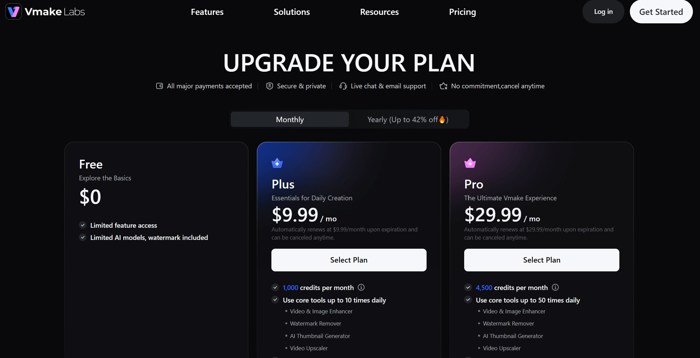
Vmake AI Video Enhancer free is available but limited. Plus, your videos will be watermarked. The Plus account costs $9.99 per month, and the Pro account costs $29.99 per month for monthly plans. If you subscribe to a yearly plan, the Plus account costs $5.83 per month, and the Pro account costs $17.7 per month.
Part 2: How to Use Vmake AI
Test 1: Reduce noise
Step 1 Visit Vmake Video Enhancer in a web browser and log in to your account.
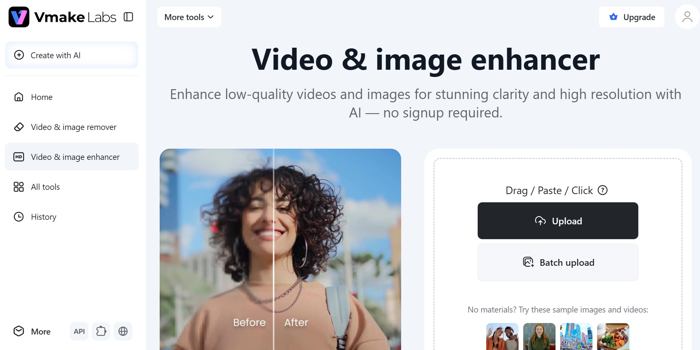
Step 2 Upload an old video in 1080p with grain.
Step 3 Select the video type and enhance the video.
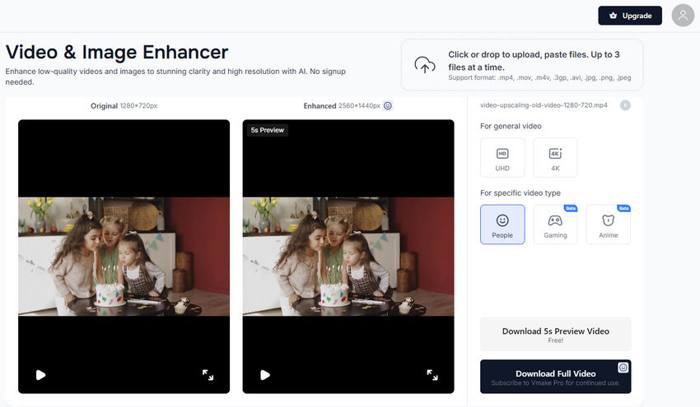
Step 4 Finally, click the Download Full Video button.
Result: the AI did a solid job when enhancing video quality and reducing the grain. At the same time, it preserves the sharpness of the subject. The color also looked more balanced after processing. The result looks noticeably better: grain reduced by roughly 40-50%.
Test 2: Upscale to 4K
Step 1 Upload a 720p video to Vmake AI Video Enhancer in a browser.
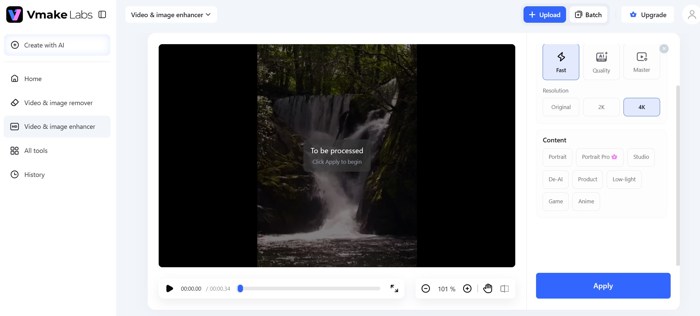
Step 2 Select 4K under the Resolution section.
Step 3 Choose the video type and begin upscaling it.
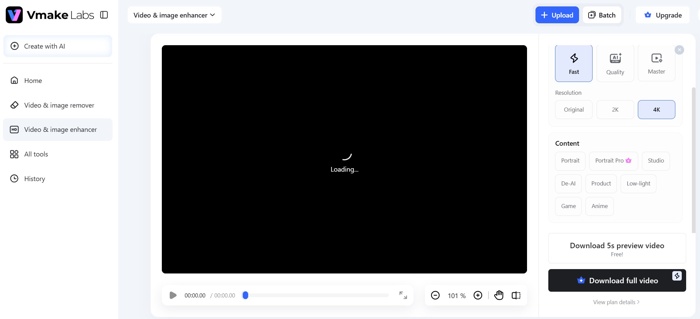
Step 4 When it is done, click Download full video.
Result: Vmake uses a solid super-resolution model. As a result, the edges of objects in the frame become sharper. The blurry objects become clear. The upscaled version is dramatically better than stretching the pixels.
Part 3: A Great Alternative to Vmake AI Video Enhancer
Online AI enhancer apps are unreliable and require a stable internet connection. If you wish to enhance videos offline, Tipard Video Converter Ultimate is a good option. The straightforward design streamlines the workflow and produces the best output quality with AI.

- Enhance video quality in one click.
- Integrate AI for video quality improvement.
- Support a wide range of video formats.
- Upscale video resolution up to 8K.
- Available on Windows 11/10/8/7 and macOS 10.12 or above.
How to Enhance Video Quality with AI
Step 1Install the Vmake alternative
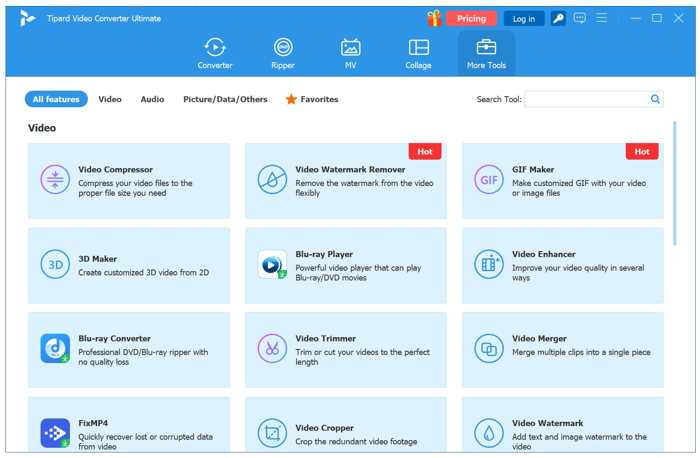
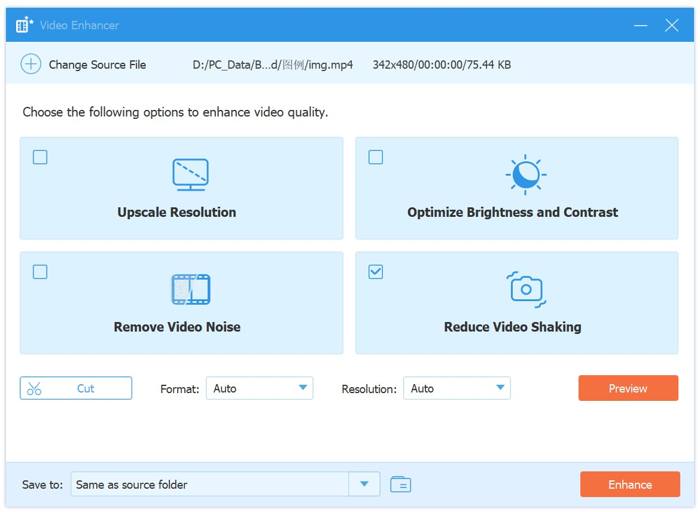
Start the Vmake AI Video Enhancer alternative after installing it on your PC. There is another version for Mac. Go to the More Tools tab at the top of the window and choose the Video Enhancer tool.
Step 2Import a video
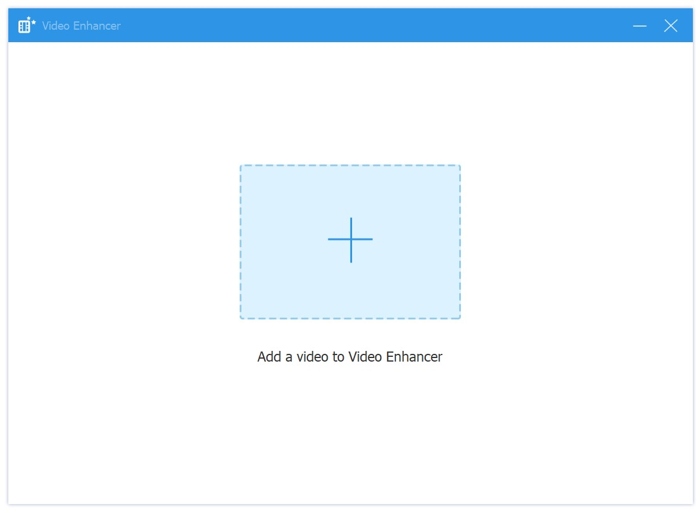
Click the Add button, navigate to the folder, and open the video that you want to edit. After the video loads, you will be presented with the video enhancer window.
Step 3Enhance video quality
Check the Upscale Resolution option if you want to upscale video resolution. Check other options according to your video. If the video contains grain, for example, select the Remove Video Noise option. Click the Preview button to view the effect. Finally, click the Folder button at the bottom and select an output folder. Then, click on the Enhance button to initiate the process.
Conclusion
Now, you should get the Vmake AI Video Enhancer review 2026. This article shared the information about what the web app can do, its benefits and downsides, and other information. Moreover, you should understand how to enhance your video quality online without installing anything. Furthermore, you can also learn an alternative video enhancer, Tipard Video Converter Ultimate. It offers more features, a simple workflow, and better output quality without technical skills.
All-in-one video toolbox: convert, edit, upscale, enhance, and compress your videos easily
100% Clean & Safe
100% Clean & Safe

More Reading



About the Author

 Click here to join the discussion and share your comments
 Tipard Video Converter Ultimate