

An AI-powered video enhancer, such as AVCLab Video Enhance AI, is an amazing program for improving video quality using AI. Compared to traditional video resolution upscaling tools, it uses machine learning models to optimize footage, upscale video resolution, remove noise and grain, sharpen blurry images, stabilize shaky footage, and retouch images. This article shares an honest review of AVCLabs and helps you make the best decision.
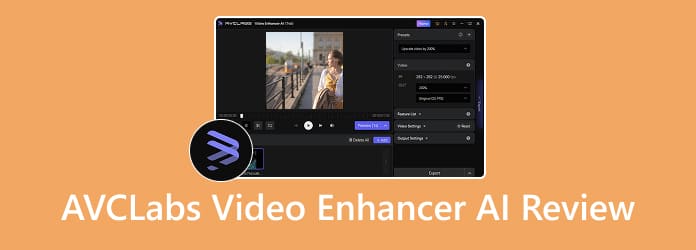
Part 1: AVCLabs Video Enhancer AI Review
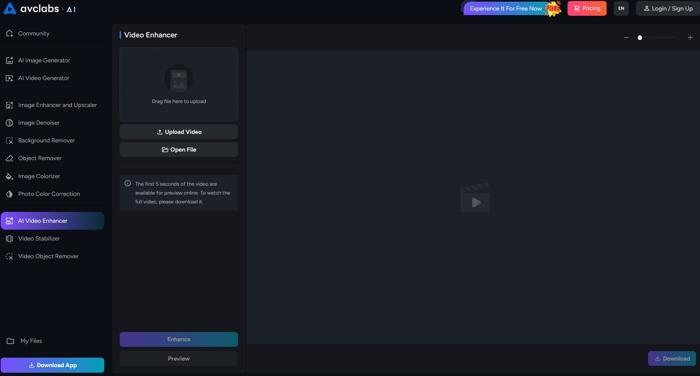
AVCLabs Video Enhancer AI is a desktop program designed to upscale, denoise, colorize, and restore video footage. Moreover, AVCLabs released an online app for quickly retouching videos.
Core Features of AVCLabs Video Enhancer AI
- Remove noise and grain from video footage.
- Enhance video quality and deliver stunning results up to 8K and 120 FPS.
- Upscale video resolution from HD to 1080p, 4K, or 8K.
- Analyze the structure, content, and context of each frame.
- Colorize a video automatically and restore it to its natural color.
- Increase the frame rate to 60 FPS or 120 FPS.
- Create slow-motion effects with AI motion compensation.
- Blur backgrounds, objects, and license plates.
- Analyze camera movement frame by frame.
- Correct the shake without cropping or warping the scene.
AVCLabs Video Upscaler Review
- Deliver flexible payment plans.
- Integrate a user-friendly interface.
- Include a wide range of AI-powered features.
- Come with an online version and a desktop program.
- Improve facial clarity and enhance portraits.
- Upscale multiple videos at one time.
- Available for both Windows and macOS.
- Requires a powerful GPU and a decent CPU to enhance videos smoothly.
- It takes considerable time to process high-resolution videos.
- Lack full video editing functionalities.
- The free trial has limitations, such as a watermark.
Prices of AVCLabs Video Enhancer
You can download AVCLabs Video Enhancer for free from the official website and use the free trial. To remove the watermark and get the full version, you have to buy a license. The Month Plan costs $39.95, the Year Plan costs $95.96, and the Perpetual Plan costs $149.90.
When it comes to AVCLabs Online Video Enhancer, you have to purchase credits. The 50-credit plan costs $19.95, the 200-credit plan costs $59.95, and the 500-credit plan costs $97.95. The number of credits required depends on the AI features you use. For video processing, you need to pay 1 credit per second.
Part 2: How to Use AVCLabs Video Enhancer AI
How to Use AVCLabs Video Upscaler
Step 1 Download and install AVCLabs Video Upscaler on your computer.
Step 2 Launch the desktop program and choose Video Enhance AI.
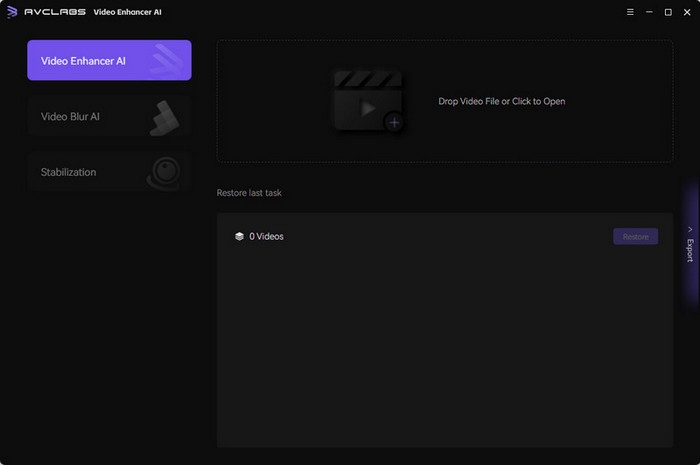
Step 3 Click the Browse button to import the desired video file.
Step 4 Select a preset, such as Upscale to 4K.
Step 5 Choose a model under the AI Enhancement section.
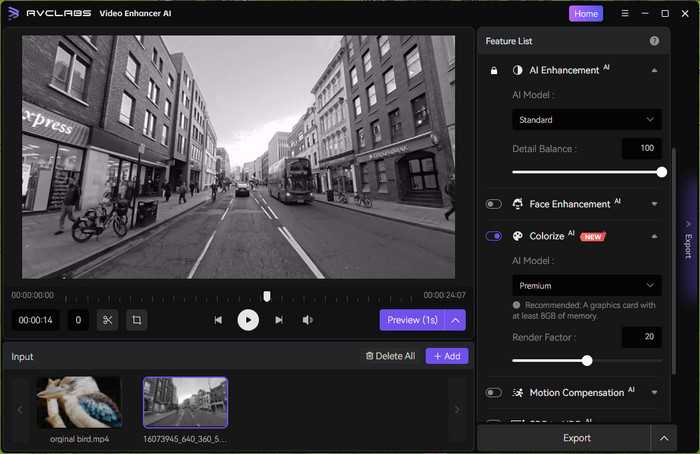
Step 6 Specify the Output Settings.
Step 7 Click the Preview button to compare the result.
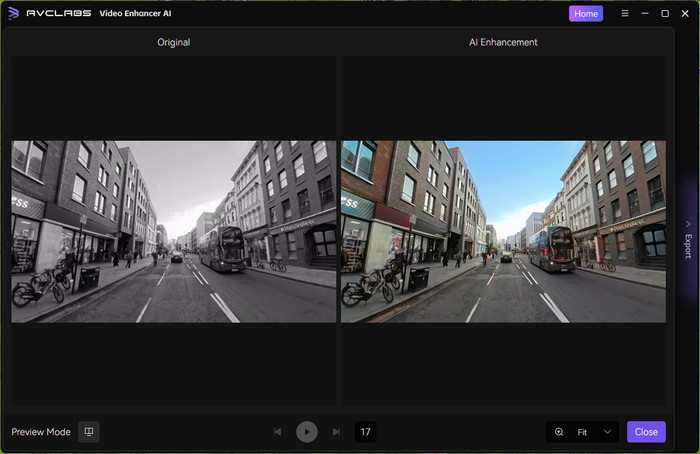
Step 8 If you are satisfied, click the Export button.
How to Use AVCLabs Online Video Upscaler
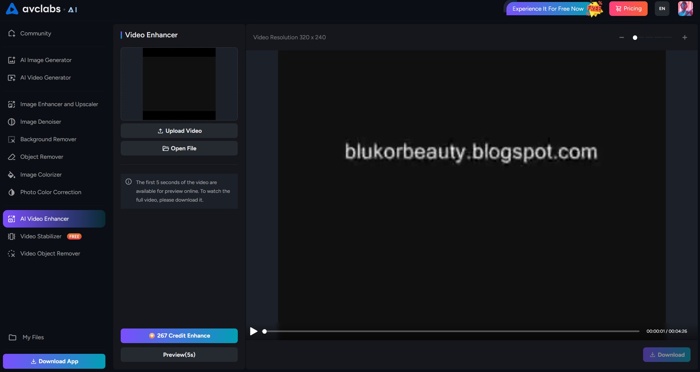
Step 1 Access AVCLabs online video upscaler in your browser.
Step 2 Click the Upload a View Now button and log in with an account.
Step 3 Hit the Upload Video button and upload the desired video.
Step 4 Click the [number] Credit Enhance button if you have enough credits.
Step 5 Next, click Download to save the enhanced video.
Part 3: A Better Alternative to AVCLabs
ACLabs Video Quality Enhancer is great, but not perfect. It can enhance video quality, but the price is high. Moreover, it lacks video editing features. If you are looking for an alternative, Tipard Video Converter Ultimate is a good option. It offers a wide range of video editing features, including video enhancement.

- Enhance video quality with AI.
- Upscale video resolution, bitrate, and frame rate.
- Convert video formats with one click.
- Support almost all video formats.
- Available on Windows 11/10/8/7 and macOS 10.12 or above.
How to Enhance Video with AVCLabs Alternative
Step 1 Install AVCLabs alternative
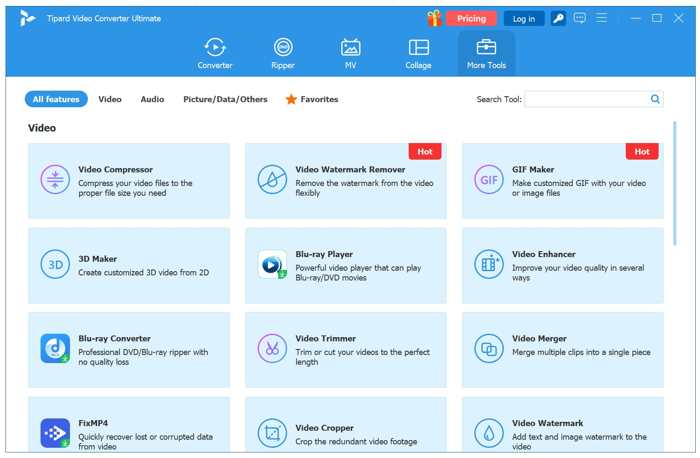
Launch the AVCLabs Video Enhancer AI alternative after installing it on your computer. Go to the More Tools tab, and choose the Video Enhancer tool.
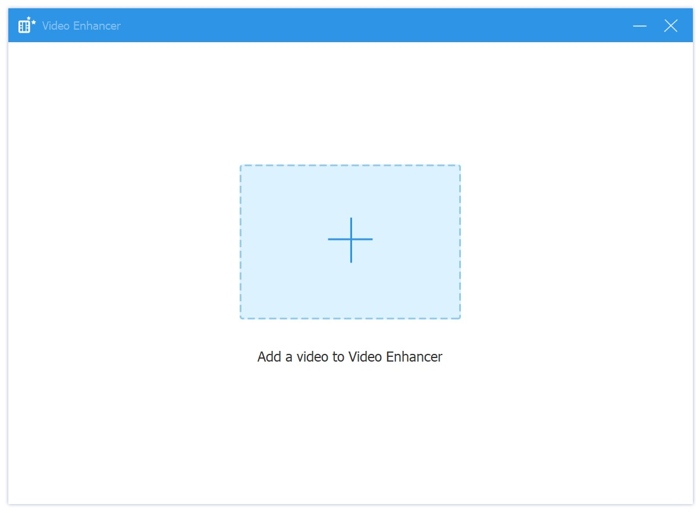
Step 2 Add a video
Click the Add button to import the desired video from your hard drive. Then, the software will load it immediately.
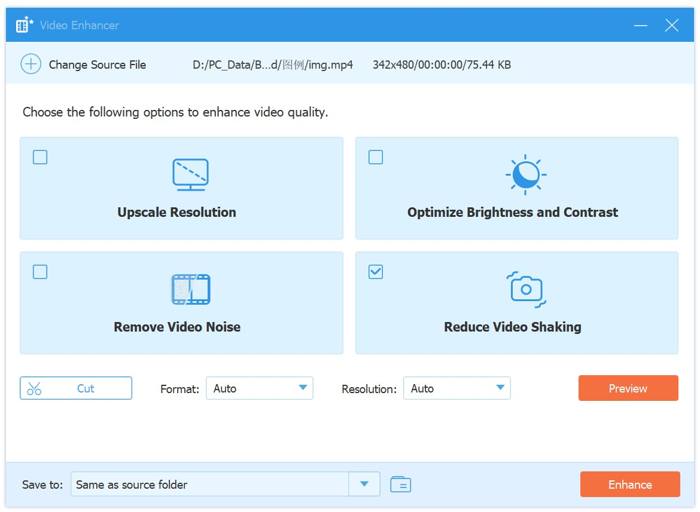
Step 3 Enhance video quality
Select the Upscale Resolution option. Then select the video enhancement models based on the footage. Click the Preview button to view the result. Finally, click the Enhance button to export the video.
Conclusion
This article reviewed AVCLabs Video Enhancer AI, one of the best video-enhancing software programs on Windows and macOS. You should learn the features, how-to, and other necessary information. Furthermore, we shared an alternative, Tipard Video Converter Ultimate. It is more cost-effective and easier to use.
All-in-one video toolbox: convert, edit, upscale, enhance, and compress your videos easily
100% Clean & Safe
100% Clean & Safe

More Reading




About the Author

 Click here to join the discussion and share your comments
 Tipard Video Converter Ultimate