

Surface is a family of touchscreen-based personal laptop, tablet, and interactive whiteboard hardware products designed and released by Microsoft. The majority of them run Windows and use Intel. Due to the compact design, it is popular among students and younger people. Only the Duo flagship runs Android. This tutorial shares multiple ways to take screenshots on a Microsoft Surface and record your screen on your laptop or tablet.
Part 1: A Flexible Way to Screen Record on Surface Pro
Can you take a screenshot and record the screen on a Surface Pro with a single tool? Yes, the answer is Tipard Screen Capture. It includes multiple modes to capture the screen, video, audio, take screenshots, and more. Furthermore, the built-in AI automatically optimizes output quality.
- Record screen, video, and audio with high quality.
- Capture the entire or partial screen on the MS Surface.
- Take screenshots with a single click.
- Draw on screen recordings and screenshots in real time.
- Support a wide array of output formats.

How to Screen Record on Surface Pro
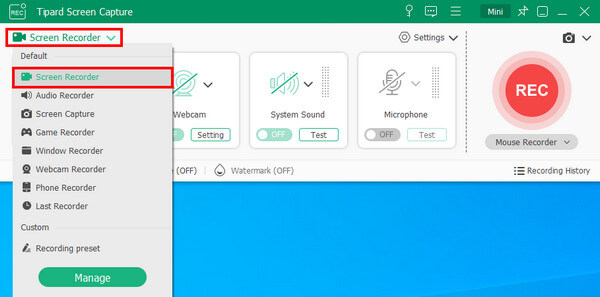
Step 1Install the screen recorder
Launch the screen recording software once you install it on your Surface Pro. Choose the Screen Recorder mode. It is available on Windows 11/10/8/7.
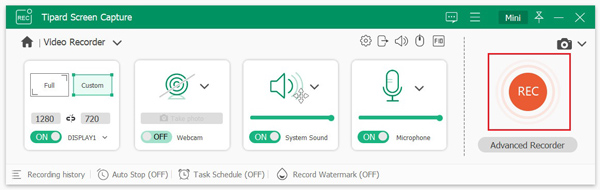
Step 2Screen record on Surface Pro
Turn on the Recording Area option and set the recording area. Turn on System Sound and adjust the volume. To add a webcam and your voice to the recording, enable Webcam and Microphone. Click the REC button to begin recording everything on your screen.
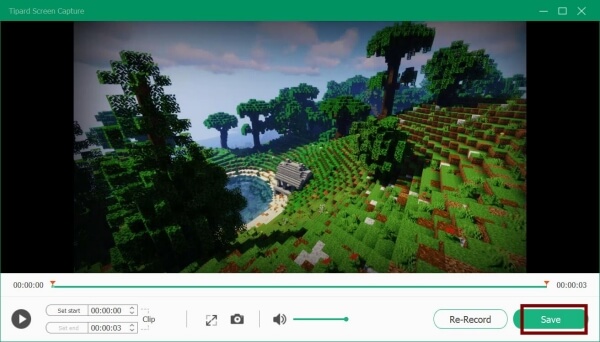
Step 3Export screen recording
During the process, you can draw on the recording with the toolbar. When it finishes, click the Stop button. Then, you can preview the recording and trim unwanted clips. Finally, click the Save button to export the recording.
How to Screenshot on Surface Pro Without Keyboard
Step 1Open Screen Capture
If you want to screenshot on a Surface Pro, click the Screenshot button and choose a mode, such as Screen Capture.

Step 2Screenshot on Surface Pro without keyboard
Use your cursor to cover the desired area. Once you release the cursor, the software will take a screenshot immediately. Then, you can draw on the screenshot. Click the Save button to save the image.

Part 2: How to Screenshot on Microsoft Surface
Way 1: How to Screenshot on MS Surface with Keyboard
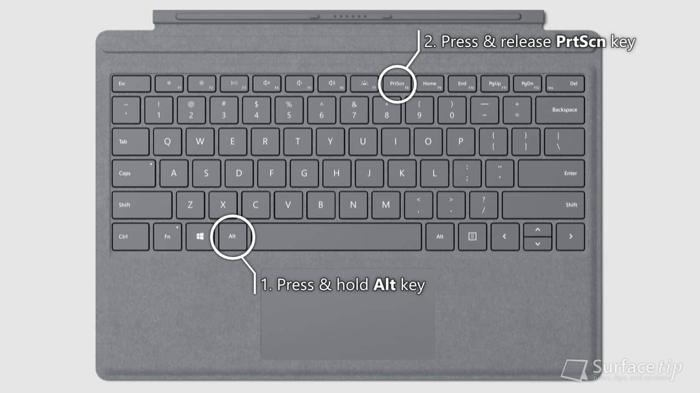
With a keyboard, screenshotting on a Windows Surface tablet is easy. The button combination is different, depending on your needs. By default, the screenshot will be saved to the Screenshots subfolder in Pictures as a PNG file.
| Shortcuts | Where Screenshot Saved | |
|---|---|---|
| Full Screen | Windows + PrtScn | Screenshots folder |
| A Part of Screen | Windows + Shift + S | Clipboard |
| Full Screen | PrtScn | Clipboard |
| Active Window | Alt + PrtSn | Clipboard |
Way 2: How to Screenshot on Surface Pro with Button
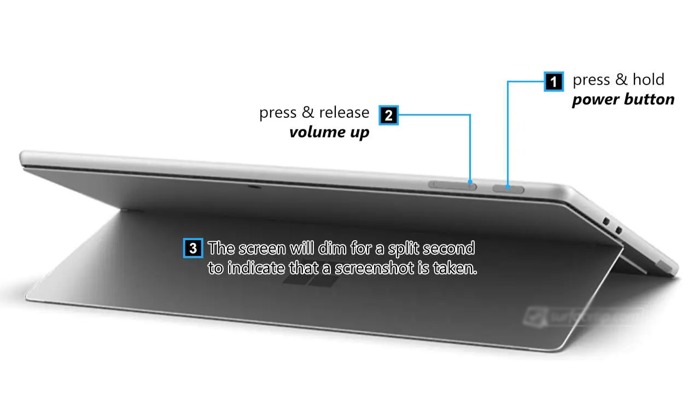
If your tablet doesn't have a keyboard, you can take a screenshot on a Surface tablet with hardware buttons. Depending on your device model, the button combination is different. For tablets without a Windows button, press the Volume Up + Power buttons together to take a screenshot immediately. For a table with a Windows button, press Windows + Volume Down together. The screenshot is saved in the Screenshots folder under the Pictures folder.
Way 3: How to Screenshot with a Surface Pen
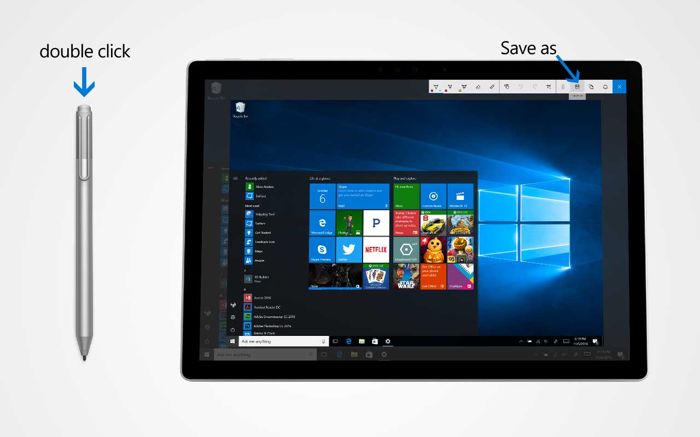
With a Surface Pen, you can take a screenshot on a Surface tablet running Windows 10. The pen can trigger the Screen Sketch feature and quickly capture your device's screen. Double-click the Erase button on the top of your Surface Pen to take a screenshot. Then, you can edit, crop, and save it on your screen.
Way 4: How to Screenshot on MS Surface Using Snipping Tool
Microsoft has updated the Snipping Tool and added it to Windows 11. If your device runs Windows 11, you can take screenshots or record the screen on a Surface Pro laptop without extra apps.
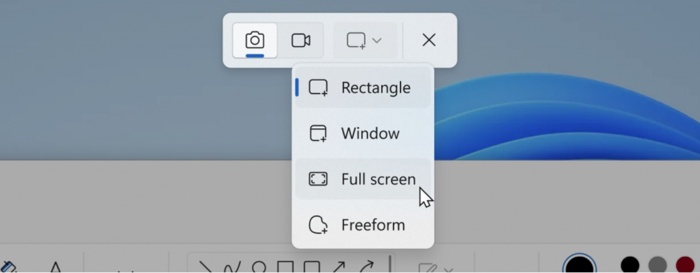
Step 1 Open the Snipping Tool from the Start menu.
Step 2 To take a screenshot, tap the Camera button.
Step 3 Choose a mode, then take a screenshot immediately.
Note: To screen record on Surface, tap the Video Camera button and select a mode.
Part 3: How to Screen Record on MS Surface
The Game Bar works on all Surface devices running Windows 11 or 10. It is a great option for screen recording on a Microsoft Surface laptop, not just for gaming. Moreover, the recording experience is smooth.
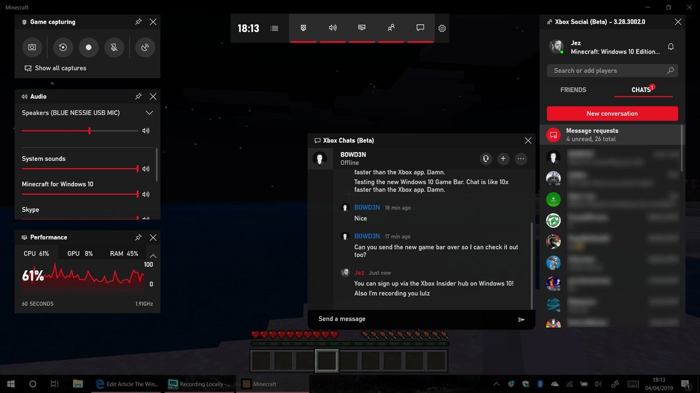
Step 1 Press the Windows + G keys to open the Game Bar.
Step 2 Set the audio source and volume.
Step 3 Click the Record button to start recording the screen.
Note: To take a screenshot on your Surface, click the Camera button in the widget.
Part 4: How to Screenshot or Screen Record on Surface Duo
Surface Duo is the flagship of the MS Surface line. Unlike Surface Pro, they are double-screen tablet and runs Android 11/10. Therefore, the processes for taking screenshots on Surface Duo and for screen recording vary.
How to Screenshot on Surface Duo
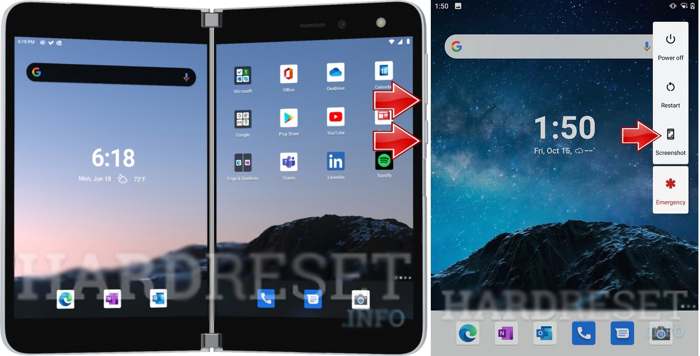
Option 1: Choose the screen to save, press the Volume Down + Power buttons together to take a screenshot immediately.
Option 2: Press the Power button for a while, then choose Screenshot. Then, you can find the screenshot in the Photos app.
How to Screen Record on Surface Duo
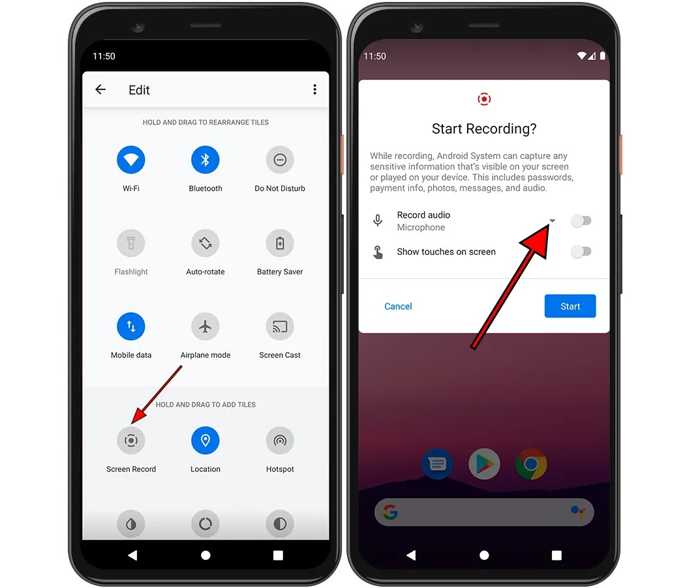
Step 1 Enter the Quick Settings panel.
Step 2 Tap the Screen Record button.
Step 3 Select the record audio source, such as the device audio or the microphone.
Step 4 Tap the Start button to begin recording the screen on Surface Duo.
Step 5 You will then see the widget at the top of your screen.
Step 6 To stop recording, tap the Stop button on the widget.
Step 7 The screen recording will be automatically saved in the Photos app.
Conclusion
This guide shared 8 ways to screenshot on a Microsoft Surface in different situations. On MS Surface devices running Windows, you can take screenshots and record the screen using the keyboard, buttons, Surface Pen, Snipping Tool, and Game Bar. For Surface Duo, you can also try the built-in tools. Tipard Screen Capture is an all-in-one option for taking screenshots and capturing screens on Surface laptops and tablets.

Record full screen, portion, window, game, and phone seamlessly without lag
100% Clean & Safe
100% Clean & Safe

More Reading


About the Author


 Tipard Screen Capture