

Key Takeaways
- Screen recording software comes in many types. Some are simple. Some are advanced. Some are for teams, gamers, or professionals.
- Tools like Tipard Screen Capture, OBS Studio, Loom, and others offer recording features. Screen, webcam, and audio recording are some of these features. They also vary in video quality.
- Each software fits different needs. Some are best for beginners. Some are best for editing, streaming, tutorials, or fast sharing online.
- Most recording issues are easy to fix. Problems like no sound, a black screen, or lag usually happen because of settings. They can also come from permissions. Or they may be caused by device limits.
You may need to show a game moment to a friend. Or record a class or work task on your screen. You might also want to save a video call or tutorial for later. In that case, you will need a screen recording software.
Have you had anyone in mind yet? If not, you can rely on the tools we will introduce here. So, please do not go anywhere, just keep scrolling until the last part.
Part 1. Quick Overview of the Best Screen Recording Software
Screen recording tools help you capture your screen. You can use them for work. You can use them for study. You can also use them for content creation. Below is a quick look at the best screen recorder options:
- Tipard Screen Capture: A flexible recorder for screen, webcam, and audio. It supports 4K upscale and AV1 and HEVC for better clarity and smaller files.
- OBS Studio: It is used for advanced recording and live streaming. It gives full control over settings. It also allows scene setup.
- Loom: Quick recorder with instant cloud sharing, which is best for team video messages.
- Bandicam: Light recorder for games and tutorials with high compression and clean capture.
- Clipchamp: Browser tool for simple recording and easy video editing.
- Screen Studio: A Mac tool for smooth demo videos with auto zoom and cursor effects.
- Camtasia: Professional recorder and editor with templates and effects.
- ScreenPal: A simple tool for screen and webcam recording with basic editing.
- Descript: A text-based editor with AI capabilities and screen recording.
- Tella: Web tool for business videos with layouts and fast sharing.
- Zappy: Fast tool for screenshots, GIFs, and short recordings.
- Snagit: Capture tool for recording, annotation, and step guides.
How We Tested These Tools
We tested these screen recorders using simple and basic checks. We focused on real daily use.
- We checked how easy it is to start recording.
- The webcam, audio recording, and screen were all tested.
- We looked at video quality and smoothness.
- We checked sharing options and export speed.
- We tested basic editing tools and usability.
- We compared pricing and free plan limits.
- We observed which tool works best for each.
Part 2. Comparison of the Top Screen Recording Software
| Top Screen Recording Software | Pricing | Standout Features | Best For |
|---|---|---|---|
| Tipard Screen Capture | Free version available, paid starts at $24.00. | Video, audio, and webcam recording, 4K upscale, AV1 and HEVC support, and easy sharing. | Best all-in-one screen recording for quality and simplicity. |
| OBS Studio | Free, no paid version. | Live streaming, scene switching, multi-source recording, and plugin support. | Advanced users and streamers. |
| Loom | Free, paid starts at $18. | Instant share links, cloud storage, team comments, webcam recording, and viewer tracking. | Team video communication. |
| Bandicam | Paid starts at $2.78. | Game mode, high compression, 4K recording, drawing tools, and scheduled recording. | Gamers and tutorial creators. |
| Clipchamp | Free, paid starts at $11.99. | Browser recording, simple editor, templates, stock media, and fast export. | Online creators and beginners. |
| Screen Studio | Paid starts at $29. | Smooth zoom effects, cursor focus, clean timeline, and high-quality export. | Mac demo and product videos. |
| Camtasia | Paid starts at $39.00. | Full editing suite, webcam recording, effects library, templates, and quiz tools. | Professional training videos. |
| ScreenPal | Free, paid starts at $4. | Simple recording, basic editing, cloud storage, webcam support, and share links. | Students and teachers. |
| Descript | Paid starts at $16. | Text-based editing, auto transcription, AI voice tools, and screen recording. | Podcasters and content editors. |
| Tella | Free, paid starts at $13. | Web editing, layout switching, speaker notes, AI editing, and instant sharing. | Business demos and teams. |
| Zappy | Free, paid starts at $19. | Fast capture, GIF creation, annotation tools, and instant sharing. | Quick screenshots and short clips. |
| Snagit | Paid starts at $39.00. | Scrolling capture, step guides, markup tools, GIF export, and text capture. | Documentation and tutorials. |
| Show MoreShow Less | |||
Part 3. Master Review of the Screen Recording Software
1. Tipard Screen Capture
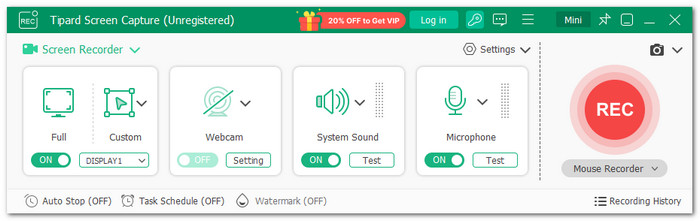
Platform(s): Windows and Mac.
Tipard Screen Capture leads this master review as one of the best screen recording software. It lets you record full desktop, custom area, specific display, games, and audio with ease. You can also record internal and external audio together with a webcam, which helps you create clear tutorials, gameplay, or lessons.
What is more, Tipard Screen Capture supports original quality recording and even upscales videos up to 4K for sharper output. It also uses AV1 and HEVC codecs, so long recordings stay small in file size. Moreover, you can manage your recordings easily in one place and share them fast on social media.
Key Features:
- Set a time and file size limit for recording.
- Take snapshots during recording or screen capture.
- Draw on screen, add callouts, insert images, switch to whiteboard mode.
- Instant video preview after recording.
- Save your recordings in formats like MP4, AVI, MOV, and others.
- Supports formats like MP4, MKV, MP3, FLAC, and GIF.
- No watermark on recordings.
- Includes editor tools like trim, compress, boost, and merge.
- Unlimited recording requires a paid plan from $24.00 with a 30-day money-back guarantee.
Expert Verdicts: Tipard Screen Capture is a simple and reliable screen recorder. It gives clear video, good audio, and a small file size. It is best for users who want easy recording and fast sharing.
2. OBS Studio
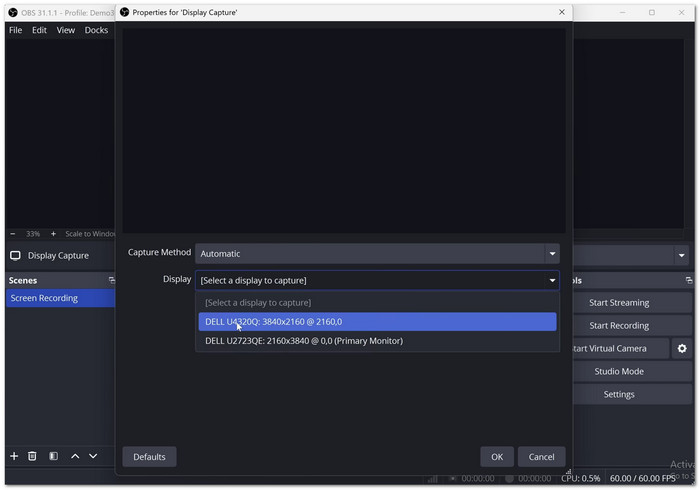
Platform(s): Windows, Mac, and Linux.
Built for creators who want more control, OBS Screen Recorder goes far beyond basic screen capture. It is known for live streaming, but it is also one of the most complete screen recording apps today.
You can mix many screens, webcams, and audio sources in one project. It also supports custom scenes, hotkeys, and real-time audio controls. It also offers flexible setup options. It includes advanced production tools. It does all of this for free.
Key Features:
- Multi-source scene recording.
- Real-time audio mixer.
- Unlimited custom scenes.
- Hotkey controls.
- Live streaming integrations.
- Completely free to use.
- Powerful streaming controls.
- Plugins and scripts are supported.
- Challenging for novices.
- The interface may seem crowded.
Expert Verdicts: OBS Studio is best for users who want deep recording and streaming controls. It gives strong performance, flexible setup options, and advanced production tools without costing anything.
3. Loom
Platform(s): Windows, Mac, iOS, Android, and Chrome extension.
Need to record something fast and send it right away? Loom Screen Recorder focuses on speed and simple sharing. You can record your screen, webcam, or both in only a few clicks. After recording, the video uploads instantly with a shareable link. It provides AI tools for transcripts, summaries, chapters, and filler-word removal. The browser editor stays easy to use.
Key Features:
- Instant shareable links.
- AI-generated transcripts.
- Webcam and screen recording.
- Browser-based editing.
- Team collaboration tools.
- Very easy to use.
- Fast cloud sharing.
- Helpful AI features.
- Limited free storage.
- The mobile app needs improvement.
Expert Verdicts: Loom works best for quick communication and remote teamwork. It keeps recording simply. It also adds smart AI tools. These tools save time during sharing. It also makes editing faster.
4. Bandicam
Platform(s): Windows and Mac.
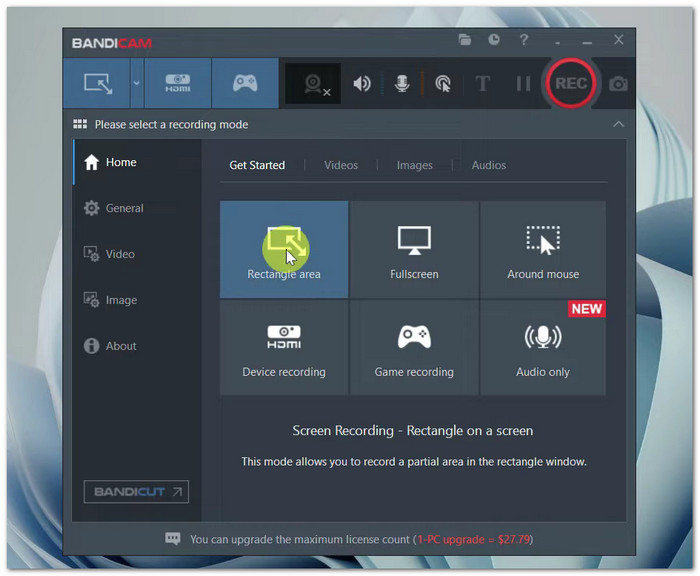
Some screen recorders struggle with games and high frame rates. Bandicam Screen Recorder handles them with ease. It can record gameplay, desktop screens, webcams, and external devices while keeping video quality sharp. The program also supports 4K UHD recording and captures up to 480 FPS.
Useful extras include scheduled recording. It also includes real-time drawing. Mouse effects are another feature. Voice mixing is included, too. These tools make it more flexible for tutorials. It also improves gaming videos.
Key Features:
- Recording in 4K UHD.
- Capturing gameplay at a high frame rate.
- Real-time drawing tools.
- Webcam overlay support.
- Scheduled recording.
- Great for game recording.
- High-quality video output.
- Lightweight functionality.
- There are restrictions on the free version.
- Mostly focused on Windows.
Expert Verdicts: Bandicam is a strong pick for gamers and tutorial creators. It records smooth, high-quality videos while keeping system performance stable during long sessions.
5. Clipchamp
Platform(s): Windows, Mac, and browser.
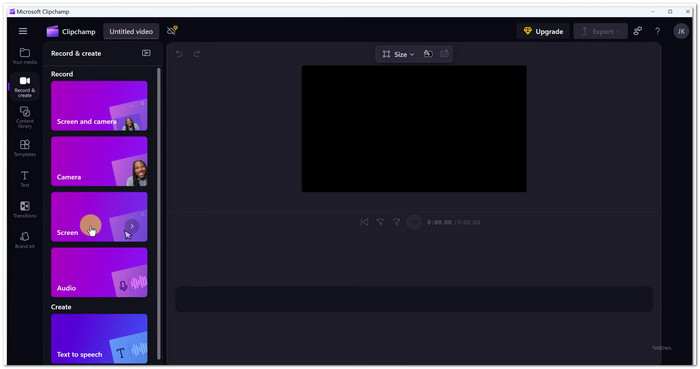
Unlike a heavy editing program, Clipchamp Screen Recorder keeps screen recording simple and beginner-friendly.
With webcam support, you can record a browser tab, a display window, or the entire screen. Additionally, the tool quickly enhances videos by adding AI voiceovers, transcripts, and subtitles. Trimming, resizing, and social media formatting are all made simple by its online editor.
Recordings are watermark-free. It also allows unlimited retakes. It makes them useful for students. It is also helpful for workers. Content creators can use them as well. Casual users can get quick video results.
Key Features:
- Capture of the screen and webcam.
- AI subtitle generator.
- Online video editor.
- Unlimited retakes.
- Social media resizing.
- Beginner-friendly interface.
- Free watermark-free recording.
- Easy online editing.
- 30-minute recording sessions.
- Requires an internet connection for better performance.
Expert Verdicts: Clipchamp is a good tool for quick recording. It also supports editing in one place. It makes it easy to use. It balances simple controls with useful AI features for modern video creation.
6. Screen Studio
Platform(s): Mac only.
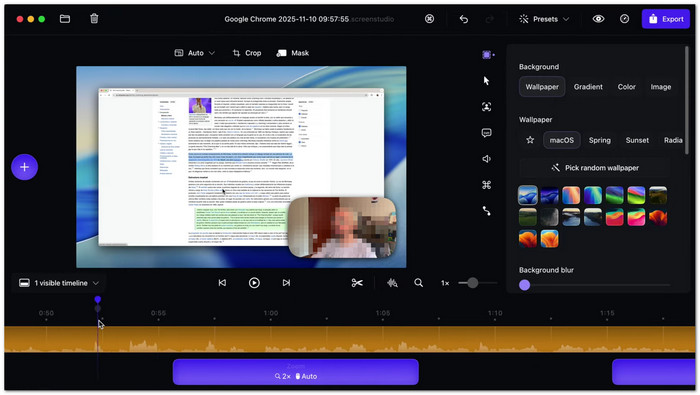
Smooth zoom effects and polished motion are what make Screen Studio stand out. This Mac screen recorder automatically follows your cursor. It also adds cinematic zooms. It improves movement during recordings. It also gives strong control over backgrounds, webcam overlays, spacing, and branding styles.
Saving presets is another huge advantage because it keeps future videos consistent. Recording tutorials, demos, and social clips feels faster since many effects happen automatically. The clean interface makes editing easier.
Key Features:
- Automatic cursor zoom.
- Smooth motion effects.
- Webcam customization tools.
- Export presets.
- Transcript generation.
- Very easy to use.
- Beautiful automatic effects.
- Strong editing controls.
- Mac-only program.
- Limited built-in sharing.
Expert Verdicts: Screen Studio is perfect for polished tutorials and product demos. Its automatic effects save editing time while making videos look modern and professional.
7. Camtasia
Platform(s): Windows and Mac.
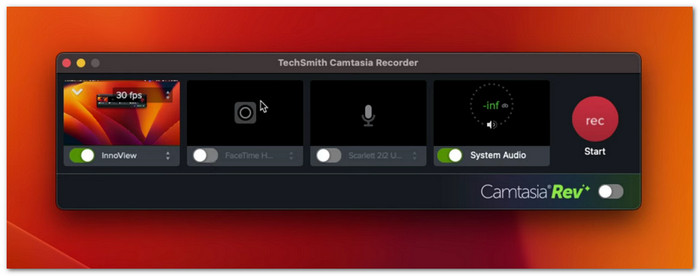
Creating training videos feels much easier with Camtasia. Recording and editing both happen in one workspace.
The capture process stays simple. The editor includes advanced tools like transitions. It also has cursor effects. Captions are included as well. There are quizzes and templates, too. AI tools can remove filler words. It can also generate scripts. It helps clean audio. It can also edit video through text transcription. Multi-track recording also gives more editing freedom after capture.
Even beginners can create polished tutorial videos quickly. This screen recorder software is easy to use. It also includes strong learning guides.
Key Features:
- Multi-track recording.
- Text-based video editing.
- AI audio cleanup.
- Interactive quizzes.
- Drag-and-drop effects.
- Powerful editing tools.
- Easy recording controls.
- Helpful tutorials included.
- Expensive pricing.
- The starter plan has limits.
Expert Verdicts: Camtasia is one of the best choices for tutorials and training videos. It combines simple recording with professional editing features.
8. ScreenPal
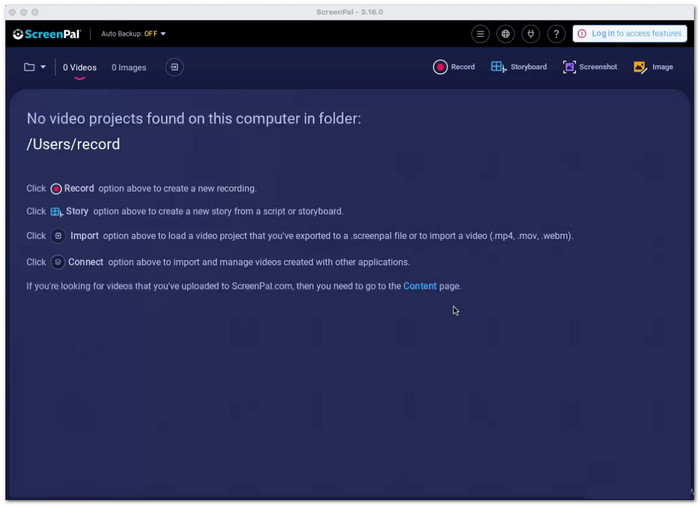
Platform(s): Windows, Mac, iOS, Android, and Chromebook.
ScreenPal includes AI tools. It also offers cloud hosting. Captions are available as well. It includes quizzes. Translation features are also included. All of these are combined in one screen capture and recording platform. You can record screens, webcams, and presentations while adding annotations during capture.
The editor is simple enough for beginners. It also includes overlays. Music can be added as well. Interactive elements are included, too. It works across many devices. It makes creating and sharing videos easier. It is helpful for schools.
Key Features:
- AI-generated captions.
- Interactive video quizzes.
- Secure cloud hosting.
- Multi-device support.
- Screen and webcam recorder.
- Easy to learn.
- Strong AI tools.
- Works across devices.
- Advanced tools need upgrades.
- Interface can feel crowded.
Expert Verdicts: ScreenPal is a strong all-around platform for education and business use. It mixes recording, editing, hosting, and AI tools into one easy workflow.
9. Descript
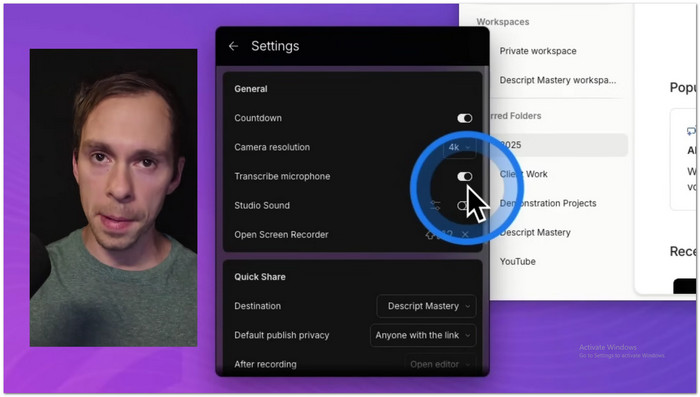
Platform(s): Windows, Mac, and browser.
Editing videos by changing text sounds strange at first, but Descript makes it feel natural as a screen recorder with sound. Every screen recording is automatically transcribed, and you can trim parts of the video by deleting words from the transcript. The program also includes AI tools for captions, voice cleanup, filler-word removal, translations, and generated clips.
Its simple recording panel keeps the process beginner-friendly, while advanced editing tools stay powerful enough for creators, podcasters, marketers, and teams working on professional video content.
Key Features:
- Text-based video editing.
- Automatic transcription.
- AI filler-word removal.
- AI voice enhancement.
- Caption generation.
- Excellent transcription quality.
- Smart AI editing tools.
- Easy editing workflow.
- The free plan is limited.
- AI credits run out quickly.
Expert Verdicts: Descript is excellent for fast editing and transcription-based workflows. It turns complicated editing tasks into simple text changes while adding powerful AI enhancements.
10. Tella
Platform(s): Windows, Mac, Chrome extension, and browser.
Some of the best screen recorders feel hard to learn. Tella takes the opposite approach. It keeps recording fast, clean, and beginner-friendly while still offering strong editing tools. You can record your screen, webcam, microphone, or all of them together.
After recording, the web editor opens automatically for quick editing. It includes smooth zoom effects, subtitles, blur tools, layouts, and AI audio cleanup. Even first-time users can make professional demos, team updates, tutorials, and YouTube videos without confusion or extra programs.
Key Features:
- Automatic zoom effects.
- Text-based editing.
- Blur sensitive information.
- Built-in teleprompter.
- 4K video export.
- Very beginner-friendly.
- Clean editing interface.
- Affordable paid plans.
- No long-term free plan.
- Restricted depth of advanced editing.
Expert Verdicts: Tella is excellent for creators and teams who want polished videos without difficult editing. It keeps recording and editing simple while still giving videos a modern and professional look.
11. Zappy
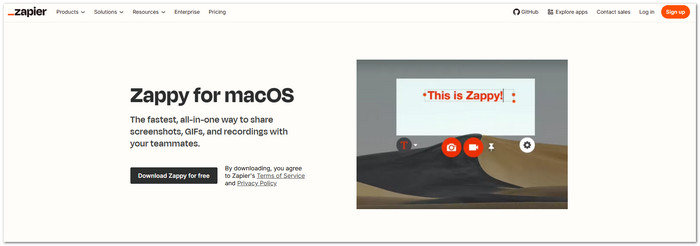
Platform(s): Mac only.
Fast sharing is the biggest strength of Zappy. It focuses on quick recordings, screenshots, and GIF creation without adding extra clutter. You can run it with a keyboard shortcut, select an area, and start recording in seconds. It also supports webcam capture, annotations, arrows, drawings, and text during recording.
Automatic cloud uploads with instantaneous shareable links are available to paid Zapier users. Since everything stays lightweight and simple, this Mac Screen and audio recording software works best for fast remote communication and short visual walkthroughs on Mac devices.
Key Features:
- Quick screen recording.
- GIF creation tools.
- Screenshot annotations.
- Webcam recording support.
- Instant cloud sharing.
- Extremely simple workflow.
- Totally free locally.
- Fast sharing process.
- Mac-only software.
- Limited editing tools.
Expert Verdicts: Zapier is perfect for quick visual communication. It removes unnecessary tools and keeps recording, annotating, and sharing as fast as possible for busy remote teams.
12. Snagit
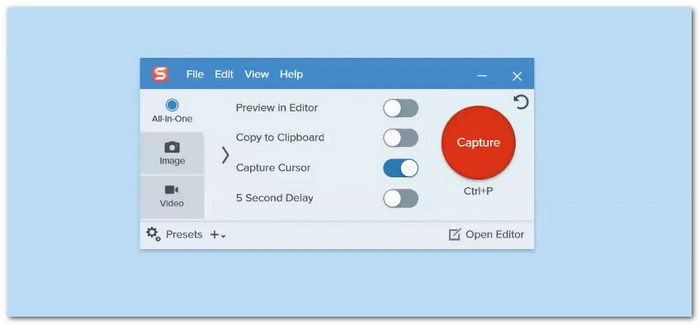
Platform(s): Windows and Mac.
This PC screen recorder focuses on making screenshots and short recordings easier to understand. It combines screen recording with strong markup tools, step guides, scrolling capture, and AI-powered text recognition. You can quickly add arrows, highlights, callouts, and webcam overlays to explain ideas clearly. The searchable library also keeps captures organized for later use.
Many companies use it on a daily basis for lessons, team communication, feedback, and visual documentation because it is quick and simple to master.
Key Features:
- Screen capture when scrolling.
- Text recognition using AI.
- Picture-in-picture recording.
- GIF creation tools.
- Step-by-step guides.
- Excellent annotation tools.
- Easy to learn.
- Great for documentation.
- Paid software only.
- Limited advanced video editing.
Expert Verdicts: Snagit is one of the best tools for visual communication and tutorials. It makes screenshots and short recordings clearer, faster, and easier to share across teams and workplaces.
Part 4. Troubleshooting Common Recording Failures and Issues
Screen recording can sometimes stop working or not save properly. But do not worry. Most problems are small and can be fixed quickly!
1. No sound in the recording.
Check if the microphone is turned on. Make sure system audio is enabled. Test the sound before recording.
2. Black screen during recording.
Close apps that block capture, disable hardware acceleration, and restart the recorder.
3. Video that is jerky or lagging.
Lower recording quality, close heavy apps, and free up RAM and storage space.
4. The microphone is not working.
Check input settings, select the correct microphone, and allow mic access.
5. The recording abruptly ends.
Update the recorder, check storage capacity, and prevent device overheating.
6. No authorization to record the screen.
After making modifications, restart the application and enable screen recording in the system settings.
7. File not saving.
Check the export folder. Make sure storage is not full. Try saving again manually.
8. Low video quality.
Increase resolution settings, use HD or 4K mode, and avoid low bitrate options.
Part 5. FAQs of Best Screen Recording Software
What is the best resolution for screen recording?
1080p is the most common for clear quality and small file size, while 4K is best for very sharp and professional videos.
What is the maximum time for screen recording?
Recording time depends on your device's storage, battery, and heat, and most tools can record for hours if there is enough space and power.
How many FPS is good for screen recording?
30 FPS is the standard for smooth and stable recording, while 60 FPS is better for fast action like gaming but uses more system power.
Conclusion
We want you to have the best free screen recording software and paid screen recording software, so just pick the right one from the options above.
If you want a reliable tool that many users say delivers what it promises, then Tipard Screen Capture is a strong choice. It lets you record anything you need: video, audio, webcam, games, and mobile screen.
Let us know in the comments section which screen recording software you are planning to try!

Record full screen, portion, window, game, and phone seamlessly without lag
100% Clean & Safe
100% Clean & Safe

More Reading

About the Author


 Tipard Screen Capture