

Key Takeaways
- Tipard Video Converter Ultimate - a strong choice if you want an all-in-one MKV video editor with video, audio, subtitle, and conversion tools.
- Avidemux - a good free option for simple cutting and lossless editing. Its Copy mode can avoid re-encoding.
- MKVToolNix - it is better described as an MKV container editor. It is useful for managing tracks, chapters, and other Matroska container data without encoding the video.
MKV is especially useful when a video has multiple audio tracks, subtitle tracks, chapters, and other media information. An MKV editor lets you cut, trim, adjust, or manage MKV files without changing the original container and those audio streams and subtitles unnecessarily. If you want to edit the actual video image, add effects, or change the video quality, a full MKV video editor is usually more useful than a container-only tool.
This post collects three reliable and professional MKV video editors. You can choose your desired one based on your real-world demands.

Part 1. Why You Need an MKV Editor
MKV, or Matroska Video, is more than a simple video file. An MKV file can contain video, several audio tracks, subtitles, chapters, and other information in one container.
For example, one movie file may contain:
- One 4K video track
- English audio
- Japanese audio
- A commentary track
- English subtitles
- Japanese subtitles
- Multiple subtitle versions
- Chapter information
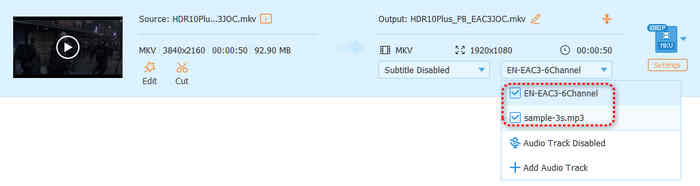
This is one of the main reasons people look for an MKV file editor. Suppose you have an MKV movie with English and Japanese audio. You want to keep only the Japanese audio or keep them all after processing, and a reliable MKV audio track editor or container editor can make this task much easier.
You may also want to cut unwanted parts from an MKV file, trim the beginning or end. or replace an audio track. Therefore, the best tool depends on what you actually want to edit. If you only need to change tracks, an MKV container editor may be enough. If you want to crop, rotate, filter, enhance, or trim the actual video, you should choose a complete MKV video editor.
Part 2. Quick Comparison of the Best MKV Editors
Here is a quick comparison of three useful MKV editing tools.
| MKV Editor | Platform | Best For | Support Remuxing |
|---|---|---|---|
| Tipard Video Converter Ultimate | Windows, Mac | Full MKV video editing and conversion | Yes, with suitable settings |
| Avidemux | Windows, Mac, Linux | Simple cutting and basic editing | Yes, Copy mode |
| MKVToolNix | Windows, Mac, Linux | MKV tracks and container management | Yes |
Which MKV Editor Should You Choose?
- Choose Tipard Video Converter Ultimate if you need more than basic MKV track management. It combines video editing, audio and subtitle editing, conversion, compression, and other media tools in one program.
- Choose Avidemux if your main goal is simple cutting. It supports Copy mode, which means the audio and video streams can be copied without re-encoding.
- Choose MKVToolNix if you mainly need to manage the contents of an MKV container. It does not work like a traditional video editor. Instead, it focuses on Matroska container operations and does not include normal video encoding or decoding.
Part 3. Master Review of 3 Best MKV Editors
1. Tipard Video Converter Ultimate
- Best for: Users who want a complete MKV video editor
- Platforms: Windows and macOS
- Ease of use: Very easy
- Our rating: 4.8/5
Tipard Video Converter Ultimate is the most complete option in this comparison. It is not only an MKV editor but also a video converter with built-in editing tools.
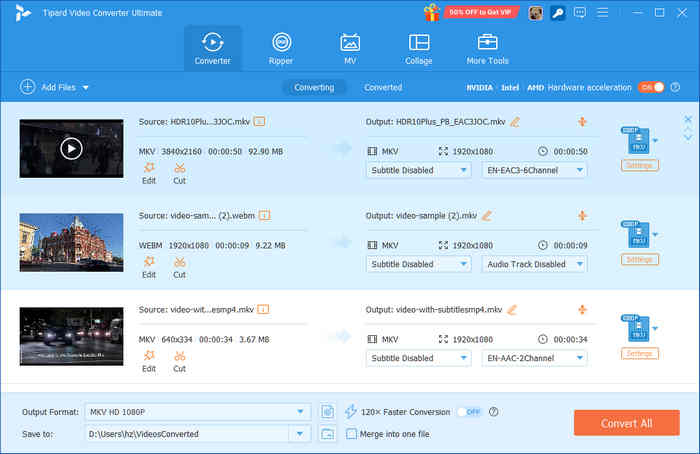
It supports MKV and many other video and audio formats. You can trim and merge videos, crop the frame, rotate videos, adjust video effects, add watermarks, and edit audio and subtitles. It also supports batch processing and hardware acceleration to let you trim a batch of video files and render them all quickly.
It is particularly useful when your MKV file contains multiple audio or subtitle tracks. You can open the editing window and change the audio or subtitle settings before exporting the edited file. The built-in AI video enhancer can also enhance your videos to higher quality with cinematic-level visuals.
- Let you change, add, and export subtitle tracks and audio streams.
- Provide an easy-to-use video editor to trim, clip, cut, merge, rotate, and add filters to your MKV videos.
- Support MKV input and output with various parameters and settings.
- Utilize full GPU acceleration to render and process your MKV videos.
- More advanced than necessary if you only need to change MKV tracks.
- It is an all-in-one tool rather than a dedicated MKV container manager.
2. Avidemux
- Best for: Free and simple MKV editing
- Platforms: Windows, macOS, Linux
- Price: Free
- Our rating: 4.4/5
Avidemux is a good free MKV editor when you want to perform simple video operations. The program is designed for basic video processing rather than professional timeline editing. Its official documentation explains that it does not provide a timeline or traditional multitrack editing system. Instead, it focuses on simple tasks such as cutting, copying, and saving video.
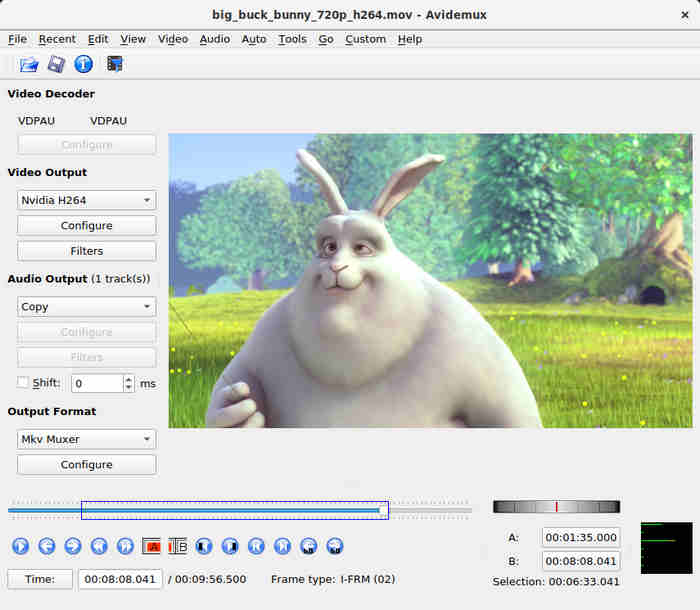
One of its biggest advantages of this MKV video editor is Copy mode. When both the video and audio encoders are set to Copy, Avidemux does not re-encode the streams. This makes the process much faster and avoids additional quality loss.
- It is completely free and supports Windows, Mac, and Linux.
- The copy mode avoids re-encoding and keeps the original audio and subtitle tracks.
- It is fast for simple cuts.
- No traditional timeline, not designed for complex video editing.
- The interface may feel less friendly to beginners.
3. MKVToolNix
- Best for: Managing MKV tracks and container data
- Platforms: Windows, macOS, Linux
- Price: Free
- Our rating: 4.5/5
MKVToolNix is different from the other two programs. It is not really a traditional MKV video editor. Instead, it is a powerful MKV container editor. It focuses on the video container; for example, you can work with an MKV file that contains:
- Multiple video tracks
- Multiple audio and subtitle tracks
- Chapters (markers within a video that divide it into different sections)
- Track language information, track flags, and other container information
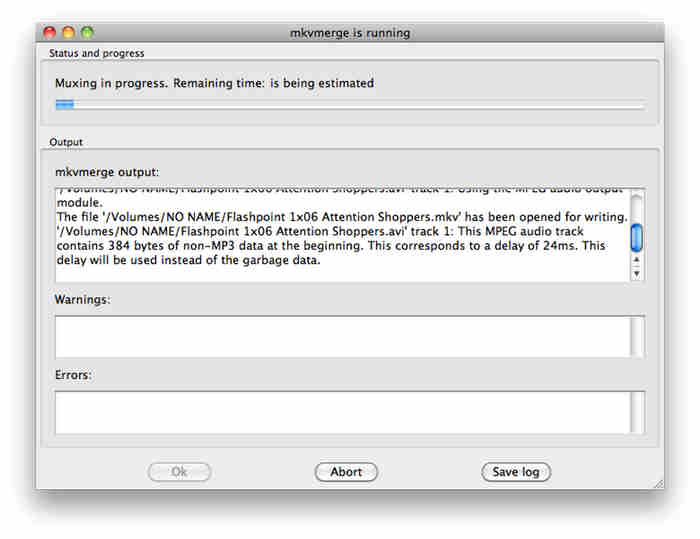
Moreover, MKVToolNix does not include normal video encoding or decoding. This is one reason it can perform container-level operations without re-encoding the underlying video. You don't need to worry about the quality loss.
- It is free and cross-platform.
- It is very good at MKV container management and adjustment.
- It is useful for multiple audio and subtitle tracks.
- It supports remuxing, which will keep the original MKV quality.
- It is not a traditional video editor.
- The interface is confusing for beginners.
Part 4. Can You Edit MKV Files Without Re-Encoding?
Yes, but it depends on what you mean by editing.
Container-Level Editing
If you only want to remove an audio/subtitle track, add a track, or change the metadata of a track or the MKV container, you can edit the MKV video without re-encoding.
Simple Cutting
Avidemux also supports editing without re-encoding through Copy mode. However, there are limitations. For example, lossless cuts may need to be placed at keyframes.
Editing with Tipard
Tipard Video Converter Ultimate provides a Same as Source option. When you select this type of output for a compatible workflow, the source settings can be retained instead of manually changing parameters such as resolution and frame rate. Tipard also has lossless or source-quality workflows for MKV conversion and editing.
Part 5. FAQs of MKV Editor
What is the best MKV editor?
For general users, Tipard Video Converter Ultimate is a strong choice because it combines MKV editing, audio and subtitle editing, conversion, and other video tools in one program. If you only need basic cutting, Avidemux is a good free option. If you mainly need to manage MKV tracks, MKVToolNix is more suitable.
Can I edit MKV in CapCut?
Yes, CapCut can edit MKV, MP4, MOV, WMV, and many other formats. The timeline editing panel can also recognize the audio tracks. However, it may not work well with the subtitle tracks.
Is there a free MKV editor?
Yes. Avidemux and MKVToolNix are both free tools. Avidemux is better for simple video editing, while MKVToolNix is better for managing MKV containers and tracks.
Conclusion
This article collects three reliable MKV video editors. We mainly focus on the remux feature and the multi-track management feature. Avidmux and MKVToolNix are two free video editors that can remux streams when you edit your MKV files. Tipard Video Converter Ultimate is a better choice if you want comprehensive video editing features. Moreover, it provides an AI enhancer, a music video editing tool, and a video collage maker, which will help you edit your MKV, MP4, MOV, and many other videos easily.

All-in-one video toolbox: convert, edit, upscale, enhance, and compress your videos easily
100% Clean & Safe
100% Clean & Safe

More Reading
About the Author


 Tipard Video Converter Ultimate