

MKV is a popular video container known for keeping high-quality video, audio, subtitles, and multiple tracks in one file. However, managing MKV files can feel difficult without the right tool. You may need a program that can merge, split, and edit MKV files easily.
Have you heard about MKVToolNix?
In this guide, we will explore MKVToolNix, including its main features, pros, cons, user experiences, how to use it, troubleshooting, and more. We will also share alternatives you can consider.
It will be an in-depth look, so let us get started!

Part 1. Introduction to MKVToolNix
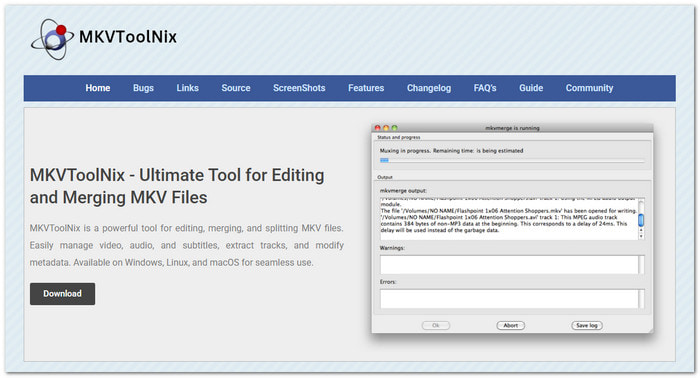
MKV files are popular because they can store high-quality video, audio, subtitles, and other data in one file. However, managing MKV files can be hard without the right program. It is where MKVToolNix helps. It is a free and open-source program made for creating, editing, and managing MKV files.
Part 2. Main Features of MKVToolNix
With its simple main features, you can easily manage MKV files without losing clarity.
1. Easy MKV File Splitting
MKVToolNix can split large MKV files into smaller parts. Users can divide videos by time or size. It is helpful for long movies, shows, or recorded videos.
2. Smooth File Merging
One of the main strengths of MKVToolNix is its ability to combine files. With the MKVToolNix combine files feature, users can merge video clips, audio tracks, and subtitles into one MKV file while keeping the original quality.
3. Add and Manage Subtitles
MKVToolNix makes subtitle editing easier. Users can add, remove, or manage subtitle tracks from formats like SRT and ASS.
4. Extract Audio, Video, and Subtitle Tracks
Users can extract specific parts from an MKV file. With the MKVToolNix extract subtitles feature, users can remove subtitle tracks easily. It also allows extracting audio tracks and video streams.
5. Processing in Bulk
MKVToolNix supports batch processing. It allows users to handle multiple MKV files at once. It makes large video tasks faster and easier.
6. Simple MKVToolNix GUI
The MKVToolNix GUI offers a cleaner way to manage files. Its drag-and-drop feature makes adding videos and adjusting settings more convenient.
7. Cross-Platform Support
Users can easily access the MKVToolNix software download for their preferred system. It is because MKVToolNix works on Windows, Mac, and Linux.
Part 3. Master Review of MKVToolNix
Pros of MKVToolNix
- MKVToolNix is built mainly for MKV files. It handles video, audio, subtitles, and metadata well.
- One major advantage is that MKVToolNix does not reduce video quality when merging or editing container information.
- The program works speedily because it avoids unnecessary conversion.
- MKVToolNix is completely free to use. There are no subscription fees or locked tools.
- Users can easily add subtitles to MKV files. It makes it useful for movies, anime, educational videos, and multilingual content.
- MKVToolNix for Mac, Windows, and Linux is available. Users can use the same program across different devices.
Cons of MKVToolNix
- MKVToolNix has many options. New users may feel confused at first.
- MKVToolNix is not a full video converter.
- The MKVToolNix GUI is useful. But beginners may find the layout complicated compared with simple video editors.
- If you need advanced video effects, filters, or full video editing tools, MKVToolNix may not be enough.
User Experiences
Because MKVToolNix makes managing MKV files simple, a lot of users find it enjoyable.
Typical compliments consist of:
- Quick merging speed
- No loss of quality
- Dependable handling of subtitles
- Works well with large MKV files
Users who work with movie collections, anime collections, and personal video libraries often find it useful.
Some beginners mention that the program takes time to understand. However, after learning the basic tools, most users find the workflow simple.
How to Use MKVToolNix on Mac
For a complete experience, learn how to use MKVToolNix using your Mac below.
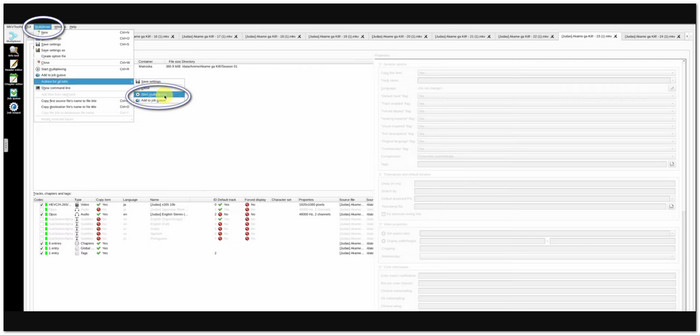
Step 1 Download the Mac operating system version from the official website. You can also install it through Homebrew.
Step 2 Open MKVToolNix GUI. Drag your MKV files into the main window. You can add numerous files if you want to combine them.
Step 3 Go to the Multiplexer section. Choose your settings and prepare the file.
Step 4 You can change track settings like:
- Language
- Subtitle options
- Audio selection
- Track order
Step 5 Click the Start button. MKVToolNix will create the new MKV file while keeping the original quality.
Troubleshooting Common MKVToolNix Problems
1. MKVToolNix Does Not Open on Mac
Please try these fixes:
- Check Mac operating system security settings.
- Allow the app in Privacy and Security settings.
- Download the latest version.
2.File Does Not Merge Correctly
Please check:
- Video compatibility.
- Audio track format.
- Subtitle format.
Some files may need proper settings before merging.
3. Missing Subtitles
Make sure the subtitle file is supported. Check if the subtitle track is enabled before starting the process.
4. Slow Processing
Large files may take longer. Multiple tracks and complex settings can also increase processing time.
Is MKVToolNix Safe
Yes, MKVToolNix is considered safe when you download it from trusted sources. It is a well-known open-source project used by many video users. Always choose the official MKVToolNix download page to get the latest and secure version.
For better safety:
- Download it from the official source.
- Avoid unknown third-party installers.
- Check file information before installation.
Overall Performance
MKVToolNix performs well when merging, splitting, and editing MKV files. Since it does not usually re-encode videos, the process is fast and keeps the original quality. It can handle large files without major problems. However, tasks with many video tracks, audio sources, or subtitles may take more time.
Part 4. Top 3 Alternatives to MKVToolNix
1. Tipard Video Converter Ultimate
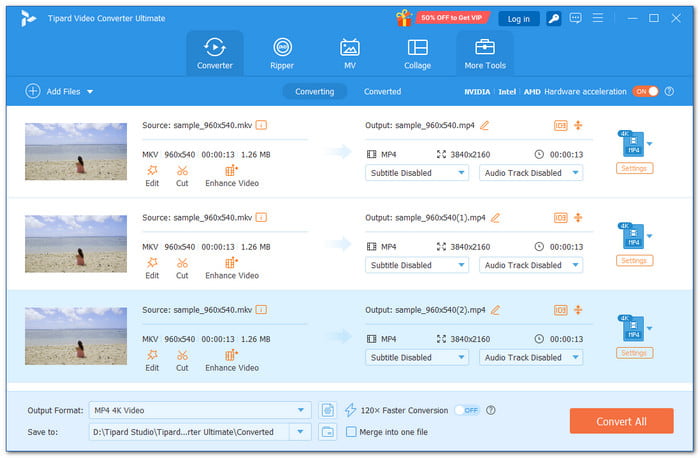
Best for: Users who need an easy video converter with fast processing, editing tools, and AI-powered enhancements.
Among the top alternatives to MKVToolNix, Tipard Video Converter Ultimate takes the top spot. It is super easy to use, which helps users edit and manage videos without complex steps.
It offers video compression, trimming, enhancement, and other useful tools in one place. Users can process numerous files more quickly thanks to its simple batch conversion feature. With a clean interface and simple workflow, every video task feels easier and smoother.
Key Features:
- Supports 500+ video and audio formats.
- Converts files up to 120× faster speed.
- Trims, crops, merges, and adds subtitles easily.
- Converts DVDs, folders, and ISO files into digital formats.
- Enhances videos with AI tools.
2. VideoProc Converter

Best for: Users who want AI-powered video enhancement and fast processing.
VideoProc Converter brings more advanced tools for users who want to improve their videos. Unlike MKVToolNix for Mac, it not only manages MKV files. It can convert, compress, edit, download, and record videos. Its AI features can upscale videos, reduce noise, stabilize shaky footage, and create smoother motion. It also uses GPU acceleration for faster processing.
Key Features:
- Convert MKV, MP4, HEVC, AVI, MOV, and more.
- Upscale videos to 4K, 8K, and 10K.
- Use AI enhancement tools to make videos better.
- Compress large video files.
- Cut, merge, crop, and edit videos.
3. HandBrake
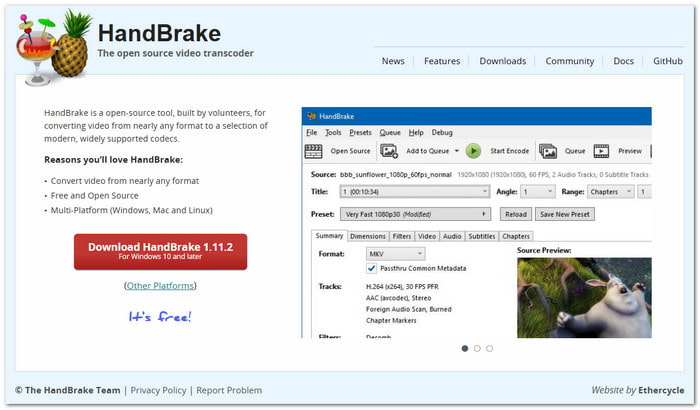
Best for: Users who need free video conversion and compression tools.
HandBrake focuses on converting and optimizing video files. It can process MKV files and convert them into formats like MP4 and WebM. Unlike MKVToolNix Windows, it provides more control over video encoding, compression, and quality settings. It also supports subtitles, chapters, filters, and modern codecs for better playback across different devices.
Key Features:
- Convert videos to MKV, MP4, and WebM.
- Support for H.264, H.265, AV1, and VP9 codecs.
- Compress videos with quality control.
- Add subtitles and chapter markers.
- Use built-in device presets.
Top 3 Alternatives to MKVToolNix Comparison Table
| Factors | Tipard Video Converter Ultimate | VideoProc Converter | HandBrake |
|---|---|---|---|
| Ease of Use | Easy interface. | Simple workflow. | Requires learning. |
| Supported Formats | 500+ formats. | 370+ formats. | Common video formats. |
| Video Editing | Trim, crop, merge, and effects. | Cut, merge, filters, and effects. | Limited editing. |
| AI Enhancement | Yes, AI video tools. | Yes, advanced AI tools. | No AI tools. |
| Subtitle Support | Add and edit subtitles. | Add and extract subtitles. | Add subtitles. |
| Batch Processing | Easy batch conversion. | Batch processing support. | Queue-based processing. |
| Speed | Up to 120× faster. | GPU-accelerated speed. | Fast encoding. |
| Show MoreShow Less | |||
Part 5. FAQs of MKVToolNix
Does MKVToolNix use a GPU?
No. MKVToolNix does not use GPU acceleration. It mainly depends on storage speed and memory performance. CPU speed has less impact on its tasks.
Does MKVToolNix compress?
No. MKVToolNix does not compress video or audio files. It only supports lossless compression for subtitles. It keeps the original quality.
Can MKVToolNix convert MKV to MP4?
No. MKVToolNix is not a video converter. It manages MKV files only. For MKV to MP4 conversion, tools like Tipard Video Converter Ultimate can help convert videos.
Conclusion
After learning more in-depth details about MKVToolNix Mac and Windows, did you find the information you needed? We hope this guide helped you understand its features, uses, and limits.
Do you still want to use MKVToolNix? Or are you looking for another option? You can also try Tipard Video Converter Ultimate, VideoProc Converter, or HandBrake. They are useful tools. They offer more options for converting, editing, and improving videos.

All-in-one video toolbox: convert, edit, upscale, enhance, and compress your videos easily
100% Clean & Safe
100% Clean & Safe

More Reading



About the Author


 Tipard Video Converter Ultimate