

Does Premiere Pro support MKV? Premiere Pro is among the Adobe programs designed to be powerful video editing software. But some content creators might wonder if MKV is among the formats it supports. If you want to find the answer, you must read this post. We are here to provide the information you need, along with methods for converting your video to improve your video editing process.
Part 1. Does Premiere Pro Support MKV
The good thing about Adobe Premiere Pro is that it can support the MKV format. With that, if you want to edit your video, you can. However, you might encounter some limitations when using the format. If you want to explore some of the limitations, you can check all the information below.
- The MKV support is inconsistent across versions. Some builds may fail to play and import MKV files properly.
- The audio tracks in the MKV file may not sync correctly. It may also be missing after import.
- MKV files with rare codecs may have problems during playback or editing.
- The performance may be slower compared with editing native formats such as MOV and MP4.
Part 2. Why Your MKV Files Still Won't Import to Premiere Pro
There are various reasons you can't import or open the MKV file in Adobe Premiere Pro. If you are willing to explore some of the reasons, see all the details in this section.
Codec Incompatibility
MKV is a container format. If this format uses an unsupported or uncommon codec (like the AV1 codec), Adobe Premiere Pro may reject the file.
Variable Frame Rate Issue
Some MKV files, especially from recording sources, use a variable frame rate, which is difficult for the editor to handle, leading to import failures or sync issues.
Unsupported Audio Track
Many MKV files contain multiple audio streams or formats like Vorbis or DTS, which Premiere Pro cannot decode properly.
Corrupted MKV Files
If you cannot open the MKV file in Premiere Pro, it may be corrupted. A damaged file can only display a black screen, thereby causing an error.
Large File Size
If the MKV file is too large, it can cause performance bottlenecks, causing Adobe to freeze or not import the file. Always keep in mind that outdated software may block imports.
Part 3. Common Fixes to Help You Import MKV to Premiere Pro
Want to learn how to import MKV to Premiere Pro? Then, you can apply all the solutions in this section to fix the problem.
Solution 1. Convert MKV to a Compatible Format Using Tipard Video Converter Ultimate
If you want to open your video, one of the best ways is to convert it to a Premiere-compatible format, such as MOV or MP4. If you need the best converter, we recommend using Tipard Video Converter Ultimate. The good thing here is that it can offer lossless conversion and AI-upscale MKV videos, resulting in a better experience. Here, what we like is that the converter can go up to 120X faster. It can also support batch conversion, which lets you convert multiple files at the same time. Aside from that, the program can support full hardware acceleration, ensuring a smooth performance. With that, if you want a reliable converter, you can try using this program to convert and import your video into Premiere Pro.

- The program can offer a smooth video conversion process.
- It can save the video at the best possible quality, up to 4K resolution.
- The converter can also offer basic and advanced video editing tools.
- The software can convert other media files, such as audio and images.
- It is capable of digitizing DVDs.

Step 1 Tap the Free Download buttons above to access Tipard Video Converter Ultimate on your Mac or Windows. Then, launch the converter on your desktop.
Step 2 Then, go to the upper interface and click the Converter feature. You can start to add the MKV file by clicking the Add Files option.
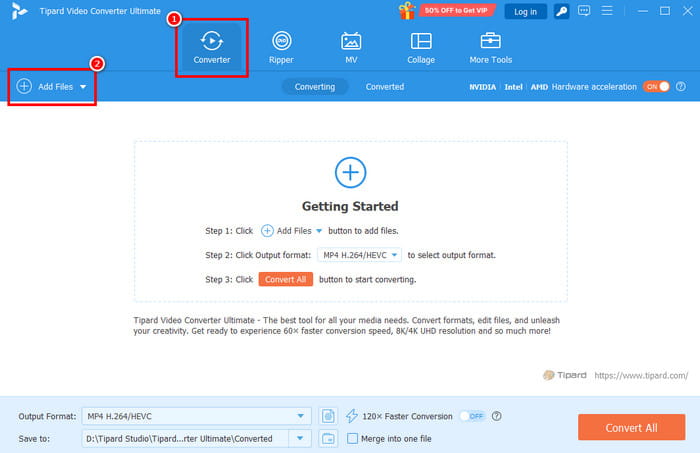
You can also add more files since the software supports batch conversion.
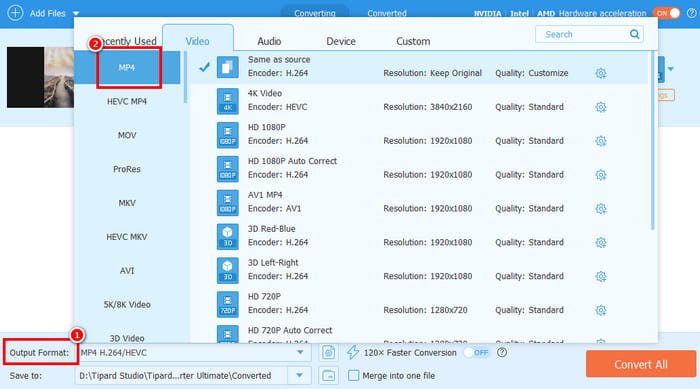
Step 3 You can choose your favorite format from the Output Format section. MOV and MP4 are some of the formats that you can choose.
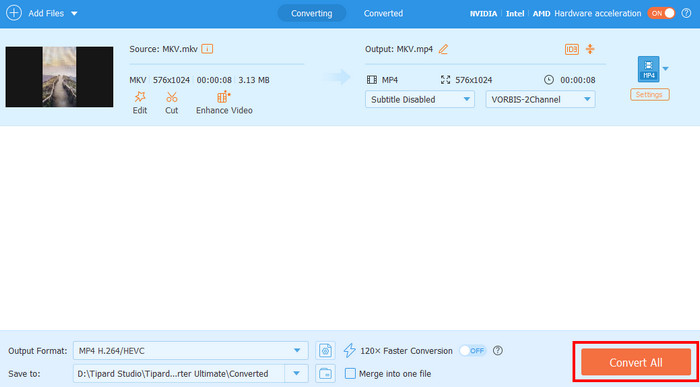
Step 4 Now, you can start the video converting process by clicking the Convert All button below.
Solution 2. Transcode MKV to MP4 for Premiere Pro via VLC
If you want another converter to convert MKV to MP4, you can try VLC. This software is more than just a simple media player. It has a converter option that can help you make sure that your file is converted and opened in Premiere Pro for a successful editing procedure. The best feature of the software is its simple layout, which makes it ideal for all users, especially novices. You can also compress video in VLC, crop it, adjust the playback speed, and more. It is also free to use, which makes it an accessible converter.
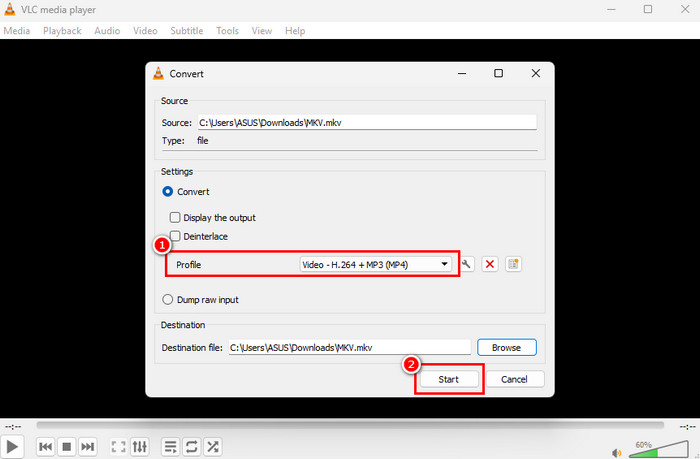
Step 1 After you download the VLC Media Player, you can start running it to begin the conversion procedure.
Step 2 Go to the top interface and select Media. Choose the Convert / Save option.
Step 3 Then, tick the Add button to add the MKV file you want to convert. After that, tap the Convert / Save button below.
Step 4 Tap MP4 from the Profile section. Hit Start to begin converting your MKV file to MP4 format.
Part 4. FAQs about Does Premiere Pro Support MKV
Which version of Premiere Pro supports MKV?
The best way is to launch the latest version of Adobe Premiere Pro. In this way, you will be able to edit your video and save it without any problems.
Is MKV slower than MP4 or MOV in Premiere Pro?
Premiere works better with other formats, such as MOV and MP4, for smoother editing. MKV files may not work as well as other formats, such as MP4 or MOV.
What’s the best converter to convert MKV files?
If you need the best converter, you could try Tipard Video Converter Ultimate. This converter could bring you a fast and smooth conversion process. Besides, its user interface is simple, which is more attractive for non-professional users.
Conclusion
Do you want to import MKV to Premiere Pro? Then, you can use all the information provided in this article. You also discover some of the reasons why you can't open the MKV file. With that, if you want a smoother editing process, you must convert the file to a more compatible format, like MP4 or MOV. If you want to convert files, you can try Tipard Video Converter Ultimate. With its ability to convert MKVs to other formats, you can achieve better results and open your video in Premiere Pro without any issues.
All-in-one video toolbox: convert, edit, upscale, enhance, and compress your videos easily
100% Clean & Safe
100% Clean & Safe

More Reading

About the Author


 Tipard Video Converter Ultimate