

Can DaVinci Resolve use MKV files? Well, DaVinci Resolve is a powerful video editing and color grading program. However, its compatibility with certain file formats often raises concerns among creators. One common confusion is whether it can natively handle MKV files, which is among the popular container formats for high-quality output. If you want to find out if MKV is playable with DaVinci Resolve, read everything in this article.
Part 1. Can DaVinci Resolve Use MKV?
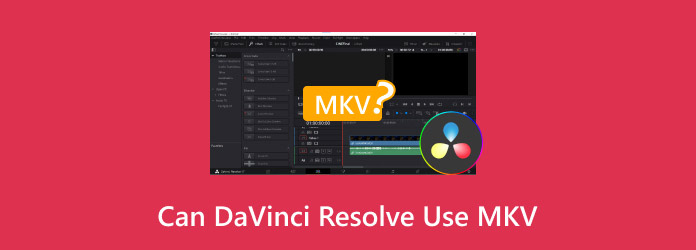
Does DaVinci Resolve support MKV? Unfortunately, no. The program is designed to work with some professional editing formats, such as MOV, MP4, and MXF. Another reason you can't deal with MKV is codec variability. MKV can contain almost all codecs. It includes the unsupported ones. The program only supports MKV when paired with specific codecs, such as VP9, H.264, and H.265. Always keep in mind that an unsupported codec can only lead to import failures. Another reason is metadata variability. The MKV container format can store various metadata, subtitles, and audio tracks. It can complicate parsing and increase the risk of incompatibility.
Check here and explore all the errors you might encounter when importing MKV files on DaVinci Resolve.
Missing Audio Tracks
Even if the video shows up on the platform, the audio might not be available or may not be imported. It is because the editor cannot interpret the diverse audio codecs in the format.
No File in the Media Pool
DaVinci Resolve cannot recognize MKV files. It means they won't appear after the import procedure. This occurs since the program does not support the format.
Video Playback Error
When importing an MKV file, it may stutter, fail to play, or display only a black screen. This issue only occurs because the program cannot decode the video stream within the MKV container. With that, if you want to fix the black screen on video or other playback errors, using another format might be ideal.
Unsupported Codec Conflicts
The MKV format can store a wide range of codecs that Resolve doesn't support. This mismatch can result in an error during the import process.
Part 2. How to Import MKV to DaVinci Resolve Without Error
Do you want to import MKV to DaVinci Resolve without encountering any errors? The best thing we can do is convert it to a better, more compatible format, like MOV or MP4. With these two formats, you can ensure that you can both play and edit your video.
If you are looking for the best video converter, we would like to introduce Tipard Video Converter Ultimate. This converter offers all the features you need. You can convert MKV to MP4, ProRes, MOV, and other formats at the highest quality. The best part here is that it can deliver conversion speeds up to 120× faster than other converters. What's more, the program's user interface is intuitive, making it an ideal converter for both professional and non-professional users. It can also support lossless remixing and can upscale or compress videos. What we like most here is its batch conversion feature. With this feature, you can convert multiple MKV files without consuming much time.
More Features
- The converter can offer editing tools for video enhancement.
- It can save the video up to 4K resolution for a better viewing experience.
- It is capable of turning videos into an audio file.
- The converter is accessible to both Mac and Windows computers.
If you want to convert your MKV files to a better video format, follow the detailed instructions below.
Step 1 First, you have to download Tipard Video Converter Ultimate. After that, open it to start the conversion. You can also tick the buttons below to access the converter instantly.
Step 2 Once you launch the main interface, you can now proceed to the Converter feature. Then, start adding the MKV file by clicking the Add Files or Plus button.
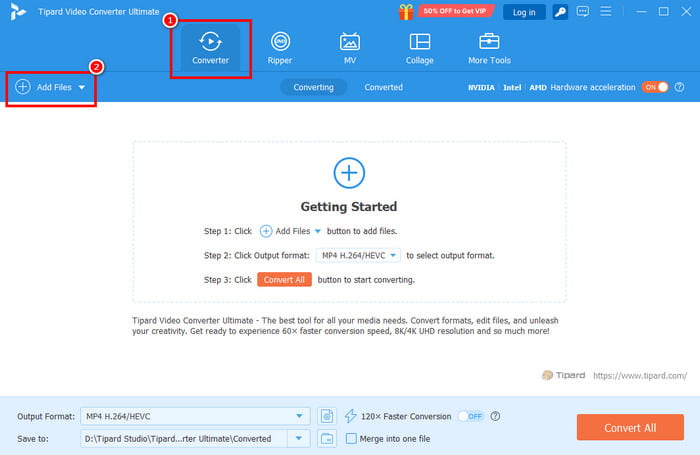
Since it supports the batch conversion feature, you can add two or more MKV files and convert them simultaneously.
Step 3 You can now go to the Output Format section. Then, choose the format that DaVinci Resolve supports. You can choose MP4, MOV, and MXF.
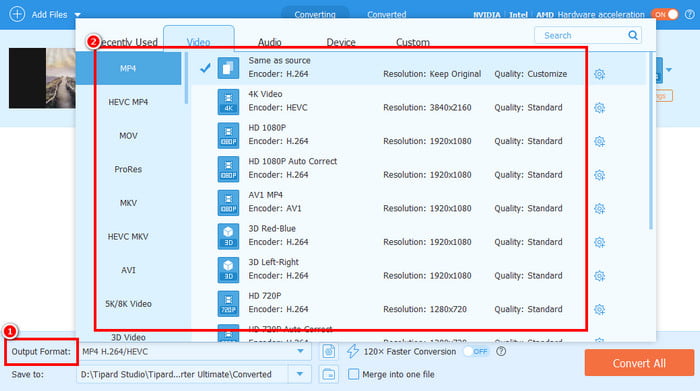
You can also choose your preferred codec and quality.
Step 4 For the final step, click Convert All to start the video conversion. Once done, you can check/play the converted file in your computer folder.
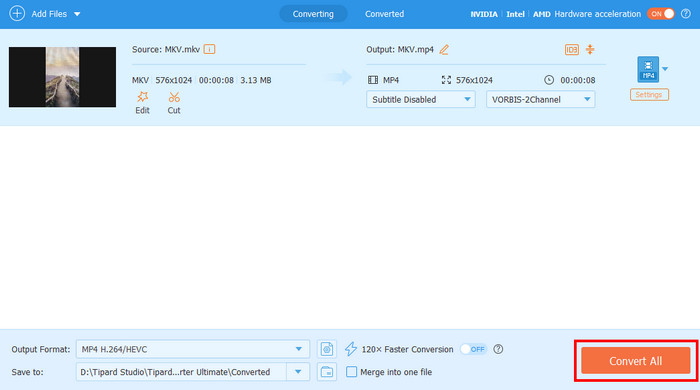
If you can't import an MKV file into DaVinci Resolve, it's better to convert it to other formats like MP4, MOV, or MXF. You can even use the method we provided above for an effective conversion procedure. The best part here is that Tipard Video Converter Ultimate lets you save the video at the highest quality, up to 4K. You can even get results instantly thanks to its fast conversion speed. Thus, rely on this converter for smoother playback and editing.
Part 3. FAQs of DaVinci Resolve MKV
Can DaVinci Resolve export MKV?
Sad to say, but no. Aside from its inability to import MKV files. You cannot export your video as an MKV file. It is because the editor is designed around professional editing standards. It can only support exporting to formats like MXF, MOV, MP4, and other specialized codecs.
Is converting MKV to MP4 ideal?
There is no doubt that converting your MKV file to MP4 format is the best choice. It is because MP4 is the most reliable and well-supported format out there. You can play the file on any devices, platforms, or media players with good quality.
What are the best MKV converters I can use?
There are various converters you can use to transcode your MKV files to a better format. If you are using Windows and Mac, you can download Tipard Video Converter Ultimate. With its quick conversion speed, you can get the result you need.
Conclusion
Can you open MKV on DaVinci Resolve? Well, after reading everything in this post, you have discovered that DaVinci cannot import the MKV file. You even learned some of the errors that might occur when forcing the platform to play and open the file. Thus, if you want to open and edit your video, the most effective solution is to convert it to a DaVinci-supported format, like MOV, MP4, ProRes, or MXF. With that in mind, for an effective conversion process, we suggest using Tipard Video Converter Ultimate. This converter ensures you get the format you need with the best possible quality. It can even offer a faster conversion speed, making it a top choice for all users.

All-in-one video toolbox: convert, edit, upscale, enhance, and compress your videos easily
100% Clean & Safe
100% Clean & Safe

More Reading



About the Author


 Tipard Video Converter Ultimate