

Key Takeaways:
Want to digitize your DVDs and make them well compatible with Apple ecosystem? Then MOV (with H.264 or ProRes codec) is your best choice. To output high-quality 1080p, 4K, and even 8K videos ,you can use Tipard DVD Ripper, a very robust DVD ripper with excellent MOV presets and full GPU acceleration.
- Step 1. Click Load DVD to load your DVD to Tipard DVD Ripper.
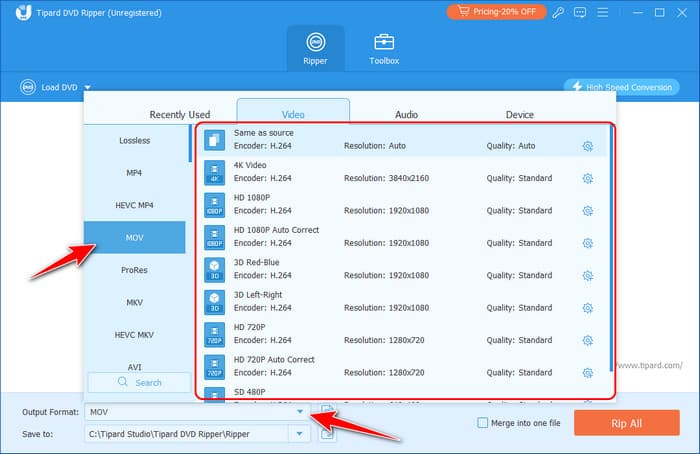
- Step 2. Click Output Format ddropdown to select a desired MOV preset.
- Step 3. Click Settings if you want to customize an MOV profile.
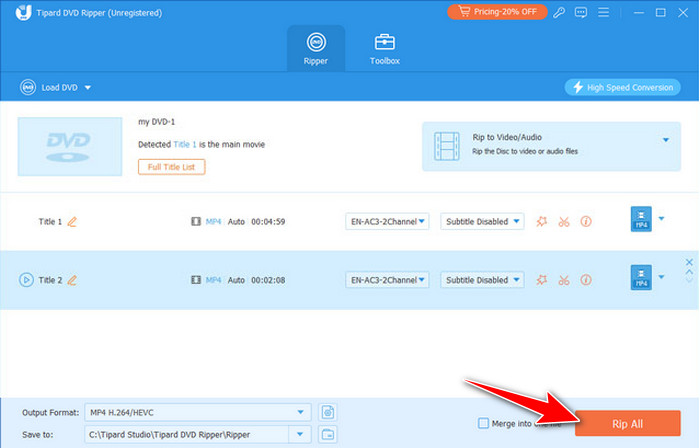
- Step 4. Click Rip All to convert DVD files to MOV.
Want to convert DVD to MOV on Mac for better editing and playback? Digitalizing your DVD library is the best way to preserve aging media and ensure seamless integration across the Apple ecosystem. Whether you are archiving memories or preparing files for Final Cut Pro, this step-by-step guide provides the most efficient way to bridge the gap between legacy tech and modern devices. You can learn to convert DVD files to MOV for common playback or high-bit and high-res editing.

Part 1. What DVD to MOV Converter to Choose - 3 Best Options Available
Although VLC and HandBrake may work as free DVD to MOV converters, their low-end and limited support for modern MOV parameters is getting outdated. Therefore, we highly recommend the three DVD rippers below for MOV output. They offer many common and standard MOV presets for modern devices, including MacBook, iPhone, iPad, and legacy devices like low-res TVs. You can also feel free to customize the MOV preset for your specific needs.
1. Tipard DVD Ripper
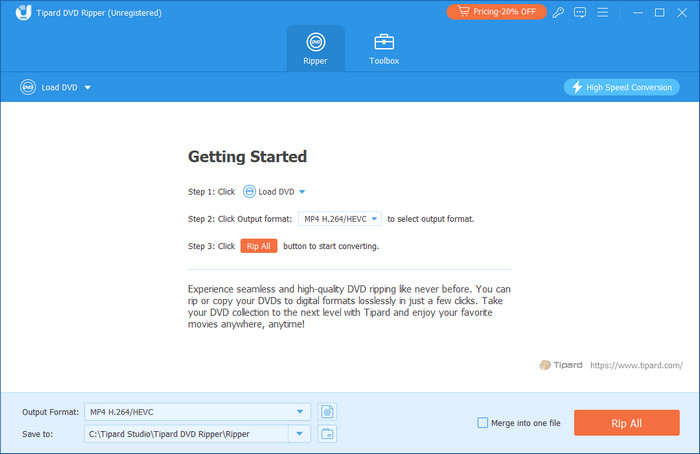
Expert Verdict: Tipard DVD Ripper is a program that converts DVDs to MOV on Mac videos. It is efficient and easy to use and has a well-crafted user interface. The application is compatible with over 500 output formats and features the MOV option, which will be useful for new learners and professionals. It successfully provides long video and audio conversion, meaning the files will not lose their good quality after the conversion.
Some converting settings include frame rate, resolution output size and bitrate. In addendum, the user can adjust the output according to his requirement. Batch processing takes less time than single-disc processing, and the decryption function enables the direct processing of encrypted or copy-protected DVDs. Based on the features that it presents to its users, including the simpler and the more complex ones, it is clear that it will work well for every user.
2. DVDFab
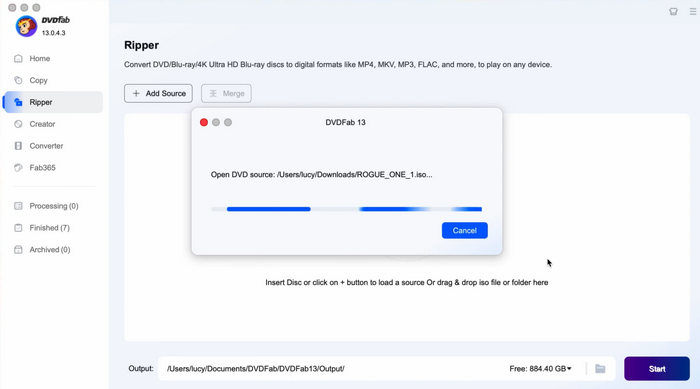
Expert Verdict: DVDFab's core strength lies in its ability to bypass almost any DVD copy protection (CSS, APS, RC, DADC, and Sony ARccOS). For professionals handling commercial discs, its cloud-based decryption library is updated within 24–48 hours of new releases, ensuring that Structure Protection or Fake Playlists don't result in corrupted MOV files.
Why is DVDFab a good choice for converting DVD files to MOV? Unlike most open-source tools, DVDFab natively supports Apple ProRes output, which is a significant advantage if you intend to use the MOV file in professional editing suites like Final Cut Pro or DaVinci Resolve. Moreover, since DVD's native resolution is only 480p, DVDFab's Enlarger AI uses the Mac's Neural Engine to convert DVD to MOV file with 1080p or 4K resolution. When exporting to MOV, the AI model significantly reduces blockiness and enhances edge sharpness, making old content look respectable on modern Retina displays.
3. MacX DVD Ripper Pro
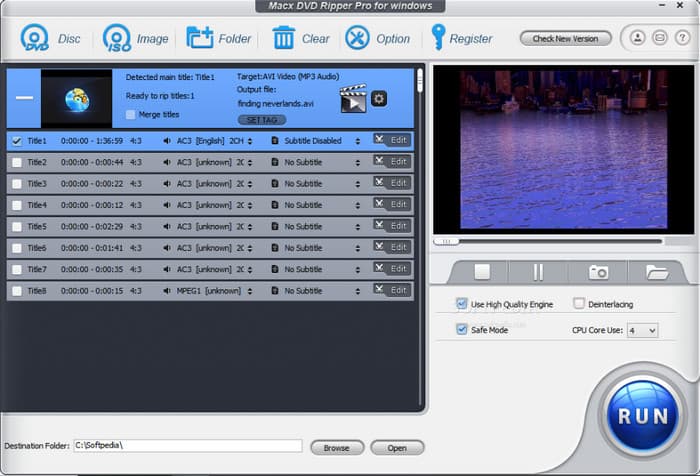
Expert Verdict: MacX DVD Ripper Pro stands out as a premier DVD-to-MOV conversion utility tailored for the macOS ecosystem. Its defining edge lies in the Level-3 Hardware Acceleration technology, which leverages Intel/NVIDIA/AMD and specifically Apple Silicon (M1/M2/M3/M4) GPUs. This ensures lightning-fast transcoding of dual-layer DVDs to MOV (H.264/HEVC) without CPU overheating or system lag.
MacX DVD Ripper Pro excels at bypassing sophisticated optical disc protections, including Disney X-project DRM, Region Codes (1-6), and CSS encryption, making it a robust solution for both personal archives and commercial discs. When you convert DVD files to MOV, the software strikes a perfect balance with its minimalist, Apple-style interface, appealing to users who prioritize a streamlined workflow without sacrificing output fidelity or bitrate control.
| Feature | Tipard DVD Ripper | DVDFab DVD Ripper | MacX DVD Ripper Pro |
|---|---|---|---|
| Platform Supported | Windows & macOS (Universal) | Windows & macOS (Universal) | Windows & macOS (Intel/M-Series) |
| MOV Support | 500+ Profiles; Optimized for iPhone/QuickTime MOV (H.264/HEVC/ProRes) | 200+ Formats; Native MOV (H.264/HEVC/ProRes) support | 350+ Formats; High-quality MOV (H.264) output |
| Batch Ripping | Supported (Multi-core Threading) | Supported (Task Queue Management) | Supported (High-Speed Engine) |
| Hardware Acceleration | Supported (NVIDIA CUDA/NVENC, Intel QSV, Apple Silicon) | Supported (Full Support for Apple VideoToolbox & GPU) | Supported (Level-3 Hardware Acceleration) |
| Decryption Ability | Excellent (Disney X-project, 99-title, CSS, Region Code, RCE, UOPs) | Elite (Cloud-based decryption for the latest DRM) | Strong (CSS, Region Code, RCE, UOPs) |
| Special MOV Feature | AI Upscaling and Built-in Video Editor for MOV clips | AI Upscaling (480p to 1080p MOV) | High-Quality Engine for original MOV fidelity |
| Show MoreShow Less | |||
Part 2. Convert DVD to MOV with 3 Best DVD Rippers on Windows & Mac
Follow the tutorial that we have below to turn your DVD to MOV; there is no need to worry because the tutorial is simple to follow:
Convert DVD Files to MOV with Tipard DVD Ripper
Step 1 Tick the download button below to get the software. After downloading, open the installer and follow the setup instructions. Once installed, launch the app to begin.
Step 2 Insert your DVD and click the Load DVD button in the software. Select the DVD from your drive and click Open.
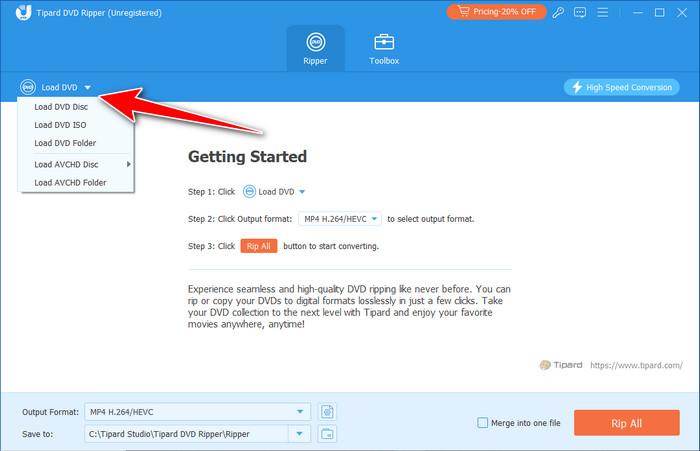
Step 3 Click the Output Format button and choose MOV. You can adjust settings like resolution if needed.
- This DVD to MOV converter offers many MOV presets, like 1080p, 4K, 720p, and 3D. Choose your desired preset based on your display's capabilities.
- If you need customization, just click the Settings button. It lets you choose H.264/HEVC for better compression or ProRes codecs for high bitrate and high quality.
Step 4 Pick where to save the file, then click Rip All to begin the conversion. Once finished, your MOV file will be ready for your Apple ecosystem.
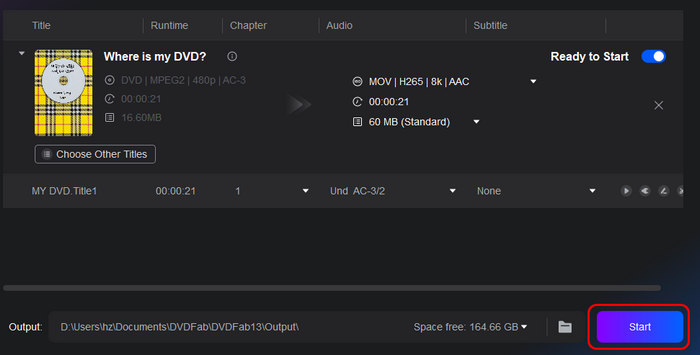
Convert DVD Files to MOV with DVDFab
Step 1 Download and install DVDFab on your computer. Launch the program after installation.
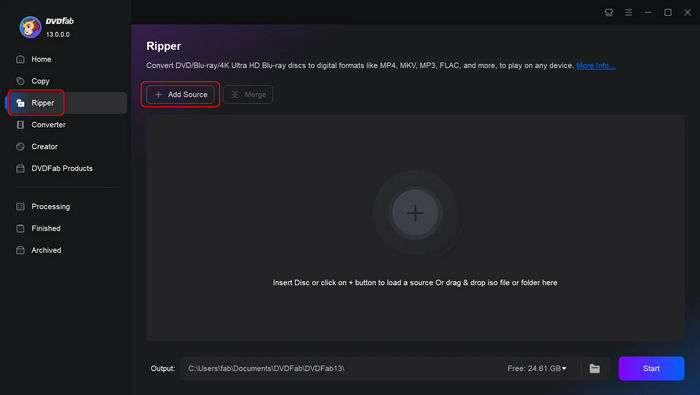
Step 2 Insert your DVD into the drive and click on the Ripper module. Click Add from Disc to load your DVD content.
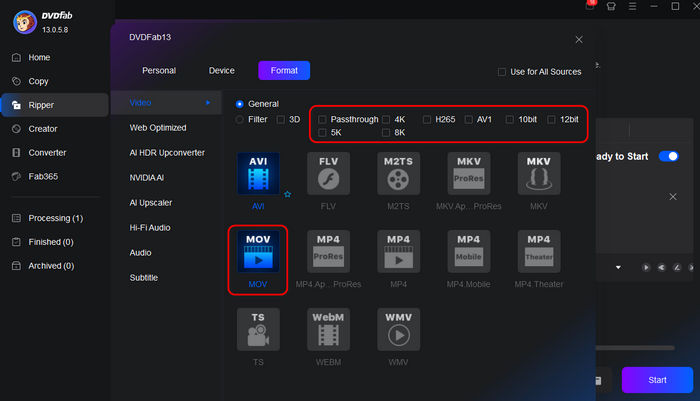
Step 3 In the Output Profile window, select MOV. You can also select a desired video codec, like HEVC or AV1, and a desired resolution and bitrate value.
Step 4 Choose your output folder and click Start to begin converting your DVD to MOV file on Mac or Windows computer.
Convert DVD Files to MOV with MacX DVD Ripper Pro
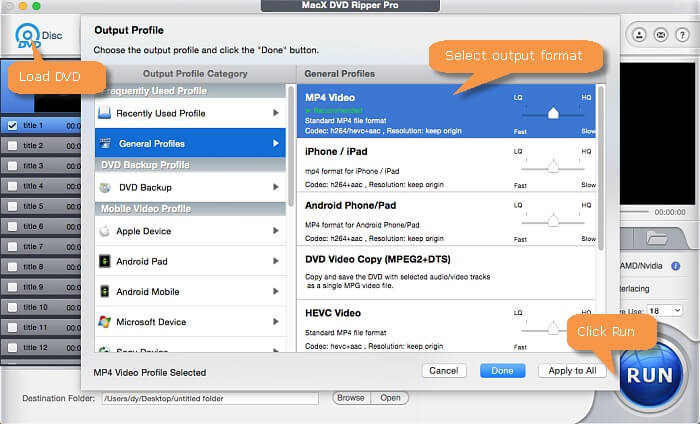
Step 1 Download and install MacX DVD Ripper Pro on your Mac. Open the application after installation.
Step 2 Insert your DVD into the drive and click on the Disc button to load your DVD content.
Step 3 It will automatically pop up the Output Profile window. Select a MOV preset that suits your needs (e.g., MOV for iPhone, iPad, or QuickTime).
Step 4 Set your output folder and click on the Run button to start converting your DVD file to MOV format.
Part 3. Tips for High-Quality MOV Output
When transcoding DVDs to MOV, it is important to fine-tune the output to get the best picture sorting. Here are key factors to consider to enhance the quality of your final video:
1. Adjust the Resolution
Several factors define video quality, which is categorized in comparison to other factors into two categories: fixed and variable; resolution is one of the key fixed factors. If you decide to convert your DVD to MOV format, this format will allow you to make your video sharper at the output and capture all essential details, using higher resolutions like 1080p or even 4K. Videos in lower resolution, say 480p, tend to become grainy or pixelated; this is especially true when viewed on big screens.
Tip: If your source is a standard DVD, selecting a resolution higher than 1080p will not enhance video quality but could increase the file size unnecessarily.
2. Set the Bitrate Correctly
When it comes to saving, or more specifically, the amount of data per second required to store the video, bitrate controls the quality of the video - or, more specifically, the amount of data required to create it. Increased bitrate usually leads to even better-sounding material but increases the file size. The trick is to find the right middle ground.
Tip: For MOV files, on average, the bitrate is fixed at about 1500-2500 kbps to achieve high video quality while at the same time avoiding the creation of very large files.
3. Choose the Right Audio Track
Choosing the right audio channel is critical for retaining the sound quality. CDs can contain several audio options, such as foreign language options, commentary, or surround sound encoding. Make sure that you have the best track to upload your video.
Tip: If you do not want your movie to contain two or more audio streams, leave it with only one track to save space. AAC or MP3 is recommended because it provides wider compatibility with iPads.
4. Add Subtitle
If the original DVD you burnt had subtitles and you wish to retain them with the MOV file, you must tick the subtitle option. Most of these tools enable you to pick certain subtitle streams or even insert extraneous subtitle files.
Tip: To have a cleaner video, only use subtitling if required. However, when there are too many subtitle tracks, they get crowded within the file and thus decrease the playback efficiency of the video.
5. Choose Advanced Settings
Several DVD-ripping programs feature complex encoding settings that enable you to customize many factors, like the frame rate of an output video and the codec used. Changing this value will affect the fluidity of your video playback. A frame rate of 30 fps choice is normal for most videos, while 60 fps will be more appropriate for videos with more action.
Tip: Always use H.264 or HEVC when compressing your DVD videos for the best quality or size ratio.
Conclusion
You can easily convert DVD files to MOV format with the three rippers mentioned in the article. Regardless of whether you want to back up your favorite DVDs to prevent them from getting scratched or lost, share DVD movies with the iPad, or keep the DVDs within easy reach of the Apple ecosystem, This guide is just perfect. Tipard DVD Ripper can offer MOV presets optmized for iPad, iPhone, and Mac with high-bit and high-res ProRes codecs. You can also get an MOV video with 1080p or lower quality if you want to play the movie on low-res displays. This DVD to MOV converter will reach all your needs.
More Reading

About the Author


 Tipard DVD Ripper