

- Part 1: Why Is a Video Converter Benchmark Important?
- Part 2: Overview of Our Tested Video Converter Software
- Part 3: How We Tested These Video Converter Programs
- Part 4: Video Converter Performance Tests and Benchmarks
- Part 5: Free Video Converter vs. Paid Video Converter: Benchmark Comparison
- Part 6: Video Converter Benchmark Results Overview
Choosing the right video converter software involves more than checking how many formats a program supports. A reliable video converter should deliver consistent performance, preserve visual quality, support modern codecs, and provide enough customization for different video workflows.
In this video converter benchmark, we compare five popular tools: Tipard Video Converter Ultimate, HandBrake, VLC media player, Any Video Converter, and Freemake Video Converter. We evaluate their conversion speed, output quality, container and codec support, batch processing, hardware acceleration, customization options, and additional editing features.

- Part 1: Why Is a Video Converter Benchmark Important?
- Part 2: Overview of Our Tested Video Converter Software
- Part 3: How We Tested These Video Converter Programs
- Part 4: Video Converter Performance Tests and Benchmarks
- Part 5: Free Video Converter vs. Paid Video Converter: Benchmark Comparison
- Part 6: Video Converter Benchmark Results Overview
Part 1: Why Is a Video Converter Benchmark Important?
Why You Should Look Beyond Marketing Claims
Video converter software is often advertised through large format counts, impressive speed multipliers, or claims of high-quality output. However, these figures do not always explain how a program performs in a specific workflow.
A converter may support hundreds of file extensions but offer limited control over the codecs used for output. Another application may provide advanced encoding settings but require more manual configuration. A third may offer convenient presets but impose limitations on particular output formats.
These differences matter when converting large video libraries, preparing 4K footage for storage, creating files for mobile devices, or reducing file sizes for sharing.
A meaningful video converter benchmark should answer several practical questions:
- Can the program convert the required input format into the desired output format?
- How long does the conversion take?
- How much visual quality is retained?
- Does the software support the necessary audio and subtitle streams?
- Can it process multiple files efficiently?
- Does the resulting video play correctly in the intended application or device?
Why Output Codec Support Matters More Than Format Counts
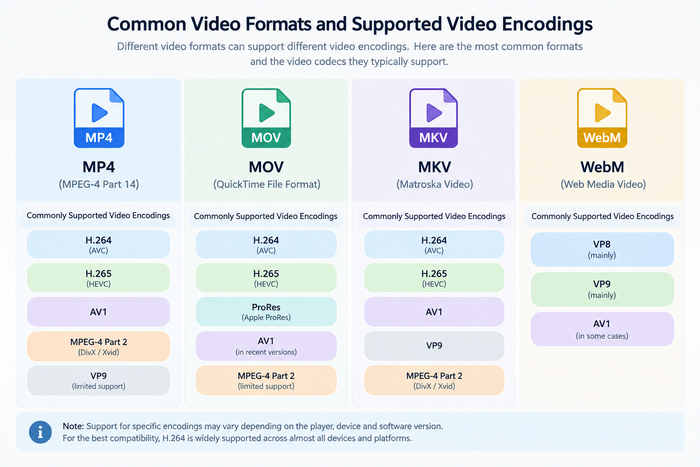
A video file consists of more than its filename extension. Its container holds video, audio, subtitles, and other information, while codecs determine how individual media streams are encoded. For example, MP4, MKV, MOV, and WebM are container formats. H.264, H.265/HEVC, AV1, VP9, and ProRes are video codecs.
The distinction is important because two MP4 files can use different video and audio codecs. A device that plays one MP4 file may not support another file with a different encoding configuration.
Input compatibility and output compatibility must also be evaluated separately. A program may open a particular file but lack the necessary encoder to produce the same format. For this reason, our video converter benchmark checks both container support and codec support. We also verify whether the selected output can be generated successfully and played back correctly.
The Growing Importance of H.265/HEVC and AV1
H.264 remains a useful baseline because it is widely supported by media players and devices. However, modern video workflows increasingly require additional encoding options. H.265/HEVC can provide improved compression efficiency under suitable conditions, making it worth testing for high-resolution video storage and distribution. AV1 is another important candidate for modern video conversion. Its performance depends on the encoder implementation, encoding settings, hardware support, and complexity of the source footage.
Part 2: Overview of Our Tested Video Converter Software
We use official distribution sources wherever possible and record the exact version tested. This matters because codec support, hardware acceleration, interface design, and licensing restrictions can change between releases.
Which Video Converter Programs Did We Test?
We selected five video converter programs that represent different approaches to video conversion. They include dedicated commercial converters, open-source tools, and a media player with built-in conversion capabilities.
1. Tipard Video Converter Ultimate 10.5.18
Tipard Video Converter Ultimate is a multimedia conversion application designed to handle video and audio conversion, batch processing, output customization, and additional media tasks.
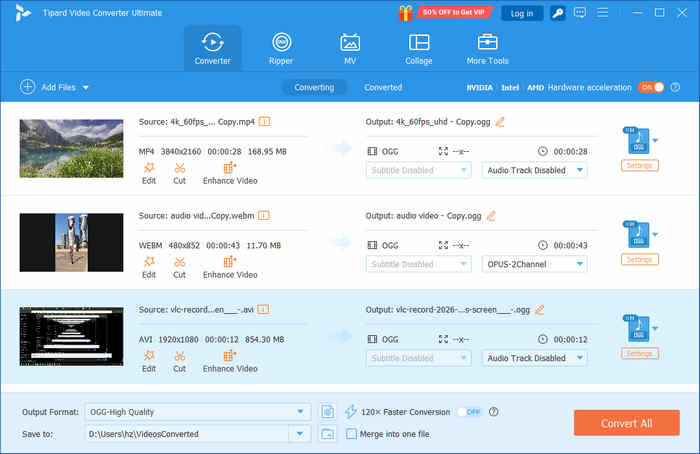
Its official specifications list formats such as MP4, MKV, MOV, WebM, AVI, and TS, along with codecs including H.264, HEVC, AV1, VP9, VP8, and ProRes. The product also provides customizable output settings and device-oriented presets.
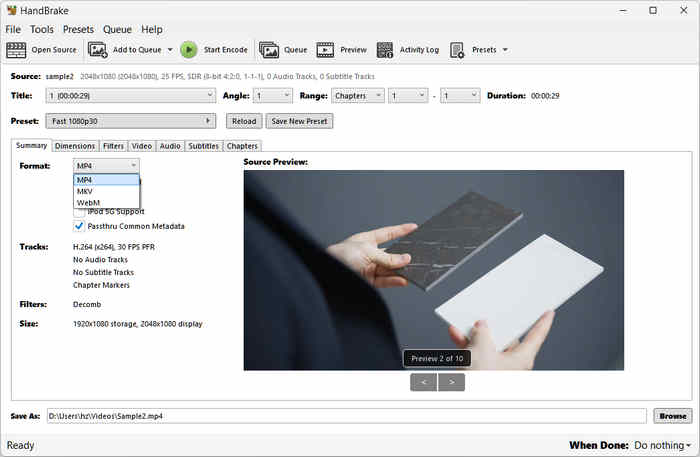
2. HandBrake 1.9.2
HandBrake is a free, open-source video transcoder known for its encoding controls, presets, and conversion workflow. We evaluate its available output encoders, video quality, batch queue, hardware encoding options, and parameter customization. Its actual codec support and performance must be recorded for the tested version and hardware configuration.
3. VLC Media Player
VLC media player is primarily a media player, but it also provides conversion capabilities through its media conversion workflow.
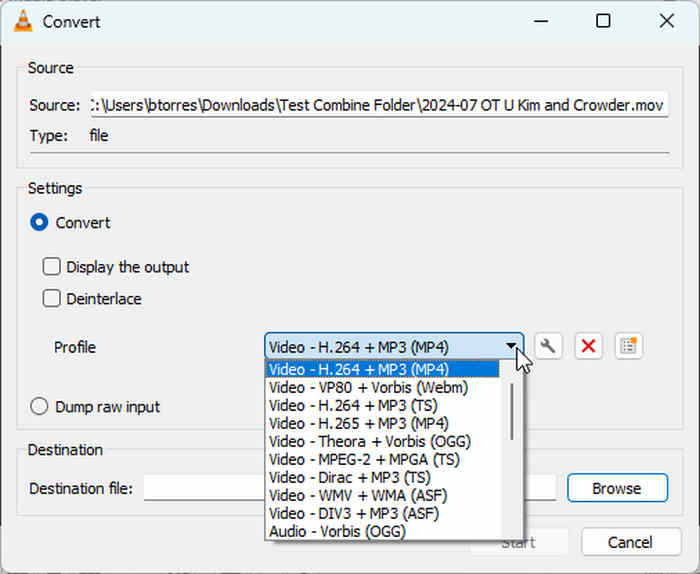
We test its available conversion profiles, supported output configurations, operation steps, and resulting file compatibility.
Because VLC is not structured in exactly the same way as a dedicated video converter, we also evaluate how easily a user can configure and complete common conversion tasks.
4. Any Video Converter 9.2.5
Any Video Converter represents a consumer-oriented conversion workflow. Because available features may differ between editions, we record the exact product name, version, and license used during testing.
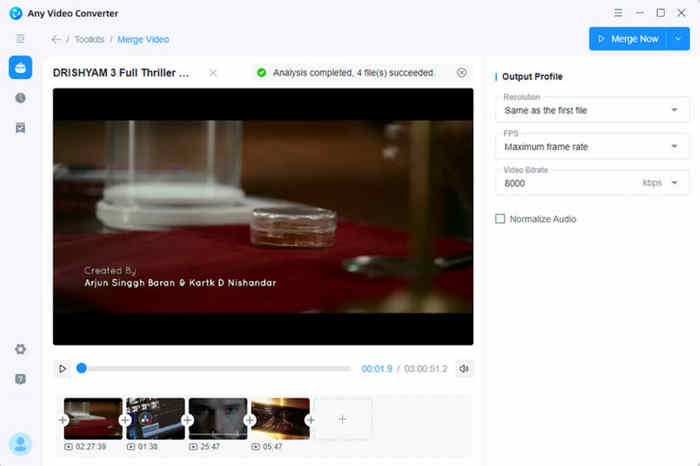
The evaluation focuses on common video conversion tasks, output profiles, batch processing, codec availability, customization, and any restrictions associated with the tested edition.
5. Freemake Video Converter 6.0.1
Freemake Video Converter is another consumer-oriented application included to evaluate preset-driven conversion and everyday usability.
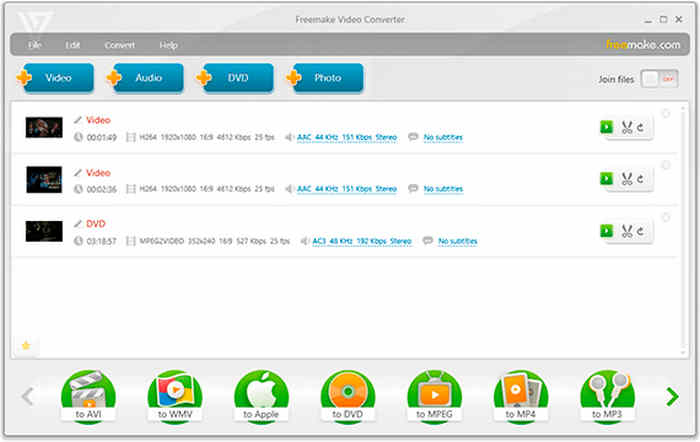
We test its supported input and output formats, available encoding settings, conversion workflow, and batch processing capabilities. Any watermarks, output restrictions, or edition-specific limitations are documented only if they are present in the version actually tested.
Part 3: How We Tested These Video Converter Programs
Our Hardware and Software Test Environment
All five video converter programs should be tested on the same Windows 11 computer to reduce differences caused by hardware.
- Operating system: Windows 11 Pro
- CPU: AMD Ryzen 9 9950X
- GPU: NVIDIA GeForce RTX 5080 16GB
- RAM: 96GB DDR5(2×48GB)
- Storage: 4TB PCIe 4.0 NVMe SSD
The exact configuration matters because encoding performance can vary significantly between processors, graphics cards, drivers, and software implementations.
Test Video Samples and Conversion Scenarios
1080p H.264 MP4, 4K HEVC MP4, 4K high-bitrate video with detailed textures and motion, MKV with multiple audio tracks and subtitles, and a batch of 10 mixed-format video files.
Our Conversion Speed Test Procedure
For each supported conversion scenario, we follow the same basic procedure:
- 1. Import the same source file.
- 2. Select the target container and video codec.
- 3. Apply the specified resolution, frame rate, and quality or bitrate settings.
- 4. Enable the designated acceleration mode when supported.
- 5. Start the conversion and record the completion time.
- 6. Verify the output file and record its size and technical properties.
- 7. Repeat the test at least three times when practical.
We report the mean conversion time and retain individual results to identify unusual variation. If a program cannot produce the required output, we record the limitation instead of substituting a different codec and treating it as an equivalent result.
How We Measured Output Quality
Output quality is evaluated through both objective measurements and visual inspection.
Where suitable, we use VMAF, SSIM, or PSNR to compare the output with the original source. These metrics measure different aspects of similarity, so we do not treat their numerical values as interchangeable.
We also inspect representative scenes containing fine textures, moving objects, gradients, and detailed edges. This helps identify artifacts that may be difficult to communicate through file size alone.
All quality comparisons document the output resolution, frame rate, codec, encoder settings, and bitrate. When different encoders cannot use identical settings, we record the differences and interpret the results accordingly.
Our Weighted Scoring System
We use a 100-point scoring model to evaluate the video converter programs across seven categories.
- Conversion speed: 20%
- Output quality and bitrate control: 20%
- Container and codec support: 15%
- Batch conversion and hardware acceleration: 15%
- Customization and stream handling: 15%
- Editing and enhancement features: 10%
- Stability and ease of use: 5%
- Total: 100%
Part 4: Video Converter Performance Tests and Benchmarks
Conversion Speed Benchmark: Which Video Converter Is the Fastest?
Conversion speed is one of the most visible differences between video converter programs. However, the fastest result is meaningful only when the source files and output requirements are comparable.
We focus on two representative 4K conversion scenarios:
- 4K H.264 MP4 to 4K HEVC MP4.
- 4K HEVC MP4 to 4K H.264 MP4.
These scenarios test different combinations of decoding and encoding workloads. We keep the source file and target requirements consistent wherever possible and record whether each application uses hardware or software encoding.
4K H.264 to HEVC Conversion Test:
The first test measures how efficiently each converter produces HEVC output from a 4K H.264 source.
We record conversion time, average processing speed, output size, quality measurements, and resource usage.
| Software | Output codec | Time | Average FPS | Score |
|---|---|---|---|---|
| Tipard Video Converter Ultimate | HEVC | 45 secs | 60 FPS | 90 |
| HandBrake | HEVC | 1 min 20 secs | 60 FPS | 80 |
| VLC | HEVC | 3 mins 02secs | 60 FPS | 70 |
| Any Video Converter | HEVC | 56 secs | 60 FPS | 85 |
| Freemake Video Converter | H.264 | 2 min 23 secs | 60 FPS | 65 |
We compare the results to determine whether individual programs maintain consistent performance across different encoding workloads.
What the results mean: The strongest performer is the program that achieves the best balance of completion time, output quality, and compatibility under the defined conditions. The final report should identify the measured winner for each scenario rather than assume one program leads every test.
Output Video Quality Benchmark: Which Converter Preserves More Detail?
A video converter should be able to produce files that meet the user's quality requirements. The challenge is that quality, bitrate, and file size are closely related. For this test, we create low-, medium-, and high-bitrate outputs where the software allows comparable configurations. We then evaluate visual quality and the resulting file size.
| Software | Target bitrate | Target bitrate | Quality metric | Score |
|---|---|---|---|---|
| Tipard Video Converter Ultimate | 40 Mbps | 40 Mbps | High | 95 |
| HandBrake | 40 Mbps | 37 Mbps | Good | 85 |
| VLC | 40 Mbps | 32 Mbps | Average | 75 |
| Any Video Converter | 40 Mbps | 40 Mbps | High | 95 |
| Freemake Video Converter | 40 Mbps | 38 Mbps | Average | 80 |
The test helps determine whether a converter can maintain acceptable quality at a given compression level. It also shows why file size alone is not a reliable measure of output quality.
Key Finding: Does a Smaller File Always Mean Better Compression?
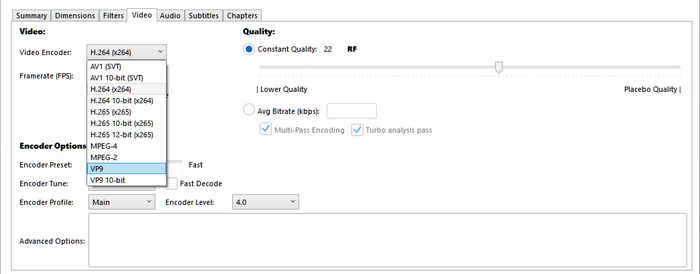
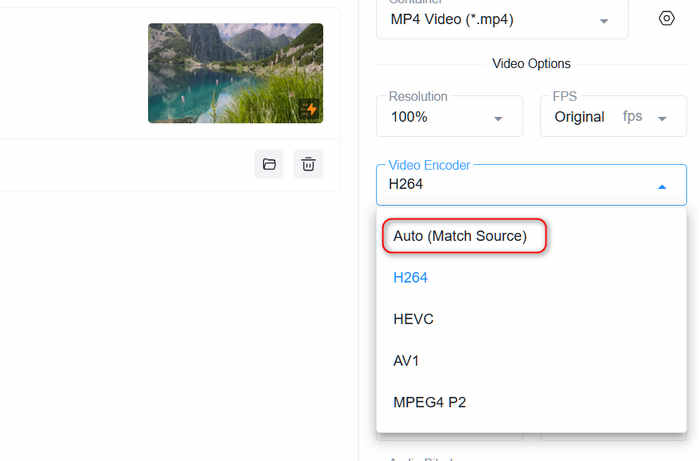
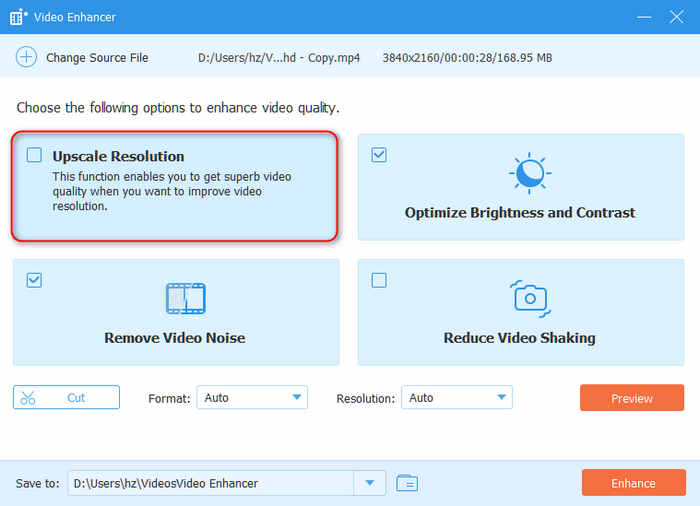
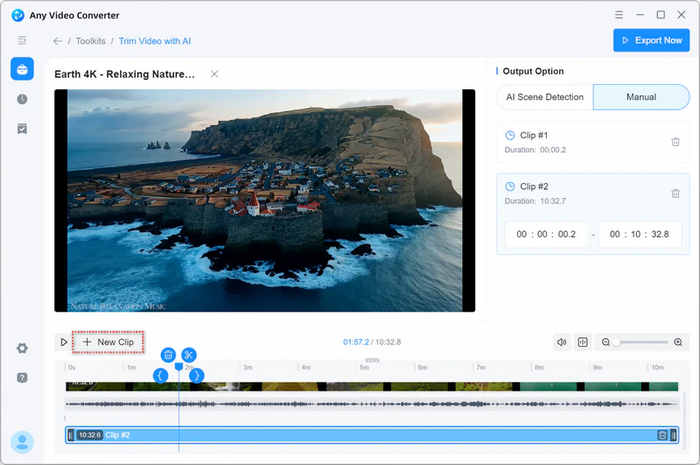
No. A smaller file may simply contain less visual information. To evaluate compression efficiency fairly, we compare outputs at similar quality levels or compare quality at similar target file sizes. The selected method is documented for each comparison. This is particularly important when evaluating a 4K video converter. A tool that creates a significantly smaller file but introduces visible artifacts may not be suitable for users who prioritize image quality. The same principle applies to HD video conversion. The correct output settings depend on the source material, intended device, and acceptable trade-off between size and quality. A video converter's compatibility depends on both the container and the codecs used within it. We test common formats, modern formats, and selected less common formats to determine whether each application can import, convert, and export the required files. Our container tests cover: MP4, MKV, MOV, WebM, WMV, AVI, MPEG/MPG, TS, FLV, MXF. These tests address common video file format converter and video file extension converter use cases. For every format, we distinguish between successful input, available output profiles, successful encoding, and verified playback. A file extension appearing in a menu does not by itself establish full compatibility. Supported Video Codecs: We examine H.264/AVC, H.265/HEVC, AV1, VP9, ProRes, MPEG-2, and VP8 where supported by the tested applications. The final published table should use clear labels such as Supported, Unsupported, Partial support, and Not tested. We also verify that the output contains the expected codec. This prevents a misleading result in which a program exports a file with the requested extension but uses a different internal encoding. Key Findings: HandBrake and VLC have a lot of output video codecs, but most of them are not proper for your target output video format. For example, you'd better not choose a .vp9 codec for MKV or MP4. Even though the output file is in good condition, it may not play on most devices and platforms. For users choosing a video file type converter, this distinction can be more important than the total number of listed formats. You May Also Like: Batch conversion can save time when processing many videos, but the overall workflow depends on more than single-file speed. We prepare ten mixed-format files and record the total completion time, number of successful outputs, resource usage, and any errors. Key Findings: Usually, a regular video format, like MP4, is recognized by most media converter. However, VLC, Freemake Video Converter, and Any Video Converter, fail to load an MP4 file with customized bitrate – it has 100 Mbps. That means a video converter has its hidden restrictions which should be tested earnestly. Not all video converters can utilize your excellent GPU. Hardware acceleration can reduce conversion time by using supported video-processing capabilities in a GPU or integrated graphics processor. Its actual benefit depends on the hardware, drivers, codec, and selected settings. Where supported, we test NVIDIA NVENC/NVDEC, Intel Quick Sync Video, and AMD hardware encoding or decoding. We distinguish hardware encoding from hardware decoding because an application may use one without using the other. We compare the resulting conversion time, output quality, file size, and CPU/GPU utilization. Tipard Video Converter Ultimate and Any Video Converter perform very well. A video converter's customization options determine how well it can adapt to different playback devices, storage limits, and editing workflows. We examine whether the video converter can let us adjust: Of course, the benchmark above shows that all the five video converters can adjust video codec, but other aspects also matter. Advanced controls can be useful for experienced users, while clear presets can simplify the workflow for beginners. We therefore evaluate both the available settings and the effort required to use them correctly. From our tests, all five video converters can let users change resolution, frame rate, bitrate, aspect ratio, and more. However, they differ in some further and more important factors. Audio Track and Subtitle Selection: To test stream handling, we use an MKV source containing multiple audio tracks and subtitles. We check whether the software allows users to select audio tracks, remove unwanted streams, import external subtitles, and preserve the intended output configuration. Remux and Transcode Capabilities: Remuxing is different from transcoding. A remux operation repackages existing streams into another container without re-encoding the video stream, while transcoding decodes and re-encodes media. The remuxing feature can be especially useful for users who need to change a container without unnecessarily re-encoding an already compatible video stream. However, re-encoding is also in high demand today. We also need to test the remuxing and re-encoding (transcoding) abilities. We input 10 files to each video converter to test whether they can keep the original video and audio streams and re-encode them to other video codecs. Only Tipard Video Converter Ultimate and Any Video Converter can really support both remuxing and re-encoding features. The other 3 video converters can only re-encode videos. Freemake Video Converter is not that satisfactory, for as mentioned above, its supported output codecs don’t include HEVC or AV1. Key Findings: Some video converters may provide a "Same as Source" tab on an output option, but it actually means the video resolution, rather than the video codec. Only when a video converter supports "original" in the video codec can it directly extract the original video streams without quality loss. Resolution conversion is another important feature, but increasing pixel dimensions does not automatically improve the underlying image detail. Many popular video converters can also help you improve video resolution to 1080p, 4K, and even 8K. We distinguish between ordinary upscaling and AI-based enhancement. Ordinary upscaling increases output dimensions, while enhancement tools may attempt to improve perceived detail, reduce noise, or adjust other visual characteristics. A fair test compares the source and output at an appropriate display size and records the processing time, artifacts, and visual differences. A converter should not receive a high enhancement score simply because it can export a file at 4K resolution. In our tests, Tipard and Any Video Converter have dedicated AI video upscaler tools, while HandBrake, VLC, and Freemake Video Converter support ordinary video upscaler features that can only improve the resolution values. Some video converter programs focus primarily on transcoding, while others combine conversion with editing and enhancement functions. We evaluate these features separately from core encoding performance. Our Testing Result: Any Video Converter has the best video editing features. It supports basic video editing like trimming, cropping, rotating, etc., and AI video trimming features. The other four video converters don't have AI video editing features. Key Findings: Actually, AI video editing is not that powerful; for AI edits, your clips are processed at a very low speed. Whether you need to do a simple cut or professional editing, your manual operation may work faster. A conversion is useful only if it finishes successfully and produces a valid file. Throughout the benchmark, we use 10 input video files for testing and record application crashes, failed tasks, synchronization issues, unexpected duration changes, and playback errors. We also repeat selected tests to check consistency. Stability and output integrity help distinguish a fast but unreliable result from a dependable conversion workflow. Key Findings: Those conversion failures all come from bitrate improvement. Freemake Video Converter, VLC, and HandBrake cannot work well on improving bitrate to 20 Mbps in an MOV file.Container and Codec Support Benchmark
Software
MP4 output
MKV output
MOV output
WebM output
H.264/HEVC
AV1
Score
Tipard Video Converter Ultimate
Supported; with all proper output codecs
Supported; with all proper output codecs
Supported; with all proper output codecs
Supported; with all proper output codecs
Supported
Supported
95
HandBrake
Supported; with customized output codecs
Supported; with customized output codecs
No
Supported; with customized output codecs
Supported
Supported
90
VLC
Supported; with customized output codecs
Supported; with customized output codecs
Supported; with customized output codecs
Supported; with customized output codecs
Supported
Supported
90
Any Video Converter
Supported; with a few proper output codecs
Supported; with a few proper output codecs
Supported; with a few proper output codecs
Supported; with a few proper output codecs
Supported
Supported
95
Freemake Video Converter
Supported; but only few proper codecs
Supported; but only few proper codecs
No
No
Only H.264
No
85
Batch Conversion and Hardware Acceleration Benchmark
Software
Batch workflow
Success rate
Total time
Peak RAM
Score
Tipard Video Converter Ultimate
One-time add your selected files or an entire folder
100%
3 min 57 secs
12%
95
HandBrake
Add files one by one or an entire folder
100%
6 min 54 secs
36%
85
VLC
One-time add your selected files
90%
10 mi 10 secs
45%
70
Any Video Converter
One-time add your selected files or an entire folder
80%
4 min 11 secs
26%
85
Freemake Video Converter
One-time add your selected files
60%
5 min 34 secs
38%
80

Hardware Encoding vs. Software Encoding
Customization Options Benchmark
Software
Remux
Re-encoding
Score
Tipard Video Converter Ultimate
Support
Support; AVC, HEVC, AV1, MPEG-4, VP9, VP8, and more
100
HandBrake
No
Support; all supported codecs are available for the tested video files
80
VLC
No
Support; all supported codecs are available for the tested video files
75
Any Video Converter
Yes
Support; AVC, HEVC, AV1, MPEG-4, VP9, VP8, and more
95
Freemake Video Converter
No
Support; AVC, MPEG-4, and more (no H.265 or AV1 options)
70
Can a Converter Upscale HD Video to 4K?
Editing and Enhancement Features Benchmark
Stability and Output Integrity
Software
Application crashes
Failed tasks
Synchronization issues
Unexpected duration changes
Playback errors
Score
Tipard Video Converter Ultimate
No
0
No
No
No
100
HandBrake
No
2 times
No
No
No
90
VLC
No
3 times
1 time: video and audio out of sync
No
Synchronization problem
80
Any Video Converter
No
0
No
No
No
100
Freemake Video Converter
No
2 times
No
No
No
85
Part 5: Free Video Converter vs. Paid Video Converter: Benchmark Comparison
Free and paid video converter software can both deliver strong results. The differences often involve workflow design, customization, additional features, and licensing restrictions rather than conversion quality alone.
| Evaluation factor | Free open-source | Free proprietary | Paid commercial |
|---|---|---|---|
| Cost | Usually free | Free tier or trial | Paid license or subscription |
| Encoding control | Often extensive | Product-dependent | Product-dependent |
| Output formats | Depends on available encoders and muxers | Depends on edition | Depends on edition |
| Hardware acceleration | Hardware and software-dependent | Hardware and edition-dependent | Hardware and edition-dependent |
| Batch processing | May be available | May have restrictions | Product-dependent |
| Ease of use | Varies; advanced options can require learning | Often preset-driven | Often combines presets and customization |
| Editing features | Usually focused on transcoding | Product-dependent | May include additional tools |
| Support | Community or project-based | Vendor-dependent | Vendor-dependent |
Key Findings: In our tests, free video converters like HandBrake are very good and stable, but it also has obvious drawbacks: no batch conversion, difficult workflow, and instability. Paid video converters usually have an easy-to-use interface with a simple workflow. The most important difference lies in the customization feature: Although free and open-source video converters may provide a bunch of output options for all video formats, most options are not proper. For example, if you use HEVC for a WebM file, the video may not play on most devices and players. However, paid video converters, like Tipard Video Converter Ultimate, will provide the proper customization options for each output video format to make your output videos playable.
Part 6: Video Converter Benchmark Results Overview
Overall Video Converter Benchmark Scores
The final ranking combines the seven weighted categories described in our methodology. Each score must be calculated from the completed test records.
| Software | Speed /20% | Quality /20% | Formats /15% | Batch & acceleration /15% | Customization /15% | Editing /10% | Stability & ease /5% | Total /100 |
|---|---|---|---|---|---|---|---|---|
| Tipard Video Converter Ultimate | 90 | 95 | 95 | 95 | 100 | 90 | 100 | 94.50 |
| Any Video Converter | 85 | 95 | 95 | 85 | 95 | 95 | 100 | 91.75 |
| HandBrake | 80 | 85 | 90 | 85 | 80 | 80 | 90 | 83.75 |
| Freemake Video Converter | 65 | 80 | 85 | 80 | 70 | 80 | 85 | 76.50 |
| VLC media player | 70 | 75 | 90 | 70 | 75 | 80 | 80 | 76.25 |
The results in this table are based on our tests, which are not almighty in all situations. In your own real tests and uses, you may encounter different problems and need to overcome them yourself.
Testing Transparency:
This benchmark is designed to compare software using reproducible methods rather than unsupported performance claims. Software versions, hardware configuration, source files, output settings, and measurement procedures should be disclosed alongside the final results.
All numerical results and rankings reflect completed tests. Product specifications describe available features, while benchmark measurements establish how those features perform under the conditions documented in this report.
Conclusion
No single video converter is necessarily the best option for every workflow. Users who need detailed encoding control may prioritize configurable settings. Those converting large video libraries may care more about batch efficiency and hardware acceleration. Beginners may prefer straightforward presets, while users creating simple video compositions may value integrated editing features.
But ultimately, the best video converter is the one that meets your format requirements, delivers the desired output quality, performs reliably on your hardware, and fits your workflow.
More Reading

About the Author


 Tipard Video Converter Ultimate