

Key Takeaways
Converting H.265 to H.264 is done to improve compatibility, playback, and editing. Each tool has its own strength. Tipard Video Converter Ultimate, VLC Media Player, and HandBrake all help with this process in different ways. Here are the main points you should remember:
- Format conversion goal: H.265 is changed to H.264 for wider device support.
- Output flexibility: All tools support common formats like MP4 and MKV using H.264 codec.
- Quality control: Users can fine-tune resolution, bitrate, and frame rate in advanced tools.
- Batch support: All tools support batch conversion, as multiple files can be processed at the same time.
H.265 is known for its strong compression and high video quality. It helps reduce file size while keeping good clarity. But it is not always easy to use on all devices. Some players and apps may not support it well.
Because of that, many users choose to convert H.265 to H.264. We will tell you here why. We will also help you convert H.265 to H.264 if you need it.

Part 1. H.265 vs. H.264: Why Convert at All
Video formats matter when you edit or play files on different devices. H.264 vs. H.265 is a common comparison when choosing the right codec. Knowing the difference helps you choose when to convert.
H.265 gives better compression. It makes a smaller file size with good clarity. It is great for 4K and high-resolution videos. But it is not always supported by older devices or programs.
H.264 is more widely supported. It works on almost all players, apps, and devices. It is also easier to edit and share. It is why many tools still prefer the H.264 format.
Because of this, users often convert H.265 to H.264. It helps improve compatibility. It also makes playback smoother on many devices.
Part 2. Convert H.265 to H.264 with High Speed
High speed matters when you convert large videos using an H.265 to H.264 converter. Tipard Video Converter Ultimate makes this task fast and easy. It supports level-3 hardware acceleration. It helps you decode, edit, and re-encode videos much faster. It also supports 720p, 1080p, and 4K H.264 videos in formats like MP4, MOV, and MKV. You also get AI tools to improve video clarity and simple editing features for quick changes.
Key Features:
- Enjoy up to 120× faster video conversion speed.
- Convert multiple files at the same time with batch mode.
- Personalize your videos by trimming, applying filters, watermarks, etc.
- Fine-tune video settings like resolution, encoder, frame rate, and bitrate.
- Supports over 500 video and audio formats like MP4, MOV, AVI, and MKV.
You can complete this by following these steps to convert HEVC to H.264:
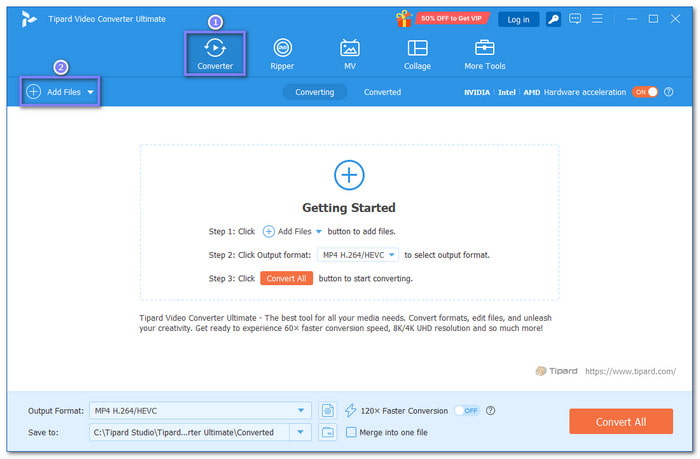
Step 1 First, download and install the Tipard Video Converter Ultimate. Then, open it on your computer. Once it starts, you will see a clean and simple screen.
Step 2 Click Add Files at the top left. Next, choose your H.265 video file. Then, click Open to load it into the converter.
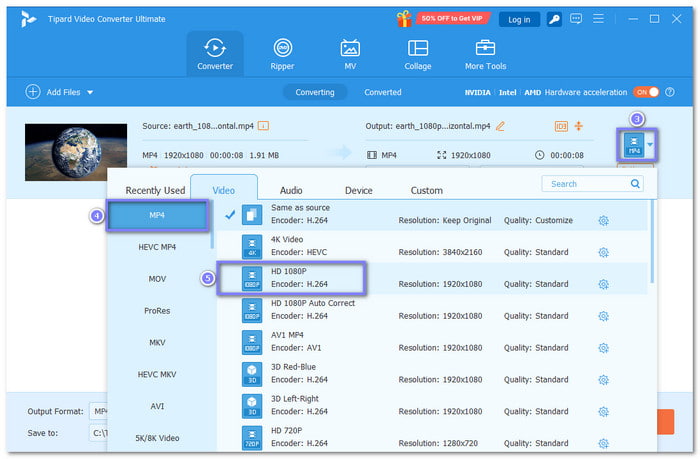
Step 3 Once loaded, click the Format drop-down menu. Head to the Video tab and choose a format like MP4 or Mov. These formats use the H.264 codec.
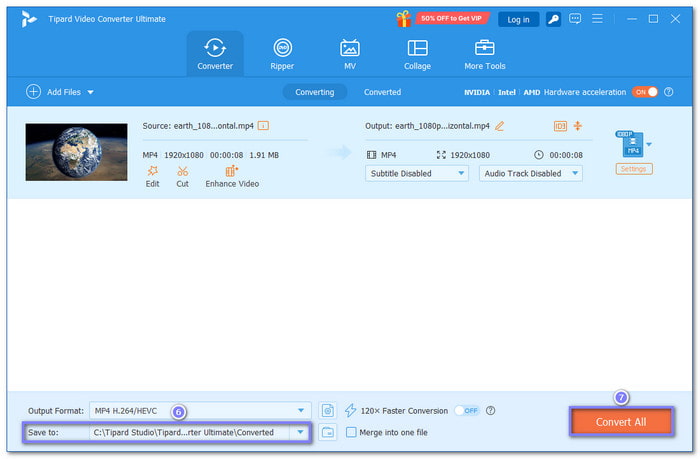
Step 4 At last, set your save folder if needed. Then, click the Convert All button to start the H.265 to H.264 conversion process. Fortunately, Tipard Video Converter Ultimate uses high-speed conversion. With that, your video can finish faster with impressive clarity.
H.264 files can be larger in size. With Tipard Video Converter Ultimate, you can also compress H.264 video using its built-in compressor feature. It helps reduce file size, makes it easier to store, makes sharing faster, etc.
Part 3. Convert H.265 to H.264 with VLC Media Player
Aside from being an H.264 player, you can also use VLC to change H.265 to H.264, as it has a built-in converter feature. You can change your video formats in a few clicks. You can use it on Windows, Mac, or Linux. Just note that the speed may be slower for big videos.
Step 1 Install VLC from its official website. Open it from your Start menu. Do not open a video yet.
Step 2 Click Media on the top left. Then, choose Convert / Save.
Step 3 Click the Add button. Pick your H.265 (HEVC) video file. Then, click Convert / Save again and choose Convert.
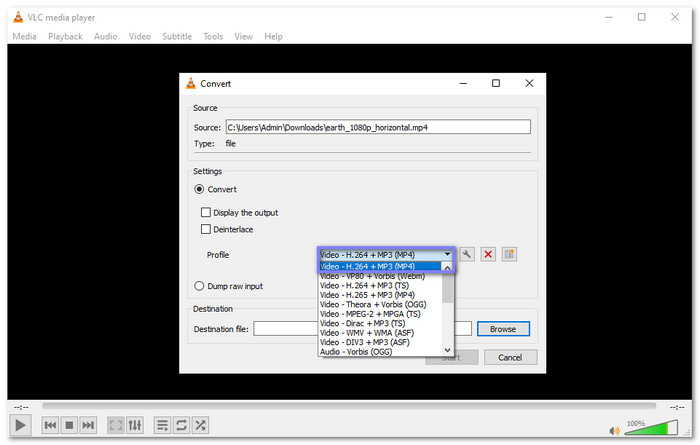
Step 4 Go to Profile and select Video - H.264 + MP3 (MP4). It sets your output to H.264 format.
Step 5 Hit Browse. Give your new file a different name. Next, choose where to save it. Click Start to begin, and please wait until the blue bar finishes. The time depends on your video length.
Part 4. Convert H.265 to H.264 with HandBrake
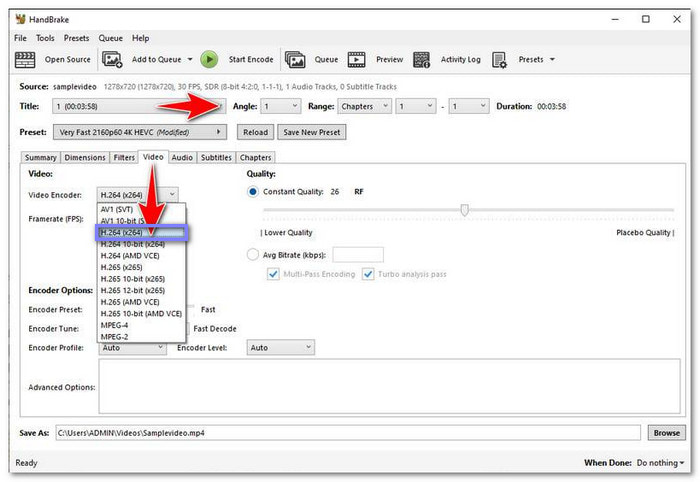
HandBrake is a free video program made for easy converting. It supports many formats and codecs. You can turn HEVC to H.264 with good clarity. It also lets you configure bitrate and size. It really works well for both beginners and professionals.
Step 1 Download and install HandBrake from its official site. Open it. Click Open Source and select your H.265 video.
Step 2 In Output Settings, choose MP4 as the container. It is a common and safe format.
Step 3 Go to the Video tab. Set the codec to H.264 (x264). Keep other settings as the default for the best balance.
Step 4 Choose where to save your file. Enter a new file name in the Title or save field.
Step 5 Click Start Encode, and please wait for the process to finish. After that, check your folder for the new H.264 video.
Part 5. Compare the 3 Ways to Convert H.265 to H.264
Below is a clear comparison of three popular tools to convert H.265 to H.264, which are Tipard Video Converter Ultimate, VLC Media Player, and HandBrake.
| Tool | User Interface | Speed | Batch Conversion | Format Support | Output Quality |
|---|---|---|---|---|---|
| Tipard Video Converter Ultimate | Clean and modern layout. | Super fast; up to 120× speed. | ✓ | 500+ formats, like MP4, MOV, MKV, AVI. | Up to 8K support. |
| VLC Media Player | Basic and simple layout. | Moderate speed. | ✓ | Common formats, like MP4 and AVI. | Up to 4K output. |
| HandBrake | Simple but technical layout. | Medium speed. | ✓ | MP4 and MKV support. | Up to 4K output. |
Part 6. FAQs of Converting H.265 to H.264
Is H.265 better quality than H.264?
Yes. H.265 gives better compression. It keeps good quality even with a smaller file size. It is best for 4K and high-resolution videos. But it needs more power to play or edit.
Is TikTok H.264 or H.265?
Most TikTok videos use H.264. It is because H.264 works on more devices. It also loads faster and plays smoothly on phones and apps.
Is 4K H.264 or H.265?
Both can be used for 4K videos. H.265 is more common for 4K. It gives a smaller file size with high quality. H.264 can still support 4K, but the file size is bigger.
Conclusion
As stated above, converting HEVC to H.264 gives many good benefits. It improves compatibility. It makes videos easier to play on most devices. It also helps with smoother editing and sharing.
If you need fast conversion, you can use Tipard Video Converter Ultimate on Windows and Mac. It also supports batch conversion and gives simple editing features for better control of your video files.
More Reading




About the Author


 Tipard Video Converter Ultimate