

Want to learn how to rotate video on CapCut? Rotating a video is among the techniques you can use when editing videos. It helps you to put your video into a better orientation and viewing experience. With this technique, you can even watch the video in full-screen mode. So, if you want to learn how to rotate your video, we will give you all the steps while using the CapCut platform. Thus, check this tutorial and start rotating your videos successfully.

Part 1. How to Rotate Video Using CapCut on Desktop
If you are using your PC, you can download and install CapCut to rotate your video. The best part here is that you can manually rotate the content, allowing you to get the result you need. Plus, the process of rotating the video is simple. It is thanks to the program's comprehensive user interface. What we like here is that, besides rotating, you can also use more editing tools to improve the video. You can use its aspect ratio changer to adjust the aspect ratio, crop, trim, add effects, and more. The only drawback here is that you can't access all the features on the free version. Thus, if you want to check the overall capabilities of the tool, get its Pro version.
To rotate the video on CapCut using your desktop, see the steps below.
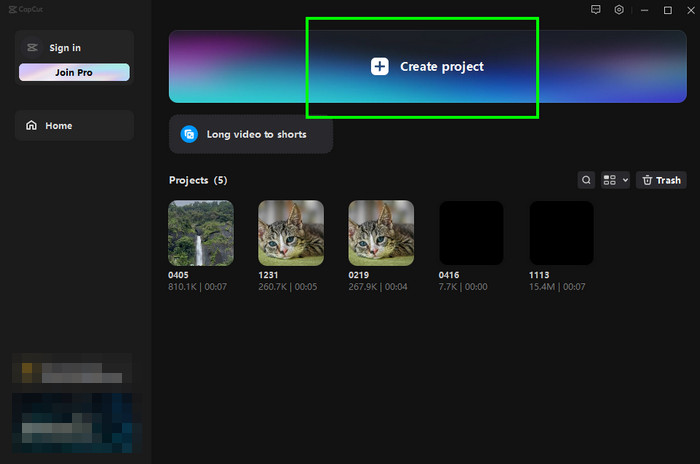
Step 1 Download and install CapCut on your Windows or Mac computer. After that, proceed to the Create Project > Import options.
Step 2 After you add the video, insert it into the Timeline section. Then, go to the Rotate feature to start rotating the video. You can rotate the footage based on your preferences.
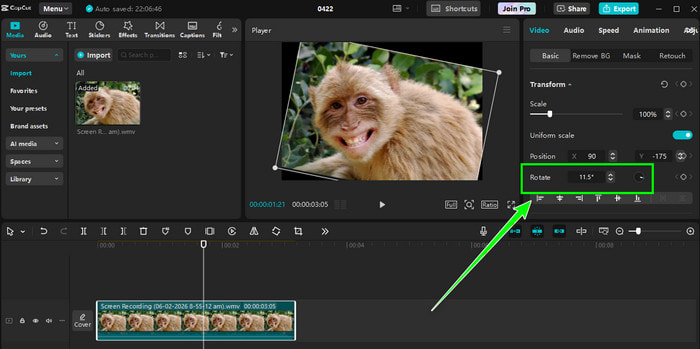
You can also access all the editing features to improve your video.
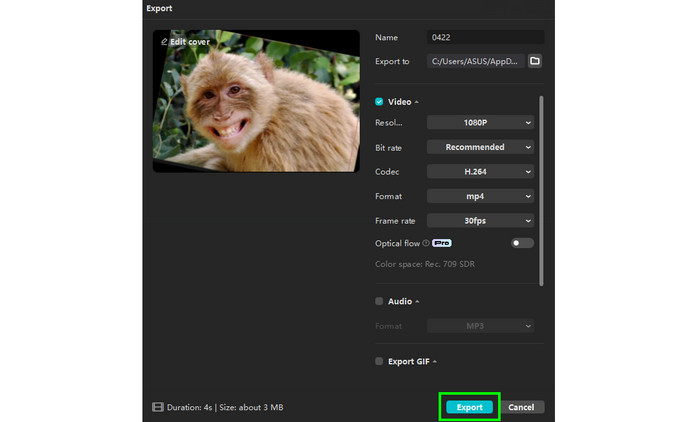
Step 3 Once done, click the Export button above. You can choose your preferred video quality, format, bitrate, and more. Lastly, hit the Export function to save the video completely.
Part 2. How to Rotate Video Using CapCut Online
You can also access the CapCut platform on your browser. With its online version, you can rotate the video without installing the editor. Plus, the tool ensures that you can save the video with the best quality and without any disturbing watermarks. You can also trim the video, add effects, insert a caption, add transitions, and more. You can also save the video as an MP4 and MOV file. The only drawback here is that you must have a stable/fast internet connection, so that the editor can perform well. Thus, always ensure that you have a stable internet when using CapCut's web version.
To learn how to rotate video in CapCut using the online version, you can check/follow the instructions below.
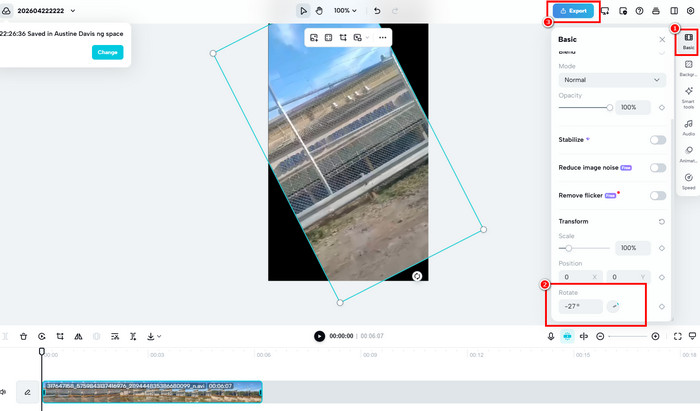
Step 1 Go to your browser and access the online version of CapCut. Then, you can create your account or connect your Gmail.
Step 2 Once done, click the Create Project > Upload button to start uploading the video you want to edit. After that, insert the video in the Timeline section.
Step 3 From the right interface, click the Basic option, and you will see the Rotate feature. You can manually rotate the video or use the Rotation Wheel function.
Step 4 Finally, click the Export > Download buttons to start saving the video on your computer.
Part 3. Rotate Video Using CapCut on Android and iOS
If you want to rotate video on your iOS or Android, you can also use CapCut. With its mobile version, rotating the video is a possible task. What makes it more advantageous is that you can edit your videos anywhere and anytime since the mobile version is easy to carry compared with the desktop version. Plus, it can also offer more editing functions, ensuring that you can enhance the overall video after the editing process.
Use the steps below and learn how to rotate video on CapCut mobile.
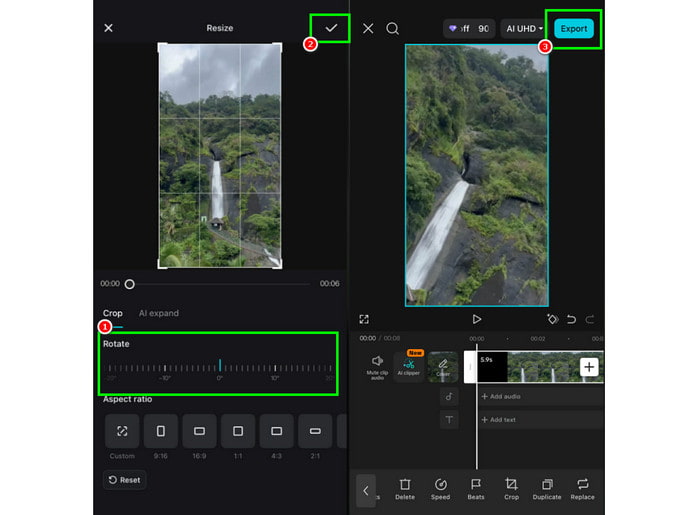
Step 1 On your mobile, download and install CapCut. Then, launch and click the New Project button to add the video.
Step 2 Then, go to the bottom interface and press the Crop feature. You can now rotate the video by using the slider from the Rotate feature. Once done, tap the Check symbol above.
Step 3 Press the Export button to start saving the edited video on your device.
Part 4. Best Alternative to CapCut for Rotating Video
Are you looking for the best replacement for CapCut to rotate the video? In that case, we suggest using Tipard Video Converter Ultimate. This program can offer its Video Rotator feature, allowing you to rotate and flip the video based on your needs. The best part here is that it can support the batch rotation feature. With that, you can deal with multiple videos at once.
What's more, you can also convert the vertical video to horizontal and vice versa, making the software reliable and powerful. You can also access more features, such as cropper, effects, filters, merger, compressor, and more. Thus, if you want the best alternative to CapCut, using Tipard Video Converter is the right choice.
Step 1 Download and launch Tipard Video Converter Ultimate to begin the video-rotation process.
Step 2 From the interface, go to the More Tools section and choose the Video Rotator. Then, click Plus to add the video.
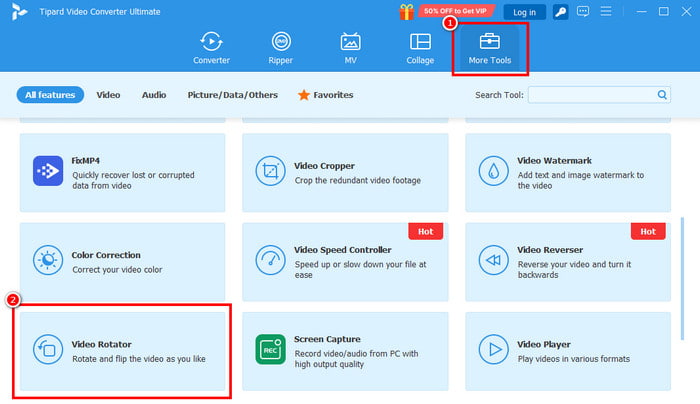
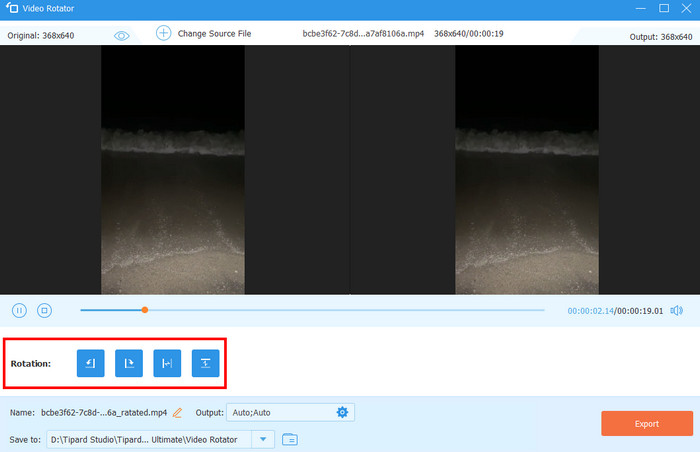
Step 3 You can start rotating the video by navigating the Rotation feature. You can even flip the video if you want to.
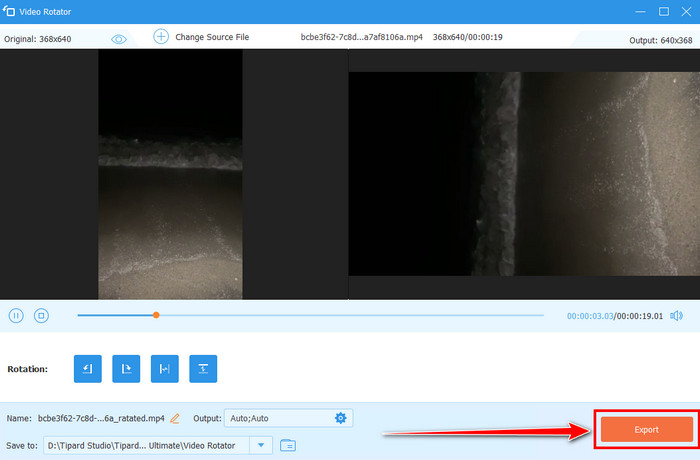
Step 4 For the last process, tap the Export button from the bottom interface.
Part 5. FAQs about Rotating Video on CapCut
How do I change a horizontal video to vertical in CapCut?
You can change the horizontal video to vertical in CapCut using the resize feature. With this feature, you can change the video's aspect ratio and turn it into a vertical video, like 9:16, which is the standard for some social media platforms.
How to rotate 360 degrees in CapCut?
After you add the video to CapCut's Timeline, you can proceed to the Animation > Combo > Spin section. You can also use the keyframes to rotate the video. With that, you can adjust the duration and speed to achieve a full 360-degree rotation effect.
What does Ctrl+B do in CapCut?
Ctrl + B is a shortcut for splitting your video. With this function, you can split and separate the media file based on your desired output. Thus, to easily split the video without using the function from the interface, using this shortcut key is the best way.
Conclusion
If you want to learn how to use CapCut to rotate a video, you can use all the methods we have provided in this section. With that, you can rotate the video using your desktop, browser, and phone. Also, if you want the best alternative to CapCut, it would be best to access Tipard Video Converter Ultimate. With its Video Rotator feature, you can rotate the video easily and instantly. You can even save the video to any format with the best quality for up to 4K, making it a remarkable program for users.

All-in-one video toolbox: convert, edit, upscale, enhance, and compress your videos easily
100% Clean & Safe
100% Clean & Safe

More Reading


About the Author


 Tipard Video Converter Ultimate