

Media.io Video Enhancer is an excellent tool you can utilize to improve/enhance the quality of your videos. With its AI-powered technology, you can sharpen your video, reduce the noise, and refine the details. So, do you want to learn more about the tool? Luckily, this review will offer all the information you need. You will get the tool's definition, features, pros, cons, performance, and more. You will also discover the best alternative to the tool for better video enhancement. Thus, read here and learn more about Media.io Video Enhancer.
Part 1. What is Media.io Video Enhancer
Media.io Video Enhancer is an AI-powered online tool that improves video quality by upscaling clips to 4K, removing noise, sharpening details, and correcting colors. The tool works entirely in the browser, so there is no need for installation, making it more accessible to all users. With just a few procedures, you can fix any video issues. You can restore old videos, pixelated or blurry footage, into clear, high-quality, output-ready footage for platforms like Facebook, YouTube, Instagram, TikTok, and more.
So, if you need an exceptional online-based video enhancer that can help you create a better version of your videos, consider using Media.io Video Enhancer.
Part 2. Key Features of Media.io Video Enhancer
Want to explore more about Media.io AI Enhancer? In that case, read everything in this section as we offer the tool's key features.
Enhance Video to 4K
The core feature of the tool is to upscale/enhance your video up to 4K. It lets you transform your low-resolution videos to your desired quality. Plus, since AI powers it, it ensures you get an accurate result, leading to better video playback.
Video Denoiser
Another feature you can access when using the tool is its video denoiser. This tool is suitable if you want to denoise video instantly to get clearer footage. The best part is that the tool can even handle blurry clips. It can remove compression artifacts, grain, and motion blur.
Anime and Portrait Enhancer
For portrait and anime videos, the tool can enhance the facial details, color saturation, and line clarity. It can also reduce the blur caused by camera shake. So, to deal with portrait and anime videos, using this feature is ideal.
Smart Color Correction
Media.io AI Enhancer can also let you correct the video color. You can change/adjust the brightness, contrast, and color balance to restore vibrancy in full or fade clips. Plus, it can recover lost shadow details in dark scenes while handling overexposed highlights. What we like about this feature is that it ensures the output looks natural and is perfect for various purposes.
Part 3. Media.io Video Enhancer: Performance Test
To ensure this review is legitimate, we tested the tool's ability to enhance videos. Check the information and images below to see how the tool can improve your videos. We will also teach you how to use the tool to enhance your videos.
Enhancing Videos

As you can see in this photo, the tool can handle blurry, pixelated, and grainy videos.
Performance Test:
- The feature texture becomes more defined and sharper.
- The color saturation has improved.
- The background from the video is cleaner.
Old Videos Restoration
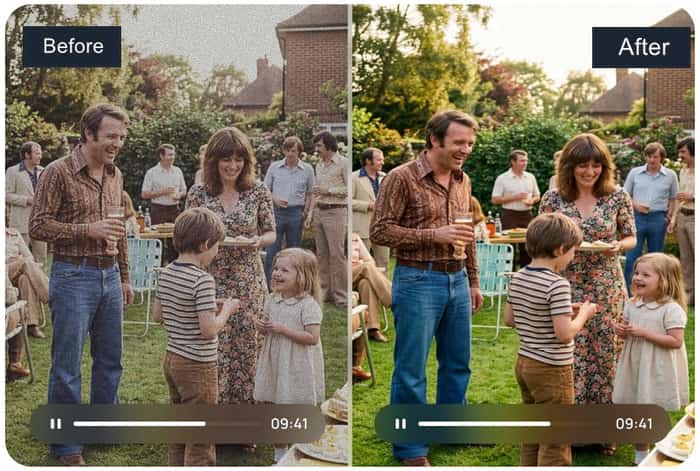
When it comes to restoring videos, we can tell the tool does its job perfectly. It can make your old videos captured with outdated cameras look new and good, bringing the footage to life.
Performance Test:
- The noise in the video was reduced, making it easier to watch.
- The overall brightness from the clip is improved.
- The facial details become clearer.
Now, if you are interested in learning how to enhance your videos, see the steps below and learn how to make your videos better using Media.io Video Enhancer.
Step 1Go to your browser and access the main website of Media.io Video Enhancer.
Step 2From the interface, click the Drag Files Here or Click to Upload option to start uploading the video you want to enhance.
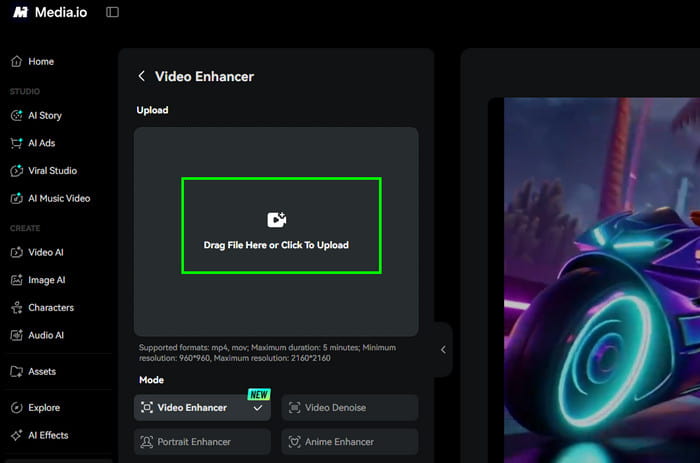
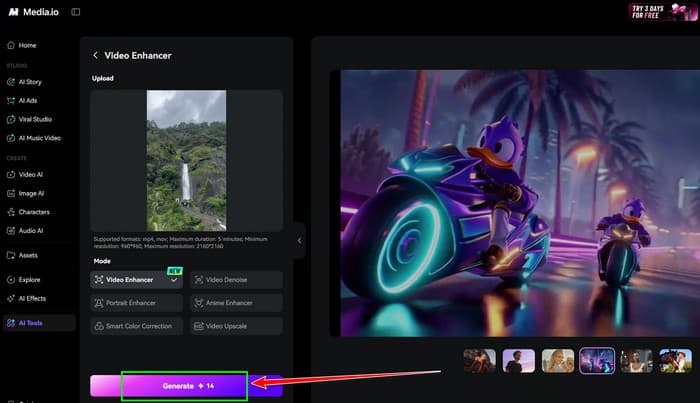
Step 3To start the video enhancement process, click the Generate button below. After the process completes, start downloading the enhanced video to your device.
Part 4. Detailed Review of Media.io Video Enhancer
To learn more about the tool, especially its pros, cons, pricing, and other details, see this section right away!
Good Thing about Media.io Video Enhancer
- The video enhancer can offer a comprehensive user interface.
- There are no ads during the enhancement process.
- The video enhancer is accessible to all web platforms.
Drawbacks of Media.io Video Enhancer
- The free version of the video enhancer has various limitations.
- The speed of the enhancement depends on the internet connection.
- There is a watermark on the free version.
Is Media.io AI Video Enhancer Free?
Well, the tool only offers a free version with many limitations. To enjoy its full features, you must subscribe to its plan. The price starts at $17.99. With that, you can start enhancing videos and use all the features without any limitations.
Users' Review and Feedback
The video enhancer is simple to use, thanks to its understandable layout. It also has an impressive AI upscaling, making it one of the best tools for enhancing videos. However, a watermark appears on the video when using the free version. It also requires/needs a stable internet connection for smoother performance.
Part 5. Best Alternative to Media.io Video Enhancer
Media.io AI Video Enhancer is an ideal tool for enhancing videos. However, with its free version, you might encounter various limitations. It also needs an internet connection (Wi-Fi) to perform well. So, if you need the best alternative to the tool that helps you enhance videos without issues, we suggest using Tipard Video Converter Ultimate. This program offers the Video Enhancer feature, allowing you to enhance videos faster and more reliably. It is also powered by AI, ensuring that you can get an accurate result. The best part here is that it supports auto upscaling, video shaking, noise removal, and color correction. It can even support various video formats and types. Making it more ideal for all uses.
To enhance videos with this video enhancer, follow the steps below.
Step 1 Download and install Tipard Video Converter Ultimate on your desktop. After that, launch it to begin the video enhancement process.
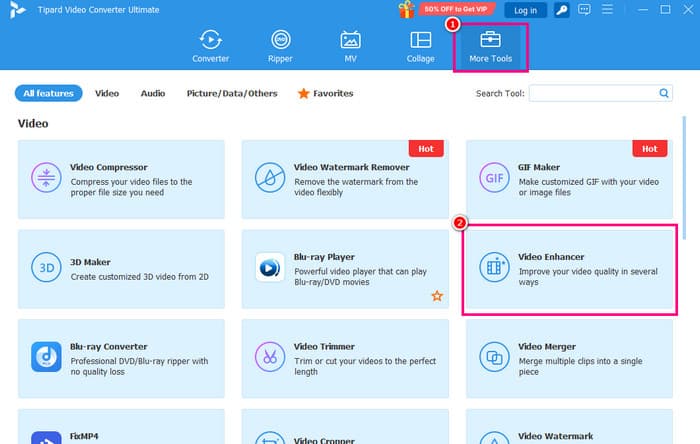
Step 2 Navigate to the More Tools section and click the Video Enhancer feature. Then, start adding the video from your device.
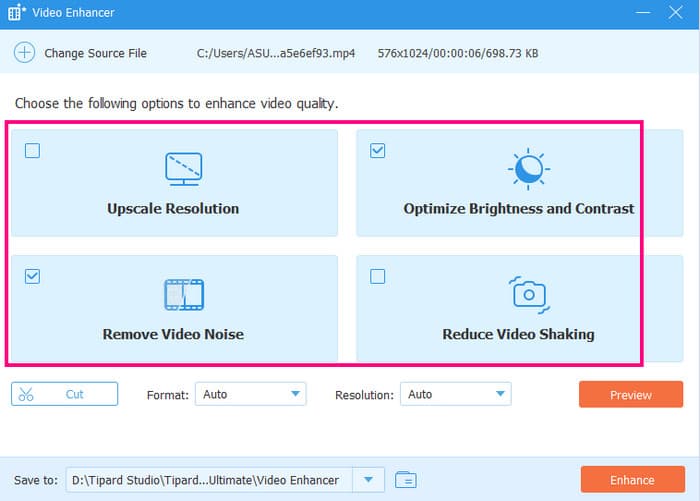
Step 3 Start enhancing the video by clicking the check box. This lets you optimize the video's brightness and contrast, remove noise and shaking, and upscale the resolution.
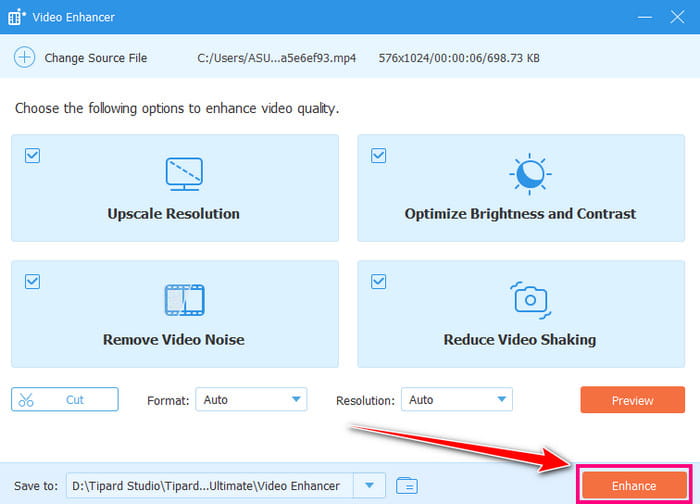
Step 4 Finally, click the Enhance button below to begin enhancing your videos. Once done, you can enjoy the content.
Conclusion
In this detailed Media.io Video Enhancer review, you have learned its definition, key features, pros, cons, and pricing. You even learned how to use it to enhance your videos online. However, since the tool's free version has many restrictions, you might need a better alternative. In that case, we suggest using Tipard Video Converter Ultimate. With its Video Enhancer feature, you can enhance your videos by reducing shake and noise, improving color, and upscaling resolution, making it the best video enhancer on Windows and Mac.

All-in-one video toolbox: convert, edit, upscale, enhance, and compress your videos easily
100% Clean & Safe
100% Clean & Safe

More Reading


About the Author

 Click here to join the discussion and share your comments
 Tipard Video Converter Ultimate