

Making a slideshow on an iPhone is a simple skill that lets you turn your favorite photos into engaging visual stories. Using built-in tools like Photos and iMovie, you can quickly create slideshows with music, smooth transitions, and visual effects. These features make it easy to personalize and enhance your memories in just a few steps. This guide also includes a desktop option for more advanced editing and higher-quality output, giving you more control over design, format, and resolution for polished, shareable slideshow videos suitable for any occasion or purpose.

Part 1. How to Make a Slideshow in iPhone in Photos
You can quickly create a slideshow from your pictures with the Photos app. It is an efficient app for viewing and sharing your memories.
Step 1 Open the Photos App
Open the app on your iPhone and select what photos you want to view from the library or a specific album.
Step 2 Select Your Photos or Album
Create your selection by either tapping Select to choose photos from the library or by opening an existing album.
Step 3 Start the Slideshow
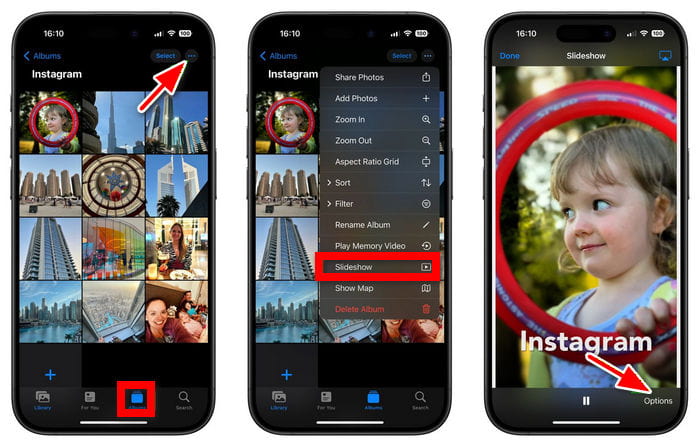
Your slideshow begins by tapping the Options menu (three dots or More button) and selecting Slideshow.
Step 4 Adjust Slideshow Settings
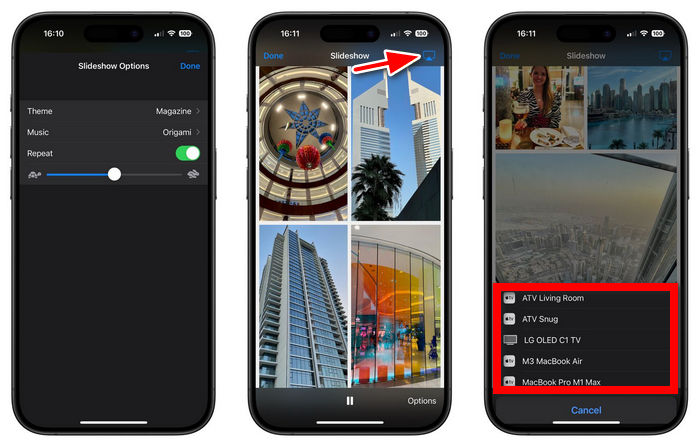
While the slideshow is playing, change options by tapping the screen. You can also choose the theme, speed, and background music.
Step 5 Use AirPlay for a Larger Display (Optional)
To present your slideshow on a TV or Apple monitor, select the screen you want from the AirPlay options.
Step 6 End the Slideshow
To quit slideshow mode, press Done after tapping the screen.
Part 2. How to Make a Slideshow in iPhone with iMovie
iMovie offers you more control by enabling you to personalize your slideshow with various elements like transitions, music, text, and even iMovie crop video tools for adjusting framing and focus.
Step 1 Open iMovie
If you do not already have it, download iMovie from the App Store. Then open the app.
Step 2 Create a New Project
Tap Create Project and select Movie to create your slideshow manually.
Step 3 Import Your Photos
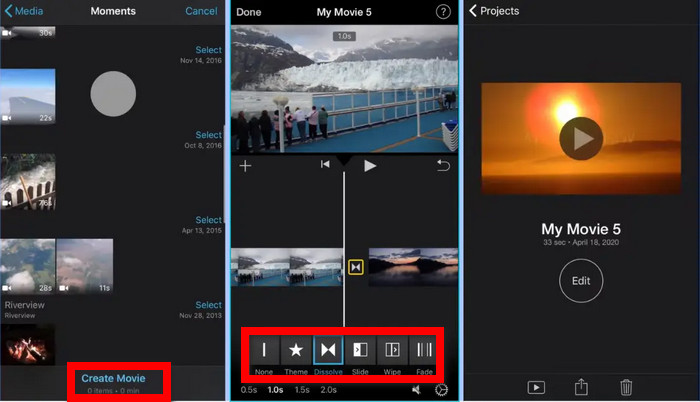
From your library, tap the photos to select. Then select Create Movie to bring your photos onto the trailer timeline.
Step 4 Arrange Your Photos
Set the order of your photos in the timeline by dragging and dropping them.
Step 5 Adjust Timing and Transitions
Tap on the image to set the length of time the image is to be displayed. Also, indicate the transition selected.
Step 6 Add Background Music
Advance your slideshow by adding songs from the music library of iMovie or from your own music library.
Step 7 Add text or Effects (Optional)
To further advance your slideshow, you may add effects, text, and music captions.
Step 8 Save and Export Your Slideshow
When you are done, tap Done and then export it to your photos or share it on social media and other apps.
Part 3. How to Make a Slideshow for iPhone on Desktop
Making a slideshow on a computer offers a high-quality output with more editing options. Tipard Video Converter Ultimate is a great example of a multifunctional slideshow maker with video editing and conversion features.
This is especially helpful if you want a more polished slideshow with higher resolution, better transitions, and iPhone-compatible formats.

- Smooth handling of high-resolution videos with faster editing and export.
- Turn photos and videos into slideshows using ready-made styles.
- Combine images and clips in one project for better storytelling.
- Exports in Apple-compatible formats for easy playback on iPhone.
- Includes trim, crop, filters, subtitles, and basic video effects.

Step 1 Download and Install the Software
To start with, go to the official website of Tipard Video Converter Ultimate. Then, download and install it on your PC, and launch the program once setup is complete.
Step 2 Open the MV Feature
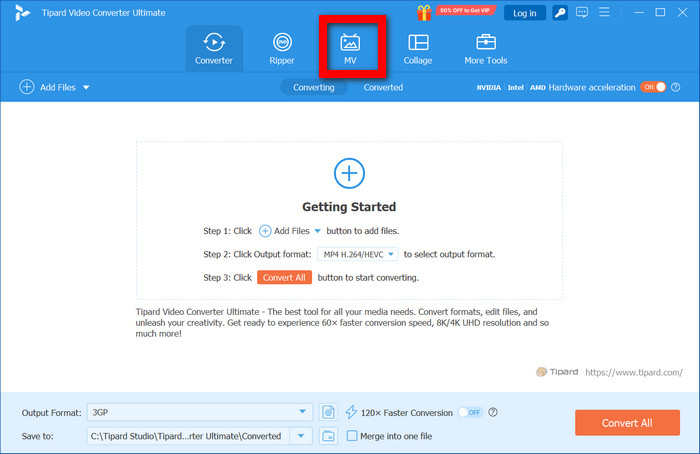
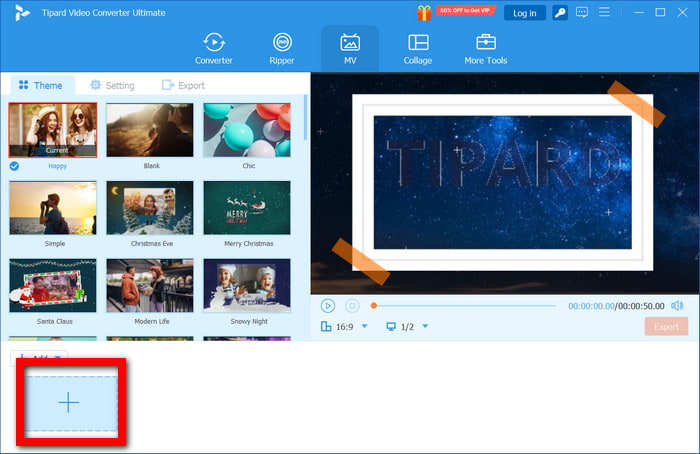
Next, select the MV tab from the main interface. This feature is mainly designed for creating slideshows and music videos.
Step 3 Import Your Media Files
After that, click the Add (+) button to upload your images and videos. Then, arrange them in your preferred order and adjust the duration of each clip for smoother playback.
Step 4 Apply a Template and Customize
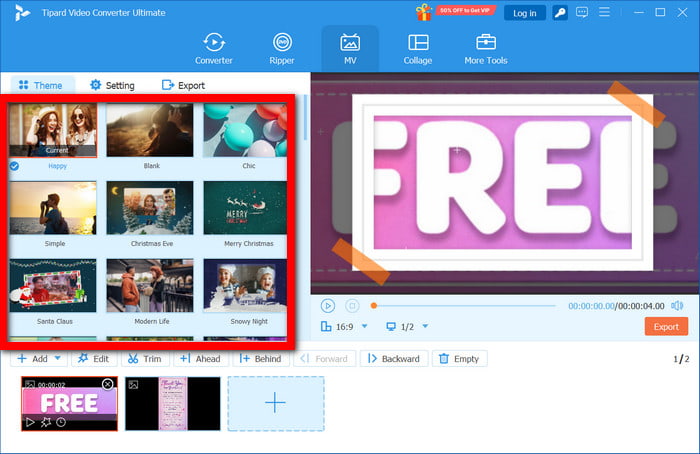
Then, choose a template and apply it to your project. You can also modify transitions, add text, and insert your own background music for a more personalized slideshow.
Step 5 Edit and Enhance the Slideshow
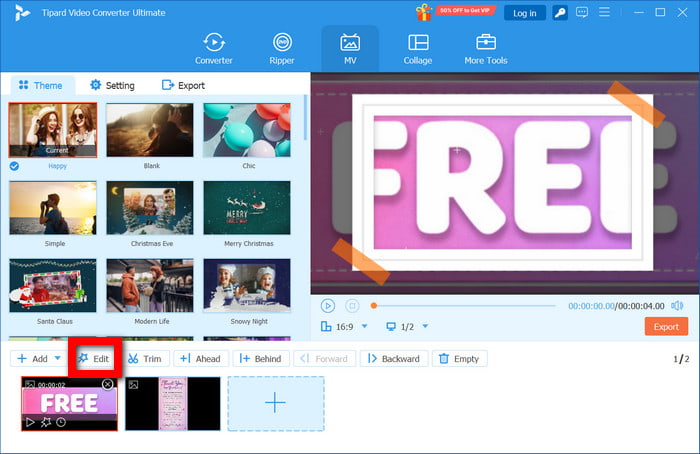
Next, use the built-in editing tools to improve your slideshow. You can adjust brightness, apply filters, and add effects to enhance the overall visual quality.
Step 6 Export the Slideshow
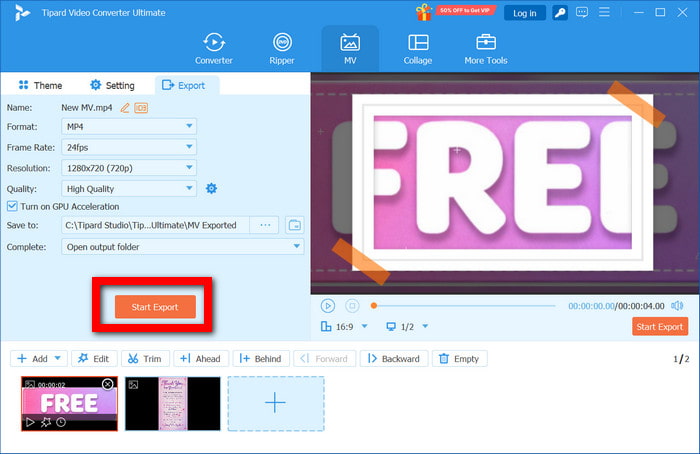
After finishing the edits, go to the Export tab. Then, select your preferred format (such as MP4) and resolution, and click Start Export to save your video.
Part 4: FAQs of Making a Slideshow on iPhone
Can you customize slideshows on the Photos app?
In the Photos app, you can change the slideshow theme, adjust how fast the slideshow plays, and change the background music, but you do not have any options for adding more specific features. If you want complete slideshow presentation control, in-depth transitions, show specific slides for a designated time, and improve video quality, you can use iMovie to create a more complete and polished slideshow presentation.
What are the options for sharing a slideshow from an iPhone?
The most convenient option is displaying your slideshow via AirPlay so that you can present it on a larger TV or any other compatible display. If you want to present your slideshow through social media and other messaging applications, consider sharing it as a video. For that purpose, you can use iMovie to export the slideshow videos since they are being played.
Can iPhone slideshows be better with improved features?
Definitely, if you want improved iPhone slideshows, you are required to use high-quality images and better export characteristics. iMovie and desktop tools, like Tipard Video Converter Ultimate, are other options that look for improved transitions and formatting. All these options look for improved features, which are most evident in playback, clarity, and quality, compared to all other options.
Conclusion
Create a slideshow on iPhone easily using built-in tools like Photos and iMovie for quick viewing or more detailed editing options. Whether you want to display simple memories or create a polished presentation, these methods can handle different needs. For higher-quality and more advanced results, desktop tools like Tipard Video Converter Ultimate provide extra flexibility and features. Overall, making slideshows on iPhone is fast, creative, and convenient, making it perfect for sharing memorable moments anytime and anywhere.
More Reading




About the Author


 Tipard Video Converter Ultimate