

There are a few video compression standards and codecs. Choosing the right codec can improve video quality. However, video codecs and video compression standards sound complicated to ordinary people, not to mention the conversion between them. This tutorial explains the proven ways to convert H.264 to H.265 on Windows, macOS, and Linux. While storage is getting cheaper, uncompressed videos still take up a lot of space. That is why you should find our guide helpful.

Key Takeaways
| Tipard Video Converter Ultimate | HandBrake | FFmpeg | |
|---|---|---|---|
| Pros | • Easy to use • Convert H.264 to H.265 without loss • Process multiple videos in batch • Edit videos before converting • Apply hardware acceleration |
• Free • Convert H.264 to H.265 quickly • Work on Windows, macOS, and Linux • Available in multiple languages |
• Free • Encode H.264 to H.265 with commands • Work on Windows, macOS, and Linux • Offer custom options |
| Cons | Take a while to handle multiple large videos | Difficult to configurate | Steep learning curve |
Part 1. Why Convert H.264 to H.265
While both H.264 and H.265 are video compression standards, the former is older and has been replaced by the newer, more robust H.265. To help you understand which codec to choose, let’s look at them in detail.
| H.264 | H.265 | |
|---|---|---|
| Stand for | AVC, Advanced Video Coding | HEVC, High Efficiency Video Coding |
| First released | 2004 | 2013 |
| Latest version | 2021 | 2021 |
| Resolution | Up to 8K, but not for above 4K at 60 fps | Up to 8K(8192 x 4320) |
| Purpose | Get decent video quality and fize size while having wider compatibility. | Provide good video quality at substantially lower bitrates than H.264 |
| Bitrate reduction | Half or less than H.263 | 25-50% better data compression than H.264 |
| Show MoreShow Less | ||
Part 2. Convert H.264 to H.265 with Tipard Video Converter Ultimate
If you have several H.264 video files for converting, Tipard Video Converter Ultimate is a good option. It can encode from H.264 to H.265 without quality loss in one click. More importantly, the straightforward design makes it easy for beginners to learn.

- Decode H.264 and encode H.265 quickly.
- Batch-process multiple H.264 videos using multithreading.
- Preview the results with the built-in video player for all formats.
- Support a wide range of output formats.
- Work on Windows 11/10/8/7 and macOS 10.12 or above.

How to Convert H.264 to H.265 Without Quality Loss
Step 1Import H.264 videos
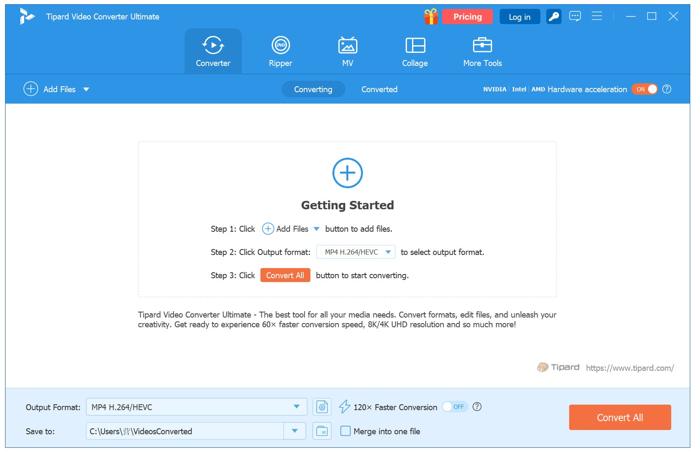
Launch the AVC-to-HEVC converter software once you have installed it on your computer. Click the Add Files menu, navigate to the folder, and add the video files.
Step 2Set the video codec
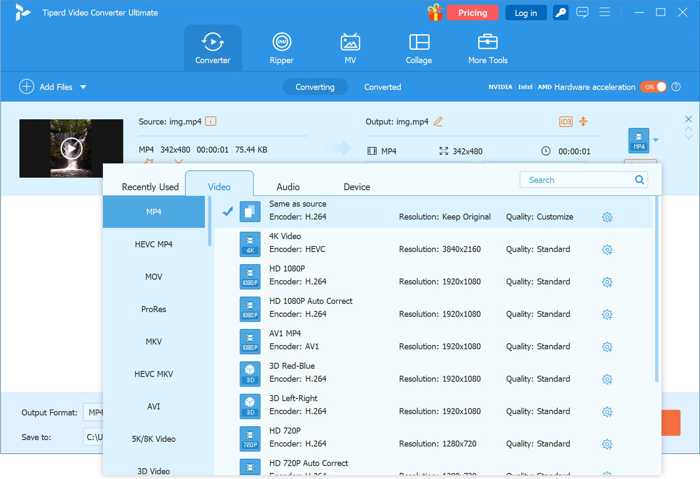
After videos load, click the Output Format option at the bottom. Go to the Video tab on the format dialog, choose HEVC MP4, and pick a preset. If you want to play the videos on your phone, go to the Device tab and pick your phone model.
Step 3Convert H.264 to H.265
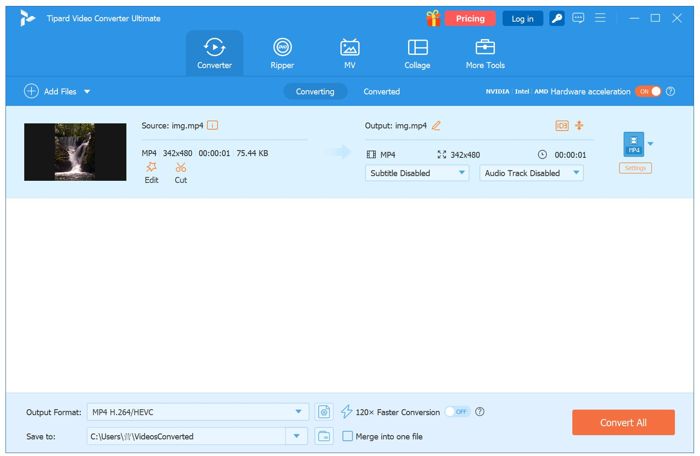
Click the Save to button and set an output folder. Finally, click on the Convert All button to begin converting AVC to HEVC immediately.
Part 3. Convert H.264 to H.265 with HandBrake
Encoding H.264 to H.265 with HandBrake is a transformative process for efficient storage and preserving quality. While it is an open-source converter, it can maintain impressive visual quality and reduce file size.
Step 1Open HandBrake on your desktop. You can install it for free.
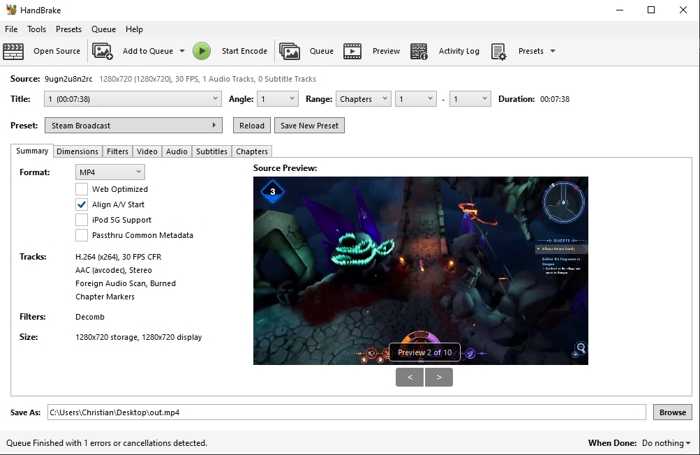
Step 2 Click the Open Source menu and import the video file you want to encode.
Step 3Then, go to the Summary tab and choose a format from Format.
Step 4Switch to the Video tab.
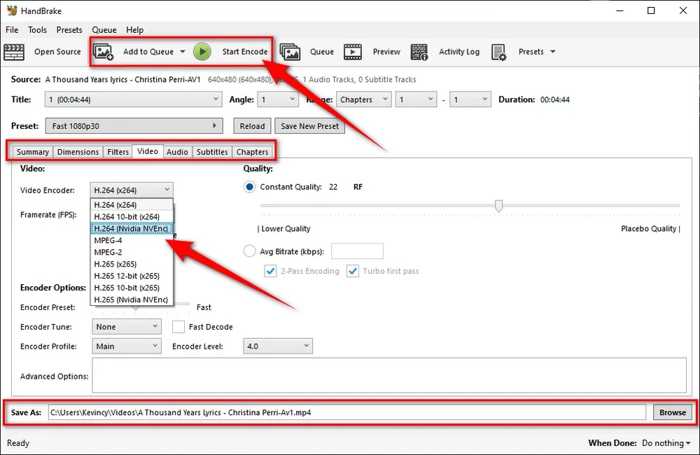
Step 5Pull down the Video Encoder option and choose H.265.
Step 6Click the Browse button and select an output folder.
Step 7Press the Start Encode button to convert H.264 to H.265.
Part 4. Convert H.264 to H.265 Using FFmpeg
Another free way to convert H.264 to HEVC is FFmpeg. As an open-source video converter, you can use it to encode H.265 and shrink video file size without paying a penny. Bear in mind that it works via the command line.
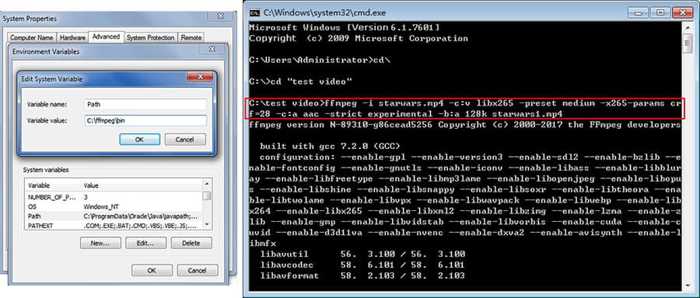
Step 1Download FFmpeg on your computer.
Step 2Unzip the downloaded file.
Step 3Right-click on This Computer on your desktop and choose Properties.
Step 4Choose Advanced system settings and click Environment Variables.
Step 5Click New, enter the FFmpeg folder path, and then confirm.
Step 6Click the Start menu, search for Command Prompt, and choose Run as administrator.
Step 7 Input ffmpeg -i input.mp4 -c:v libx265 -vtag hvc1 output.mp4 and press the Enter key on your keyboard.
Replace input.mp4 with the H.264 video filename and output.mp4 with the H.265 filename.
Part 5. Best Settings for H.264 to H.265 Conversion
When converting AVC to HEVC, the best settings can vary depending on your content and desired output quality. Here are the recommended settings to consider:
- Bitrate: For 1080p, a bit-rate of 8-12 is recommended.
- Frame Rate: Between 30 and 60.
- Resolution: 1080p, 4K, or 8K.
- Codec: H.265 or HEVC.
Part 6. FAQs of Converting H.264 to H.265
Does converting H.264 to H.265 reduce quality?
No, encoding H.264 to H.265 doesn’t reduce video quality. They deliver the same quality, but H.265 can be achieved with a smaller file size due to a lower bitrate.
How long does the H.264 to H.265 conversion take?
The time from H.264 to H.265 can vary significantly depending on several factors, including output quality, video file size, your converter tool, and your hardware.
Is H.264 10-bit the same as H.265 10-bit?
No. H.264 10-bit uses 10 bits per channel, providing 1024 levels per channel and 30 bits per pixel. H.265 10-bit is a variant that uses a higher bit depth per channel. In short, H.264 10-bit is a variant of H.264, but H.265 10-bit is a variant of H.265.
Conclusion
Now, you should understand H.264 and H.265, as well as how to convert H.264 to H.265 on Windows, macOS, and Linux. HandBrake is a quick way to transcode your video, but its output formats are limited. FFmpeg lets you complete the process using the command line. Tipard Video Converter Ultimate is the ultimate solution for batch transcoding H.264 to H.265.

All-in-one video toolbox: convert, edit, upscale, enhance, and compress your videos easily
100% Clean & Safe
100% Clean & Safe

More Reading




About the Author

