

Can VLC Media Player support HEVC? Well, VLC is among the popular vidEo and audio playerS that can play any format. However, many users are wondering whether it supports HEVC (H.265). It is a modern codec developed to deliver high-quality video at lower bitrates, making it ideal for 4K and high-resolution playback. If you are interested in finding out whether the media player supports the codec, read this post for all the information you need.

Part 1. Does VLC Media Player Play HEVC?
Can you play HEVC on VLC Media Player? The good thing about the media player is that it can play almost all codecs and formats, including HEVC (H.265). With this free, open-source multimedia player, you can enjoy your videos without any trouble. What's more, you can play other formats, such as MP4, MKV, WMV, AVI, MOV, FLV, M4V, and more. You can even access this program on your Windows, Linux, Mac, and mobile devices.
Part 2. How to Play HEVC Video in VLC
After knowing that VLC can play HEVC, you might be interested in playing it on your media player. What we like here is that playing your file is simple thanks to the program's easy-to-understand user interface. Additionally, you can play the file and access some basic editing tools. You can adjust the video speed, crop the video, trim the clip, add effects, and more. You can even add a subtitle if you want.
To start playing HEVC-encoded media in VLC, follow the instructions below.
Step 1 Install VLC Media Player on your PC. After that, you can start launching it to begin the process.
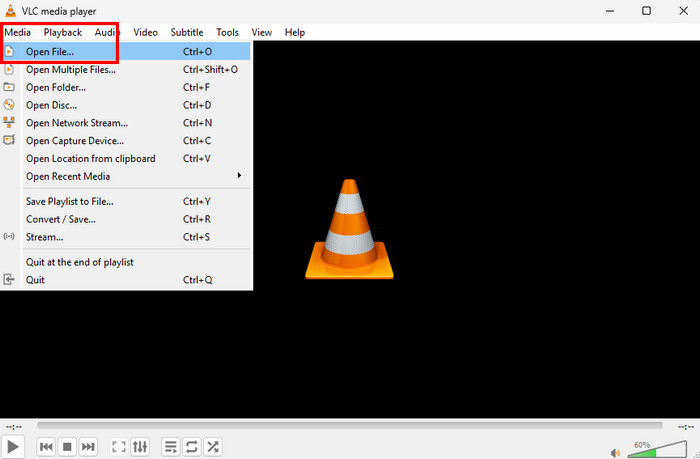
Step 2 From the interface, go to the Media section and hit the Open File option. With that, you can begin browsing the HEVC file that you want to play.
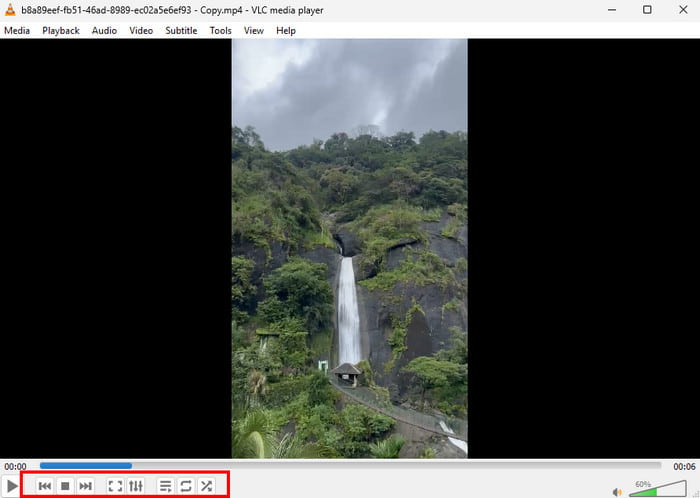
Step 3 You can now enjoy watching your video. You can also use the playback controls below to pause, play, or stop the video.
Part 3. Why Your VLC Doesn't Support H.265
There are times when your VLC Media Player cannot play HEVC codecs. To explore some of the reasons, read everything in this section.
Outdated VLC Version
If you are using an outdated version of VLC Media Player, you can't play HEVC. Always ensure your media player is up to date for better compatibility.
Video Bitrate and Resolution Limits
H.265 or HEVC is designed for high efficiency. But if the file has an extremely high bitrate or higher resolution, older VLC versions or weaker hardware may choke. Plus, decoding HEVC needs significant GPU power.
Part 4. How to Fix It When VLC Cannot Play HEVC
Do you want to play HEVC files in VLC effectively? In that case, you can use all the best solutions provided in this section.
Solution 1. Use Tipard Blu-ray Player
If you can't play HEVC, you can try Tipard Blu-ray Player as an alternative. This media player is ideal since it can play various HEVC files in 4K, 5K, and 8K, as well as high-bitrate files. It can even handle various codecs, including H.264, AV1, ProRes, and more. Additionally, the program's user interface is simple, making it suitable for all users. It can even support full GPU acceleration for decoding, allowing you to play large HEVC videos seamlessly. To play your file, you can follow the steps below.
Step 1 Download Tipard Blu-ray Player on your computer. After that, run it to begin the process.
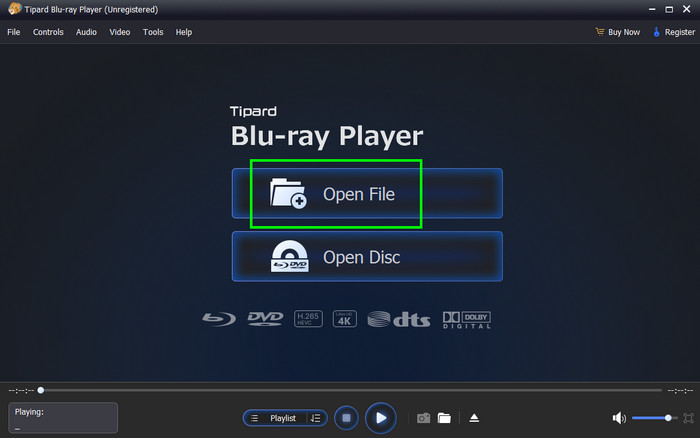
Step 2 From the interface, click the Open File to add the HEVC file you want to play.
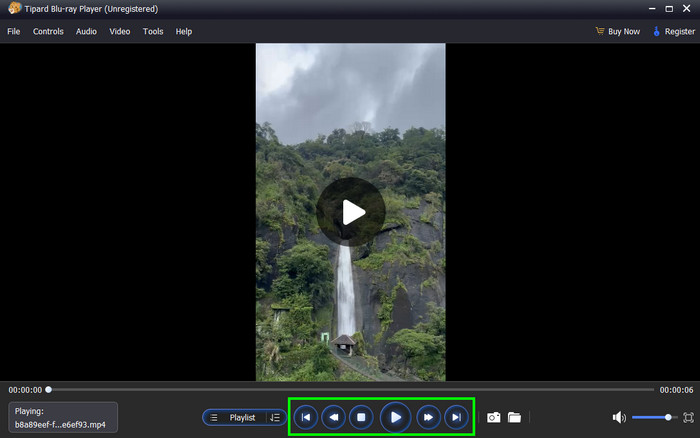
Step 3 After adding the file, you can start watching the video. You can also use the playback controls below to manage your video.
Solution 2. Convert Video to a Compatible Format
Another solution is to convert HEVC to a more compatible format. For converting files, you can use Tipard Video Converter Ultimate. This converter ensures you get a better file that plays on any device, especially in VLC. You can even choose your preferred format, such as MP4, MKV, FLV, AVI, MOV, and more. The best part here is that the software has a fast conversion speed, up to 120× faster compared with other converters. Plus, the program can offer various editing features. You can crop the video, adjust video speed, add effects and filters, and more. You can also choose your desired codec.
To start the conversion process, check the instructions below.
Step 1 First, access Tipard Video Converter Ultimate on your desktop. Then, open it to start the conversion procedure.
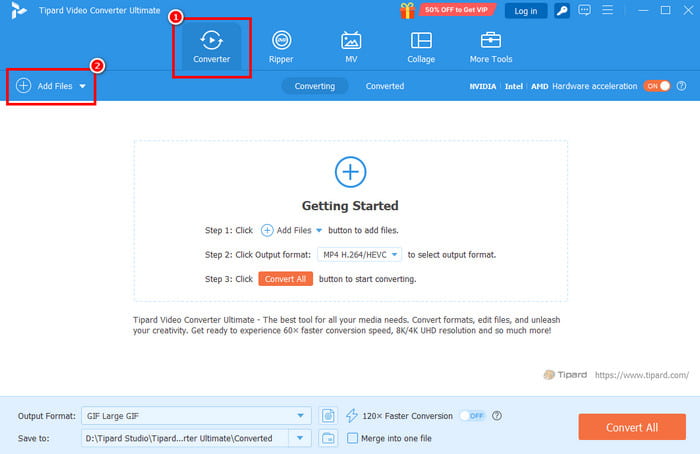
Step 2 Then, go to the Converter > Add Files options to start adding the HEVC file you want to convert.
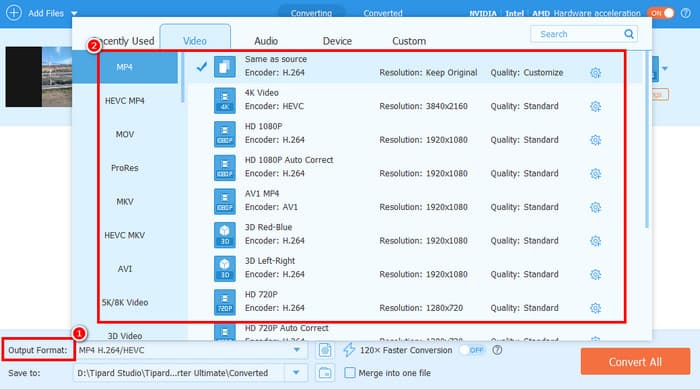
Step 3 You can now start selecting your desired format and codec from the Output Format section.
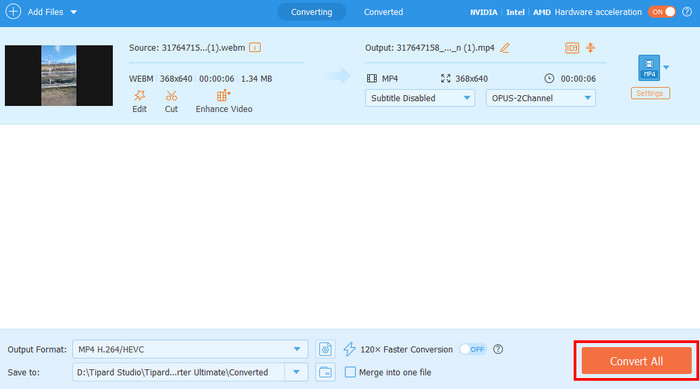
Step 4 Click the Convert All button below to start the conversion.
Solution 3. Update VLC
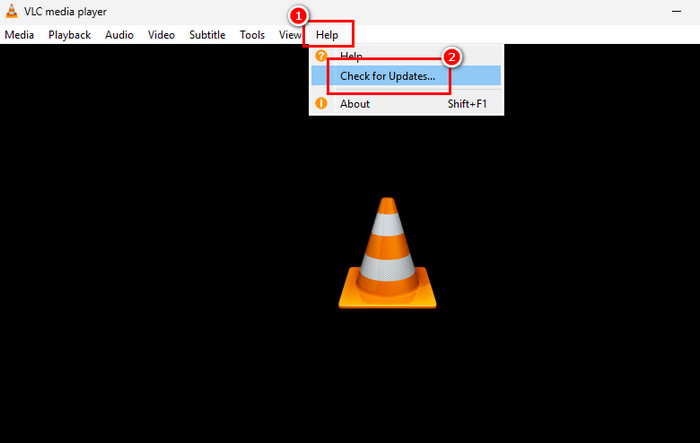
If you are using an outdated VLC version, it is better to update to the latest version. With that, you can deal with HEVC files smoothly. To begin the update process, launch VLC and select Help. Then, tap the Check for Updates option. After the process, you can open your HEVC file.
Solution 4. Check HEVC Plugin
On Windows, resolving HEVC playback issues in VLC often requires verifying system-level hardware acceleration and internal configuration settings. You can begin by using the "Plugin Method." It involves searching the Microsoft Store for HEVC Video Extensions. While a paid version exists, some device manufacturers offer a free version specifically for pre-installed systems.
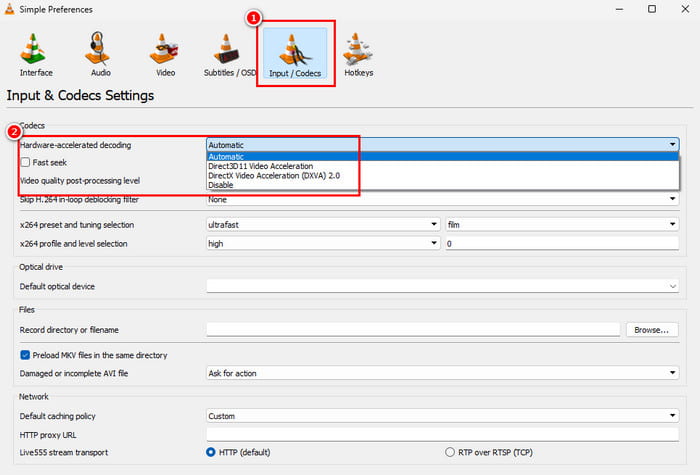
In addition, you should check your VLC internal settings by navigating to Tools > Preferences > Input / Codecs and ensuring that the "Hardware-accelerated decoding" option is set to either Automatic or Direct3D11 Video Acceleration. It is to ensure that the player can properly utilize your hardware for smoother decoding.
With these solutions, you can play HEVC on your media player. You can use a better media player, convert HEVC to a more compatible format or codec, update VLC, or check the plugins. So, try all the methods above and see which ones suit you.
Conclusion
Can you play HEVC on VLC Media Player? After reading this post, you can play HEVC files in VLC. However, you must note that you can only play the codec with the latest version of VLC. You even explored all the solutions for effective video playback. Aside from that, if you want the best alternative to VLC, you can try using Tipard Blu-ray Player. This media player lets you play any format or codec smoothly. Plus, if you want to convert the file to a more compatible format and codec, using Tipard Video Converter Ultimate is the right choice. This converter offers a fast, simple conversion process, making it the most powerful on the market.

Play Blu-rays and multimedia files with the best video and audio quality
100% Clean & Safe
100% Clean & Safe

More Reading




About the Author


 Tipard Blu-ray Player