

- Part 1. Comparison of the 5 FLV to MP4 Converters
- Part 2. Why You Need to Convert FLV to MP4
- Part 3. How to Format FLV to MP4 in Batch Quickly
- Part 4. How to Convert FLV to MP4 with VLC
- Part 5. How to Convert FLV to MP4 with HandBrake
- Part 6. How to Convert FLV to MP4 with FFmpeg
- Part 7. How to Convert FLV to MP4 Online
Key Takeaways
- MP4 is better than FLV. It is because it works on more devices and supports modern video features.
- Tipard Video Converter Ultimate is the best choice for fast batch conversion, high quality, and flexible settings.
- VLC, HandBrake, FFmpeg, and 123APPS offer useful options for simple or specific conversion needs.
FLV was once a common video format for online streaming. It became popular because it helped deliver videos over the internet. However, FLV files now have limits with newer devices and apps. They may not support useful features like subtitles and chapters. This is why many users choose FLV to MP4 conversion to enjoy better compatibility, smoother playback, and easier video management.

- Part 1. Comparison of the 5 FLV to MP4 Converters
- Part 2. Why You Need to Convert FLV to MP4
- Part 3. How to Format FLV to MP4 in Batch Quickly
- Part 4. How to Convert FLV to MP4 with VLC
- Part 5. How to Convert FLV to MP4 with HandBrake
- Part 6. How to Convert FLV to MP4 with FFmpeg
- Part 7. How to Convert FLV to MP4 Online
Part 1. Comparison of the 5 FLV to MP4 Converters
| Factors | Tipard Video Converter Ultimate | VLC | HandBrake | FFmpeg | 123APPS - Online Video Converter |
|---|---|---|---|---|---|
| Ease of Use | Beginner-friendly interface | Simple but basic tools | Easy with some learning | Best for advanced users | Easy browser-based platform |
| Batch Conversion | Supports multiple FLV files at once | Limited batch support | Supports batch encoding | Supports batch through commands | Limited file processing |
| Conversion Speed | Up to 120× faster with hardware acceleration | Standard conversion speed | Good speed with presets | Fast with proper commands | Depends on the internet speed |
| Video Quality | Keeps high quality with custom settings | Good quality with basic options | Good quality output control | Excellent quality control | Good quality with simple settings |
| Best For | Fast, flexible, and easy conversion | Quick occasional conversions | Free quality conversions | Professional users | Simple online conversions |
| Show MoreShow Less | |||||
Part 2. Why You Need to Convert FLV to MP4
FLV was once a popular format for online videos. However, it is now less useful because many modern devices and apps prefer newer formats. Converting FLV to MP4 helps make your videos easier to watch, edit, and share without compatibility issues.
1. Play Videos on More Devices
MP4 works with almost all devices and media players. Unlike FLV, it can play smoothly on computers, smartphones, tablets, smart TVs, and other platforms.
2. Enjoy Better Mobile Support
Watching videos on mobile devices is easier with MP4. It runs well on both iOS and Android devices without needing extra players or apps.
3. Keep More Video Features
MP4 supports useful features like subtitles, chapters, and better metadata. These options help organize videos and improve the viewing experience.
4. Get Better Playback Performance
Many modern devices support hardware decoding for MP4 files. This helps videos load faster and play more smoothly while using fewer system resources.
5. Edit Videos More Easily
Most popular editing programs work better with MP4 files. Tools like Adobe Premiere Pro, Final Cut Pro, and DaVinci Resolve offer better support for MP4 than FLV.
Part 3. How to Format FLV to MP4 in Batch Quickly
Converting a large collection of FLV videos does not have to feel like a long task. Tipard Video Converter Ultimate helps you format multiple FLV files to MP4 in one go with its batch conversion feature.
It uses full hardware acceleration to deliver faster conversion speed while saving time. It also handles different FLV settings and provides many MP4 presets to fit various devices and playback needs.

- 500+ formats, including 4K, 5K, and 8K videos, are supported.
- Apply video effects, crop, merge, add watermarks, and trim.
- Modify the audio, bitrate, codec, resolution, and frame rate.
- Up to 120× faster conversion with Intel, NVIDIA, and AMD acceleration.
- Includes extra tools for enhancement, compression, watermark remover, etc.
Follow the steps below to learn how to convert FLV to MP4 using Tipard Video Converter Ultimate:
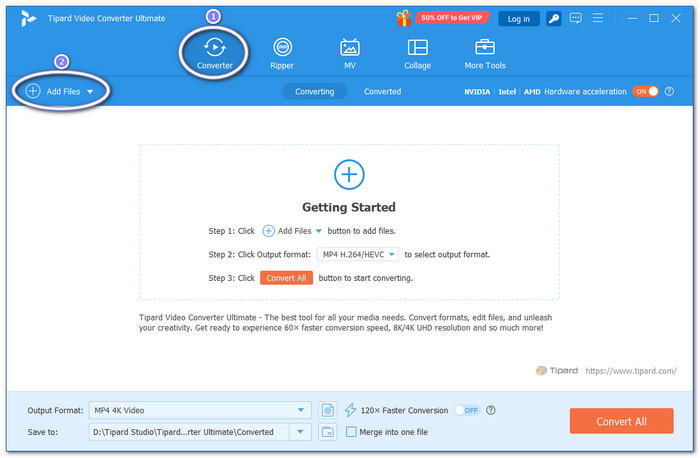
Step 1Get and install Tipard Video Converter Ultimate on your computer. Launch the program and get ready to convert your videos.
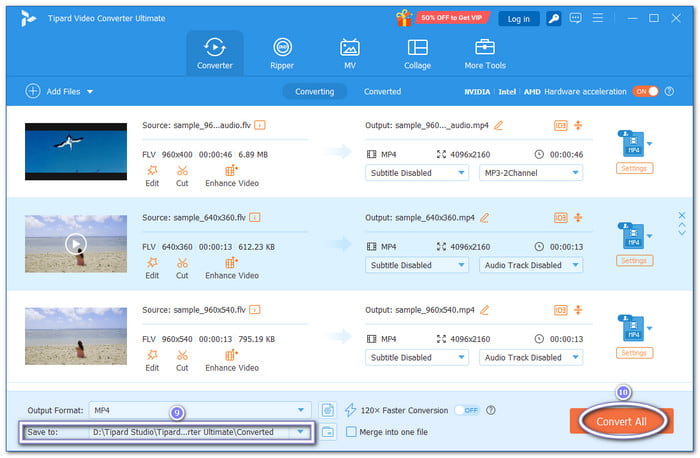
Step 2Click Add Files to import your FLV videos. You can also drag and drop them into the program. You can select several files at once. It will load all your videos and prepare them for batch conversion.
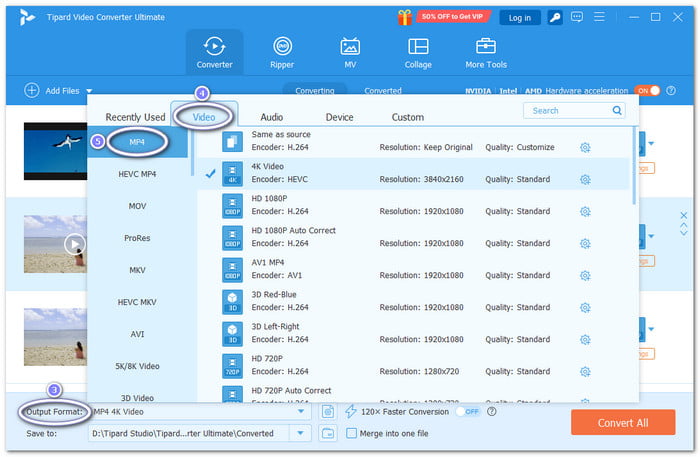
Step 3 Open the Output Format menu. Go to the Video tab and pick MP4. Then, select the MP4 preset that fits your device or the way you want to watch the video.
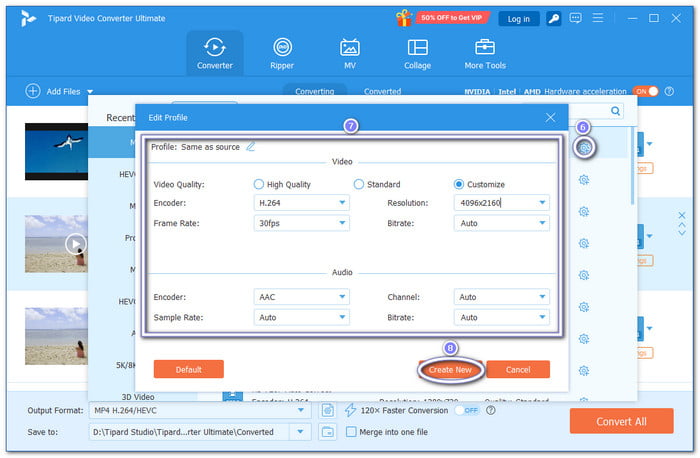
Step 4Want better results? Open the Custom Profile button. You can fine-tune the video encoder, resolution, frame rate, and bitrate. You can also change the sample rate, channel, and audio bitrate to match your needs.
Step 5Select the folder where you want to save the converted videos. Then, click Convert All. Tipard Video Converter Ultimate will convert every FLV file to MP4 in one batch. Good thing, full hardware acceleration helps speed up the process while keeping excellent video quality.
Part 4. How to Convert FLV to MP4 with VLC
VLC also has a built-in video converter. You do not need to install another program to convert FLV format to MP4. You can also use it to trim, rotate, crop, and merge videos. It is free and works on Windows, Mac, and Linux.
Step 1Open VLC Media Player on your computer. Click the Media tab at the top. After that, choose Convert/Save from the menu.
Step 2When the Open Media window appears, click Add and pick the FLV file you want to convert. Once the file is added, click Convert/Save to move to the next screen.
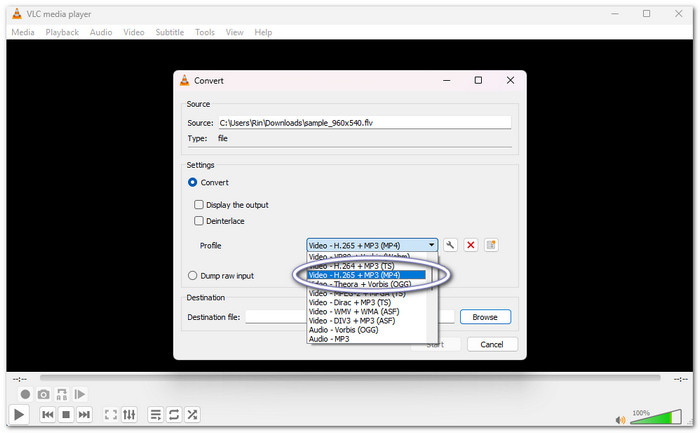
Step 3Go to the Profile section and choose an MP4profile from the list. This tells VLC to save your video in MP4 format.
Step 4Select where you want to save the converted MP4 file. Hit Start and let VLC finish the job.
Part 5. How to Convert FLV to MP4 with HandBrake
Unlike basic video converters, HandBrake gives you more control over your video. It lets you change the output format while keeping good quality. You can also use it to compress videos before converting. Without further ado, please use the steps below to learn how to turn FLV into MP4.
Step 1Install and open HandBrake on your computer. You can click File to import your FLV video. You can also select and drop the file into the main window.
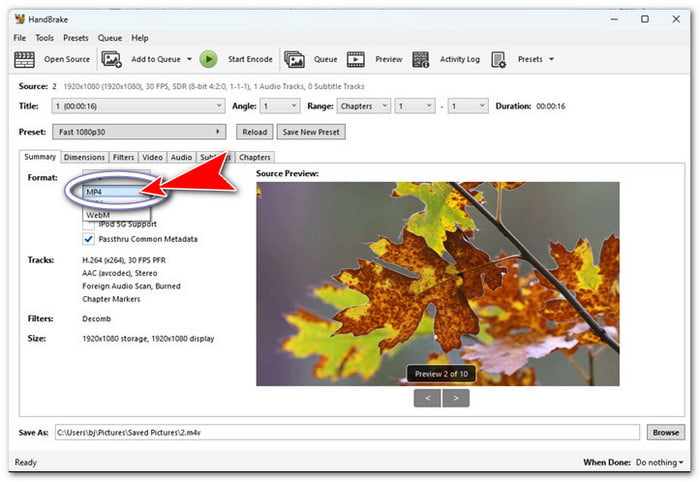
Step 2After the video loads, go to the Summary tab. Under Format, choose MP4. This sets MP4 as the output format for your video.
Step 3You can also open the Video, Audio, or Filters tabs if you want to change more settings. If you are new to HandBrake, you can leave everything at the default values for a quick conversion.
Step 4Hit Browse and choose a folder where you want to save the MP4 file. Then, click Start Encode at the top. Wait until the bar reaches 100%, and your MP4 video will be ready.
Part 6. How to Convert FLV to MP4 with FFmpeg
If you like fast and powerful tools, FFmpeg is worth trying. It runs with commands instead of buttons to transform FLV to MP4. It may look hard at first. Once you learn the basics, it becomes quick and reliable. Many video editors also trust it because it supports many video and audio formats.
Step 1Make sure FFmpeg is already installed on your Windows or Mac computer. Then, run Command Prompt on Windows or Terminal on macOS. Next, go to the folder where your FLV video is stored.
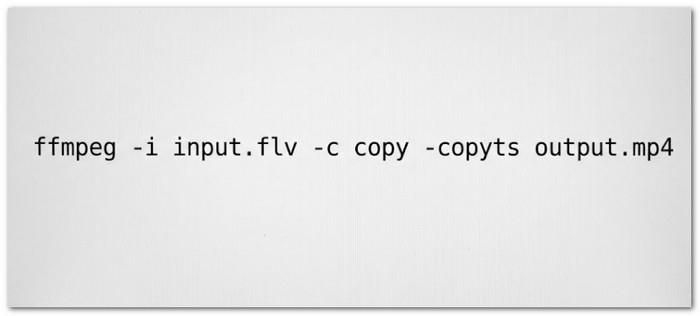
Step 2Type the following command: ffmpeg -i input.flv -c copy -copyts output.mp4
If you are using macOS, start the command with ./ffmpeg if needed.
Step 3Press Enter to run the command. FFmpeg will change the FLV file into an MP4 file by copying the video and audio streams. This helps keep the original quality and makes the process much faster.
Step 4Wait until the command finishes. After that, open the same folder to find your new MP4 file.
Part 7. How to Convert FLV to MP4 Online
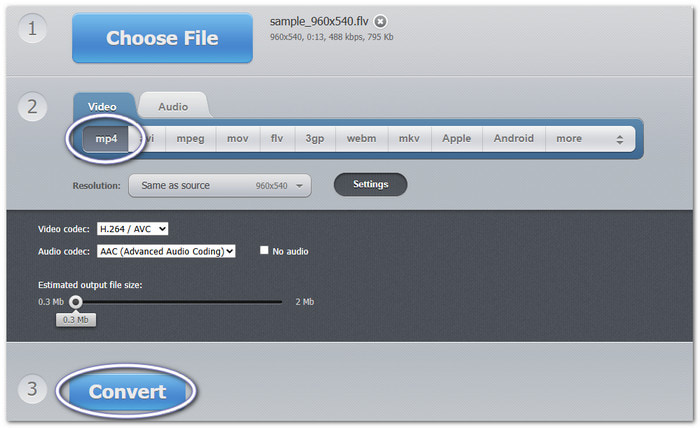
123APPS - Online Video Converter is a good FLV format to MP4 converter choice if you do not want to install a program. It works in your web browser and is easy to use. You can convert FLV to MP4 from almost any device with an internet connection. You can also use it to convert FLV to MKV, AVI, MOV, WebM, etc.
Step 1Open your browser and go to 123APPS - Online Video Converter. Click Choose File and upload the FLV video from your local file.
Step 2 The website will automatically choose MP4 as the output format. This makes the process quick because you do not need to change the format yourself.
Step 3If you want more control, click Settings. You can fine-tune the video codec, audio codec, resolution, or other options. If you are happy with the default settings, you can skip this step.
Step 4Begin the conversion and wait for it to finish. Once it is done, download the MP4 file to your computer. You can also save it straight to Google Drive or Dropbox.
Conclusion
With the FLV to MP4 converter options above, you can turn your FLV videos into a more flexible format. The last thing you need to do is pick a converter that matches your needs. We strongly recommend Tipard Video Converter Ultimate because it offers fast batch conversion, wide format support, and simple editing tools.
All-in-one video toolbox: convert, edit, upscale, enhance, and compress your videos easily
100% Clean & Safe
100% Clean & Safe

More Reading
About the Author


 Tipard Video Converter Ultimate