

Your old, blurry, and low-quality videos can get a fresh upgrade with AI-powered enhancement. But with so many video tools today, is Topaz Video AI the right choice for your needs? We have the answer for you.
This post covers its main features, strengths, drawbacks, troubleshooting guide, etc. There are also alternatives waiting for you to check. Without further ado, please scroll down and see what it can truly do to your videos.
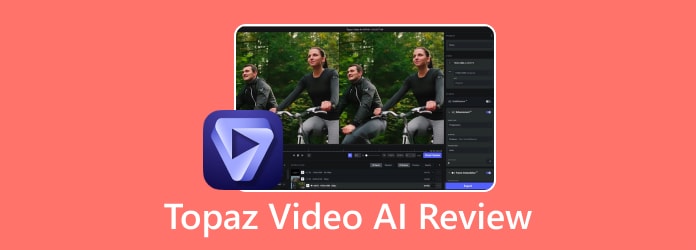
Part 1. Key Specifications & Pricing of Topaz Video AI
Key Specifications:
| Category | Details |
|---|---|
| Software Type | AI-powered video enhancement software. |
| Supported Platforms | Windows and Mac. |
| Main Uses | Upscaling, denoise, restore, sharpen, stabilize, and slow motion. |
| Output Resolution | Supports up to 4K and 8K video enhancement. |
| File Support | Common video formats, PNG image sequences, and TIF/TIFF exports. |
| Rendering Type | Local rendering and cloud rendering. |
| Plugin Support | Adobe After Effects, DaVinci Resolve, and a desktop workflow. |
| Best For | Filmmakers, creators, archivists, and video editors. |
| Show MoreShow Less | |
Topaz Video AI Pricing:
Topaz Labs moved away from lifetime licenses and now uses a subscription model.
| Topaz Video Plan | Topaz Studio Plan |
|---|---|
| • Around $59 per month. • Includes video AI and models. • Unlimited local rendering. • 25 monthly video cloud credits. |
• Around $69 per month. • Includes all Topaz apps. • More cloud credits. • Extra image and video tools. |
Users can also access cloud rendering through credit-based options. It helps users process videos faster without depending only on their own hardware.
Part 2. Main Features of Topaz Video AI
AI Video Upscaling
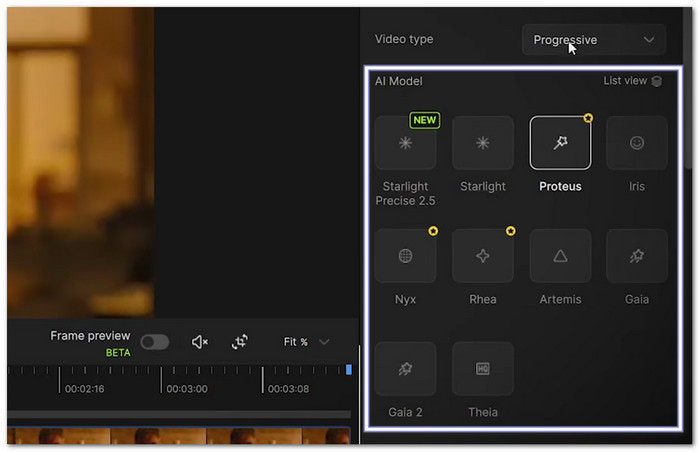
The Topaz Labs Video Upscaler feature can turn low-clarity videos into sharper versions. It can improve old clips, standard videos, and compressed footage.
Popular models include:
1. Iris Model
Best for:
- Face healing
- Videos of poor quality
- Blurry or soft video
It helps restore facial details without making faces look unnatural.
2. Proteus Model
Best for:
- Custom adjustments.
- Sharpening
- Control of noise
- Recovery of details
Advanced users now have more control over the outcome.
3. Gaia Model
Best for:
- Superior quality video
- Natural details
- Frame-by-frame improvement
It helps maintain details across moving scenes.
Video Denoising and Restoration
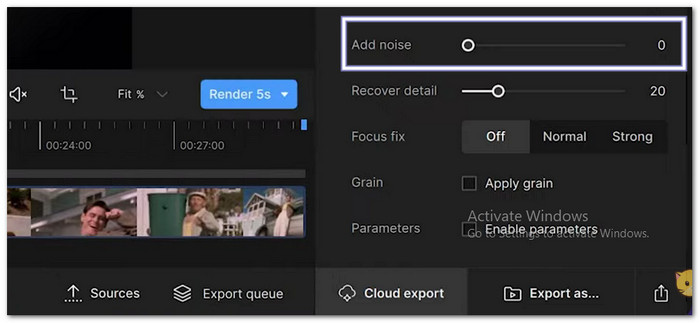
Noise can appear in dark scenes, old recordings, and compressed videos. Topaz Video AI uses AI models to clean these problems.
It can help with:
- Digital noise
- Grain
- Compression blocks
- Old broadcast footage
- VHS recordings
The Nyx and Denoise models are designed for heavy cleanup tasks.
Frame Interpolation
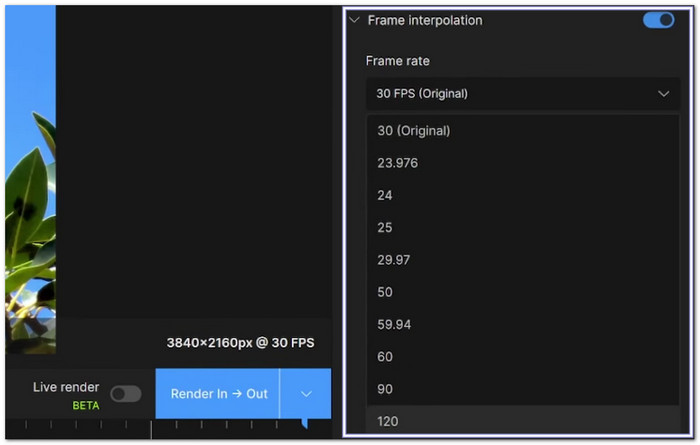
Topaz Video AI Frame Interpolation can create new frames between existing frames. It makes motion look smoother.
It can be used for:
- 30fps to 60fps conversion
- Slow-motion videos
- Smoother camera movement
Models like Chronos and Starlight help create more natural motion.
Stabilization and Auto Cropping
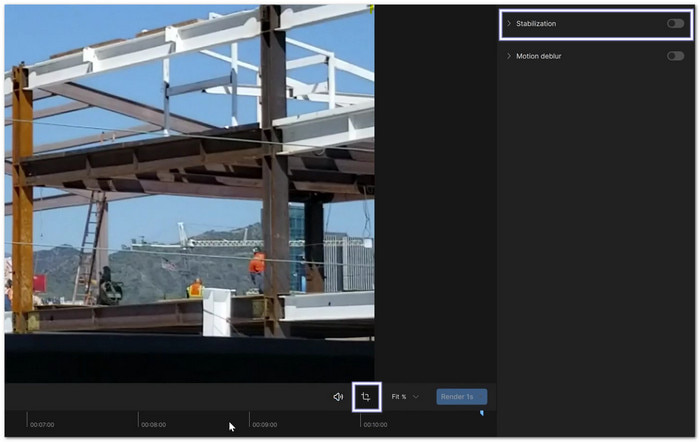
With built-in stabilization, shaky videos can appear more polished.
The software can:
- Cut down on camera shake
- Re-center the video
- Automatically adjust the framing
It is useful for handheld recordings and older clips.
Local and Cloud Rendering
Topaz Video AI offers two rendering options.
1. Local Rendering
Benefits:
- Files stay on your computer
- Better privacy
- No cloud credit usage
It is useful for professional projects with private footage.
2. Cloud Rendering
Benefits:
- Faster processing
- Less stress on your computer
- Access to newer AI models
The downside is that heavy use can increase costs because it uses cloud credits.
Part 3. Master Review of Topaz Video AI
What makes Topaz Video AI a good choice? This section covers its pros, cons, user experiences, ratings, and common problems. It helps you understand its performance and value.
Pros of Topaz Video AI
Topaz Video AI creates high-quality video improvements. It can make old and low-quality videos look clearer. Its AI models help with sharpening, noise removal, and face recovery. It also works well with Apple Silicon and modern GPUs for faster processing.
Cons of Topaz Video AI
The software needs a powerful computer to work smoothly. Older devices may have slow rendering times. Some users are also unhappy with the switch from lifetime licenses to subscription plans.
User Experience and Rating
Many users like Topaz Video AI because it can improve video quality. They praise its ability to upscale videos, remove noise, and restore old video quality.
On Trustpilot, Topaz Video AI has a 4.1 out of 5 rating from 1,711 reviews. Many users like its AI enhancement tools and video results. Some users are not happy with the subscription change and the processing speed.
On G2, Topaz Video AI has a 4.7 out of 5 rating. Reviewers often mention its easy workflow, strong upscaling quality, and useful AI features.
Overall, Topaz Video AI receives positive feedback from users. Its best features are video improvement and AI-powered tools. Its main concerns are the cost, computer requirements, and longer rendering time.
Common Topaz Video AI Problems and Fixes
1. Topaz Video AI Failed or Crashes
Fix it by updating drivers, lowering preview quality, splitting long videos, and restarting the software.
2. Slow Rendering
Speed it up by using a better GPU, closing other apps, and choosing faster AI models.
3. Installation or Download Problems
Check your internet, free up storage, change security settings, and reinstall the most recent version if the Topaz Video AI download does not work.
Is Topaz Video AI Crack or Free Download Safe
Many websites offer Topaz Video AI crack downloads. However, these versions are not safe or recommended.
Cracked software may contain harmful files. It can include malware or viruses that may damage your computer. Some modified versions can also put your personal files and data at risk.
Using a cracked version can also prevent you from getting official updates and support from Topaz Labs. It may also cause errors because the software files have been changed.
The safest option is to use the official Topaz Video AI trial or subscription plan. It gives you access to the latest features, updates, and support.
Part 4. What Does the Adobe Acquisition Mean for Topaz Video AI
The Adobe acquisition could bring new changes to Topaz Labs Video Enhance AI in the future. Adobe plans to add Topaz's AI technology to Creative Cloud and Adobe Firefly. It can improve tools for video upscaling, denoise video, and restoration. For now, Topaz Video AI will continue to work as a standalone app. The deal is expected to close in the second half of 2026.
Part 5. Top 3 Alternatives to Topaz Video AI
1. Tipard Video Converter Ultimate
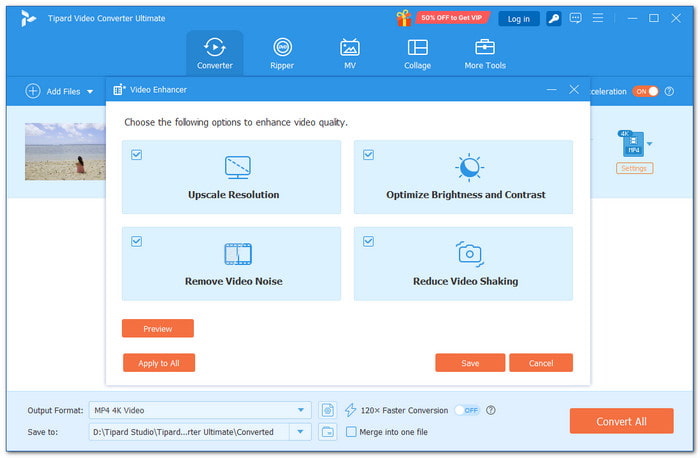
Platform: Windows and Mac.
Topaz Video AI offers strong AI enhancement. But its high system needs and slow processing can be a problem for some users. A lighter and easier choice is Tipard Video Converter Ultimate.
Tipard Video Converter Ultimate provides fast video enhancement and upscaling with simple controls. It supports many formats like MP4, MKV, AVI, MOV, and more. It's fast rendering speed saves time. It also works smoothly on low-end devices without requiring powerful hardware.
Top Features:
- One-click tools for stabilization, noise reduction, and video upscaling.
- Converts videos in various formats, including 8K, 5K, 4K, and HD.
- Integrated video compressor, 3D effects generator, and GIF maker.
- Extracts media from discs and ISO files with easy editing options.
- Fast rendering with Intel, NVIDIA, and AMD acceleration support.
- Simple interface for beginners.
- Complete tools for video editing and enhancement.
- Budget-friendly pricing plans.
- Limited features in the free version.
Pricing: Free version available, while paid plans start at $18.00.
2. DaVinci Resolve
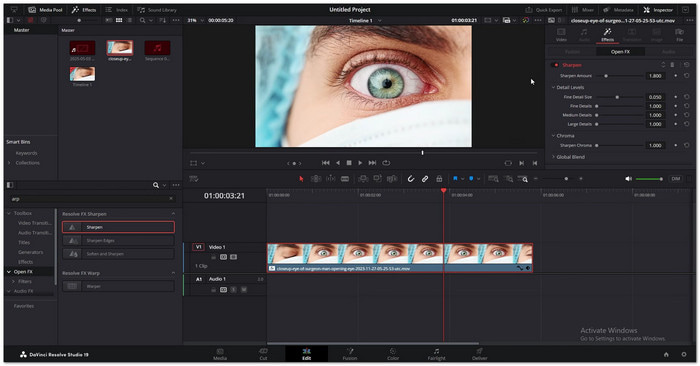
Platform: Windows, Mac, and Linux.
A full video studio in one place, this Topaz Video AI alternative combines editing, color work, effects, audio, and AI tools. Unlike Topaz Video AI, it is not only focused on video enhancement. It gives creators a complete workspace where they can edit, improve, and finish projects without switching apps.
Top Features:
- AI Super Scale for higher-resolution videos.
- Advanced color grading controls.
- Built-in effects and audio editing.
- Complete editing timeline workflow.
- Powerful free version available.
- Professional tools used in film production.
- No need to move files between apps.
- Some AI features require the Studio version.
- Needs strong computer hardware.
- Harder to learn for beginners.
Pricing: Free version available, while Studio costs $295 once with lifetime updates.
3. AVCLabs Video Enhancer AI
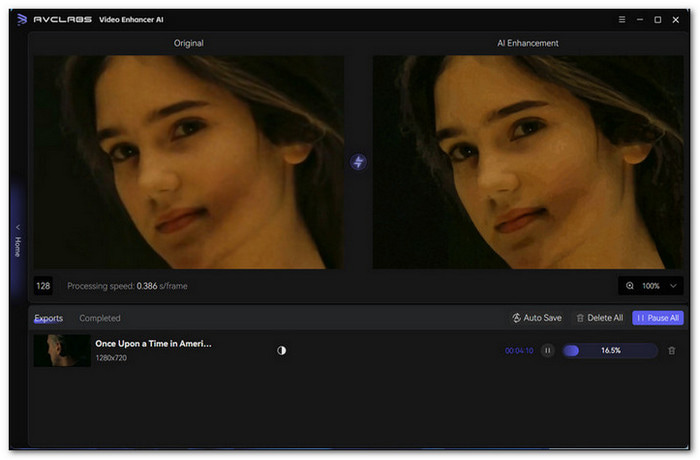
Platform: Windows and Mac.
Turning old and low-quality videos into clearer footage is where this Topaz Labs Upscaler alternative stands out. It uses AI models to improve details, restore faces, and increase video resolution. It also keeps processing locally, so files stay on your computer.
Top Features:
- AI video upscaling up to 4K and 8K.
- AI denoise and deblur tools.
- Frame interpolation for smoother motion.
- Video colorization and stabilization.
- Simple drag-and-drop interface.
- Good face enhancement results.
- Supports batch video processing.
- Less manual control than Topaz Video AI.
- Some results may look too processed.
- Requires a strong GPU for faster work.
Pricing: Monthly, yearly, and lifetime plans available at $39.95, $95.96, and $199.90.
Part 6. FAQs of Topaz Video AI
What are the requirements for Topaz video AI?
The Topaz Video AI system requirements GPU recommendation is a dedicated graphics card with 4GB to 6GB VRAM. You also need 16GB RAM and an AVX-supported CPU for smoother performance.
Does Topaz Video AI Pro need the internet?
Yes. The Internet is needed for installation, activation, updates, AI model downloads, and cloud rendering.
Why is Topaz Video AI not downloading models?
It usually happens because of blocked security settings or an unstable internet connection. Check your firewall, antivirus, and network settings before trying again.
Conclusion
Undoubtedly, Topaz Video Enhance AI really can do a lot with video upscaling, denoising, restoration, and frame improvement. However, its high system needs and slow processing can be a downside. Try alternatives like Tipard Video Converter Ultimate, DaVinci Resolve, and AVCLabs to find the tool that fits your workflow.

All-in-one video toolbox: convert, edit, upscale, enhance, and compress your videos easily
100% Clean & Safe
100% Clean & Safe

More Reading
About the Author


 Tipard Video Converter Ultimate