

Outplayed is a well-known video recorder for gamers as it specializes in capturing the best moments of the player automatically and manually. It is even reliable for a wide range of games, supporting over 5000 games in different themes. But just like any other game recorder, you will encounter issues when Outplayed is not recording. Even if your equipment and internet connection are in good condition, errors with the recorder will still occur. Read through this article to learn the possible cause of the error and the best way to fix Outplayed.
Part 1: Why Is Outplayed Not Recording
As you may know, Outplayed is a game recording tool that you can get with Overwolf installed on your device. Meaning, Outplayed runs through the Overwolf platform, a framework that allows the recorder to function. It is easy to say that Outplayed is dependent on Overwolf. When it goes through maintenance, the recorder, as well as other software within Overwolf, will be temporarily unavailable. Naturally, you will experience issues like Outplayed not recording game audio or screen, and waiting for further announcement from the developers will be the solution.
On the other hand, there are several causes why Outplayed does not record sometimes, even when Overwolf is perfectly functioning. It is better to distinguish these issues to easily resolve and capture Fortnite replays or other game content. You might also find the specific error you are experiencing right now through the following errors:
1. The device does not meet the minimum requirements of Outplayed.
2. Outplayed, not recording audio because of desync.
3. Auto-start is disabled.
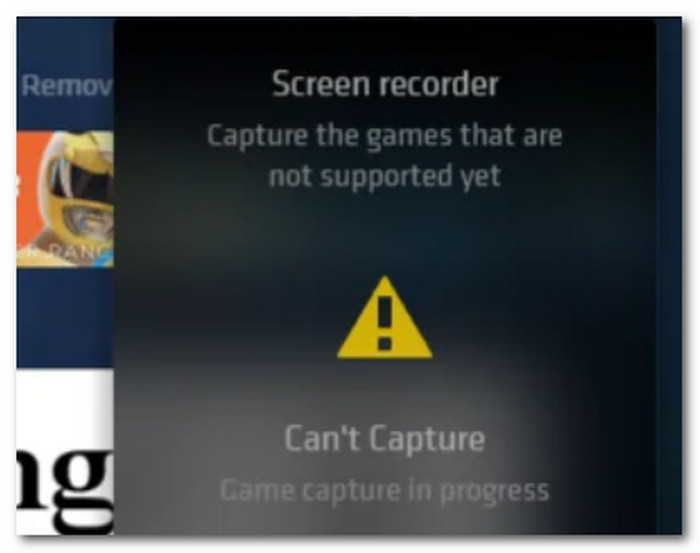
4. Overwolf does not recognize or support the game.
5. Sound drivers and graphics are not up to date.
6. The game is opened with unsupported modes like the custom launcher, emulator, etc.
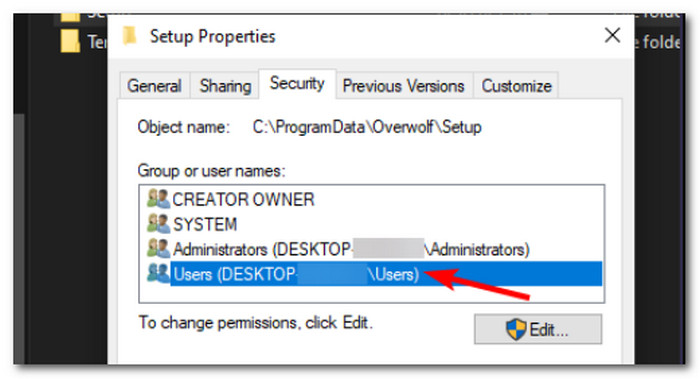
7. Overwolf is not running as administrator while the game is not.
8. The Bluetooth headset is not detected, causing Outplayed not to capture game audio.
9. GPU and CPU overload.
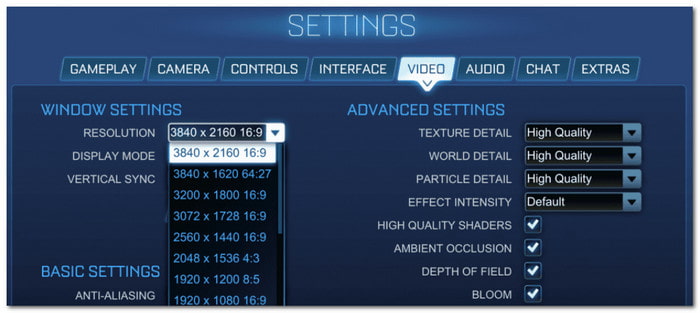
10. Chosen resolution or FPS is unsupported.
11. Outplayed is not recording the Valorant sound because of an incorrect mic or game audio device.
12. No hotkeys are assigned for manual recording.
13. Outplayed is blocked by the device's privacy settings.
14. The installed antivirus is blocking capture DLLs.
15. The overlay is not appearing during in-game.
16. Outplayed clip not clipping because of failed save process.
Part 2: How to Fix Outplayed Not Recording
Why is Outplayed not recording Discord, Roblox, and other games? With the knowledge you learned from the first part of this article, you can now proceed with finding the right solution. Of course, if the recorder is undergoing maintenance, the best solution is to look for reliable sources and wait for further updates. Otherwise, if the issue comes from any of the abovementioned, you can try the following solutions:
1. Disable unused audio devices if Outplayed is not recording the mic audio.
2. Check if the game, Overwolf, and Outplayed are up to date. Also, make sure that your device meets the minimum system requirements.
3. Check the recorder's settings and enable replay, highlight types, and full session recording. This will help solve Outplayed not recording League of Legends, Valorant, etc.
4. You can lower the resolution, bitrate, and FPS. Enabling hardware acceleration can also help Outplayed perform better.
5. Try other games to see why Outplayed is not working on Valorant.
6. Run the game and Overwolf with the same permission level as the administrator.
7. Avoid saving recordings to OneDrive or any network drive. Instead, switch to the local drive.
8. Solve the Outplayed audio not working by selecting the correct microphone or audio device.
9. Allow the game recorder through the antivirus and firewall. You may need to check Windows or Mac privacy settings.
10. Temporarily turn off Bluetooth or unplug the microphone from the computer.
11. Grant Overwolf and Outplayed permission from your device.
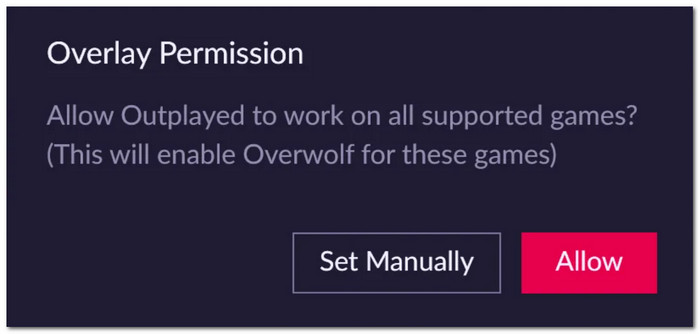
And there you have it! These are the common solutions to fix Outplayed. It is best to figure out the error first, then apply the necessary solution to fix it. However, please be reminded that there are some things that are inevitable and do not have solutions. One example is if Overwolf does not support a game entirely, there is no fix for this, and you might need to look for an alternative game recorder. Fortunately, this article also provides you with the best alternative game recorder that will allow you to enjoy your game as well as recording of your playthrough highlights.
Part 3: The Best Outplayed Alternative to Record Your Gameplay
Outplayed is not recording Valorant? Or your videos end up being blurry? Tipard Screen Capture can be your alternative for game recording to any type of game like Valorant, Call of Duty, Roblox, etc. It is the best choice for screen capture because it is designed to support long-duration recording without causing lag to your device. It also keeps the best recording quality, and even offers upscaling videos up to 1080p and 4K. It supports recording webcam and microphone, which are suitable for recording sound or yourself during gameplay. You don't need to use other video editors, as Tipard has a built-in editing option to clip or trim game recordings. Moreover, you can easily share your highlights with your friends on social media, such as Facebook, Instagram, TikTok, and more. With Tipard Screen Capture, you don't need to ask, "Why is my Outplayed not recording?" Instead, enjoy the gameplay thoroughly!
Step 1 Download and install Tipard Screen Capture on Windows or Mac. Follow the instructions until you complete the installation process.
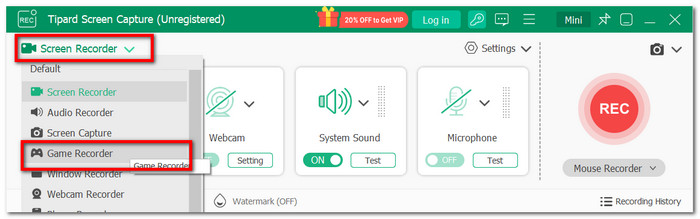
Step 2 Run the software. Change the Screen Recorder to Game Recorder. Make sure to open the game on your device so Tipard can detect it as an active window.
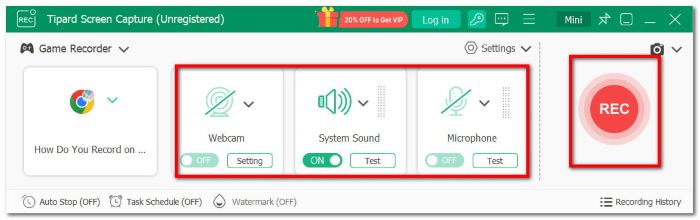
Step 3 Set up the Sound option or Webcam if you desire to capture yourself during gameplay. Once done setting up, click the REC button.
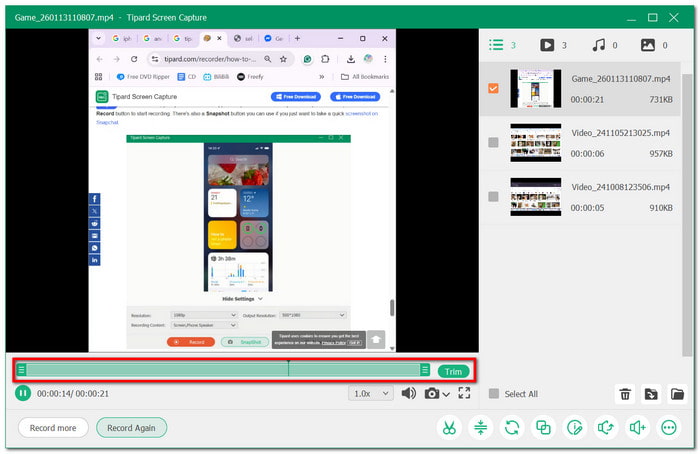
Step 4 Click the Stop button after recording. The Screen Capture app will provide options to trim the highlights as you wish. Save the video on your local drive or directly share it on social media platforms.
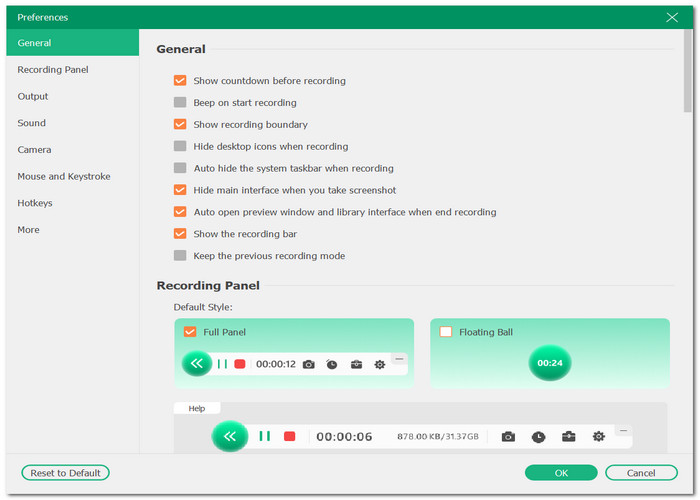
Step 5 Check the settings to tweak as desired. Unlike when Outplayed is not auto-recording, you can set up a recording schedule with Tipard. Click OK to apply to the next recording session.
Conclusion
Experiencing Outplayed not capturing game audio can spoil your experience. Technical issues are inevitable and mostly can't be foreseen, especially if your equipment is in top shape. Still, reading this article helps you understand the common errors, as well as to use the tips provided here to resolve recording issues. More than this, you can learn how to record CSGO gameplay for long hours with Tipard Screen Capture. It is reliable not only for gameplay but also for other activities, such as online classes, creating tutorials, and more. You can now try the free version of this software on Windows and Mac, allowing you to experience limitless screen recording.
More Reading


About the Author


 Tipard Screen Capture