

Want to take a Minecraft screenshot? Well, taking a screenshot in Minecraft is a simple yet necessary skill for capturing your builds, adventures, epic battles, and memorable moments with your friends. So, are you looking for the best way to capture everything in Minecraft? Check this guidepost as we offer the best and most effective methods you can use to take a screenshot. You will also learn some pro-level tricks for a better capturing process. Without anything else, check this post and learn everything.
Part 1. Full Guide to Take a Screenshot in Minecraft
Want to learn how to take a screenshot when playing Minecraft? Well, there are various methods you can use to get your desired result. To explore all of them, you can check the methods below.
Method 1. Minecraft Screenshot on Windows 10 or Later
If you are using Windows 10 or later, you can capture Minecraft using helpful keys. With these keys, there is no need for you to launch or install any third-party screenshot tool. The best part here is that you can also capture various content. You can even record Minecraft if you want to. Plus, you can capture text-based information, a particular part of the video, gameplay, and more. To start the process, you can follow the instructions below.
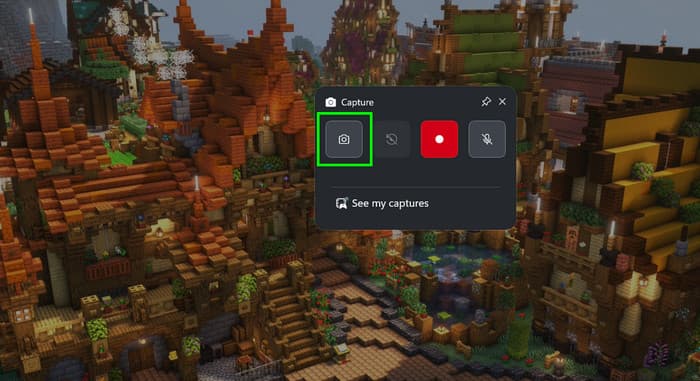
Step 1 Launch Minecraft and proceed to the content that you want to take a screenshot of.
Step 2 After that, from your keyboard, press the Windows + G keys. Then, hit the Capture function to start capturing your screen.
Step 3 You can also press the Windows + Alt + PrintScreen keys as an alternative.
Method 2. Minecraft Screenshot on Windows 8 or Lower
For Windows 8 or lower, you can also press another key that can let you achieve the result you need. With the PrintScreen button, you can ensure to capture your screen when playing Minecraft. Thus, to learn how to take a screenshot on Minecraft, use the simple steps below.
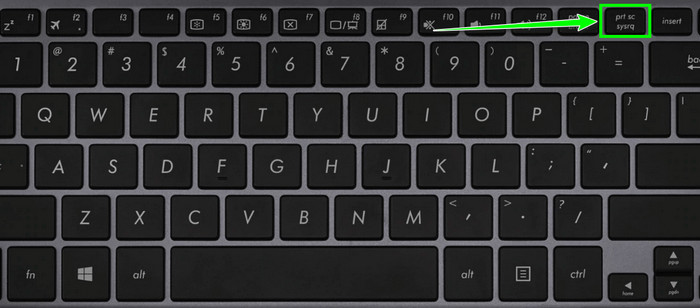
Step 1 First, you can start running your Minecraft and open the part you want to capture.
Step 2 For the next process, start taking a screenshot by hitting the PrintScreen key on your keyboard. You can now use your cursor to select the area that you want to capture.
Step 3 Once done, the screenshot will be automatically saved on your computer.
Method 3. Screenshot on Minecraft Using Mac
For Mac users, you can also effectively take a Minecraft screenshot using helpful keys. Plus, you can also use these keys if you want to capture any part of the screen, making it more helpful for Mac users. Thus, if you want to start taking a screenshot while playing Minecraft, you can use the method below.
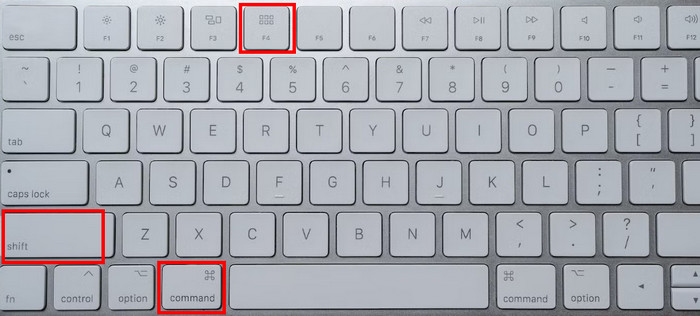
Step 1 On your Mac, launch Minecraft. Then, start proceeding to the part where you want to take a screenshot.
Step 2 To start capturing the screen, press the Shift + Command + 4 keys on your keyboard.
Step 3 After that, the content will be saved automatically on your Mac.
Method 4. Take a Screenshot on Minecraft Using Android
To take a screenshot on Android, you have to:
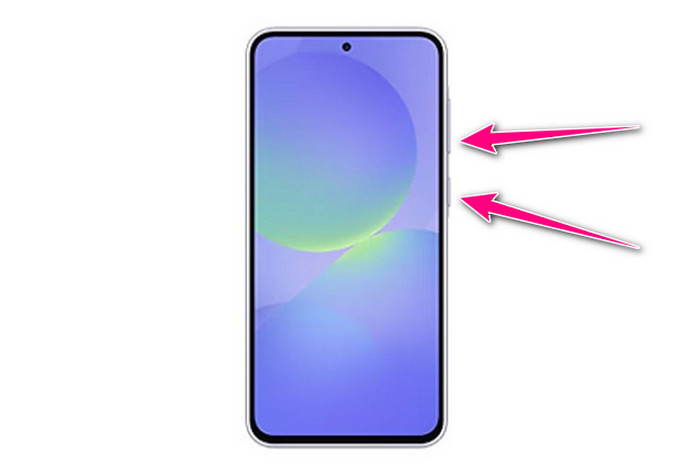
Step 1 Open the Minecraft app on your Android.
Step 2 To start taking a screenshot, long-press both Volume Down and Power buttons at the same time.
Method 5. Take a Screenshot on Minecraft Using an iPhone
For iPhone users, you can easily capture Minecraft by:
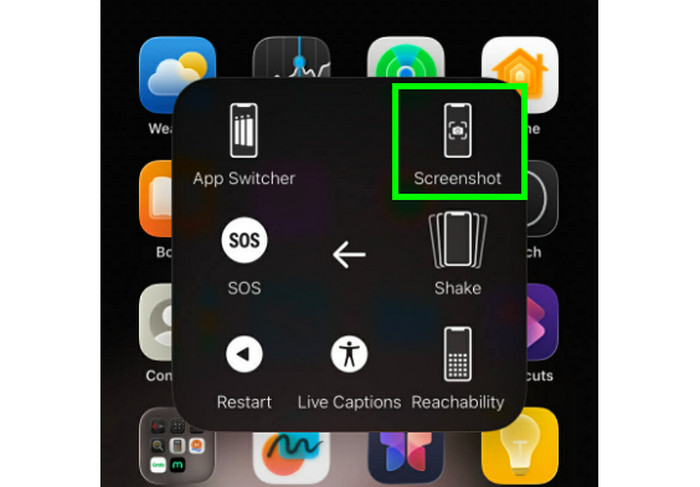
Step 1 Open Minecraft on your iPhone.
Step 2 After that, you can tap the Assistive Touch and proceed to the Device > More options.
Step 3 After that, hit the Screenshot function to start capturing your Minecraft.
Part 2. How to Find Minecraft Screenshot
Do you want to know how to find Minecraft Screenshots? Well, you can access them depending on what platform you use.
For Windows
Step 1 You can proceed to the Search Bar. Then, input %appdata%. Then, hit the Enter key.
Step 2 You will see a folder on a Windows Explorer screen. Choose minecraft folder. > Roaming > Screenshots.
Step 3 You can now see all the screenshots.
For Mac
For Mac, you can easily see the screenshots on your desktop. This way, there is no need for you to explore various folders.
For Mobile
Want to learn how to view Minecraft screenshots on mobile devices? For Android OS, you can access the screenshots in your Gallery app. On the other hand, you can open the Photos app to see all the screenshots on iPhone devices.
Part 3. 3 Tricks to Take Pro-Level Minecraft Screenshots
Do you want a better screenshot? Then, you can follow the trick below.
Use Spectator Mode
If you want a dynamic angle, you can switch to Spectator Mode. It lets you freely fly around and position the camera in unique angles. It is also ideal for capturing landscapes, cinematic perspectives, and aerial views.
Shaders and Resource Packs
Resource packs can give additional depth and vibrancy to textures, while shader installation adds realistic shadows, reflections, and ambient effects. When combined, they turn common screenshots into eye-catching pictures that resemble digital art. This way, you can obtain a better output after taking a screenshot.
Modify FOV and Lighting
Adjusting the Field of View can change the feel of your screenshot. Plus, combining this with appropriate lighting can add natural ambiance to your screenshot.
Part 4. Why Native Minecraft Screenshots Aren't Enough
Although native Minecraft images are handy, they frequently don't fully convey the game's beauty and intricacy. They don't have sophisticated visual output like realistic shadows, dynamic lighting, or cinematic angles by default, making it not appealing enough. Screenshots can be transformed into professional-looking images by utilizing techniques like shaders, resource packs, and custom camera settings to highlight your creations effectively.
Part 5. Ultimate Way to Take Minecraft Screenshots on Windows and Mac
Are you looking for the best screenshot tool that can give you all the features you need? In that case, we would like to recommend Tipard Screen Capture. This program is ideal since it can take a screenshot of the Minecraft content with its original quality. It can even support various screenshot styles. You can capture your entire/full screen or a certain/specific area. What we like here is that it has a simple UI, making it suitable for beginners. It is also lightweight and can offer a powerful video recorder. With that, if you want to capture your screen, this software is perfect for you.
Key Features:
- It can offer a fast and smooth capturing process.
- The program can capture various content, such as videos, images, text, and more.
- It can save screenshots with the best quality.
- The screenshot tool can offer a fast saving process.
- It can also capture and record video and audio.
To learn how to take a screenshot in Minecraft, use the steps below.
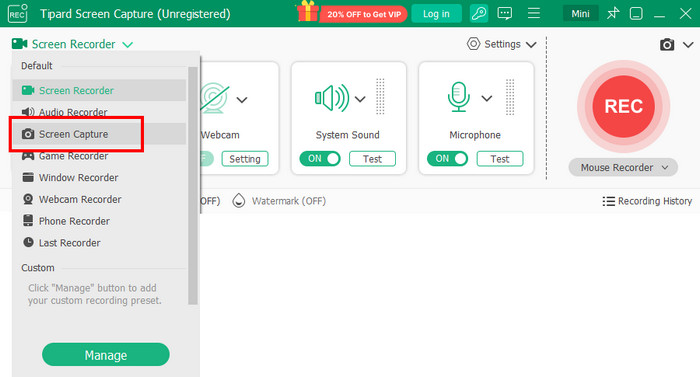
Step 1 Download and launch Tipard Screen Capture on your Windows or Mac computer.
Step 2 From the interface, select the Screen Capture feature. Then, start taking a screenshot of the screen.
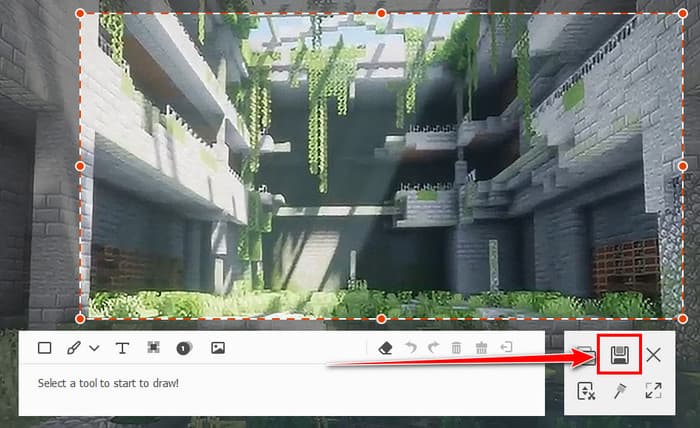
Step 3 Then, you can start clicking the Save symbol below to keep the screenshot on your desktop.
Conclusion
Taking a screenshot in Minecraft is ideal if you want to collect images and memorable moments with your games and friends. It can help you keep them on your devices for preservation. To effectively take a screenshot, it is better to use all the provided methods in this tutorial. Plus, if you want an ultimate method to take a Minecraft screenshot, we suggest using Tipard Screen Capture. This program is perfect if you want a simple process, satisfying quality, and a smooth export procedure.
More Reading


About the Author


 Tipard Screen Capture