

Key Takeaways:
- Recognize the distinction. The text that appears beneath your TikTok post is called a caption. Text displayed within a video is called a closed caption.
- Edit the post caption first. Learn how to edit captions on TikTok. Change the text, hashtags, or mentions if TikTok gives you the edit option.
- Edit closed captions with an editor. Use Tipard Video Converter Ultimate or CapCut to correct subtitle text, style, timing, and placement. Then, save and upload the edited video again.
- Check your video before posting. Look at the caption, subtitles, audio, and video size. Make sure the text is easy to read and matches the spoken words.
A good caption helps viewers understand your video. It can add details and make your post easier to follow. Did you know that TikTok has two ways to add captions? You can use a text description or closed captions inside the video. And this post will teach you exactly how to edit captions on TikTok for both types.

Part 1: Can You Edit a Caption on TikTok After Posting
The text you see on a TikTok can come from two different places. The TikTok caption belongs to the post itself. The embedded subtitle belongs to the video. This difference matters when you want to edit or correct the text. If you ask, "Can you edit the TikTok caption?" the answer depends on where the text appears.
| Feature | TikTok Caption | Embedded Subtitles |
|---|---|---|
| Where does it appear? | With the TikTok post. | Inside the video. |
| Can you edit it after posting? | ✓ | ✗ |
| Part of the video file? | ✗ | ✓ |
| Can TikTok's editor change it? | ✓ | ✗ |
| Can you edit it before posting? | ✓ | ✓ |
| How to fix a mistake? | Edit the post caption if the option is available. | Edit the video and upload it again. |
| Examples | Description, hashtags, and mentions. | Spoken text, translations, and text added to the video. |
Part 2: How to Edit/Add TikTok Caption (Text Description)
The text box lets you edit the words added to your post. You can change the message, add more details, or use hashtags before you share the video. Learn how to edit a TikTok caption or add one below!
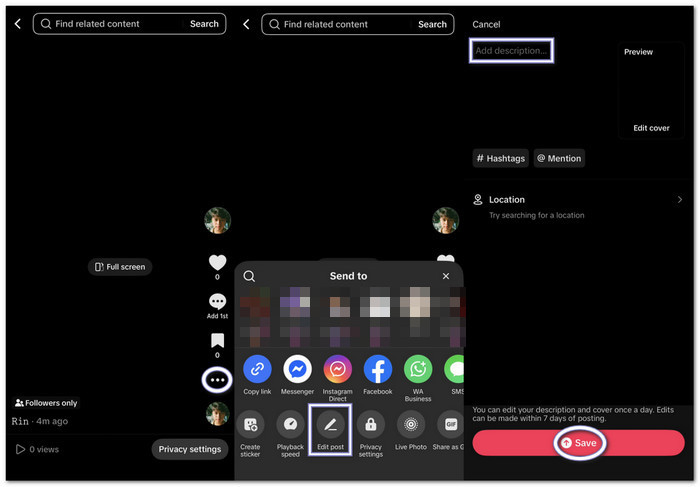
Step 1 Open the TikTok app and tap Profile. Find and open the video with the caption you want to change.
Step 2 Tap the three-dot menu and look for the Edit post option. If TikTok lets you edit the caption, make your changes. Check the words and spelling. Make sure the text matches your video.
Step 3 Save your changes and open the video again. Check that the caption looks right. If the words are part of the video itself, you will need to edit the video with a video editor and upload the corrected version again.
Part 3: How to Edit TikTok Caption (Closed Caption)
Now, it is time to learn how to edit the TikTok caption (closed caption) that appears inside your video.
1. Tipard Video Converter Ultimate
Tipard Video Converter Ultimate can help when you need to know how to edit captions on TikTok. It lets you fix and style closed captions for your videos. Its subtitle tools let you change the font, size, color, position, opacity, and timing. Its MV feature adds themes, transitions, filters, and music. It also offers 40+ collage templates. Plus, its TikTok preset supports 1080p and other platform-ready settings.
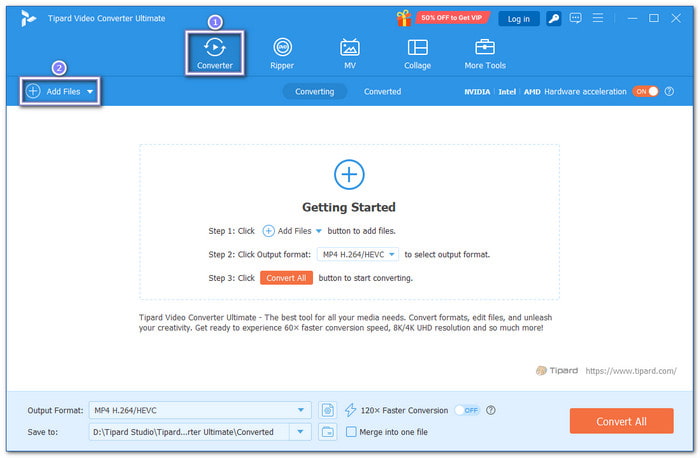
Step 1 Download, install, and open Tipard Video Converter Ultimate. The Converter tab opens by default. You can start from there.
Step 2 Click the Add Files button. Find the video you want to edit. Select it and please wait for it to load.
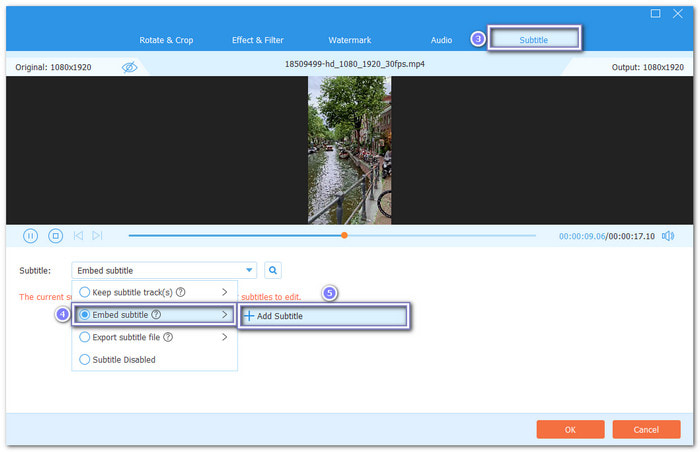
Step 3 Open the Edit option. Next, go to the Subtitle tab. Select Embed Subtitle. Then, click Add Subtitle to import your subtitle file.
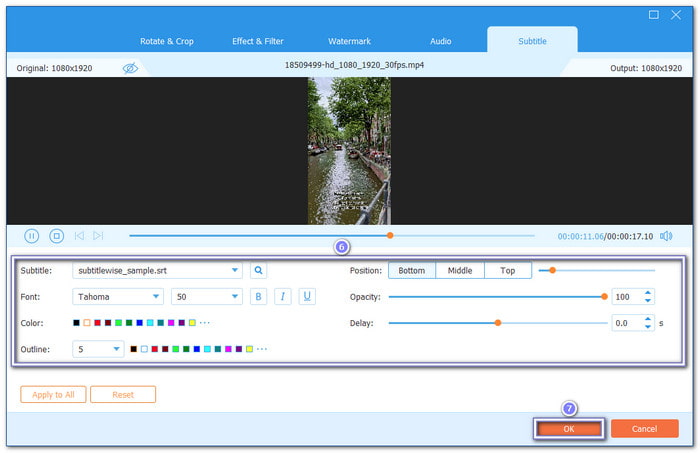
Step 4 It is time to change the Font, Style, Size, Color, and Outline. You can also move their Position and fine-tune the Opacity. If the words appear too early or too late, use Delay to sync them with the audio. If everything looks right, click the OK button.
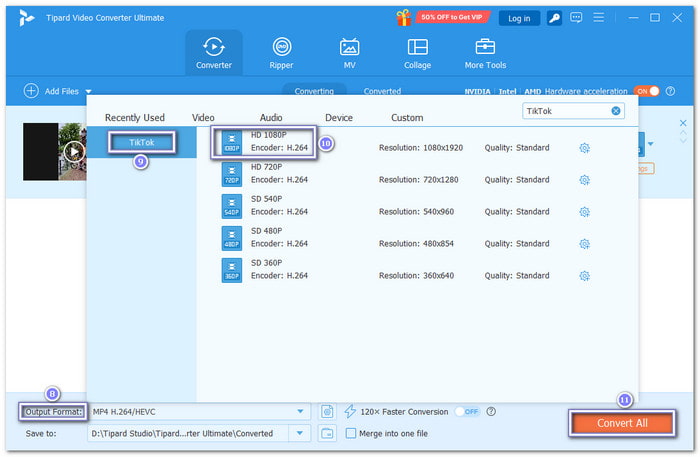
Step 5 Go to the Output Format menu. Pick Video > TikTok. Next, choose the video quality you want. 1080p can give you a clear result. Then, click Convert All to save the video with the subtitles.
2. CapCut
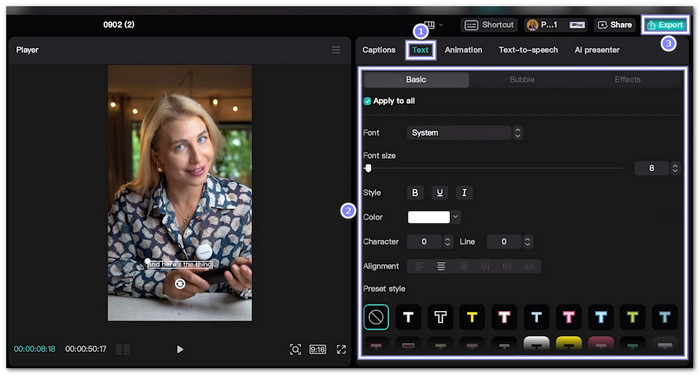
CapCut makes it easy to learn how to add captions on TikTok and update captions on an existing video. You can bring in the original video and create new captions from its audio. After you fix the text and check the timing, the edited video is ready to post again.
Step 1 Start a new project in CapCut. Then, import the original TikTok video that needs new captions.
Step 2 Tap Text on the bottom menu. Choose Auto Captions. CapCut will create captions from the video's audio.
Step 3 Tap a caption block with an error. Correct the spelling or wrong words. You can also adjust the timing. Change the font style or animation if you want.
Step 4 Play the full video from start to finish. Make sure each caption matches the speech. Then, tap the Export button. Use 1080p if suitable for your video. Keep the original frame rate when possible.
Step 5 Save the edited video to your device. Open TikTok and upload the new version. Since the captions were changed in the video itself, you need to re-post the edited video to show the corrected captions.
Additional Details: You can also crop a video, reverse a video, and speed up a video using CapCut.
Part 4: Tips for Preparing Your Edited Video for TikTok
Your video is almost ready to post. Before you upload it, take a quick look at these details. A few checks can help you avoid small mistakes.
- Check the captions. Make sure the words are correct and easy to read.
- Use a 9:16 ratio. This fits the TikTok screen well.
- Check the audio. Keep voices clear. Do not make the music too loud.
- Keep text away from the edges. TikTok buttons may cover it.
- Check the subtitles. Make sure the text matches the words in the video.
- Watch the whole video. Play it from beginning to end and look for any issues.
- Improve video quality. Use a clear export setting.
- Check the post caption. Fix spelling and remove unwanted hashtags.
- Watch the video on your phone. Make sure the text is still easy to read.
Part 5: FAQs on How to Edit TikTok Captions
Why can't you edit TikTok captions?
TikTok may not let you edit your post caption because of its editing limits. You may only have 7 days to edit a post. You may also be limited to one edit per day.
Why does my TikTok not have the edit option?
Your TikTok may not show the Edit option for a few reasons. The video may be too old. TikTok may have moved or changed the feature. Your app may also need an update or refresh.
Does editing a TikTok caption affect views?
Editing a TikTok caption usually does not make your views drop. Your video can still get views after the change.
Conclusion
We hope that learning how to add captions on TikTok helps you make clear and fun videos. For closed captions, Tipard Video Converter Ultimate lets you edit text, style, position, and timing. Fix your captions, polish your video, and get it ready for TikTok.

All-in-one video toolbox: convert, edit, upscale, enhance, and compress your videos easily
100% Clean & Safe
100% Clean & Safe

More Reading



About the Author

 Click here to join the discussion and share your comments
 Tipard Video Converter Ultimate