

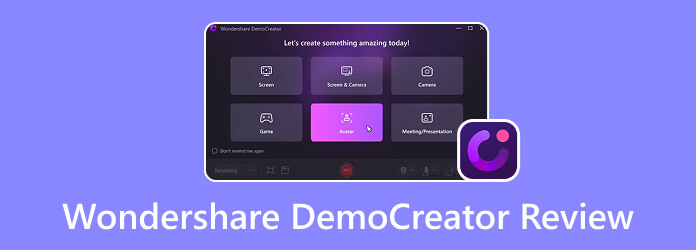
Wondershare DemoCreator is a popular screen recorder and video editor used by many creators, educators, and businesses. While it looks like an all-in-one solution, are these features enough for your need, or does it have some limitations? This review will explore DemoCreato's features, performance, pricing, pros and cons, and a more affordable alternative.
Part 1: Wondershare DemoCreator Overview
Wondershare DemoCreator is a full-featured screen recorder and video editor. It is designed for users to create tutorials, presentations, gameplay videos, online courses, and other types of video content. It is available for both Windows and Mac and combines recording, editing, and AI-powered tools all together.
| Feature | Supported |
|---|---|
| Screen Recording (Screen, Webcam, Audio, Game) |  |
| Video Editing | |
| Screen Annotation | |
| AI Subtitle Generation | |
| AI Voice Generation | |
| Text-based Video Editing | |
| Virtual Avatar | |
| Green Screen Effects | |
| Live Streaming |  |
| 3D Editing | |
| Advanced Color Grading | |
Part 2: Screen Recording Capabilities
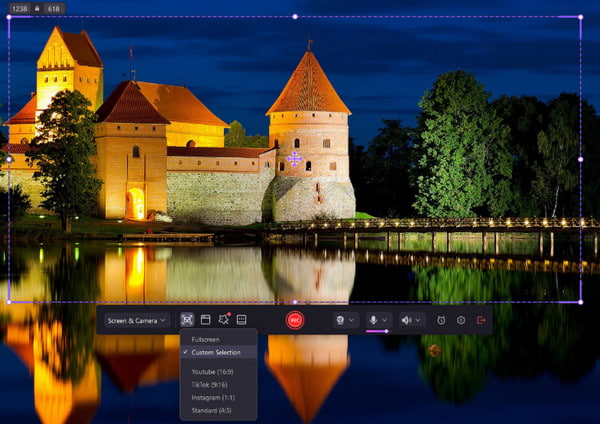
Wondershare DemoCreator Screen Recorder provides flexible screen recording modes for different scenarios.
1. Multiple Recording Modes
- Screen Recording: Capture the entire screen, a specific area, or a selected window.
- Screen & Camera Recording: Record the screen while showing webcam at the same time.
- Game Recording: Capture gameplay videos with high-quality output.
- Video Presentation Recording: Combine screen content, camera, and visual elements to create presentation-style videos.
- Audio Recording: Record the both microphone voice and system audio together.
2. Real-Time Annotation Tools
Wondershare DemoCreator makes it easy to add notes and highlights right on the screen. You can draw, add text, add arrows or shapes, and highlight key areas. You can also show mouse click effects, so viewers can follow your instructions more easily.
3. Customizable Recording Settings
DemoCreator gives you more control over the video quality. Before recording, you can adjust settings based on your needs, such as the recording area, resolution, frame rate, audio source, and webcam settings.
4. AI-Assisted Recording Features
The AI-powered features help you simplify the recording process. AI-generated subtitles and audio enhancement reduce the time you spend on post-production.
Part 3: Video Editing Features
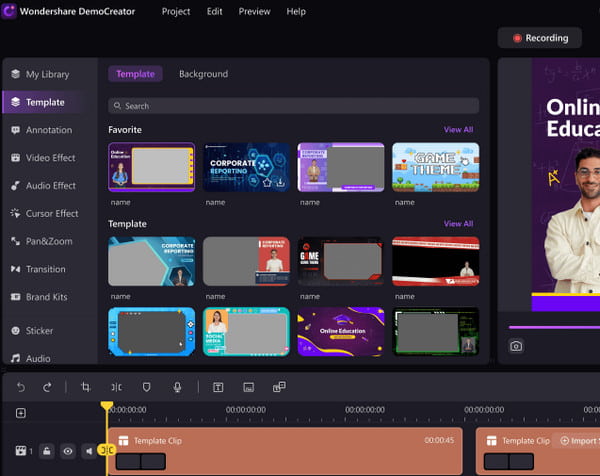
Wondershare DemoCreator Video Editor is powerful and helps users quickly polish their recordings.
- Basic editing features: Trim, cut, crop, and merge video clips, adjust playback speed, and add transitions, text, stickers, and visual effects.
- Versatile elements: Provide seamless filters, visual effects, stickers, animations, text overlays, captions, background music, sound effects, transitions, templates, cursor effects, and more elements.
- AI-powered editing features: AI text-based editing, AI voice tools, AI audio enhancement, and AI Subtitle Generation.
Part 4: DemoCreator User Experience
During our test, we used Wondershare DemoCreator to record different types of content. From a user perspective, the recording process was straightforward, with no noticeable delays or complicated steps. For longer recordings, DemoCreator kept the video and audio stable, and both microphone and system audio tracks remained clear and easy to distinguish. When recording high-resolution videos or working with larger projects, the overall performance was still good. The AI subtitle feature was helpful, but you still need to manually check the generated captions for accuracy.
Part 5: DemoCreator Pricing & Plans
Is Democreator free? Yes, but Wondershare Democreator free trial has some limitations. For example, exported videos include a watermark, and some advanced features, AI tools, and creative assets require a paid plan.
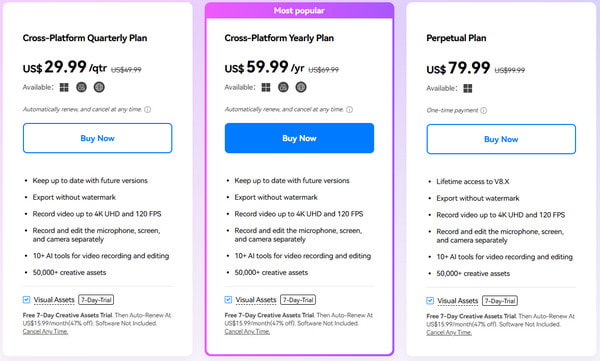
- Cross-Platform Quarterly Plan: $29.99/quarter
- Cross-Platform Yearly Plan: $59.99/year
- Perpetual Plan: $79.99 one-time payment
All plans include watermark-free export, 4K UHD/120 FPS recording, separate screen, camera, and microphone tracks, 10+ AI tools, and 50,000+ creative assets.
Part 6: Pros & Cons of DemoCreator
After testing DemoCreator's recording, editing, and AI features, we found that it works well for creating video content, but it also has some limitations.
- Easily record and edit videos in one program.
- Enjoy a simple and beginner-friendly interface.
- Use various AI features to improve productivity.
- Provide rich and creative built-in resources and assets.
- Require a subscription to remove watermarks and access full features.
- Require a computer with better hardware performance.
Part 7: Best Wondershare DemoCreator Alternative
If you are looking for a more affordable option and do not need extra features, Tipard Screen Capture is a lightweight alternative to Wondershare DemoCreator. It supports screen recording, webcam capture, audio recording, and game recording on Windows and Mac. It also offers useful tools, including real-time annotations, mouse effects, and keystroke display for tutorials and demonstrations. Its basic editing features such as trimming, compression, merging, and conversion, are enough for daily use.
- Record screen, webcam, system audio, and microphone.
- Support high-quality recording on Windows and Mac.
- Add annotations, mouse effects, and keystroke highlights.
- Easily trim, compress, merge, and convert recordings.

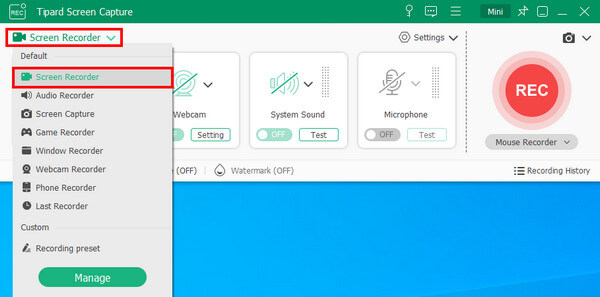
Step 1 Install and open the program on your computer. Select the Screen Recorder option under the Screen Recorder menu to start capturing your screen activities or recording videos.
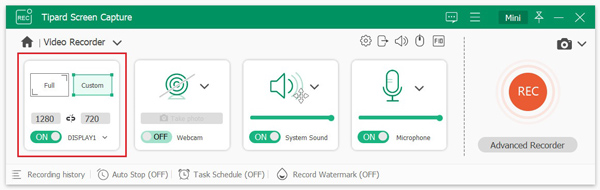
Step 2 You can choose Full screen or adjust the recording area manually based on your needs.
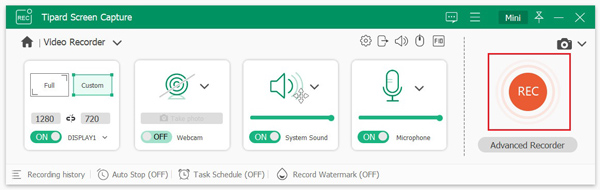
Step 3 Turn on the Webcam, System Sound, and Microphone options if needed. Then, click the REC button to start capturing.
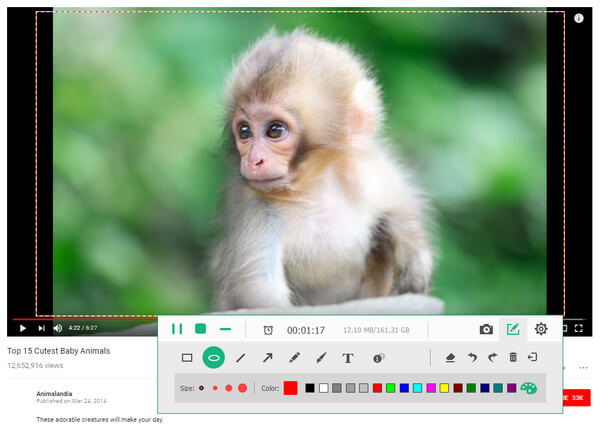
Step 4While recording, you can add annotations and take screenshots. You can add shapes, lines, arrows, and text to highlight important details.
Step 5When you finish recording, click the red square button to stop. The recorded video will open in the preview window automatically, and you can click Save to store it on your computer.
Conclusion
In this DemoCreator review, we can say that Wondershare DemoCreator makes video creation more convenient. For users who want to create tutorials, presentations, or online classes, its AI features and built-in resources is functional. But if you want something simpler and more budget-friendly, a lightweight recorder like Tipard Screen Capture is also worth trying. Start creating engaging, high-quality content for your channel!

Record full screen, portion, window, game, and phone seamlessly without lag
100% Clean & Safe
100% Clean & Safe

More Reading


About the Author


 Tipard Screen Capture