

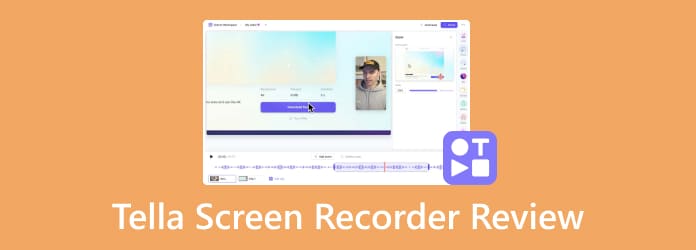
This article will review one of the new screen recording tools, Tella Screen Recorder. It was launched in 2021 by a Californian startup. Today, screen recording is an ideal way to enhance communication, training, collaboration, content creation, and workflow optimization. However, a truly practical tool is difficult to find. To help you understand Tella and make the best decision, we tested it in our lab and collected hundreds of users' reports.
Part 1: What Is Tella Screen Recorder
Tella is a screen and webcam recording software designed for content creators, trainers, digital agencies, marketers, customer support teams, vloggers, and other professionals. It combines high-quality video capture and video post-production. Make it possible to produce pro-level videos without extra editing software.
Core Features of Tella Screen Recorder
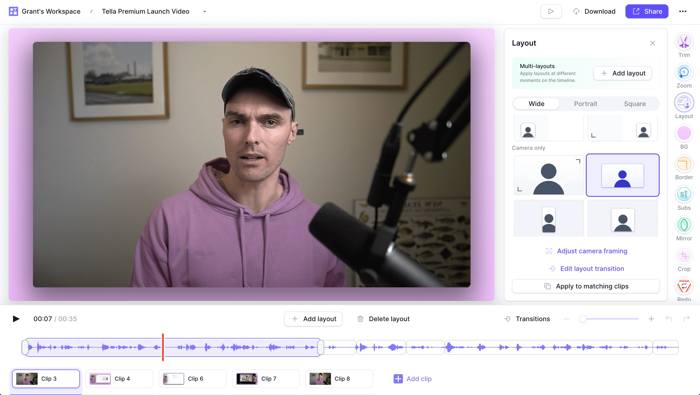
- Layer-by-layer recording. Tella records your screen and camera separately so that you can change the layout for any session.
- AI-powered editing tools. Tella includes AI editing tools, such as silence removal with three speed modes and automatic dead-space trimming.
- Video hosting is quick. Tella gives each recording a shareable link with its own landing page. You can share recordings to YouTube or Vimeo without uploading them.
- High-quality. Tella exports recordings to MP4 at up to 4K resolution.
- Custom backgrounds and branding. Tella allows you to drop in custom backgrounds, add branded colors, and apply zoom effects to highlight specific areas of your screen.
- Text-based editing. Tella automatically transcribes every recording, so you can edit it by editing the transcript.
- Offer an extension for Chrome.
Tella Screen Recorder Review
- Clip-based recording eliminates the pressure of one perfect take.
- It instantly removes filler words and silence.
- Tella exports recordings at 4K resolution and 60 FPS.
- It analyzes content and automatically switches between layouts.
- It integrates with video editing tools.
- Tella connects to YouTube, Vimeo, Google Drive, Dropbox, Notion, and Slack.
- Lack a free version.
- 4K export limits at 5 minutes on the Pro plan.
- Occasional recording bugs when selecting the screen.
- The video editor is limited.
Tella Screen Recorder Price
You can download Tella from the official website and use it for free for 7 days. After the free trial, you have to subscribe to a Pro or Premium plan. Tella offers the Enterprise plan for teams with specific requirements.
| Pro | Premium | |
|---|---|---|
| Monthly | $26 | $39 |
| Annual | $13 per month | $19 per month |
Part 2: How Tella Screen Recorder Works
Step 1 To get started, sign up for an account and log in to the Tella website in a browser. Subscribe to a plan and move on.
You can download Tella Screen Recorder to your computer to record in native 4K with system sound.
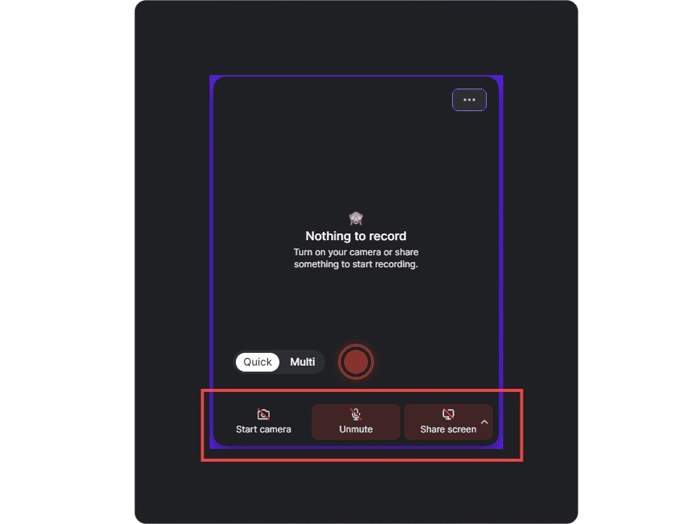
Step 2 Then, you will see three options at the bottom:
To share your screen, enable Share screen.
If you want to add your reactions, enable the webcam and microphone.
Step 3 Click the Record button to begin screen recording with Tella.
Step 4 When you finish, stop the recording.
Step 5 Next, you can edit the layouts and clips.
Step 6 Finally, download the recording or share it directly.
Part 3: Tella Screen Recorder vs Loom vs Tipard Screen Capture
| Tella Screen Recorder | Loom | Tipard Screen Capture | |
|---|---|---|---|
| Best for | Creators, marketers, sale teams | Internal team communication | Individual, small business, vloggers, and more |
| Key Features | Auto Layouts AI-Powered Editing Clip-based Workflow Branding & Analytics | Work with Slack, Notion, and GitHub AI-powered summaries Auto chapters | Versatile recording Audio recording Game recording Phone recording |
| Price | Start from $13 per user per month | Start from $18 per user per month | $24 per month $49 lifetime |
| Platform | Windows, macOS, web | Windows, macOS, Web | Windows, macOS |
| Strength | Professional-looking output Powerful AI editor | Fast and simple Good free plan for basic use | Highly customizable High-performance recording |
Bottom Line
If you want polished, branded recordings for your customers or clients, choose Tella. Plus, the AI-powered editing makes your recordings look professional without manual effort.
To make quick, internal video messages for your team, Loom is an alternative to Tella Screen Recorder. For Loom users, speed and simplicity are more important than a polished, professional look.
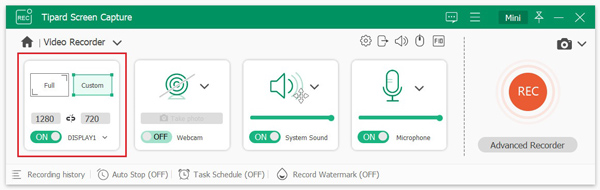
Tipard Screen Capture is best for offline screen recording. You don't need cloud hosting or to share your content. It works for a wide range of scenarios, including online streaming, gameplay, voiceover, mobile devices, screenshots, and more.
Conclusion
Now, you should understand what Tella screen recording is, its core features, benefits, downsides, and other information. Furthermore, you can follow our steps to record something using Tella, edit the recording, and export the result. Plus, we compared Tella with the alternatives, Loom and Tipard Screen Capture. You can learn to choose which one in different cases. The information can help you make the best decision.

Record full screen, portion, window, game, and phone seamlessly without lag
100% Clean & Safe
100% Clean & Safe

More Reading


About the Author

 Click here to join the discussion and share your comments

 Tipard Screen Capture