Insights Capture is a Windows game recording program designed to help video game players save gameplay, review important moments, and create highlight videos. Its automatic game detection can reduce the need to record every match manually. However, its stability depends on your recording needs, system setup, and preferred features.
In this Insights Capture review, we will help you explain what Insights Capture is, how to use Insights Capture, and how to fix some common problems you may encounter when you use this game recorder. We also cover how to delete or uninstall the application on Windows if you don't want to use it.

Part 1. What Is Insights Capture?
Insights Capture is a Windows application developed by Insights Gaming for recording gameplay and organizing important moments from gaming sessions. The software detects supported games automatically and helps users review matches without searching through long, unedited recordings.
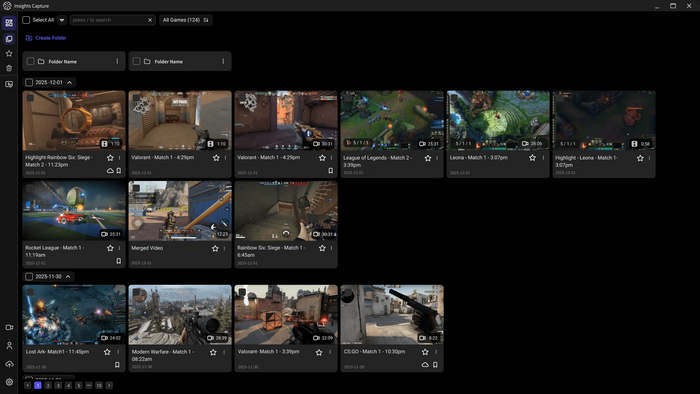
Its main features include:
- Automatic game detection: Recognizes supported games to simplify the recording process.
- Gameplay recording: Helps users capture gameplay sessions for later viewing.
- Highlight Mode: Organizes recordings into shorter, more relevant moments.
- Highlight video creation: Lets users create highlight from captured gameplay.
Insights Capture is particularly useful for players who want to review their performance, preserve memorable plays, or share gaming highlights. However, it is designed for Windows, so users on macOS or Linux should consider other recording solutions.
What Is Insights Capture V3?
Insights Capture V3 is the third-generation version of the Insights Capture application. The V3 version focuses on making gameplay capture and review easier through automatic game detection, recording organization, and highlight creation. Instead of treating every recording as one long video, it aims to make important moments easier to find.
Part 2: Is Insights Capture Good? Pros and Cons
Insights Capture can be a useful option for those gamers who want automatic gameplay capture and quick highlight review. However, it may not suit everyone, especially users who need detailed recording controls or support for multiple operating systems.
- Automatic game detection can reduce manual setup.
- Highlight Mode makes it easier to find important moments.
- Users can turn selected gameplay moments into highlight videos.
- The official website offers a free download option, although users should check the current plan details and limitations.
- It is not a suitable native solution for macOS or Linux.
- Automatic detection and capture may not work correctly with every game or system configuration.
- Recording gameplay can consume considerable disk space, depending on video quality and recording duration.
- Users who need webcam overlays, advanced encoding controls, or specific output settings should verify their availability before choosing the software.
Who Should Use Insights Capture?
Insights Capture is worth considering if you play supported Windows games and want a convenient way to capture and review gameplay.
It may be less suitable if you need a cross-platform recorder, highly customized recording parameters, or a workflow that can also capture other desktop activities rather than only gaming highlights.
Part 3. How to Use Insights Capture
Recording your gameplay with Insights Capture is relatively straightforward. However, the exact interface and available settings may vary by version. Here, we use Insights Capture V3 to create a demonstration.
Step 1 Get Insights Capture
Visit the official Insights Capture website and download it. After installation, launch the application. You may need to register and sign in to your account.
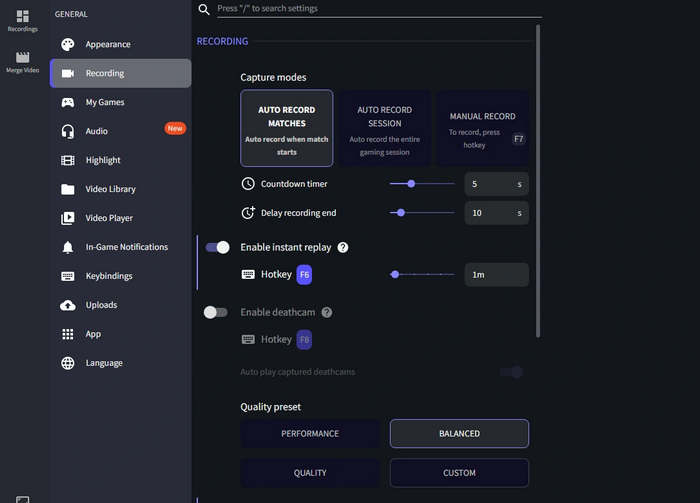
Step 2Configure Recording Settings
Open the application and review its available recording options. Depending on the version, you may be able to configure capture behavior and other recording preferences.
Step 3Launch a Supported Game
Start a supported game. For example, you can record LoL gameplay. Then, check whether Insights Capture detects it. If automatic detection works, follow the application's prompts to enable or configure capture.
Do not assume that every game is supported or that detection automatically means recording is enabled. Check the recording status before beginning an important session.
Step 4Review and Create Highlights
After a gaming session, open Insights Capture and browse the available recordings. Use Highlight Mode to find important moments and select the clips you want to keep.
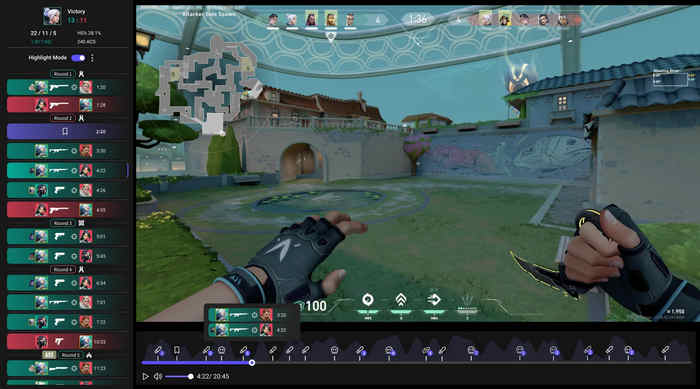
If the application supports highlight video creation for your selected clips, arrange the moments into a short montage and save the result.
Part 4: Insights Capture Common Issue Fixes
Insights Capture Not Auto Recording: How to Fix It
If Insights Capture is not auto-recording, the problem may involve game detection, recording settings, permissions, or application compatibility. Try the following checks in order.
1. Check Whether the Game Is Supported
Automatic capture depends on game detection and compatibility. Confirm that your game is supported and that the application recognizes it when you launch the game.
If the game does not appear, restart both the game and Insights Capture, then check again.
2. Verify Automatic Recording Settings
Open Insights Capture and inspect the available capture settings. Make sure automatic recording or the relevant game-specific capture option is enabled.
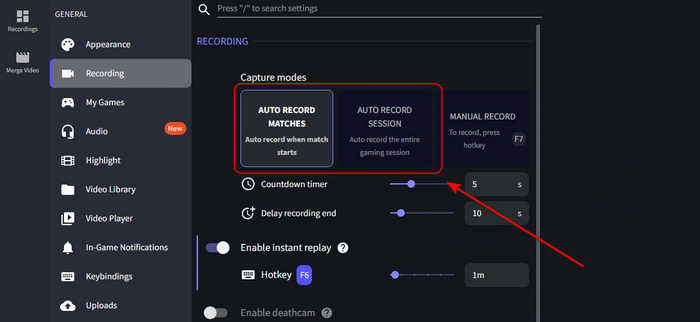
If the application offers different recording modes, confirm that you have selected the mode you intend to use.
3. Check Windows Permissions
Windows security settings or other applications may interfere with recording. Review the permissions of Insights Capture and check whether your security software has blocked any required components.
If you suspect a permissions conflict, follow the software developer's official troubleshooting guidance rather than disabling security protections indiscriminately.
4. Update Insights Capture and Your Graphics Drivers
An outdated application or graphics driver can contribute to compatibility problems. Install available updates from official sources and restart your computer.
If the issue started immediately after an update, check the application's release notes or support information for known issues.
Insights Capture Not Recording: Additional Fixes
If Insights Capture is not recording even when automatic detection appears to work, use these additional checks.
Confirm the recording status: A game being detected does not necessarily mean a recording has started. Check the application's interface for an active recording indicator or a saved clip.
Check the output location: Review the configured save location and look for recordings in the correct folder. If the destination drive is unavailable or full, recording may fail.
Test with a short session: Start a supported game, record a brief session, and check whether the resulting file can be played. This helps distinguish a capture problem from a problem finding or opening saved clips.
Restart or reinstall the application: If the issue persists, restart Insights Capture and Windows. As a last resort, reinstall the application after confirming that you have backed up any recordings you want to preserve.
Part 5. Insights Capture vs Outplayed: Which Is Better?
Insights Capture and Outplayed are both Windows-focused tools for capturing gameplay and reviewing highlights. Their main difference is the overall workflow and the features available in your installed version.
| Feature | Insights Capture | Outplayed |
|---|---|---|
| Primary purpose | Gameplay capture and highlight review | Gameplay recording and automatic highlights |
| Automatic game detection | Supported for compatible games | Supported for compatible games |
| Highlight feature | Highlight Mode and montage creation | Automatic highlights and session review |
| Platform | Windows | Windows |
| Best for | Players who prefer a highlight-focused workflow | Players who want an established game-recording and review workflow |
When You Should Choose Insights Capture:
Insights Capture is worth trying if you prefer its interface, highlight organization, or recording workflow. Its free download option also gives users a way to evaluate the software before deciding whether its features meet their needs.
When You Should Choose Outplayed:
Outplayed may be a better game recorder if its supported games, capture options, or recording interface better match your preferences. Compare its current features and system requirements with those of Insights Capture before switching.
Bonus: Comprehensive Screen Recorder for Video Gamers
Sometimes, you need to record your screen activities, like training videos, gameplay explanations, presentations, and more. So, what you really need may be more that a game recorder.
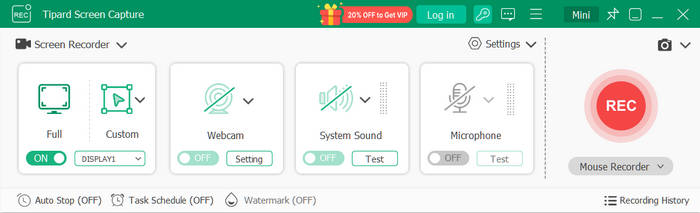
More than just a game recorder, Tipard Screen Capture is an all-in-one recording solution for gamers. You can use it to capture gameplay, record tutorials, save online videos, or create walkthroughs with clear audio and high-quality video. Whether you want to preserve your best gaming moments, share strategies, or record your screen for other purposes, Tipard lets you capture it all in one place.

- Record gameplay, full-screen activity, selected windows, or specific areas.
- Record in-game sounds and microphone input to create engaging gameplay videos and tutorials.
- Record smooth, clear videos with customizable recording settings.
- Capture online videos, software tutorials, presentations, and everyday desktop activities with one versatile tool.
Part 6. How to Delete Insights Capture
To uninstall the application from Windows 11:
- 1. Open Settings.
- 2. Select Apps > Installed apps.
- 3. Find Insights Capture in the application list.
- 4. Click the three-dot menu beside it, if available.
- 5. Select Uninstall and follow the prompts.
If the application does not appear in the list, open the Windows Start menu and search for its uninstaller. A commonly reported installation location is:
%LocalAppData%\Programs\Insights Capture V3
If that folder exists, look for Uninstall Insights Capture.exe and run it.
Conclusion
Insights Capture is a Windows gameplay recorder designed around automatic game detection, highlight review, and montage creation. It can be a reliables choice for gamers who want to keep memorable moments without manually managing every recording. Its main limitations are its Windows-only availability, possible game-detection issues, recording issues, and the need to verify whether its available settings match your requirements. However, for most users, Insights Capture is a powerful enough game recorder.

Record full screen, portion, window, game, and phone seamlessly without lag
100% Clean & Safe
100% Clean & Safe

More Reading


About the Author