

Free and open-source screen recorders are becoming popular for creating GIFs, tutorials, and quick demos. One of them is ScreenToGif. Curious about what it can offer? This review takes a closer look at its features, pros, cons, safety, and open source conditions. It also shows alternatives you can try if ScreenToGif does not fit your needs.
Part 1. Quick Glance at ScreenToGif
| Price | Free |
|---|---|
| License | Free and open source. |
| Platform | Windows 10 and Windows 11. |
| Developer | Nicke Manarin |
| Best for | Creating GIFs, short videos, tutorials, bug reports, and software demos. |
| Recording modes | Screen, webcam, and sketch board. |
| Export formats | GIF, APNG, WebP, MP4, WebM, PSD, PNG images, and project files. |
| Portable version | Yes |
| Built-in editor | Yes |
| Audio recording | No |
| Watermark | None |
| Ads | None |
| Show MoreShow Less | |
Part 2. Key Features of ScreenToGif
Impressively, ScreenToGif gives you useful editing tools, so you can finish your work without opening another program.
1. Three Recording Modes
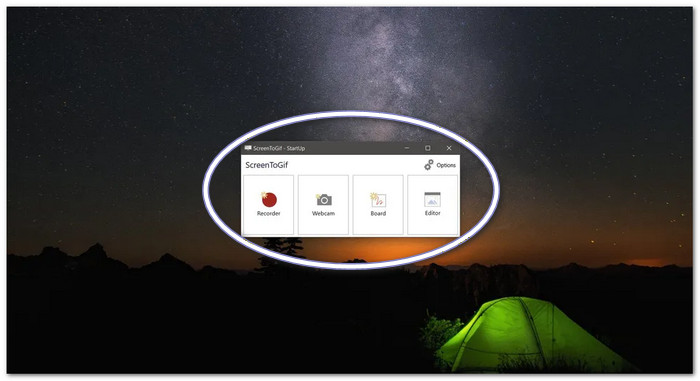
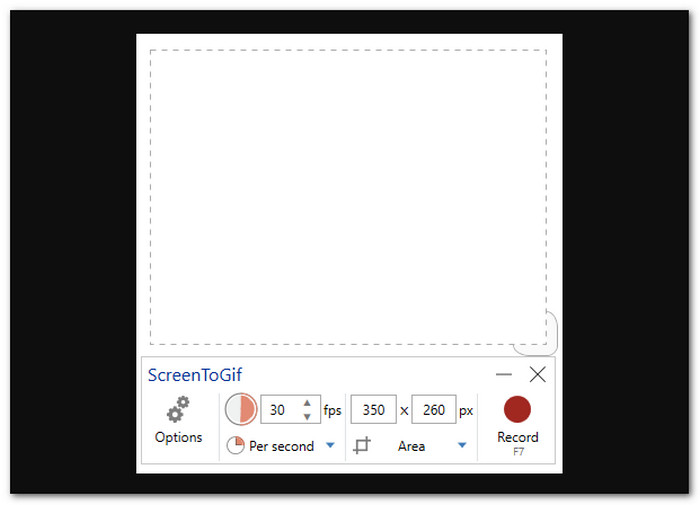
Record your screen, webcam, or digital sketch board. Pick the one that fits your task and start recording in seconds.
2. Built-in Frame Editor
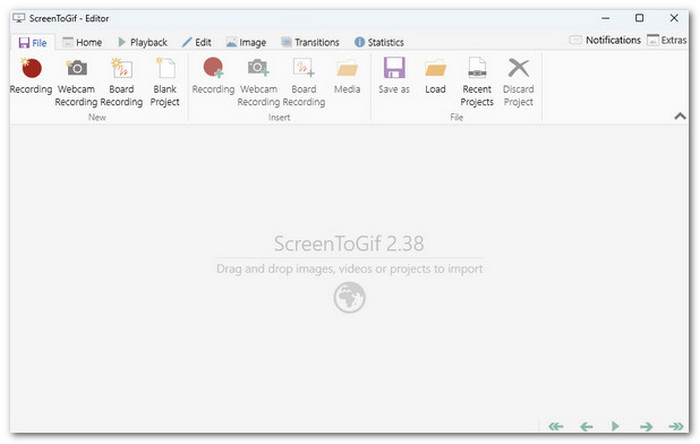
Edit every frame with ease. Delete unwanted frames. Crop the image. Resize it. Change the playback speed. Add text, arrows, drawings, captions, or title screens.
3. Export in Different Formats
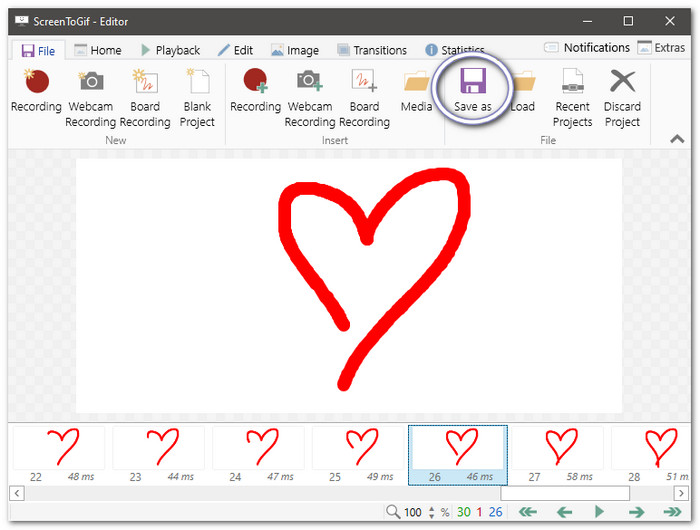
Save your project as a GIF, APNG, WebP, MP4, WebM, PNG images, PSD, or a ScreenToGif project file for later editing.
4. Mouse and Keyboard Effects
Show mouse clicks and keyboard presses in your recording. This feature is useful for tutorials and software guides.
5. No Watermark
Every export is clean. Your GIFs and videos stay free from watermarks.
6. Custom Recording Settings
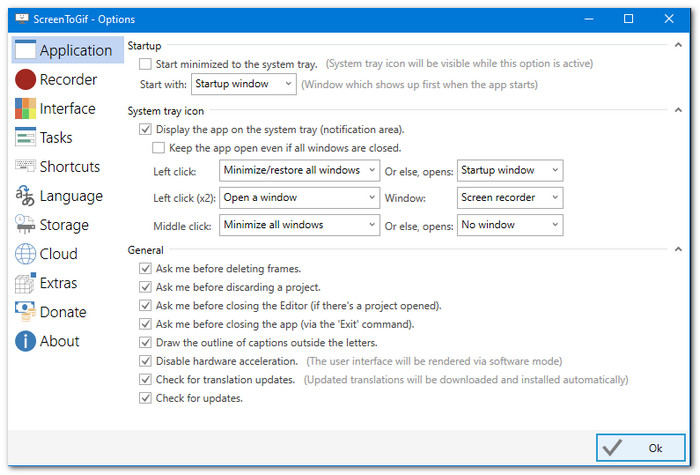
Adjust the frame rate, capture area, hotkeys, and other options to match your workflow.
Part 3. Master Review of ScreenToGif
ScreenToGif proves that free software can still be powerful. It combines screen recording and GIF editing into one lightweight program. That makes it a favorite for students, teachers, developers, content creators, and support teams.
What You Will Like
- Open-source and regularly updated.
- A ScreenToGif portable version is available.
- Three recording modes in one app.
- Powerful frame-by-frame editor.
- Supports many export formats.
- Mouse clicks and keyboard overlays are built in.
What You Might Not Like
- You can only download ScreenToGif on Windows.
- Cannot record the microphone or system audio.
- Long recordings can use more memory.
- The interface looks old compared to newer tools.
- Some editing tools are basic for advanced video work.
- A few Windows 7 users reported crashes.
Safety
Is ScreenToGif safe to use? It works mostly offline. It does not upload your recordings by default. That makes it widely trusted by many users. Download it only from the official website, Microsoft Store, GitHub, or other trusted sources to avoid modified copies.
Open-Source Conditions
As already mentioned above, ScreenToGif is free and open source under the Microsoft Public License (MS-PL). Its source code is available on ScreenToGif GitHub. Anyone can inspect the code, suggest improvements, or contribute to future updates. It also helps improve transparency and trust.
User Experience
Its integrated editor and user-friendly workflow are highly valued by many users. They appreciate that a single program offers every feature. Developers and technical writers use it to create tutorials and bug reports. It is also used by game developers to make quick GIFs of gameplay for social media and game pages.
Part 4. Top 3 Alternatives to ScreenToGif
1. Tipard Screen Capture
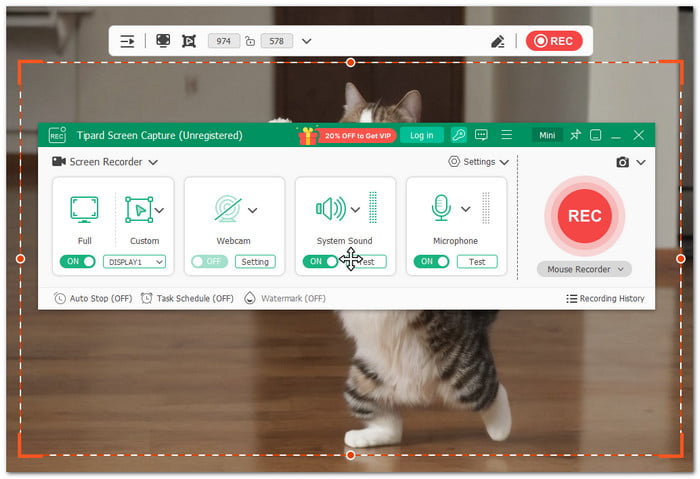
Tipard Screen Capture is a strong ScreenToGif alternative that gives users more recording freedom. It works on Mac with official support and downloads. It gives users more device options compared to ScreenToGif, which only supports Windows.
It can record high-end gaming videos with smooth quality and capture microphone or system audio for complete recordings. On top of that, it is very easy to use. It helps beginners record, edit, and save content quickly without complex steps.
- Record videos on iPhone and Android using your computer.
- Adds webcam video, keyboard keys, and mouse effects.
- Starts and stops recordings automatically with a schedule.
- Lets you draw, add text, and use a whiteboard while recording.
- Saves videos as MP4, WMV, MOV, AVI, TS, and GIF files.
- Needs a paid license to use all features.
2. ShareX
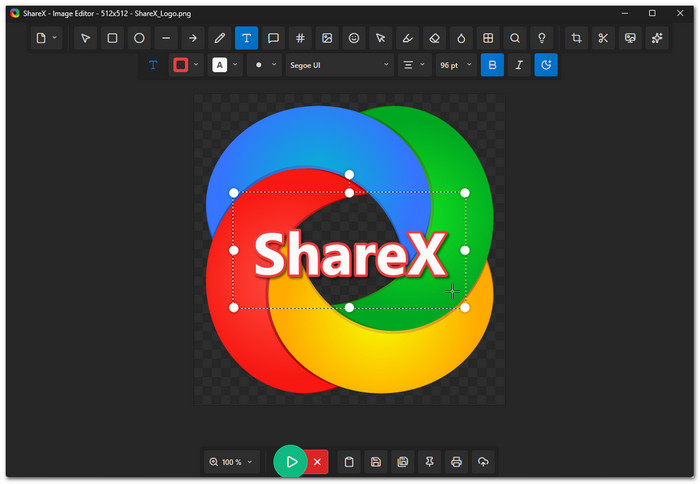
A complete capture program that goes beyond GIF creation, this ScrentoGif alternative combines screenshots, screen recording, file sharing, and productivity tools in one place. It lets users capture full screens, windows, regions, or scrolling pages. It also includes editing tools, upload options, and custom workflows.
- Free and open source.
- No ads or hidden costs.
- Supports GIF screen recording.
- Offers advanced capture options.
- Includes built-in editing and upload tools.
- It can feel complex for beginners.
- Too many features may feel overwhelming.
3. LICEcap
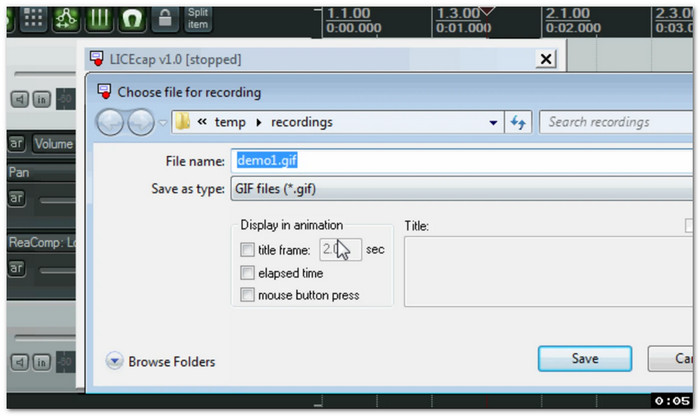
A simple recorder that focuses on creating quick animated captures. This ScreenToGif for Mac lets users select an area of the screen and save it directly as a GIF or its own LCF format. It can pause recordings, add text messages, show mouse clicks, and control frame rates to reduce system usage.
- Very small file size.
- Easy screen capture process.
- Supports GIF and LCF formats.
- Works on Windows and Mac.
- Allows pause and restart during recording.
- Limited editing tools.
- Fewer advanced features compared to ScreenToGif.
Tipard Screen Capture vs ShareX vs LICEcap
| Factors | Tipard Screen Capture | ShareX | LICEcap |
|---|---|---|---|
| Platform | Windows and Mac support | Windows only | Windows and macOS support |
| Screen Recording | Smooth screen and video recording | Advanced screen capture tools | Basic screen recording |
| Audio Recording | Records system and microphone audio | Limited audio recording support | No audio recording |
| Webcam Support | Adds webcam overlay while recording | Supports screen capture features | No webcam support |
| Video Quality | High-quality video recording | Good capture quality | Simple GIF quality |
| Editing Tools | Adds text, drawings, and effects | Includes image editing tools | Basic recording options |
| Watermark | No watermark | No watermark | No watermark |
| Export Formats | MP4, WMV, MOV, AVI, TS, GIF, and more | GIF and image formats | GIF and LCF formats |
| Show MoreShow Less | |||
Part 5. FAQs of ScreenToGif
How to use ScreenToGif?
From the main screen, choose the Recorder option. Next, adjust the recording area. Hit Record to start capturing your screen. Click Record to capture your screen. Press Stop when you are done. The video will open in the built-in editor. You can edit frames, make changes, and save the final file from the File menu.
Can ScreenToGif record webcam videos?
Yes. ScreenToGif has a built-in webcam recorder. You can capture camera videos and edit them using the same editor.
Can I use ScreenToGif without installing it?
Absolutely! ScreenToGif has a portable version. You can open and use it directly without a normal installation. It makes it easy to carry and use on different Windows computers.
Conclusion
ScreenToGif is a useful free tool for making GIFs, screen recordings, and simple tutorials. However, it does not have a ScreenToGif Mac version. Mac users can use Tipard Screen Capture as an alternative. It can capture screen and audio, and provides easy tools for creating clear, high-quality recordings.

Record full screen, portion, window, game, and phone seamlessly without lag
100% Clean & Safe
100% Clean & Safe

More Reading
About the Author


 Tipard Screen Capture