

Mac computers come with a wide range of useful services and features natively, such as screenshot and screen recording. However, the built-in apps are too limited and lack advanced features. The native screen recorder, for example, cannot capture your system sound. Fortunately, ScreenFlow Recorder can record the Mac screen and edit recordings in a single place. Before you install this app, read our unbiased review to make the best decision.
Part 1: What Is ScreenFlow
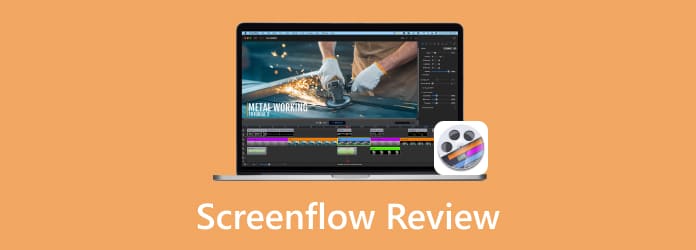
ScreenFlow is an all-in-one toolkit from Telestream for easily creating and publishing your content, with powerful capture and editing features. Compared to the built-in screen recorder, it delivers more advanced functionalities and pro-level video editing.
Key Features of ScreenFlow Screen Recorder
- Record Apple’s retina display smoothly.
- Export screen recordings up to 4K resolution.
- Include the multi-device iOS recording mode.
- Offer an impressive media library.
- Come with an advanced video editor.
- Edit audio, annotation, animation, and more on multi-channel.
- Organize and manage recording projects easily.
- Enrich videos with editable and publishable subtitles.
- Share screen recording to YouTube, Facebook, and more.
- Provide advanced features such as automatic background removal.
ScreenFlow Recording and Editing Software Pricing
ScreenFlow editing software is not freeware. The basic version costs $199 and includes features for screen recording and video editing. The Super Pak version costs $275. In addition to the features in the basic version, users can get the stock media library. The Super Pak+ version costs $325. Users can get the additional Premium Support.
Part 2: ScreenFlow Review
ScreenFlow screen recording application is powerful and useful; however, it is not perfect. We tested the app in our professional lab and collected hundreds of users’ reports. Here is our unbiased review:
- Integrate an intuitive interface and user-friendly design.
- Offer powerful screen recording and video editing features.
- Compatible with various screen sizes, aspect ratios, and devices.
- Provide collaboration tools, such as team projects.
- Capture audio from multiple sources.
- Include reworked filters and effects.
- Support popular video formats and codecs.
- Performance issues may occur when recording HD videos.
- Limited video editing options compared to professional software.
- Users report occasional bugs and glitches.
- Expensive compared to competitors.
- Only available on Mac.
Part 3: How to Use ScreenFlow Screen Recorder
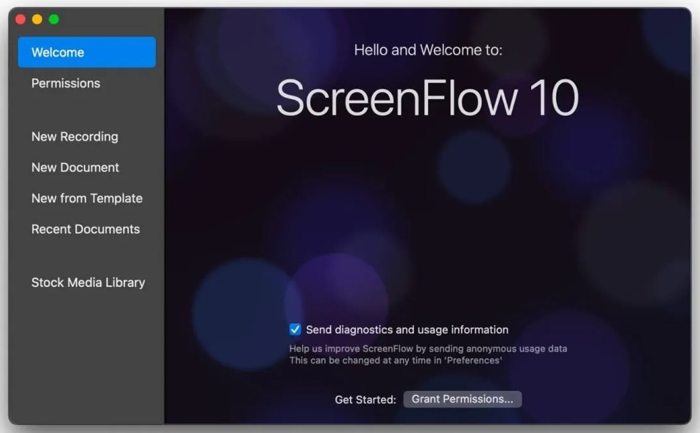
The latest version is ScreenFlow 10.5. You must install the app on your Mac and configure it correctly if you want to screen record smoothly and produce a high-quality recording result.
Step 1 Download the ScreenFlow editing software.
Step 2 Run it after you install the app.
Step 3 Go to the File menu, choose New, and New Document.
Step 4 Select the video file settings and click the Document button.
Step 5 Navigate to the File menu and choose Save As to save the new file as a video project.
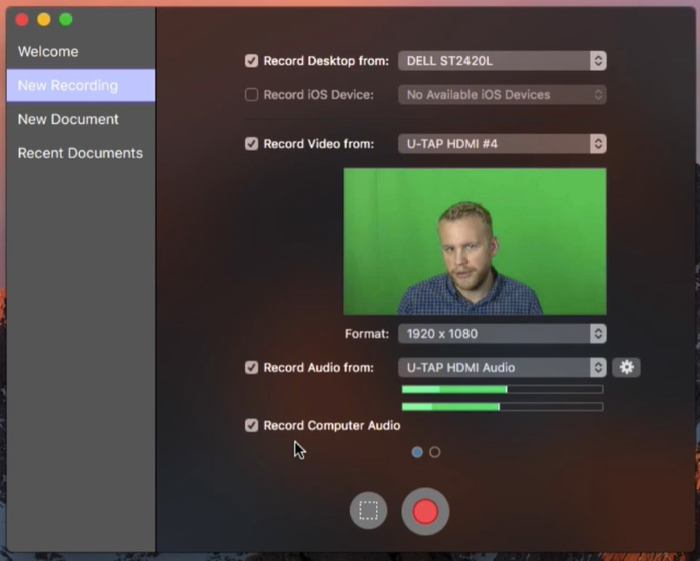
Step 6 Go to File, Add Additional Recording, and New Recording.
Step 7 Set the audio and video source accordingly.
Step 8 Click the REC button to start recording the Mac screen.
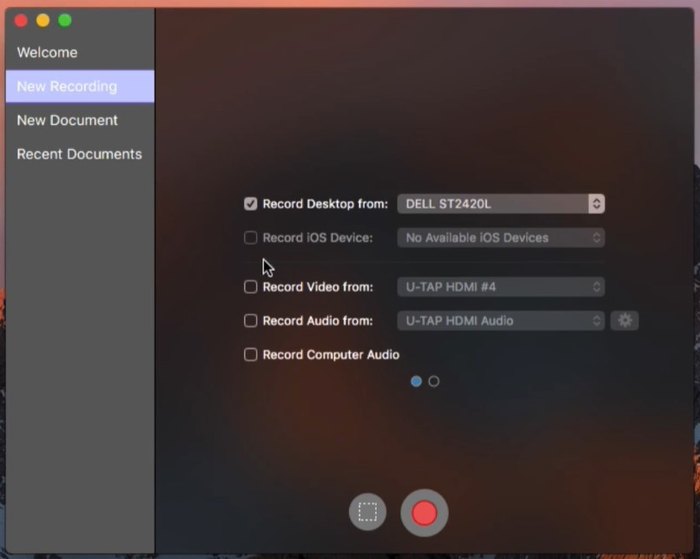
Step 9 When you want to finish, press Command + Shift + 2 keys.
Step 10 Select Add To Document, check Add Clip Directly to Timeline, then click OK.
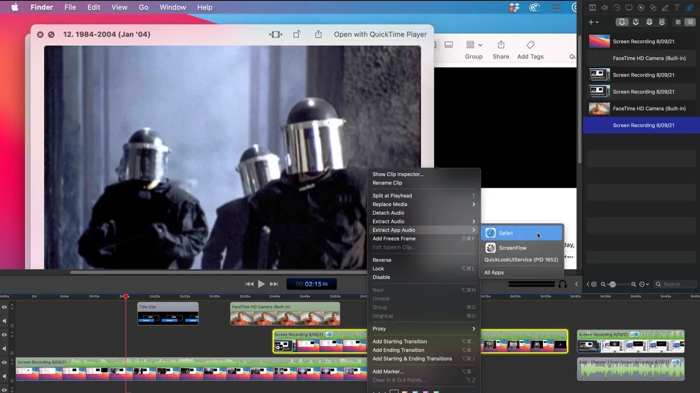
Step 11 Now, edit the recording on the timeline.
Part 4: ScreenFlow vs. Camtasia vs. Tipard Screen Capture
| ScreenFlow | Camtasia | Tipard Screen Capture | |
|---|---|---|---|
| Best for | Mac users who need Pro editing | Cross-platform teams | Quick and fast screen capture |
| Platform | macOS only | Windows and macOS | Windows 11/10/8/7 and macOS 10.13 or above |
| Recording quality | Up to 4K/60fps | Up to 4K/60fps | Up to 4K/60fps |
| Multi-track editing | Full | Full | No |
| Advanced effects | High-end | High-end | High-end |
| Stock media library | No | Quizzes, links | Audio library |
| Ease of use | Moderate | Easy | Very Easy |
| Price | Start at $199 | Start at $299 | $24 per month and $49 lifetime |
| Output formats | MP4, MOV, GIF, etc. | MP4, AVI, WMV, GIF, and more | Over 500 formats and device presets |
| Video editing | Edit video, audio, and text on multi-track | Edit recordings on the timeline | Trim, cut, watermark video, correct color, and more |
| Show MoreShow Less | |||
Final Verdict
If you are a Mac-exclusive user and need a professional recording and editing suite with advanced audio editing or iOS recording, ScreenFlow is a superb option.
If you or your team works on both Windows and Mac, Camtasia and Tipard Screen Capture are available for both platforms. To create training materials, tutorials, or corporate videos that require interactive elements, Camtasia is the right choice.
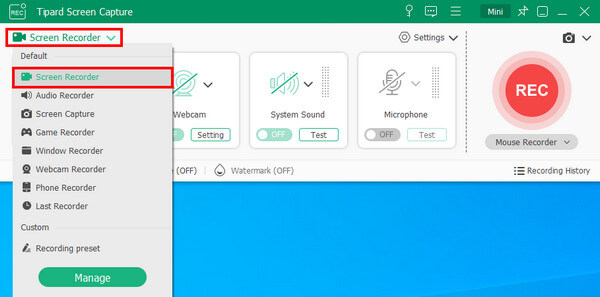
If you need a lightweight screen recorder with basic video editing capabilities, Tipard Screen Capture offers great value for money. It is the right choice for occasional, simple screen recordings. However, it is not a replacement for ScreenFlow or Camtasia.
Conclusion
Now, you should learn what ScreenFlow recorder is, what it can do, its strengths and weaknesses, and other necessary information. Plus, you can learn the basic workflow for recording your screen on a Mac and editing the video. Besides, we compared ScreenFlow, Camtasia, and Tipard Screen Capture to help you make a better decision.

Record full screen, portion, window, game, and phone seamlessly without lag
100% Clean & Safe
100% Clean & Safe

More Reading



About the Author

 Click here to join the discussion and share your comments

 Tipard Screen Capture