

- Part 1. Does Firefox Have a Pre-Built Screen Recorder
- Part 2. Top 5 Firefox Screen Recorder Extensions
- Part 3. Why Firefox Screen Recording May Have Audio Limitations
- Part 4. Professional Firefox Screen Recorder with Seamless Audio
- Part 5. Firefox Screen Recorder Extension vs. Desktop Tool
- Part 6. FAQs about the Best Firefox Screen Recorder
Key Takeaways
- Firefox can only offer a pre-built screenshot, not a recorder.
- To record the screen, you can use various screen recorder extensions.
- If you need a professional Firefox screen recorder, it would be best to use Tipard Screen Capture.
Looking for the best Firefox screen recorder? Well, you know Firefox doesn't have a built-in screen recorder. But the good news is that there are various extensions you can rely on to capture your screen, create tutorials, or record videos effectively. In this post, we will explore the best extensions you can use, along with their features. You will also discover a professional-grade recorder to improve your recordings. So, to learn everything about the screen recorders for Firefox, check this post right away!
- Part 1. Does Firefox Have a Pre-Built Screen Recorder
- Part 2. Top 5 Firefox Screen Recorder Extensions
- Part 3. Why Firefox Screen Recording May Have Audio Limitations
- Part 4. Professional Firefox Screen Recorder with Seamless Audio
- Part 5. Firefox Screen Recorder Extension vs. Desktop Tool
- Part 6. FAQs about the Best Firefox Screen Recorder
Part 1. Does Firefox Have a Pre-Built Screen Recorder
Wondering if Firefox can offer a built-in screen recorder? Well, sad to say, the browser doesn't support a screen recorder. It can only offer its screenshot feature, ideal for capturing visible areas, webpages, and selections. So, if you want to record your screen in Firefox, the best option is to use a reliable screen recording extension. This way, you can capture and record anything you come across while browsing.
Part 2. Top 5 Firefox Screen Recorder Extensions
Want to begin exploring the screen recorder extensions for Firefox? If so, read everything in this section and learn more.
1. Nimbus Screenshot and Screen Video Recorder
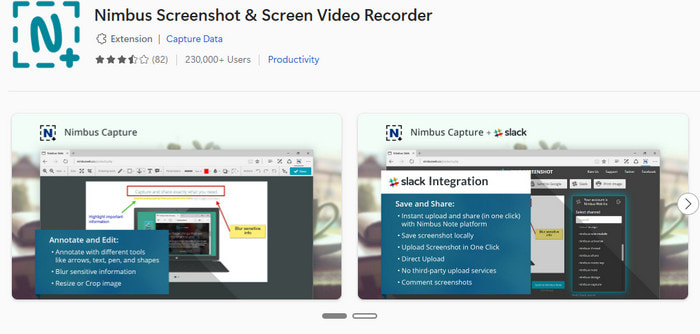
Nimbus is one of the most reliable extensions you can use in Firefox to record your screen. It lets you capture a browser tab, desktop, and webcam. It can even let you trim your recording to remove unnecessary parts. The best part here is that it is free to use, making it more accessible to all users.
Key Features:
- It has a smooth recording process.
- It can offer built-in trimming and basic video editing tools.
- The extension integrates with cloud storage services like Google Drive.
2. Loom for Firefox
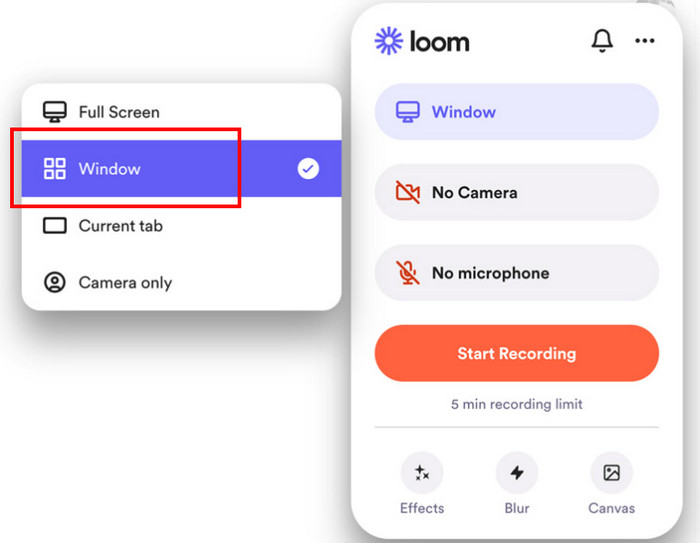
To record screens on Firefox, you can also use Loom. This extension is a cloud-based recorder that lets you record your screen, microphone, and camera simultaneously. What makes it reliable is its capability to save video and offer a shareable link for easy sharing. It is also a free screen recorder that lets you capture everything without spending a penny. Thus, always use the Loom Screen Recorder extension for Firefox.
Key Features:
- AI powers it for automatic transcripts.
- It can provide shareable links.
3. Awesome Screen Recorder & Screen Capture
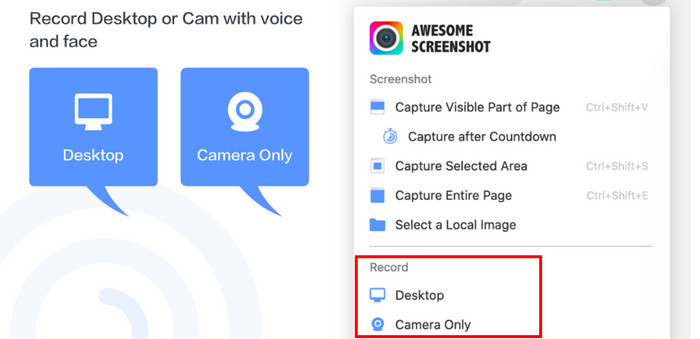
Awesome Screen Recorder for Firefox is perfect if you need a screen recorder and screenshot tool. It can record any part of your screen, such as the tab, webcam, or a specific region. It can also offer a shareable link after the recording process and send it directly to Jira or GitHub platforms.
Key Features:
- Direct sharing is possible.
- The extensions support webcam overlay.
- Record custom regions or the full window.
4. Screen Recorder by Alexey Kuznetsov
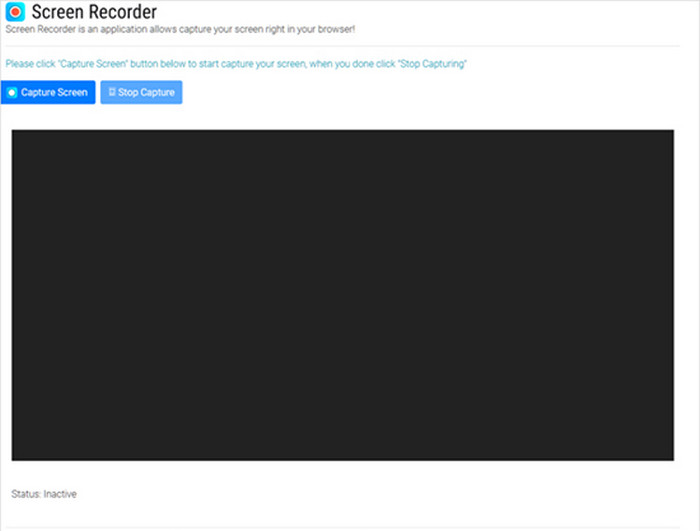
This is a free-to-use extension you can access on Firefox. It focuses on doing one thing. It can record your screen and save the recording without encountering any watermark. It also has no time limits, making it ideal for capturing lengthy content. With this online screen recorder, you can capture any content without issue.
Key Features:
- The tool can adjust video and audio quality settings.
- It doesn't require an account.
- No time limit and watermark.
5. ScreenApp

Another screen recorder addon for Firefox is ScreenApp. This offers automatic cloud saving, making it easier to record and save videos without managing local files. The extension can also record full desktop, window, and tabs. Users also prefer this recorder for its neat interface and ability to display all past recordings.
Key Features:
- It can offer the recording history.
- The tool can automatically save the recordings to the cloud.
Part 3. Why Firefox Screen Recording May Have Audio Limitations
It is no coincidence that you have encountered some audio limitations on Firefox after using recorder extensions. Unlike Google Chrome, Firefox doesn't support the same API. Its extensions rely on a more general method that can record audio in some cases, but not across all systems. This is the reason why Firefox screen recorder extensions might record video smoothly while the audio comes out spotty or silent.
Part 4. Professional Firefox Screen Recorder with Seamless Audio
To screen record in Firefox, you can use various extensions to achieve your desired output. However, some of them can give you limitations. If you want to record content in Firefox, we suggest using Tipard Screen Capture. This professional recorder is better because it offers all the features you need for a better recording experience. You can record any tab, region, full webpage, webcam, and more. You can also use annotation tools, ideal for creating tutorials. Also, it ensures seamless, clear audio for a satisfying listening experience. It is also perfect for recording lengthy content and saving it with the best quality.
Key Features:
- The program can capture HDR content on Firefox and other browsers.
- It can offer basic editing tools to enhance recordings.
- It can customize the screen size based on your needs.
- The recorder supports webcam overlay.
To start recording in Firefox with Tipard, follow the steps below.
Step 1Download and launch Tipard Screen Capture. Use the clickable buttons below to access the recorder instantly.
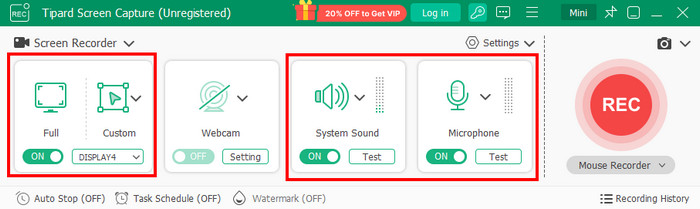
Step 2From the main interface, choose how you want to record the screen by clicking the Full or Custom option. You can also record the System Sound, Mic, and Webcam if you want to.
Step 3After selecting the content you want to record in Firefox, click the REC button to start recording.
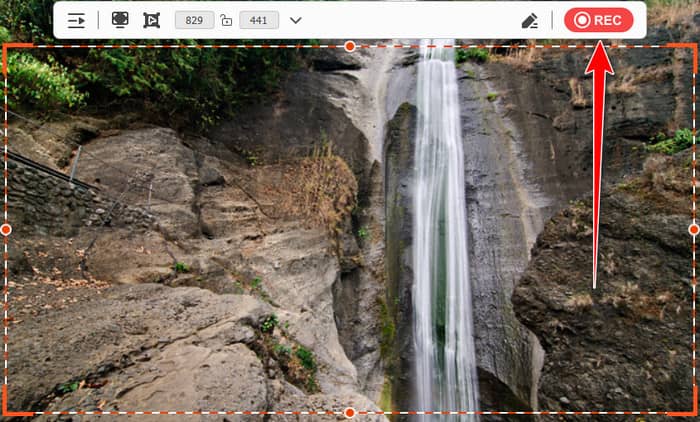
To finish recording your screen, click Stop.
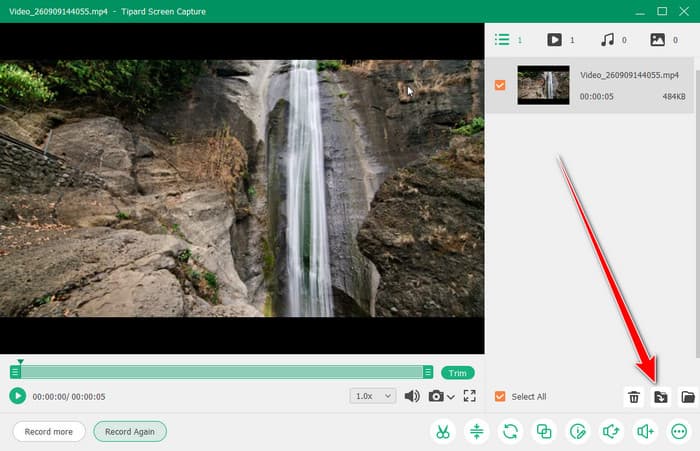
Step 4After showing the preview, hit the Export button to start saving the recording on your device.
Part 5. Firefox Screen Recorder Extension vs. Desktop Tool
If you want to see the differences between screen recorder extensions and desktop-based recorders, see the table below.
| Desktop Recorder | vs. | Screen Recorder Extension |
|---|---|---|
| Requires downloading and installing separate software. | Setup | Install in seconds from Firefox Add-ons, no separate app needed. |
| Full system and multi-source audio mixing support. | Audio Quality | Limited: System/tab audio capture is inconsistent across OS. |
| Full desktop, multiple apps, or specific windows beyond the browser. | Recording Scope | Browser tab or window only, can't capture outside the browser. |
| Advanced editing, transitions, and export options built in. | Editing Features | Basic trimming; advanced editing is often locked behind paid tiers. |
| More resource-intensive but generally more stable for long recordings. | Performance | Lightweight, but it can lag on longer or high-res recordings. |
Part 6. FAQs about the Best Firefox Screen Recorder
Are Firefox screen recorder extensions free?
Some of the recorder extensions are free to use. However, you must know that some of them have limitations that can make the recording process less engaging.
What are the best recorders for Firefox?
There are various recorders you can use to record content in Firefox. Some of them are Tipard Screen Capture, Movavi Screen Recorder, Bandicam, OBS, and more.
Which is recommended, a Firefox extension or a desktop screen recorder?
It depends on your needs. If you need a fast setup, you can rely on extensions. But if you want better video and audio recording that also captures everything on your screen, it is better to use a desktop-based recorder.
Conclusion
If you want the best screen recorder extensions for Firefox, you can use all the recorders we have introduced in this post. We even added their features to give you more insights about their capabilities. However, you must know that some extensions can give you audio limitations. So, if you want a professional screen recorder for Firefox, always use Tipard Screen Capture. This screen recorder ensures a smooth recording process, enjoyable features, and high-quality output options, resulting in better video playback.

Record full screen, portion, window, game, and phone seamlessly without lag
100% Clean & Safe
100% Clean & Safe

More Reading




About the Author

 Click here to join the discussion and share your comments
 Tipard Screen Capture